Note
You're reading the documentation for a development version. For the latest released version, please have a look at Lyrical.
Learning about parameters - tutorial
Parameters are configuration values that let nodes change behavior without changing code. In this article, you will use Turtlesim and command-line tools to inspect, set, save, and reload ROS parameters. After you follow these steps, you will be able to configure node behavior at runtime and from a YAML file.
Parameters are configuration values stored by each node in the ROS graph.
This article walks you through using the ros2 param command-line tools to inspect, change, save, and reload parameters.
A hands-on exercise with Turtlesim shows how parameters control node behaviour at runtime.
Area: Framework | Content-type: tutorial | Experience: beginner
Summary
Each node in the ROS graph stores its own set of configuration values, called parameters.
Use the ros2 param commands to get, set, save, and reload parameter values at runtime.
For more information, see About parameters.
Prerequisites
You will need the turtlesim package.
Steps
Note
Do not forget to source ROS in every new terminal you open.
For more information, see Configuring environment.
1 Setup
Start up the two Turtlesim nodes, /turtlesim and /teleop_turtle.
Open a new terminal and run:
$ ros2 run turtlesim turtlesim_node
Open another terminal and run:
$ ros2 run turtlesim turtle_teleop_key
2 View the list of parameters for your nodes
To see the parameters belonging to your nodes, open a new terminal and run:
$ ros2 param list
You should see output similar to:
/teleop_turtle:
  qos_overrides./parameter_events.publisher.depth
  qos_overrides./parameter_events.publisher.durability
  qos_overrides./parameter_events.publisher.history
  qos_overrides./parameter_events.publisher.reliability
  scale_angular
  scale_linear
  use_sim_time
/turtlesim:
  background_b
  background_g
  background_r
  qos_overrides./parameter_events.publisher.depth
  qos_overrides./parameter_events.publisher.durability
  qos_overrides./parameter_events.publisher.history
  qos_overrides./parameter_events.publisher.reliability
  use_sim_time
The output groups the parameters under each node name, /teleop_turtle and /turtlesim.
The namespace and name of a parameter are separated by dots, as in parameter_events.publisher.depth.
Before you continue, notice the following parameters:
use_sim_time: Specifies whether the node uses simulated time or the computer’s clock.background_r,background_g, andbackground_b: Define the RGB values for the background colour of the Turtlesim window
3 Identify the type and value of a parameter
To display the type and current value of a parameter, use the following command:
$ ros2 param get <node_name> <parameter_name>
You can also query a parameter across all nodes by omitting the node name:
$ ros2 param get <parameter_name>
To find out the current value of /turtlesim’s parameter background_g, run:
$ ros2 param get /turtlesim background_g
The terminal returns:
Integer value is: 86
This tells you background_g holds an integer value.
Running the same command on background_r and background_b should return the values 69 and 255, respectively.
You can also omit the node name.
As an example, you can try querying use_sim_time, because every node has it:
$ ros2 param get use_sim_time
The command displays the value for each node that has that parameter.
Note
Omitting the node name works only on Lyrical, Rolling, and later distributions.
On earlier distributions, ros2 param get requires both a node name and a parameter name.
4 Change a parameter value at runtime
To change a parameter’s value at runtime, use the following command:
$ ros2 param set <node_name> <parameter_name> <value>
Change /turtlesim’s background colour:
$ ros2 param set /turtlesim background_r 150
The terminal returns:
Set parameter successful
The background of the Turtlesim window should change colour, like this:
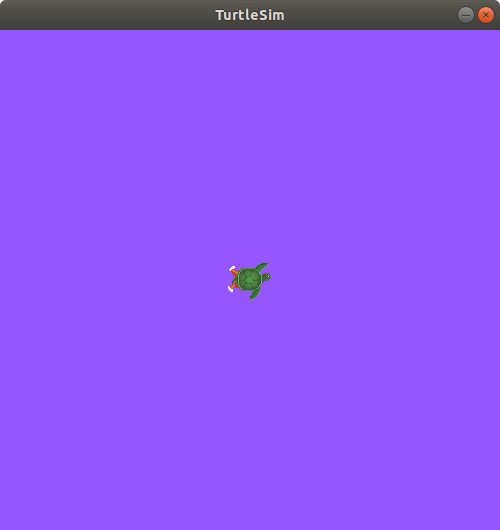
Setting parameters with the set command will only change them in your current session, not permanently.
However, you can save your settings and reload them the next time you start a node.
See dumping parameters and loading a parameter file on node startup.
5 Save the parameters of a node to a file
You can save parameters of a node to a file. This comes in handy if you want to reload the node with the same parameters in the future. Use the following command:
$ ros2 param dump <node_name>
The command prints to the standard output (stdout) by default, but you can also redirect the parameter values into a file to save them for later.
To save your current configuration of /turtlesim’s parameters into the file turtlesim.yaml, run:
$ ros2 param dump /turtlesim > turtlesim.yaml
A new file is created in the current working directory.
Open the file to view the following content:
/turtlesim:
  ros__parameters:
    background_b: 255
    background_g: 86
    background_r: 150
    qos_overrides:
      /parameter_events:
        publisher:
          depth: 1000
          durability: volatile
          history: keep_last
          reliability: reliable
    use_sim_time: false
6 Load node parameters from a file
You can load parameters from a file to a currently running node using the following command:
$ ros2 param load <node_name> <parameter_file>
To load the turtlesim.yaml file generated with ros2 param dump into /turtlesim node’s parameters, run:
$ ros2 param load /turtlesim turtlesim.yaml
The terminal returns:
Set parameter background_b successful
Set parameter background_g successful
Set parameter background_r successful
Set parameter qos_overrides./parameter_events.publisher.depth failed: parameter 'qos_overrides./parameter_events.publisher.depth' cannot be set because it is read-only
Set parameter qos_overrides./parameter_events.publisher.durability failed: parameter 'qos_overrides./parameter_events.publisher.durability' cannot be set because it is read-only
Set parameter qos_overrides./parameter_events.publisher.history failed: parameter 'qos_overrides./parameter_events.publisher.history' cannot be set because it is read-only
Set parameter qos_overrides./parameter_events.publisher.reliability failed: parameter 'qos_overrides./parameter_events.publisher.reliability' cannot be set because it is read-only
Set parameter use_sim_time successful
Note
Read-only parameters can only be modified at startup and not afterwards, which is why there are some failed warnings for the qos_overrides parameters.
7 Load parameter file on node startup
To start the same node using your saved parameter values, use:
$ ros2 run <package_name> <executable_name> --ros-args --params-file <file_name>
This is the same command used to start Turtlesim, with the added flags --ros-args and --params-file, followed by the file you want to load.
Stop your running Turtlesim node, and try reloading it with your saved parameters:
$ ros2 run turtlesim turtlesim_node --ros-args --params-file turtlesim.yaml
The Turtlesim window should appear as usual, but with the purple background you set earlier.
Note
When a parameter file is used at node startup, all parameters are updated, including the read-only ones.
FAQs
- What types can a parameter hold?
Parameters can be integers, floats, booleans, strings, and lists.
- Do parameter changes persist after a node is restarted?
No. Changes made with
ros2 param setapply only to the current session. To persist them, useros2 param dumpto save the values to a YAML file and load that file when starting the node.- Why do some parameters fail to load with
ros2 param load? Parameters marked as read-only can only be set at node startup, not at runtime. The
qos_overridesparameters are read-only, which is why they showfailedmessages when loading a parameter file into a running node.- What is the difference between
ros2 param dumpandros2 param load? ros2 param dumpsaves a node’s current parameter values to a YAML file.ros2 param loadreads a YAML file and applies the values to a currently running node.