Note
You're reading the documentation for a development version. For the latest released version, please have a look at Lyrical.
Setting up Turtlesim - how-to
Turtlesim is a lightweight simulator that helps beginners explore basic ROS concepts before working with real robots or larger simulations.
In this article, you will learn how to install and run turtlesim, use the ros2 command-line tool, and interact with ROS through rqt.
After you follow these steps, you will be able to control turtles, call services, and remap topics and actions in the turtlesim simulator.
Turtlesim is a simple simulator to demonstrate core ROS concepts without any hardware. This article walks you through installation of Turtlesim and the rqt GUI. A short exercise provides you with basic experience with these tools.
Area: Framework | Content-type: how-to | Experience: beginner
Summary
Turtlesim is a lightweight simulator for learning ROS basics.
Install the package ros-rolling-turtlesim.
The rqt tool is a graphical interface for interacting with ROS.
Install the package ros-rolling-rqt.
Prerequisites
Before you start, make sure ROS is installed and your environment is configured.
To learn how to set up your environment, see Setting up your environment - how-to.
Steps
Note
Do not forget to source ROS in every new terminal you open. See Configuring environment.
1 Install Turtlesim
Turtlesim is a lightweight simulator that represents a robot as a turtle you can control on the screen. It lets you practice core ROS concepts without the need for any real hardware.
Install the Turtlesim package for your ROS distribution:
$ sudo apt update
$ sudo apt install ros-rolling-turtlesim
$ sudo dnf install ros-rolling-turtlesim
As long as the archive you installed ROS from contains the ros_tutorials repository, you should already have Turtlesim installed.
As long as the archive you installed ROS from contains the ros_tutorials repository, you should already have Turtlesim installed.
To check if the package is installed, run:
$ ros2 pkg executables turtlesim
The output should list Turtlesim’s executables:
turtlesim draw_square
turtlesim mimic
turtlesim turtle_teleop_key
turtlesim turtlesim_node
2 Start turtlesim
To start turtlesim, enter the following command in your terminal:
$ ros2 run turtlesim turtlesim_node
[INFO] [turtlesim]: Starting turtlesim with node name /turtlesim
[INFO] [turtlesim]: Spawning turtle [turtle1] at x=[5.544445], y=[5.544445], theta=[0.000000]
Under the command, you will see messages from the node. There you can see the default turtle’s name and the coordinates where it spawns.
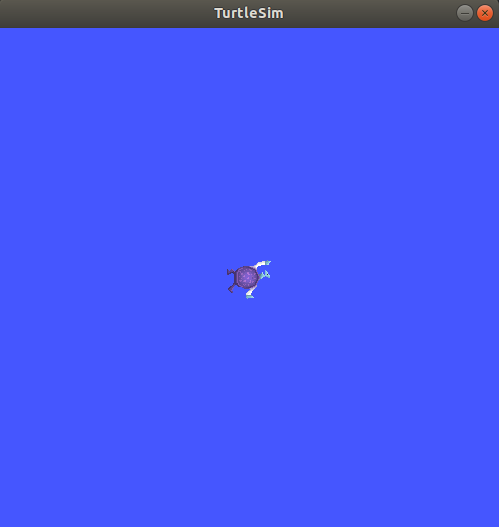
The simulator window should appear, with a random turtle in the center.
3 Use turtlesim
Open a new terminal and source ROS 2 again.
Now you will run a new node to control the turtle in the first node:
$ ros2 run turtlesim turtle_teleop_key
At this point you should have three windows open: a terminal running turtlesim_node, a terminal running turtle_teleop_key and the turtlesim window.
Arrange these windows so that you can see the turtlesim window, but also have the terminal running turtle_teleop_key active so that you can control the turtle in turtlesim.
Use the arrow keys on your keyboard to control the turtle. It will move around the screen, using its attached “pen” to draw the path it followed so far.
Note
Pressing an arrow key will only cause the turtle to move a short distance and then stop. This is because, realistically, you wouldn’t want a robot to continue carrying on an instruction if, for example, the operator lost the connection to the robot.
You can see the nodes, and their associated topics, services, and actions, using the list subcommands of the respective commands:
$ ros2 node list
$ ros2 topic list
$ ros2 service list
$ ros2 action list
You will learn more about these concepts in the coming tutorials.
Since the goal of this tutorial is only to get a general overview of turtlesim, you will use rqt to call some of the turtlesim services and interact with turtlesim_node.
4 Install rqt
Open a new terminal to install rqt and its plugins:
2 Install rqt (recommended)
^^^^^^^^^^^^^^^^^^^^^^^^^^^
The rqt tool is a graphical interface for ROS. Instead of typing commands by hand, you can use rqt to explore and call Turtlesim’s services with a few clicks. For more information about rqt, see Overview and using RQt.
In a new terminal, install rqt and the common plugins:
$ sudo apt update
$ sudo apt install ros-rolling-rqt ros-rolling-rqt-common-plugins
$ sudo dnf install 'ros-rolling-rqt*'
The standard archive for installing ROS on macOS contains rqt and its plugins, so you should already have rqt installed.
The standard archive for installing ROS on Windows contains rqt and its plugins, so you should already have rqt installed.
To check if the packages are installed, in a terminal, run:
$ ros2 pkg list | grep -E '^rqt_gui$|^rqt_common_plugins$'
The output should include:
rqt_common_plugins
rqt_gui
Note
If the packages do not appear in the list, make sure you have sourced ROS in the current terminal.
3 Try out Turtlesim with rqt
The following example uses rqt but you can also operate Turtlesim by entering the same commands in the command line.
Start Turtlesim:
$ ros2 run turtlesim turtlesim_node
[INFO] [turtlesim]: Starting turtlesim with node name /turtlesim
[INFO] [turtlesim]: Spawning turtle [turtle1] at x=[5.544445], y=[5.544445], theta=[0.000000]
The simulator window opens with a random turtle in the center.
In a new terminal, source ROS again and start keyboard teleoperation:
$ ros2 run turtlesim turtle_teleop_key
Keep the
turtle_teleop_keyterminal active and use arrow keys to move the turtle.Note
Pressing an arrow key causes the turtle to move a short distance and then stop. This behaviour ensures a robot doesn’t continue carrying on an instruction if, for example, the operator loses connection to the robot.
(Optional) List the active nodes, topics, services, and actions. This will help you verify what is currently running and available.
In a new terminal, source ROS again, then run:
$ ros2 node list
$ ros2 topic list
$ ros2 service list
$ ros2 action list
ros2 node listshows the nodes currently running in the system.ros2 topic listshows the topics through which nodes exchange data.ros2 service listshows the services nodes expose for request-response interactions.ros2 action listshows the actions available for long-running tasks such as rotating the turtle.Start rqt:
$ rqtIn rqt, select Plugins > Services > Service Caller.
Note
It may take some time for rqt to locate all the plugins. If you click on Plugins but don’t see Services or any other options, close rqt and enter the command
rqt --force-discoverin your terminal.Note
You might need to select the Refresh Service button to the left of the Service drop-down.
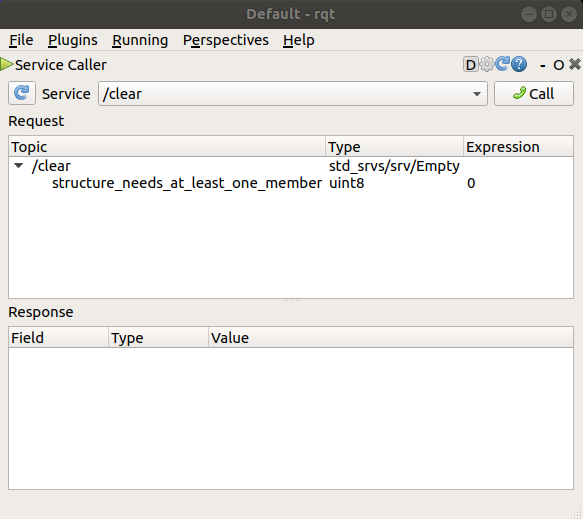
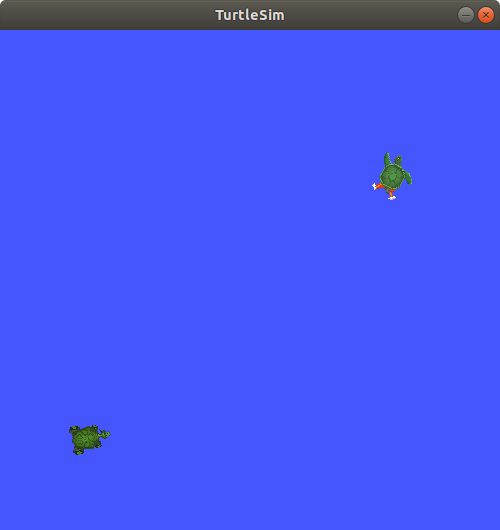
To spawn a second turtle, select the
/spawnservice, then enter:name=turtle2x=1.0y=1.0
Click Call.
Note
Each turtle needs a unique name. If you spawn a turtle with an existing name, you get an error message in the terminal that runs
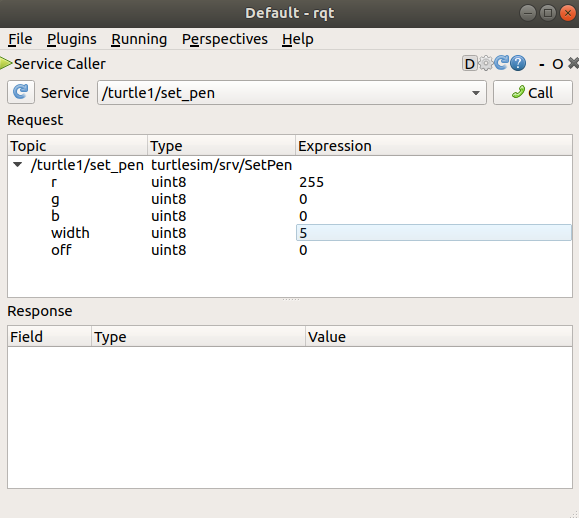
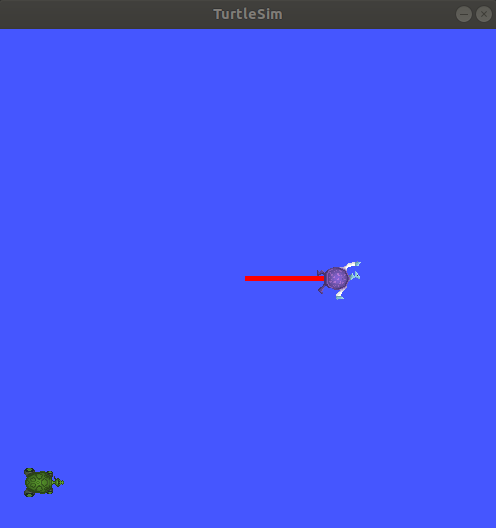
turtlesim_node:[ERROR] [turtlesim]: A turtle named [turtle1] already existsSet the turtle to draw a red, thicker line. Select the
/turtle1/set_penservice, then set:r=255width=5
Click Call, then use arrow keys in the teleoperation terminal to confirm the turtle draws a red, thicker line.
Set up a teleoperation node for
turtle2.By default,
turtle_teleop_keysends commands to topics and actions under theturtle1namespace. To controlturtle2instead, use the--remapoption to point those topics and actions at theturtle2namespace. This lets you reuse the same executable for a different turtle without changing any code.In a new terminal, run:
$ ros2 run turtlesim turtle_teleop_key --ros-args --remap turtle1/cmd_vel:=turtle2/cmd_vel --remap turtle1/rotate_absolute:=turtle2/rotate_absolute
- Now, you can move
turtle2when this terminal is active, andturtle1when the other terminal runningturtle_teleop_keyis active. Keep this new terminal active to move
turtle2. Continue using the original teleoperation terminal to moveturtle1.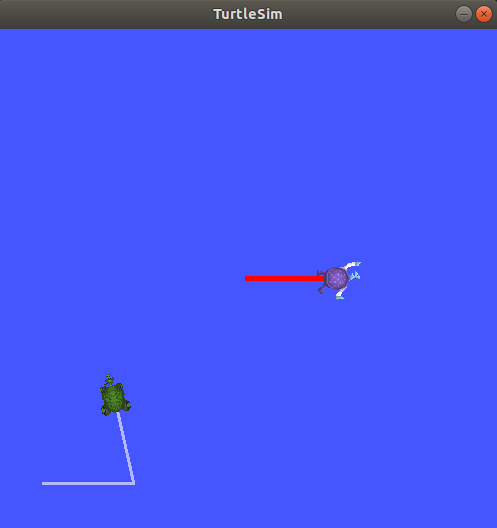
Close Turtlesim:
In the
turtlesim_nodeterminal, pressCtrl + C.In
turtle_teleop_keyterminals, pressq.
FAQs
- Do I need rqt to use Turtlesim?
No. You can use Turtlesim entirely from the command line. The rqt tool is recommended because it helps you visualize the instructions you send to the turtle.
- Why can I move only one turtle at a time?
Each
turtle_teleop_keyinstance controls one turtle namespace. To controlturtle2, run a second teleop node with topic and action remapping.- Why doesn’t the turtle move when I press the arrow keys?
The
turtle_teleop_keyterminal must be the active window for it to capture your key presses. Each press also moves the turtle only a short distance, so you need to press the keys repeatedly to keep the turtle moving.