Metal 除錯器#
效能剖析是效能最佳化的關鍵步驟。你可以在建置 MLX 時使用 MLX_METAL_DEBUG 選項,以改善 Metal 除錯與最佳化的工作流程。MLX_METAL_DEBUG 除錯選項會:
在 Metal 編譯期間記錄來源碼,以便稍後除錯時檢視。
為 Metal 物件(例如命令佇列)加上標籤,提升擷取內容的可讀性。
在 Python 中啟用除錯建置時,請在建置命令前加上 CMAKE_ARGS="-DMLX_METAL_DEBUG=ON"。
metal.start_capture() 函式會開始擷取所有 MLX GPU 工作。
備註
要擷取 GPU 追蹤,必須以 MTL_CAPTURE_ENABLED=1 執行應用程式。
import mlx.core as mx

a = mx.random.uniform(shape=(512, 512))
b = mx.random.uniform(shape=(512, 512))
mx.eval(a, b)

trace_file = "mlx_trace.gputrace"

# Make sure to run with MTL_CAPTURE_ENABLED=1 and
# that the path trace_file does not already exist.
mx.metal.start_capture(trace_file)

for _ in range(10):
  mx.eval(mx.add(a, b))

mx.metal.stop_capture()
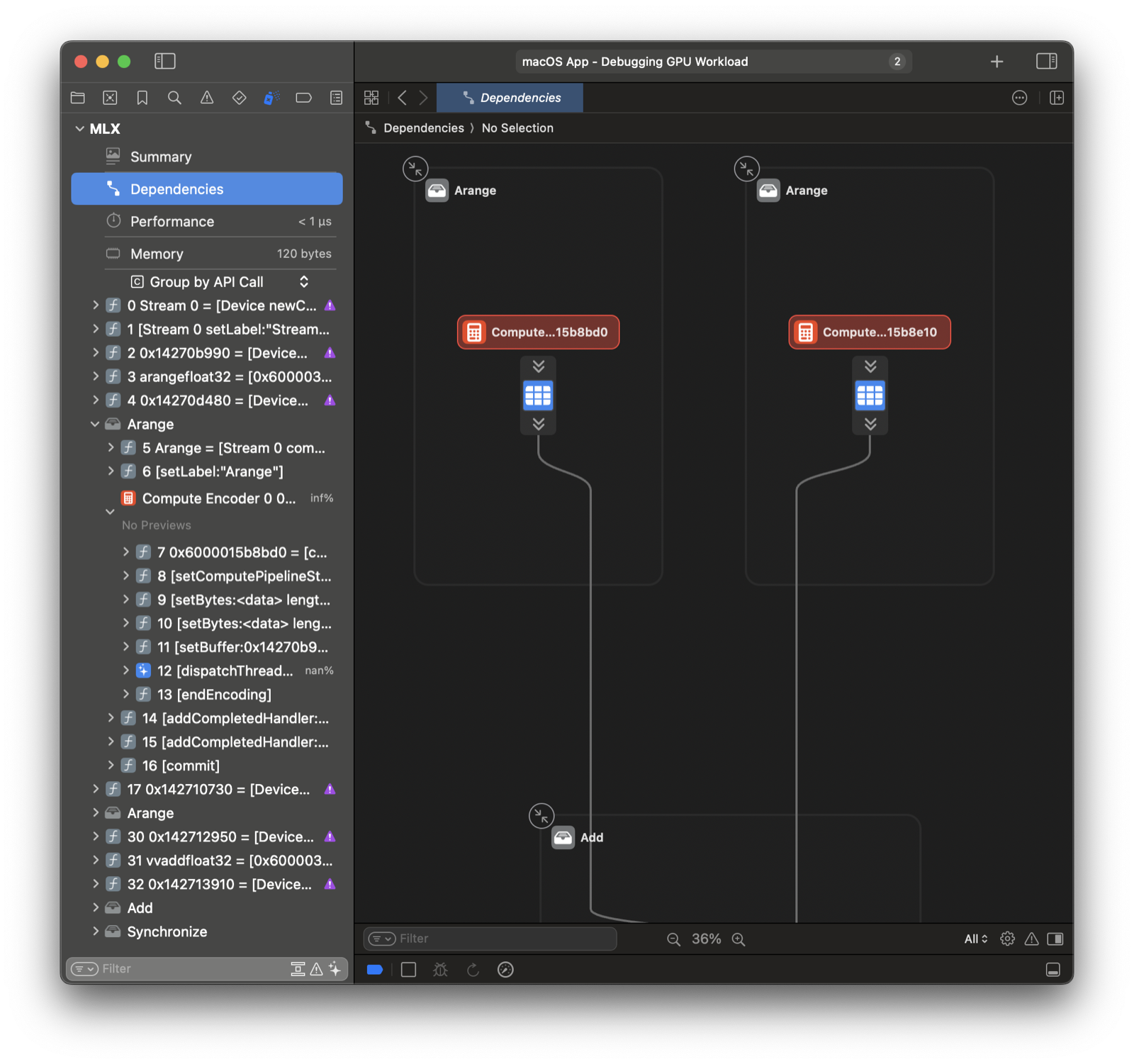
你可以在 Xcode 中開啟並重播 GPU 追蹤。Dependencies 檢視提供所有運算的完整概覽。更多資訊請參考 Metal debugger documentation。
Xcode 工作流程#
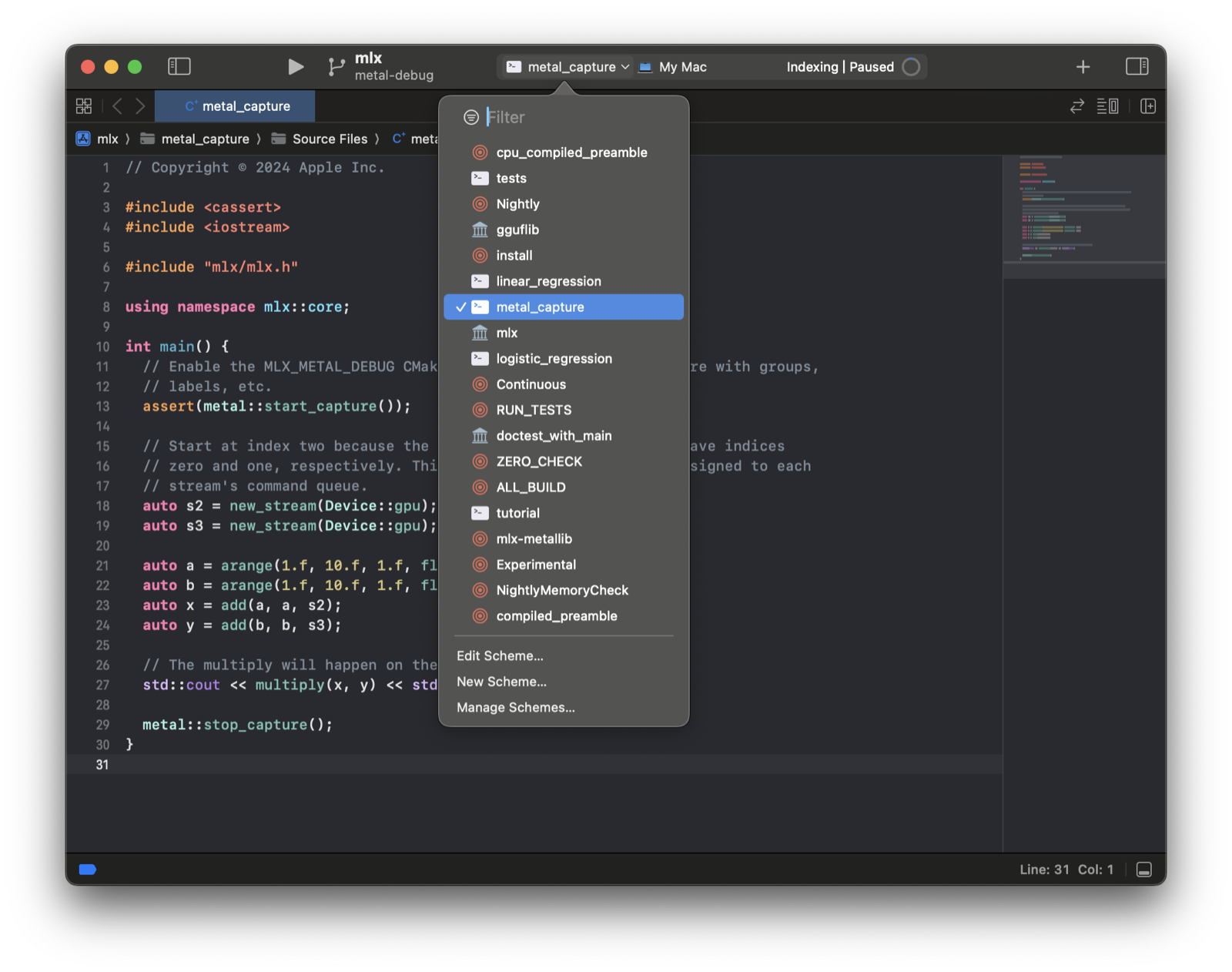
你可以直接在 Xcode 中執行而不必儲存到路徑。首先用 CMake 產生 Xcode 專案。
mkdir build && cd build
cmake .. -DMLX_METAL_DEBUG=ON -G Xcode
open mlx.xcodeproj
選擇 metal_capture 範例方案並執行。