Server side search
Read the Docs provides full-text search across all of the pages of all projects, this is powered by Elasticsearch.
也參考
- 搜尋查詢語法
Syntax options for searching Read the Docs projects
- Server side search API
Reference to the Server Side Search API
Search features
Read the Docs has the following search features:
- Search across subprojects
Subprojects allow you to host multiple discrete projects on a single domain. Every subproject hosted on that same domain is included in the search results of the main project.
- Search results land on the exact content you were looking for
We index every heading in the document, allowing you to get search results exactly to the content that you are searching for. Try this out by searching for "full-text search".
- Full control over which results should be listed first
Set a custom rank per page, allowing you to deprecate content, and always show relevant content to your users first. See search.ranking.
- Search across projects you have access to
Search across all the projects you have access to in your Dashboard. Don't remember where you found that document the other day? No problem, you can search across them all.
You can also specify what projects you want to search using the
project:{name}syntax, for example: "project:docs project:dev search". See 搜尋查詢語法.- Special query syntax for more specific results
We support a full range of search queries. You can see some examples at Special queries.
- Configurable
Tweak search results according to your needs using a configuration file.
- Ready to use
We override the default search engine of your Sphinx project with ours to provide you with all these benefits within your project. We fallback to the built-in search engine from your project if ours doesn't return any results, just in case we missed something 😄.
- API
Integrate our search as you like. See Server side search API.
- Analytics
Know what your users are searching for. See Search analytics
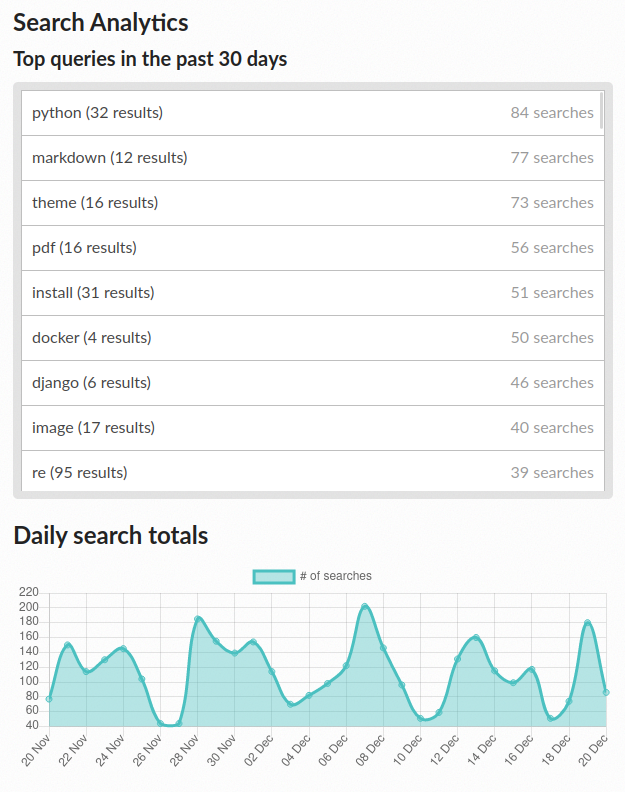
Search analytics demo. Read more in Search analytics.
Search as you type
Search as-you-type allows users to quickly find exactly what they are looking for while typing. It also saves recent searches, for future reference.
Try it by pressing / (forward slash) and typing.
How main content is detected
Server Side Search indexes the "main content" of HTML pages, ignoring headers, footers, navigation, and other page elements that aren't part of the documentation content itself. This keeps results focused and avoids repeated elements like nav menus from polluting relevance.
For details on how the main content area is detected, see Detection logic.