Introduction
This is the Redox OS book, which will go through (almost) everything about Redox: design, philosophy, how it works, how you can contribute, how to deploy Redox, and much more.
Please keep in mind that this book is work-in-progress and sometimes can be outdated, any help to improve it is important.
If you want to skip straight to trying out Redox, see the Getting started page.
If you want to contribute to Redox, read the following guides: CONTRIBUTING and Developing for Redox.
Conventions
Notices
The following notices are commonly used throughout the book to convey noteworthy information:
| Notice | Meaning |
|---|---|
| 🛈 Info | Provides neutral information to deliver key facts. |
| 📝 Note | Provides information to enhance understanding. |
| 💡 Tip | Offers suggestions to optimize an experience. |
| ⚠️ Warning | Highlights potential risks or mistakes. |
What is Redox?
Redox OS is a general-purpose operating system written in Rust. Our aim is to provide a fully functioning Unix-like microkernel-based operating system, that is secure, reliable and free.
We have modest compatibility with POSIX, allowing Redox to run many programs without porting.
We take inspiration from Plan 9, Minix, seL4, Linux, OpenBSD and FreeBSD. Redox aims to synthesize years of research and hard won experience into a system that feels modern and familiar.
This book is written in such a way that you don't require any prior knowledge of Rust or OS development.
Origin Story
Redox OS was created in 2015 before the first stable version (1.0) of the Rust compiler and was one of the first operating systems written in Rust. It started as an unikernel (without a hypervisor) and gathered the contributions of many Rust developers.
As the project progressed, Jeremy Soller decided that the OS should be focused on stability and security. To achieve that, Redox was redesigned to adopt a microkernel architecture and a unified system API for resources.
Minix and Plan 9 were the main inspirations for the system design in the beginning.
Introducing Redox OS
Redox OS is microkernel-based operating system, with a large number of supported programs and components, to create a full-featured user and application environment. In this chapter, we will discuss the goals, philosophy and scope of Redox.
- Our Goals
- Our Philosophy
- Why a New OS?
- Redox Use Cases
- Comparing Redox to Other OSes
- Why Rust?
- Side Projects
- Influences
- Hardware Support
- Important Programs
Our Goals
Redox is an attempt to make a complete, fully-functioning, general-purpose operating system with a focus on safety, freedom, stabillity, correctness, and pragmatism.
We want to be able to use it, without obstructions, as a complete alternative to Linux/BSD on our computers. It should be able to run most Linux/BSD programs with minimal modifications.
We're aiming towards a complete, stable, and safe Rust ecosystem. This is a design choice, which hopefully improves correctness and security (see the Why Rust page).
We want to improve the security design when compared to other Unix-like operating systems by using safe defaults and limiting insecure configurations where possible.
Complete Alternative to Linux/BSD
Redox has its own kernel, drivers and filesystem written in Rust. The driver implementations are complete for QEMU, and some hardware are known to work well. In terms of CPU architectures, Redox aims to have equal support for three major architectures: x86 (32 and 64 bit), ARM (64 bit) and RISC-V (64 bit).
Redox can run C, C++ and Rust programs with the aid of relibc, an almost POSIX-compliant C Standard Library written in Rust. Relibc has the goal to support most C, C++ and Rust based software. Many programs and libraries can be built and executed without any patches, some maybe need patches to workaround some functions, especially if it relies on non-POSIX functions.
Redox can also run GUI programs running on top of Orbital. C, C++ and Rust programs can draw windows with the help of orbclient and liborbital (our official Orbital client libraries).
Both system services and drivers are working well to run important programs. We aim to have more POSIX and Linux compatibility to port more programs and attract more users.
Rust Ecosystem
Rust officially supports Redox as both Tier II and Tier III platforms. The Rust community has accepted Redox-specific code for years. Some well-known Rust libraries (crates) that supports Redox are winit, nix, rustix, and many more. These crates are backed by either Rust's C Standard Library Bindings or a specific implementation of the Rust Standard Library. We upstream changes into these libraries as the system get new features.
Libraries using Rust libc are statically linked with relibc at compile-time. By this design choice, compiling any Rust program to Redox requires relibc available at linking time. While it seems like an inconvenience, it allows us to do quick development without having to push changes each time relibc is improved. To alleviate this "inconvenience", we have redoxer to allow developers to compile and test Rust programs into Redox without using our complete build system.
Security Design
The Redox kernel is a microkernel influenced by some operating systems, thus many system services have been moved from the kernel to userspace daemons or drivers. Both drivers and system services are normal programs in userspace with higher permissions in a special namespace which allows them to access hardware interrupts managed by the kernel.
All programs including the kernel, drivers and system services are talking to each other using an IPC system called "Scheme". Schemes live inside the /scheme filesystem directory and any program can access or create it using the standard file API. For more advanced usage software can use libredox and many other redox-* crates, detailed in another page.
Schemes are secured mainly by namespaces. One namespace is invisible to another one. In case of programs talking to each other in the same namespace, the kernel and drivers use caller user ID or group ID, similar to Linux having sudo, but we're about to change it into Capability-based security in the near future.
The non-goals of Redox
We are not a Linux/BSD replacement, clone, or fully POSIX-compliant, nor crazy scientists who wish to redesign everything. Generally we stick to well-tested and proven correct designs: If it's not broken, don't fix it.
It means that a large number of programs and libraries will be compatible with Redox. Some things that do not align with our design decisions will have to be ported.
The key here is the trade off between correctness and compatibility. Ideally, you should be able to achieve both, but unfortunately, you can't always do so.
Software Ports That Are Non-Goals
Redox aims to support most software, especially that which is important. Software that is not ported is either:
- Not open source or libre, or known to have legal problems
- No longer maintained (depending on importance we can fork and maintain it) or there's a better alternative
- Only using non-portable APIs like the Linux kernel or Windows
- Has a lack of users and maintainers
- The program language compiler lacks Redox support
A well known example of software being too complicated to port is Chromium as it's heavily tuned to use OS-specific function calls and doesn't accept OS support beyond Linux in upstream, FreeBSD has to maintain hundreds of patches to make sure it's working. It's easier for us to port less complicated alternatives like Firefox, WebKit and Servo given that our limited resources are better spent on improving Redox itself.
This doesn't stop us from porting more programs even if they are non-POSIX. For example, Wayland is challenging to port as it depends on many Linux features. But given enough time, it will become available in Redox, just like how X11 is working on Redox.
System Designs That Are Non-Goals
Redox aims to have the answer to every system design challenge if possible. However, correctness and security is our top priority next to other aspect like "performance", "usability" or "stability". That may change as Redox gets close to releasing the 1.0 stable version.
Redox has gotten through many major system design changes since its inception. Historically Redox was not designed to be a microkernel nor POSIX-compliant, however both those plans changed in early times. We also recently switched our system service interface (scheme) design and are about to change the security design to a Capability-based security approach.
Nowadays all recent and future major changes into Redox are happening via RFCs and reviewed by Redox OS Board Members. Any Request For Changes that reduces correctness or security are likely not going to be accepted, but these terms are flexible and not enforced until the 1.0 stable version.
One major example where the design trades security over usability is userspace exec which has been fully implemented. A userspace exec means exec is fully managed in userspace, this means that the kernel has no way of knowing how software is being executed (e.g. software arguments and environment variables), as the kernel is restricted from reading any userspace memory.
Our Philosophy
Redox OS is predominately MIT X11-style licensed, including all software, documentation, and fonts. There are only a few exceptions to this, which are all licensed under other compatible open-source licenses.
The MIT X11-style license has the following properties:
- It gives you, the user of the software, complete and unrestrained access to the software, such that you may inspect, modify, and redistribute your changes
- Inspection Anyone may inspect the software for security vulnerabilities
- Modification Anyone may modify the software to fix security vulnerabilities
- Redistribution Anyone may redistribute the software to patch the security vulnerabilities
- It is compatible with GPL licenses - Projects licensed as GPL can be distributed with Redox OS
- It allows for the incorporation of GPL-incompatible free software, such as OpenZFS, which is CDDL licensed
The license does not restrict the software that may run on Redox, however -- and thanks to the microkernel architecture, even traditionally tightly-coupled components such as drivers can be distributed separately, so maintainers are free to choose whatever license they like for their projects.
This license was chosen to allow Redox to be used everywhere with minimum restrictions.
Redox intends to be free forever, because we aim to be a foundational piece in creating secure and resilient systems.
Programs running on top of Redox don't have to be MIT X11-style licensed, just like how other OSes do (e.g. proprietary programs and drivers on top of Linux). But all of officially ported programs so far is only OSI and GNU licensing compliant software.
Why a New OS?
The essential goal of the Redox project is to build a robust, reliable and safe general-purpose operating system. To that end, the following key design choices have been made.
Written in Rust
Wherever possible, Redox code is written in Rust. Rust enforces a set of rules and checks on the use, sharing and deallocation of memory references. This almost entirely eliminates the potential for memory leaks, buffer overruns, use after free, and other memory errors that arise during development. The vast majority of security vulnerabilities in operating systems originate from memory errors. The Rust compiler prevents this type of error before the developer attempts to add it to the code base.
It allows us to unlock the full Rust potential by dropping legacy C and C++ code.
Benefits
The following items summarize the Rust benefits:
-
Memory-Safety
All memory allocations are verified by the compiler to prevent bugs, like buffer overflows and dangling pointers.
-
Type-safety
Invalid type usage is verified at compile-time (NULLs can't cause undefined behavior, for example) and new types can be created to invalidate logic states that aren't allowed, which prevent/fix some logic bugs and reduce the formal verification effort
-
Thread-Safety
Concurrent code in userspace programs is immune to data races.
Microkernel Architecture
The Microkernel Architecture moves as much system components as possible out of the operating system kernel. Drivers, subsystems and other operating system functionality are excuted as independent processes on user-space (daemons). The kernel's main responsibility is the coordination of these processes, and the management of system resources to the processes.
Most kernels, other than some real-time operating systems, use an event-handler design. Hardware interrupts and application system calls, each one triggers an event invoking the appropriate handler. The kernel runs in supervisor-mode, with access to all system's resources. In Monolithic Kernels, the operating system's entire response to an event must be completed in supervisor mode. A bug in the kernel, drivers or hardware, can cause the system to enter a state where it can't to respond to any event. And because of the large amount of code in the kernel, the potential for vulnerabilities while in supervisor mode is vastly greater than for a microkernel design.
Beyond monolithic kernels being much more vulnerable to bugs there's also the much higher complexity of post-Internet modern hardware and drivers that didn't exist when monolithic kernels were adopted, but since the adoption of Internet and the implementation of the TCP/IP network stack in BSD Unix the complexity grew fast. This growth has caused an epidemic of bugs that are hard or invisible to debug due to all monolithic kernel components sharing the same memory address space.
In Redox, drivers and many system services can run in user-mode, similar to user programs, and the system can restrict them so they can only access the resources that they require for their designated purpose. If a driver fails or panics, it could be ignored or restarted with no impact on the rest of the system. A misbehaving piece of hardware might impact system performance or cause the loss of a service with a small chance of data corruption, but the kernel and maybe the essential system components will continue to function and to provide whatever services remain available.
Thus Redox has an unique opportunity to show the microkernel potential for the mainstream operating systems universe with the features and comodity that you would expect from them.
Benefits
The following items summarize the microkernel benefits:
-
More stable and secure
The very small size of the kernel allow the system to be more stable and secure because most system components are isolated in user-space, reducing the chance of a kernel panic and the severity of security bugs.
-
Bug isolation
Most system components run in user-space on a microkernel system. Because of this some types of bugs in most system components and drivers can't spread to other system components or drivers.
-
More stable long execution
When an operating system is left running for a long time (days, months or even years) it will activate many bugs and it's hard to know when they were activated, at some point these bugs can cause security issues, data corruption or crash the system.
In a microkernel most system components are isolated and some bug types can't spread to other system components, thus the long execution tend to enable less bugs reducing the security issues, data corruption and downtime on servers.
Also some system components can be restarted on-the-fly (without a full system restart) to disable the bugs of a long execution.
-
Restartless design
A mature microkernel changes very little (except for bug fixes), so you won't need to restart your system very often to update it.
Since most system components are in userspace they can be restarted/updated on-the-fly, reducing the downtime of servers a lot.
-
Easier to develop and test
As most system components are separated daemons in userspace and the kernel is small, they can be developed and tested independently before integration.
-
Easy and quick to expand
New drivers or system components can be easily and quickly added as userspace daemons using the scheme protocol.
-
True modularity
You can enable/disable/update most system components without a system restart, similar to but safer than some modules on monolithic kernels and livepatching.
-
Less maintenance cost
Subsystems, system components and drivers can use different versions of the scheme protocol to stay working without source code modification after possible system API/ABI changes on updates
You can read more about the above benefits on the Microkernels page.
Advanced Filesystem
Redox provides an advanced filesystem, RedoxFS. It includes many of the features in ZFS, but in a more modular design.
More details on RedoxFS can be found on the RedoxFS page.
Unix-like Tools and API
Redox provides a Unix-like command interface, with many everyday tools written in Rust but with familiar names and options. As well, Redox system services include a programming interface that is a subset of the POSIX API, via relibc. This means that many Linux/POSIX programs can run on Redox with only recompilation. While the Redox team has a strong preference for having essential programs written in Rust, we are agnostic about the programming language for programs of the user's choice. This means an easy migration path for systems and programs previously developed for a Unix-like platform.
Why Rust?
Why did we write an operating system in Rust? Why even write in Rust?
Rust has enormous advantages, because for operating systems, security and stability matters a lot.
Since operating systems are such an integrated part of computing, they are the most important piece of software.
There have been numerous bugs and security vulnerabilities in Linux, BSDs, glibc, GNU Bash, X11, etc. throughout time, simply due to the lack of memory-safety and type-safety. Rust does this right, by enforcing memory and type safety statically (compile-time verification).
Design does matter, but so does implementation. Rust attempts to avoid these unexpected unsafe memory conditions (which are a major source of security critical bugs). Design is a very transparent source of issues. You know what is going on, you know what was intended and what was not.
The basic design of the kernel/user-space separation is fairly similar to Unix-like systems, at this point. The idea is roughly the same: you separate kernel and user-space, through strict enforcement by the kernel (permission system with small attack surface) and CPU (memory address space isolation), which manages system resources.
However, we have an advantage: enforced memory and type safety. This is Rust's strong side, a large number of "unexpected bugs" (for example, undefined behavior) are eliminated with compile-time verification.
The design of Linux and BSD is secure, the implementation is not. Many bugs in Linux originate in unsafe conditions (which Rust effectively eliminates) like buffer overflows, not the overall design.
We hope that using Rust we will produce a more secure and stable operating system in the end.
Unsafes
unsafe is a way to tell Rust that "I know what I'm doing!", which is often necessary when writing low-level code, providing safe abstractions. You cannot write a kernel without unsafe.
In that light, a kernel cannot be 100% verified by the Rust compiler, however the unsafe parts have to be marked with an unsafe, which keeps the unsafe parts segregated from the safe code. We seek to eliminate the unsafes where we can, and when we use unsafes, we are extremely careful.
This contrasts with kernels written in C, which cannot make guarantees about security without costly formal analysis.
You can find out more about how unsafe works in the relevant section of the Rust book.
Benefits
The following sections explain the Rust benefits.
Less likely to have bugs
The restrictive syntax and compiler requirements to build the code reduce the probability of bugs a lot.
The borrow checker verifies all memory allocation at compile-time which eliminate most memory bugs, like buffer overflows or dangling pointers.
The type system verifies invalid type usage at compile-time and allow the creation of new types to invalidate logic states that aren't allowed, which eliminate some logic bugs and reduce the formal verification effort.
Less vulnerable to data corruption
The Rust compiler helps the programmer to avoid memory errors and race conditions, which reduces the probability of data corruption bugs.
No need for memory exploit mitigations
The microkernel design written in Rust protects against memory defects that one might see in software written in C/C++, which reduces the system complexity by not using memory exploit mitigations.
By isolating the system components from the kernel, the attack surface is very limited.
Improved security and reliability without significant performance impact
As the kernel is small, it uses less memory to do its work. The limited kernel code size helps us to achieve a possible bug-free status (KISS).
Rust's safe and fast language design, combined with the small kernel code size, helps ensure a reliable, performant and easy to maintain the system core.
Thread-safety
The C/C++ support for thread-safety is quite fragile. As such, it is very easy to write a program that looks safe to run across multiple CPU threads, but which introduces subtle bugs or security holes. If one thread accesses a piece of state at the same time that another thread is changing it, the whole program can exhibit some truly confusing and bizarre bugs.
You can see this example of a serious class of security bugs that thread-safety fixes.
In Rust, this kind of bug is easy to avoid: the same type system that prevent us from writing memory mistakes also prevents us from writing dangerous concurrent access patterns
Rust-written Drivers
Drivers written in Rust reduces the probability of bugs, which increases their stability and security.
Better code quality with much less effort
The combination of more compiler verification and official testing (cargo test), linting (Clippy) and formatting (cargo fmt) tooling enabled/installed by default reduces the effort to improve code quality and testing coverage.
Use Cases
Redox is a general-purpose operating system that can be used in many scenarios. Some of the key use cases for Redox are as follows.
Server
Redox has the potential to be a secure server platform for cloud services and web hosting. The improved safety and reliability that Redox can provide, as it matures, makes it an excellent fit for the server world. Work remains to be done on support for important server technologies such as databases and web servers, as well as compatibility with high-end server hardware.
Redox has plans underway for virtualization support. Although running an instance of Linux in a container on Redox will lose some of the benefits of Redox, it can limit the scope of vulnerabilities. Redox-on-Redox and Linux-on-Redox virtualization have the potential to be much more secure than Linux-on-Linux. These capabilities are still a ways off, but are among the goals of the Redox team.
Desktop
The development of Redox for the desktop is well underway. Although support for accelerated graphics is limited at this time, Redox does include a graphical user interface, and support on Rust-written GUI libraries like winit, Iced and Slint.
A demo version of Redox is available with several games and programs to try. However, the most important objective for desktop is to host the development of Redox. We are working through issues with some of our build tools, and other developer tools such as editors have not been tested under daily use, but we continue to make this a priority.
Due to a fairly limited list of currently supported hardware, once self-hosted development is available the development can be done inside of Redox with more quick testing. We are adding more hardware compatibility as quickly as we can, and we hope to be able to support the development on a wide array of desktops and laptops in the near future.
Infrastructure
Redox's modular architecture make it ideal for many telecom infrastructure applications, such as routers, telecom components, edge servers, etc. specially as more functionality is added to these devices. The Redox's potential for security and reliability make it ideal for this type of application.
Embedded and IoT
For embedded systems with complex user interfaces and broad feature sets, Redox has the potential to be an ideal fit. As everyday appliances become Internet-connected devices with sensors, microphones and cameras, they have the potential for attacks that violate the privacy of consumers in the sanctity of their homes. Redox can provide a full-featured, reliable operating system while limiting the likelihood of attacks. At this time, Redox does not yet have touchscreen support, video capture, or support for sensors and buttons, but these are well-understood technologies and can be added as it becomes a priority.
Mission-Critical Applications
Although there are no current plans to create a version of Redox for mission-critical applications such as satellites or air safety systems, it's not beyond the realm of possibility. As tools for correctness proofs of Rust software improve, it may be possible to create a version of Redox that is proven correct, within some practical limits.
How Redox Compares to Other Operating Systems
We share quite a lot with other operating systems.
System Calls
The Redox userspace API is Unix-like. For example, we have the open, pipe, pipe2, lseek, read, write, brk, execv POSIX functions, and so on. Currently, we implement userspace analogues of most Unix-like system calls (on monolithic kernels). The kernel syscall interface itself is unstable and may not be similar at all, but is closely related to the higher-level POSIX APIs built on top of them, at the moment.
However, Redox does not necessarily implement them as system calls directly. Much of the machinery for these functions (typically the man(2) functions) is provided in userspace through an interface library, relibc.
For example, the open POSIX function is called SYS_OPEN on relibc.
"Everything is a File"
In a model largely inspired by Plan 9, in Redox, resources can be socket-like or file-like, providing a more unified system API. Resources are named using paths, similar to what you would find in Linux or another Unix system. But when referring to a resource that is being managed by a particular resource manager, you can address it using a scheme-rooted path. We will explain this later, in the Schemes and Resources page.
The kernel
Redox's kernel is a microkernel. The architecture is largely inspired by MINIX and seL4.
In contrast to Linux or BSD, Redox has around 50,000 lines of kernel code, a number that is often decreasing. Most system services are provided in userspace, either in an interface library, or as daemons.
Having vastly smaller amount of code in the kernel makes it easier to find and fix bugs/security issues in an efficient way. Andrew Tanenbaum (author of MINIX) stated that for every 1,000 lines of properly written C code, there is a bug. This means that for a monolithic kernel with nearly 25,000,000 lines of C code, there could be nearly 25,000 bugs. A microkernel with only 50,000 lines of C code would mean that around 50 bugs exist (Tanenbaum Law).
It should be noted that in a microkernel the high amount of code (present in a monolithic kernel) is not removed, it's just moved to user-space daemons to make it less dangerous.
The main idea is to have system components and drivers that would be inside a monolithic kernel exist in user-space and follow the Principle of Least Authority (POLA). This is where every individual component is:
- Completely isolated in memory as separated user processes (daemons)
- The failure of one component does not crash other components
- Foreign and untrusted code does not expose the entire system
- Bugs and malware cannot spread to other components
- Has restricted communication with other components
- Doesn't have Admin/Super-User privileges
- Bugs are moved to user-space which reduces their power
All of this increases the reliability of the system significantly. This is important for users that want minimal issues with their computers or mission-critical applications.
Influences
This page explains how Redox was influenced by other operating systems.
(The list is ordered by influence level)
Minix
The most influential Unix-like system with a microkernel. It has advanced features such as system modularity, kernel panic resistence, driver reincarnation, protection against bad drivers and secure interfaces for process comunication.
Redox is largely influenced by Minix - it has a similar architecture but with a feature set written in Rust.
seL4
The most performant and simplest microkernel of the world.
Redox follows the same principles, trying to make the kernel-space small as possible (moving components to user-space and reducing the number of system calls, passing the complexity to user-space) and keeping the overall performance good (reducing the context switch cost).
Plan 9
This Bell Labs OS brings the concept of "Everything is a File" to the highest level, doing all the system communication from the filesystem.
Linux
The most advanced monolithic kernel and biggest open-source project of the world. It brought several improvements and optimizations to the Unix-like world.
Redox tries to implement the Linux performance improvements in a microkernel design.
BSD
This Unix family included several improvements on Unix systems and the open-source variants of BSD added many improvements to the original system (like Linux did).
-
FreeBSD - The Capsicum (a capability-based system) and jails (a sandbox technology) influenced the Redox namespaces implementation.
-
OpenBSD - The system call, filesystem, display server and audio server sandbox and others influenced the Redox security.
Hardware Support
There are billions of devices with hundreds of models and architectures in the world. We try to write drivers for the most used devices to support more people. Support depends on the specific hardware, since some drivers are device-specific and others are architecture-specific.
Have a look at the HARDWARE.md document to see all tested computers.
CPU Requirements
The following requirements are mandatory to make Redox work, non-x86 CPUs have equivalents for them.
- MMU : Introduced by the Intel 8086 CPU line in 1978 and present in all CPUs since then
- FPU : Introduced by the Intel 8087 coprocessor in 1980 for the Intel 8086 CPU line and present in almost all CPUs since then
- FXSAVE extension or non-x86 CPU equivalent
- Page Size Extension or non-x86 CPU equivalent
- Paging global extension or non-x86 CPU equivalent
I have a low-end computer, would Redox work on it?
A CPU is the most complex machine of the world: even the oldest processors are powerful for some tasks but not for others.
The main problem with old computers is the amount of DRAM memory available (they were sold in a era where RAM chips were expensive) and the lack of SSE/AVX extensions (programs use them to speed up the algorithms). Because of this some modern programs may not work or require a lot of RAM to perform complex tasks.
Redox itself will work normally if the CPU architecture is supported by the system, but the performance and stability may vary per program.
Why choosing i586 as the minimal supported x86 CPU?
- i686 (Pentium Pro) introduced MMX, SSE, and SSE2 extensions. Fortunately the kernel and other critical system components don't use them.
- i586 (Original Pentium) introduced a more efficient FPU and MMX extension which are critical for programs, also the most minimal CPU architecture supported by Rust and perhaps most Rust packages.
- i486 introduced FPU and atomic operations, which are used by the kernel and other critical system components. It would be possible to go all the way back to i486, but Redox will run with much less programs.
- i386 has no atomics and floating instructions (at all), which makes it not a target for both the kernel and other critical system components.
Compatibility Table
| Category | Items |
|---|---|
| CPU | - Intel 64-bit (x86_64) - Intel 32-bit (i586) from Pentium II and after with limitations - AMD 32/64-bit - ARM 64-bit (aarch64) with limitations - RISC-V 64-bit (riscv64gc) with limitations |
| Hardware Interfaces | - ACPI, PCI, USB |
| Storage | - IDE (PATA), SATA (AHCI), NVMe |
| Video | - BIOS VESA, UEFI GOP, Intel GPU |
| Sound | - Intel, Realtek chipsets |
| Input | - PS/2 keyboards, mouse, and touchpad - USB keyboards, mouse and touchpad |
| Ethernet | - Intel Gigabit and 10 Gigabit ethernet - Realtek ethernet |
Important Programs
This page covers important programs and libraries supported by Redox as of October 2025.
Redox is designed to be source-compatible with POSIX and Linux applications, only requiring compilation or small patches.
This page contains programs that are known to work well on Redox and documents how well they were tested. All programs are compiled through our package cross-compilation system called Cookbook, which includes the configuration of all kinds of patches and forks that are required to make them run on Redox.
Everything on the following lists are tested on the x86_64 (Intel/AMD) CPU architecture, other CPU architectures may not have been tested yet.
Compilers
The following compilers have been tested to build on Redox, but the runtime status varies:
| Name | Can cross-compile from Linux? | Can compile programs on Redox? | Compiled programs can run on Redox? |
|---|---|---|---|
| GCC 13 | Yes | Yes | Working Well |
| Rust 1.90 | Yes | Always Crashing | Working Well |
| Go 1.25 | Yes | Always Crashing | Always Crashing |
| Zig 0.15 | Not Known | Not Known | Not Known |
Interpreters
The following interpreters have been tested to build on Redox, but the runtime status varies:
| Name | Can be compiled? | Works on Redox? |
|---|---|---|
| RustPython | Yes | Working Well |
| CPython 3.12 | Yes | Working Well |
| Lua 5.4 | Yes | Not Known |
| LuaJit 2.1 | Yes | Often Crashing |
| Node.js 24 | Yes | Always Crashing |
| PHP 8.4 | Yes | Mostly Well |
GUI Libraries
Most GUI applications are running through Orbital (Redox display server and window manager), it supports the following GUI libraries:
- Mesa3D (OpenGL and EGL, via liborbital)
- SDL1 and SDL2 (via Mesa3D)
- winit (via orbclient)
- X11 (via TWM, which is via liborbital)
Applications
The following programs are well known to be working:
| Name | GUI Backend | Working? |
|---|---|---|
| COSMIC Editor | winit | Working Well |
| COSMIC Files | winit | Working Well |
| COSMIC Reader | winit | Working Well |
| COSMIC Store | winit | Not Tested |
| COSMIC Terminal | winit | Working Well |
| Netsurf | SDL1 | Working Well |
| FFplay | SDL2 | Working Well |
| Servo | Mesa3D | Often Crashes |
| xterm | X11 | Working Well |
| xeyes | X11 | Working Well |
Emulators
| Name | GUI Backend | Working? |
|---|---|---|
| DOSBox | SDL1 | Working Well |
| Mednafen | SDL2 | Working Well |
| MGBA | SDL1 | Working Well |
| RVVM | SDL1 | Working Well |
Games
| Name | GUI Backend | Working? |
|---|---|---|
| Freeciv | SDL2 | Working Well |
| Gigalomania | SDL1 | Working Well |
| Neverball | SDL2 | Working Well |
| OpenTTD | SDL1 | Working Well |
| OpenTyrian | SDL2 | Working Well |
| Prboom | SDL2 | Working Well |
| Quakespam | SDL2 | Working Well |
| SpaceCadet Pinball | SDL2 | Working Well |
Servers
| Name | Working? |
|---|---|
| OpenSSH Daemon | Working Well |
| Nginx | Working Well |
| Simple HTTP Server | Working Well |
| Python Static Server | Not Tested |
| PHP-FPM | Not Tested |
CLI Tools
The following CLI tools are known to be working. Programs listed below may not include core utilites:
Terminal Shells
| Name | Working? |
|---|---|
| GNU Bash | Working Well |
| Ion | Working Well |
| Nushell | Not Tested |
| Fish | Hangs |
| Zsh | Hangs |
Text Editors
| Name | Working? |
|---|---|
| Kibi | Working Well |
| GNU Nano | Working Well |
| Vim | Working Well |
| Sodium | Working Well |
| Neovim | Crashes |
System Monitors
| Name | Working? |
|---|---|
| Bottom | Working Well |
| Htop | Working Well |
Development Tools
| Name | Working? |
|---|---|
| Git | Working Well |
| GNU Autotools | Not Tested |
| GNU Binutils | Working Well |
| GNU Grep | Working Well |
| GNU Make | Working Well |
| GNU Sed | Working Well |
Media Tools
| Name | Working? |
|---|---|
| FFMPEG | Working Well |
Archive Tools
| Name | Working? |
|---|---|
| Bzip2 | Working Well |
| Xz | Working Well |
| Xxhash | Working Well |
| Zstd | Working Well |
Storage Tools
| Name | Working? |
|---|---|
| Ncdu | Not Tested |
Network Tools
| Name | Working Status |
|---|---|
| OpenSSH Client | Not Tested |
| Curl | Working Well |
| GoAccess | Working Well |
| Rsync | Working Well |
| SQLite | Not Tested |
| Wget | Working Well |
Other Programs
You can see all Redox components and ported programs on the build server list.
Side Projects
Redox is a complete Rust operating system. In addition to the Redox kernel, our team is developing several side projects, including:
- RedoxFS - Redox file system inspired by ZFS.
- Ion - The Redox shell.
- Orbital - The desktop environment/display server of Redox.
- Orbclient - Orbital client library for Rust programs.
- pkgutils - Redox package manager, with a command-line frontend and library.
- relibc - Redox C library.
- audiod - Redox audio server.
- bootloader - Redox boot loader.
- base - Redox essential system services and drivers.
- installer - Redox buildsystem builder.
- redoxer - A tool to run/test Rust programs inside of a Redox VM.
- games - A collection of mini-games for Redox (alike BSD-games).
- and a few other exciting projects you can explore on the redox-os group.
We also have some in-house tools, which are collections of small, useful command-line programs:
- coreutils - Redox-specific core utilities such as
free,ps,shutdown, and so on. - extrautils - Redox-specific extra utilities such as
dmesg,less,which, and so on. - binutils - Utilities for working with binary files.
We also actively contribute to third-party projects that are heavily used in Redox.
- uutils/coreutils - Cross-platform Rust rewrite of the GNU Coreutils.
- smoltcp - The TCP/IP stack used by Redox.
- winit - The window handling library for Rust programs.
What tools are fitting for the Redox distribution?
The necessary tools for a usable system, we offer variants with fewer programs.
The listed tools fall into three categories:
- Critical, which are needed for a full functioning and usable system.
- Ecosystem-friendly, which are there for establishing consistency within the ecosystem.
- Fun, which are "nice" to have and are inherently simple.
The first category should be obvious: an OS without certain core tools is a useless OS. The second category contains the tools which are likely to be non-default in the future, but nonetheless are in the official distribution right now, for the charm. The third category is there for convenience: namely for making sure that the Redox infrastructure is consistent and integrated.
System Design
This chapter will discuss the design of Redox.
Microkernels
The Redox kernel is a microkernel. Microkernels stand out in their design by providing minimal abstractions in kernel-space. Microkernels focus on user-space, unlike Monolithic kernels which focus on kernel-space.
The basic philosophy of microkernels is that any component which can run in user-space should run in user-space. Kernel-space should only be utilized for the most essential components (e.g., system calls, process separation, resource management, IPC, thread management, etc).
The kernel's main task is to act as a medium for communication and segregation of processes. The kernel should provide minimal abstraction over the hardware (that is, drivers, which can and should run in user-space).
Microkernels are more secure and less prone to crashes and driver bugs than monolithic kernels. This is because most kernel components are moved to user-space and use different memory address spaces, and thus can't do damage to the system. Furthermore, microkernels are extremely maintainable, due to their small code size the number of bugs in the kernel is reduced a lot.
As with anything else, microkernels do also have disadvantages.
Advantages of microkernels
There are quite a lot of advantages (and some disadvantages) with microkernels, a few of which will be covered here.
Better Stability
When compared to microkernels, monolithic kernels tend to be prone to crashes and driver bugs. A buggy driver in a monolithic kernel can crash the whole system because the driver code is running on the same memory address space of the kernel, thus the kernel process can't continue to run (to avoid memory corruption) and crashes (kernel panic). Or the bugs in a driver can spread to other drivers without causing crashes, which makes it hard to ensure stability and also makes it a headache to investigate the root cause of the problems.
While in a microkernel the drivers run in different memory address spaces (separation of concerns) which allows the system to handle any crash safely and isolate driver bugs.
In Linux we often see errors with drivers dereferencing bad pointers which ultimately results in kernel panics.
There is very good documentation in the MINIX documentation about how this can be addressed by a microkernel.
Better Security
Microkernels are undoubtedly more secure than monolithic kernels. The minimality principle of microkernels is a direct consequence of the Principle Of Least Privilege, according to which all components should have only the privileges absolutely needed to provide the needed functionality.
Many security-critical bugs in monolithic kernels come from services and drivers running unrestricted in kernel mode, without any form of protection.
In other words: in monolithic kernels, drivers can do whatever they want, without restrictions, when running in kernel mode.
Better Modularity and Configuration
Monolithic kernels are, well, monolithic. They do not allow fine-grained control like microkernels. This is due to many essential components being "hard-coded" into the kernel, and thus requiring modifications to the kernel itself (e.g., device drivers).
Microkernels are very modular by nature. You can add, replace, reload, modify, change, and remove system components or drivers, on runtime, without even touching the kernel.
Modern monolithic kernels try to solve this issue using kernel modules but still often require the system to reboot.
Better Expansion
In microkernels new system components and drivers can be easily added using daemons, while in monolithic kernels the entire kernel needs to be updated to add them which can introduce bugs to other system components or drivers.
Less Maintenance Cost
In monolithic kernels many subsystems and drivers need to be updated after API changes, which increase the effort to improve and maintain the system if it has many subsystems or drivers and increases.
While in microkernels the subsystems and drivers can use different protocol versions to keep backwards compatibility on API/ABI changes.
Better and Cheaper Debugging On Real Hardware
In microkernels most kernel components (drivers, filesystems, etc) are moved to user-space, thus bugs on them can't crash the kernel (kernel panic).
The "system component panics" (where each system component has a separated panic log) are more common in microkernels than kernel panics because the kernel code size is very small. The log of a component panic can be saved without expensive dedicated hardware, which ease debugging.
This is very important to debug in real hardware, because if a kernel panic happens the log can't be easily saved to help the search of the cause of the bug.
While in monolithic kernels a bug in a system component or driver can cause a kernel panic and freeze the system (if it happens in real hardware you can't debug without serial output support, which is expensive)
(Buggy drivers are the main cause of kernel panics)
Disadvantages of microkernels
Small Performance Overhead
Any modern operating system needs basic security mechanisms such as memory isolation and virtualization. Furthermore any process (including the kernel) has its own stack and variables stored in registers. On context switch, that is each time a system call is invoked or any other inter-process communication (IPC) is done, some tasks have to be done, including:
- Saving caller registers, especially the program counter (caller: process invoking syscall or IPC)
- Reprogramming the MMU's page table (aka TLB)
- Putting CPU in another mode (kernel mode and user mode, also known as ring 0 and ring 3)
- Restoring callee registers (callee: process invoked by syscall or IPC)
These are not inherently slower on microkernels, but microkernels need to perform these operations more frequently. Much of the system functionality is performed by user-space processes, requiring additional context switches.
The performance difference between monolithic and microkernels has shrunk over time, making their performance comparable. This is partly due to a smaller surface area which can be easier to optimize.
We are working on exciting performance optimizations to minimize the overhead of extra context switches.
Versus monolithic kernels
Monolithic kernels provide a lot more abstractions than microkernels.
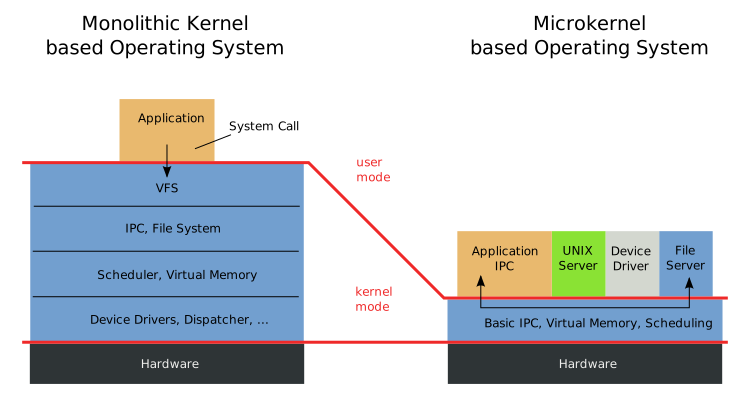
The above illustration from Wikimedia, by Wooptoo, License: Public domain) shows how they differ.

Documentation about the kernel/user-space separation
Documentation about microkernels
- OSDev Technical Wiki
- Message Passing Documentation
- Minix Documentation
- Minix Features
- Minix Reliability
- GNU Hurd Documentation
- Fuchsia Documentation
- HelenOS FAQ
- Minix Paper
- seL4 Whitepaper
- Tanenbaum-Torvalds Debate
A Note On The Current State
Redox has less than 40,000 Rust lines of kernel code. For comparison Minix has around 6,000 C lines of kernel code.
(The above comparison can't be used to argue that Minix is more stable or safe than Redox due to a less amount of source code lines, because Redox is more advanced than Minix in features, thus more lines of code are expected and a 1:1 comparison can't be made)
We would like to move more parts of Redox to user-space to get an even more stable and secure kernel.
Boot Process
Boot Loader
The boot loader source can be found in cookbook/recipes/bootloader/source after a successful build or in the Boot Loader repository.
BIOS Boot
BIOS Boot is a boot process that dates back to the IBM PC. Because of its lengthy history, BIOS starts up in 16-bit mode (Real Mode), and the boot loader needs to load in multiple stages to move into higher bit environments. The firmware will execute the boot sector located in the first sector of the main storage device, which is known as the stage 1 bootloader (OSDev Wiki).
The stage 1 bootloader is written in Assembly and can be found in asm/x86-unknown-none/stage1.asm. The stage 1 main task is to allow reading of the whole disk to load stage 2 in another sector of the storage device. The stage 2 bootloader is also written in Assembly. The main task is transferring BIOS functions from real mode to protected mode (32-bit), then switches to protected mode or long mode (64-bit) and finally loads the Rust-written boot loader, called stage 3.
These three boot loader stages are combined in one executable written to the first megabyte of the storage device. The first code that is executed in Rust-written code is pub extern "C" fn start() in src/os/bios/mod.rs. At this point, the bootloader follows the same common boot process on all boot methods, which can be seen in a later section.
UEFI Boot
Redox supports UEFI booting on x86-64, ARM64, and RISC-V 64-bit machines. UEFI starts up in 64-bit mode; thus, the boot process doesn't need multiple stages. The firmware will find the EFI System Partition (ESP) on the storage device, then load and execute PE32+ UEFI programs typically located at /EFI/BOOT/BOOTX64.efi (OSDev Wiki).
In the case of our bootloader, the first code that is executed is pub extern "C" fn main() in src/os/uefi/mod.rs. At this point, the bootloader follows the same common boot process on all boot methods, which can be seen in the section below.
Common boot process
The bootloader initializes the memory map and the display mode, both of which rely on firmware mechanisms that are not accessible after control is switched to the kernel. The bootloader then finds the RedoxFS boot partition on the disk and loads /boot/kernel and /boot/initfs files into memory.
For a live disk, it does load the whole partition into memory. It then loads /boot/kernel and /boot/initfs also at a different location in memory.
After the kernel and initfs have been loaded, it sets up a virtual paging for kernel and environment variables, including the location of the RedoxFS boot partition to be passed into it. Then, it maps the kernel to its expected virtual address and jumps to its entry function.
Kernel
The Redox kernel is a single ELF program in /boot/kernel. This kernel performs (fairly significant) architecture-specific initialization in the kstart function before jumping to the kmain function. At this point, the user-space bootstrap, a specially prepared executable that limits the required kernel parsing, sets up the /scheme/initfs scheme, and loads and executes the init program.
The kernel creates three different namespaces during the bootstrap process. Each namespace has its schemes that can be accessed by userspace programs, depending on where it is loaded:
-
the
null(0) namespace, a namespace that drivers are running on:/scheme/memory/scheme/pipe
-
the
root(1) namespace, the initial namespace set up during boot:/scheme/kernel.acpi/scheme/kernel.dtb/scheme/kernel.proc/scheme/debug/scheme/irq/scheme/serio
-
Additional namespaces requested by user, also loaded for
rootnamespace:/scheme/event/scheme/memory/scheme/pipe/scheme/sys/scheme/time
Init
Redox has a multi-staged init process, designed to allow for the loading of storage drivers in a modular and configurable fashion. This is commonly referred to as an init RAMdisk (initfs). The RAMdisk is contained in /boot/initfs, which is a special file format containing the bootstrap code in ELF format and packed files which was loaded into /scheme/initfs by the kernel program.
RAMdisk Init
The ramdisk init has the job of loading the drivers and daemons required to access the root filesystem and then transferring control to the filesystem init. The load order is defined in /etc/init.rc in initfs:
- Daemons required for
relibcrtcdloads machine-specific RTC into/scheme/timenulldnull handler, creates/scheme/nullzerozero handler, creates/scheme/zeroranddrand handler, creates/scheme/rand
- Logging
logdsystem log handler, creates/scheme/logramfsloads in-memory FS handling into/scheme/memory
- Graphics buffers
inputdvirtual terminal (VT) handler, creates/scheme/inputvesadVESA interface handler, creates/scheme/display.vesafbbootlogdforwards log from logd to VTfbcondhandles keyboard interaction for VT
- Live daemon
livedlivedisk handler, creates/scheme/disk.live
- Drivers in
/etc/init_drivers.rcps2dloads PS/2 handling into/scheme/serioacpidloads ACPI handling into/scheme/kernel.acpipcidPCI handler, creates/scheme/pcipcid-spawnerspawns drivers depending on available hardwareahcidAHCI storage driveridedIDE storage drivernvmedNVME storage drivervirtio-blkdVirtIO BLK storage drivervirtio-gpudVirtIO GPU driver
After loading all drivers and daemons above, the redoxfs driver is executed with --uuid $REDOXFS_UUID where $REDOXFS_UUID is the partition chosen by the bootloader and creates /scheme/file. The command set-default-scheme file is then executed, so that the default path handler is set to /scheme/file.
Filesystem Init
The filesystem init continues the loading of drivers for all other functionality. This includes audio, networking, and anything not required for storage device access. The drivers' init configuration is mainly found in /usr/lib/init.d and /etc/pcid.d. In the redox builder repository, it's configurable in the config directory. After this, the login prompt is shown.
If Orbital is enabled, the display server is launched.
Login
After the init processes have set up drivers and daemons, the user can log in to the system. The login program accepts a username, with a default user called user, prints the /etc/motd file, and then executes the user's login shell, usually ion. At this point, the user will now be able to access the shell
Graphical overview
Here is an overview of the initialization process with scheme creation and usage. For simplicity's sake, we do not depict all scheme interaction but at least the major ones. this is currently out of date, but still informative

Boot process documentation
Redox kernel
System calls are generally simple, and have a similar ABI compared to regular function calls. On x86-64, it simply uses the syscall instruction, causing a mode switch from user-mode (ring 3) to kernel-mode (ring 0), and when the system call handler is finished, its mode switches back, as if the syscall instruction was a regular call instruction, using sysretq.
System Services in User Space
As any microkernel-based operating system, most kernel components are moved to user-space and adapted to work on it.
Monolithic kernels in general have hundreds of system calls due to the high number of kernel components (system calls are interfaces for these components), not to mention the number of sub-syscalls provided by ioctl and e.g. procfs/sysfs. Microkernels on the other hand, only have dozens of them.
This happens because the non-core kernel components are moved to user-space, thereby relying on IPC instead, which we will later explain.
User-space bootstrap is the first program launched by the kernel, and has a simple design. The kernel loads the initfs blob, containing both the bootstrap executable itself and the initfs image, that was passed from the boot loader. It creates an address space containing it, and jumps to a bootloader-provided offset. Bootstrap allocates a stack (in an Assembly stub), mprotects itself, and does the remaining steps to exec the init daemon. It also sets up the initfs scheme daemon.
The system calls used for IPC, are almost exclusively file-based. The kernel therefore has to know what schemes to forward certain system calls to. All file syscalls are marked with either SYS_CLASS_PATH or SYS_CLASS_FILE. The kernel associates paths with schemes by checking their scheme prefix against the scheme's name, in the former case, and in the latter case, the kernel simply remembers which scheme opened file descriptors originated from. Most IPC in general is done using schemes, with the exception of regular pipes like Linux has, which uses pipe2, read, write, close. Any scheme can also of course setup its own custom pipe-like IPC that also uses the aforementioned syscalls, like shm and chan from ipcd.
Schemes are implemented as a regular Rust trait in the kernel. Some builtin kernel schemes exist, which just implement that trait. Userspace schemes are provided via the UserScheme trait implementor, which relies on messages being sent between the kernel and the scheme daemon. This channel is created by scheme daemons when opening :SCHEME_NAME, which is parsed to the root scheme "" with path "SCHEME_NAME". Messages are sent by reading from and writing to that root scheme file descriptor.
So all file-based syscalls on files owned by user-space, will send a message to that scheme daemon, and when the result is sent back, the kernel will return that result back to the process doing the syscall.
Communication between user-space and the kernel, is generally fast, even though the current syscall handler implementation is somewhat unoptimized. Systems with Meltdown mitigations would be an exception, although such mitigations are not yet implemented.
Communication
This page explains how a program communicates with the system components.
Context
- A scheme is a system service
- SQE means "Submission Queue Entry"
- CQE means "Completion Queue Entry"
- POSIX and Linux functions are implemented by relibc using Redox services provided by schemes, they work with the appropriate schemes to implement the function. It might involve opening a scheme, maybe writing to a scheme, or maybe calling
mmapon the scheme after opening (this is pretty common). - relibc and redox-rt talk to the scheme via a system call - open, read, write, mmap, etc.
- A system component (userspace daemon) uses the Scheme API (from the
redox-schemelibrary) to implement the system service. The Scheme API also is doing system calls likeopen,readandwrite, but the message format for reading and writing is a special format. The latest version of the Scheme API reads SQE messages and writes CQE messages. SQE is basically the parameters to the system call that the caller originally did, packaged into a message. CQE is the response that the daemon sends back. - The kernel is responsible for creating the SQE messages, and for unpacking the CQE messages.
Example
- The program calls some POSIX or Linux function from relibc
- relibc/redox-rt convert it to system calls
- The kernel converts the system calls to SQE
- The userspace daemon calls read on a "scheme socket" and gets an SQE message
- The userspace daemon calls write on the scheme socket and sends a CQE message
- The kernel converts the CQE message to the result of the system call
- relibc/redox-rt gets the result from the system call and uses that to calculate the result of the POSIX or Linux function call
Memory Management
TODO.
Scheduling on Redox
The Redox kernel uses a scheduling algorithm called Round Robin.
The kernel registers a function called an interrupt handler that the CPU calls periodically. This function keeps track of how many times it is called, and will schedule the next process ready for scheduling every 10 "ticks".
Drivers
On Redox the device drivers are user-space daemons, being a common Unix process they have their own namespace with restricted schemes.
In other words, a driver on Redox can't damage other system interfaces, while on Monolithic kernels a driver could wipe your data because the driver run on the same memory address space of the filesystem (thus same privilege level).
You can find the driver documentation on the repository README and drivers code.
RedoxFS
This is the default filesystem of Redox OS, inspired by ZFS and adapted to a microkernel architecture.
Redox had a read-only ZFS driver but it was abandoned because of the monolithic nature of ZFS that created problems with the Redox microkernel design.
(It's a replacement for TFS)
Current features:
- Compatible with Redox and Linux (FUSE)
- Copy-on-write
- Data/metadata checksums
- Transparent encryption
- Standard Unix file attributes
- File/directory size limit up to 193TiB (212TB)
- File/directory quantity limit up to 4 billion per 193TiB (2^32 - 1 = 4294967295)
- Disk encryption fully supported by the Redox bootloader, letting it load the kernel off an encrypted partition.
- MIT licensed
Being MIT licensed, RedoxFS can be bundled on GPL-licensed operating systems (Linux, for example).
Tooling
RedoxFS tooling can be used to create, mount and edit contents of an .img file containing RedoxFS. It can be installed with:
cargo install redoxfs
If you found errors while installing it make sure to install the libfuse 3.x package for your Unix-like distribution.
Create a disk
You can create an empty, non-bootable RedoxFS by allocating an empty file with fallocate then run redoxfs-mkfs to initialize the whole image as RedoxFS.
fallocate -l 1G redox.img
redoxfs-mkfs redox.img
To create an encrypted disk use the --encrypt option, it will ask the password through a masked prompt:
redoxfs-mkfs --encrypt redox.img
To create a disk with contents from an existing directory use redoxfs-ar (currently the redoxfs-ar tool overwrites existing content and have no --encrypt option).
redoxfs-ar redox.img ./sysroot
Create a bootable disk
The second option of redoxfs-mkfs and third option of redoxfs-ar tools accepts a file that contains a raw image to be written as reserved disk space. This is meant to be a bootloader. Redox is booted using the official bootloader.
First you need to download the bootloader repository and build it, the following commands will build a BIOS bootloader:
git clone https://gitlab.redox-os.org/redox-os/bootloader
make -C bootloader TARGET=x86-unknown-none BUILD=build all
Once the bootloader is available at bootloader/build/bootloader.bin after compilation, you can create a new bootable disk using either redoxfs-mkfs or redoxfs-ar:
redoxfs-mkfs redox.img bootloader/build/bootloader.bin
redoxfs-ar redox.img ./sysroot bootloader/build/bootloader.bin
You can also convert a non-bootable disk into bootable using redoxfs-clone:
redoxfs-clone redox.img redox-bootable.img bootloader/build/bootloader.bin
It's not possible to create a UEFI-bootable disk using this option because it creates a GPT-partitioned disk, which currently is only implemented in redox-installer. A dual boot option in the same disk is also impossible if booting from BIOS firmware.
Note that you need to have boot/kernel and boot/initfs in the image to make it actually bootable. You can build those from the main build system or the kernel and base repositories.
Mount a disk
To mount the disk run the redoxfs [image] [directory] command, for example:
mkdir ./redox-img
redoxfs redox.img ./redox-img
It will mount the disk using FUSE underneath.
The difference is that redoxfs-ar overwrites existing disk content. Mounting a disk through FUSE is the only way to update existing content in the RedoxFS-formatted image.
Unmount the disk
Unmount the disk using FUSE unmounting tool:
fusermount3 ./redox-img
Extend the disk
⚠️ Warning: Experimental, please backup first.
To extend an existing disk, you need to extend the file before:
truncate -s 2GB redox.img
Then you can run the redoxfs-resize [disk] [size] command. The [size] option can be max (the default), min, or a fixed size defined in the parse-size library.
redoxfs-resize ./redox.img
minimum size: 438.75 MB (418.42 MiB)
maximum size: 2.00 GB (1.86 GiB)
new size: 2.00 GB (1.86 GiB)
growing by 1559135232
redoxfs-resize: resized filesystem on redox.img
	uuid: febb081e-06ff-4786-a878-f1bb031cdf97
	size: 2.00 GB (1.86 GiB)
	used: 438.65 MB (418.33 MiB)
	free: 1.56 GB (1.45 GiB)
Shrink the disk
⚠️ Warning: Experimental, please backup first.
To shrink an existing disk you can use the redoxfs-resize tool:
redoxfs-resize ./redox.img min
minimum size: 438.77 MB (418.44 MiB)
maximum size: 2.00 GB (1.86 GiB)
new size: 438.77 MB (418.44 MiB)
shrinking by 1559135232
redoxfs-resize: resized filesystem on redox.img
	uuid: febb081e-06ff-4786-a878-f1bb031cdf97
	size: 438.77 MB (418.44 MiB)
	used: 438.64 MB (418.32 MiB)
	free: 122.88 kB (120 KiB)
You can use the value from "shrinking by ..." to accurately tell how much bytes can be shrinked:
truncate -s -1559135232 redox.img
Graphics and Windowing
Drivers
VESA (vesad)
vesad is not really a driver, it writes to a framebuffer given by firmware (via UEFI or BIOS software interrupts).
Because we don't have GPU drivers yet, we rely on what firmware gives to us.
GPUs
On Linux/BSDs, the GPU communication with the kernel is done by the DRM system (Direct Rendering Manager, libdrm library), that Mesa3D drivers use to work (Mesa3D implements OpenGL/Vulkan drivers, DRM exposes the hardware interfaces).
That said, in Redox a "DRM driver" needs to be a user-space driver daemon which uses the system calls/schemes to communicate with the hardware.
The last step is to implement the Redox backend in our Mesa3D fork/recipe to use these user-space drivers.
Software Rendering
We don't have GPU drivers yet but LLVMpipe (OpenGL CPU emulation) is working.
Orbital
The Orbital desktop environment provides a display server, window manager and compositor.
Comparison with X11/Wayland
This display server is more simple than X11 and Wayland making the porting task more quick and easy, it's not advanced like X11 and Wayland yet but enough to port most Linux/BSD programs.
Compared to Wayland, Orbital has one protocol server implementation (like X11 for a long time), while Wayland provides protocols for compositors (servers and window managers) and clients (applications if the compositor is not bundled).
Features
- Custom Resolutions
- App Launcher (bottom bar)
- File Manager
- Text Editor
- Calculator
- Terminal Emulator
If you hold the Super key (generally the key with a Windows logo) it will show all keyboard shortcuts in a pop-up.
Libraries
Programs using the following libraries can work on Orbital.
- winit
- softbuffer
- Slint (through winit and softbuffer)
- Iced (through winit and softbuffer)
- egui (winit or SDL2 can be used)
- SDL1.2
- SDL2
- Mesa3D's OSMesa
Security
In Orbital a GUI program cannot read input events or the content (framebuffer) from windows of other GUI programs, like Wayland.
Clients
Apps (or 'clients') create a window and draw to it by using the orbclient client.
Client Examples
If you wish to see examples of client apps that use orbclient to "talk" to Orbital and create windows and draw to them, then you can find some in orbclient/examples folder.
Porting
If you want to port a program to Orbital, see below:
-
If the program is written in Rust it probably works on Orbital because the
winitcrate is used in most places, but there are programs that access X11 or Wayland directly. You need to port these programs towinitand merge to upstream. -
If the program is written in C or C++ and accesses X11 or Wayland directly, it must be ported to the Orbital library.
Security
This page covers the security design.
Unsafe Rust
Some parts of the system code use unsafe Rust code which has less compiler verification than safe Rust, thus still safer than C or C++
Unsafe Rust code is replaced with safe Rust code where possible, where it's not possible the security focus relies on boundaries.
Some unsafe Rust code is using safe Rust code in some parts, we are looking more unsafe Rust code than can use safe Rust code.
Applications and Libraries
The POSIX and Linux source code compatibility don't reduce the system security, relibc translate POSIX APIs and try to improve the compatibility security where possible:
- The microkernel architecture greatly reduce the potential to use system bugs to get application or library sensitive data or inject malicious code
- POSIX and Linux functions are written in Rust, which prevent many bugs
- Input sanitization is done where possible, like strings
The POSIX/Linux applications or libraries is who decide if they use safer APIs, while Redox provide the compatibility.
Capabilities and Sandbox
- The namespaces and capability-based system are implemented by the kernel but some parts can be moved to user-space.
- A namespace is a list of schemes, if you run
ls :, it will show the schemes on the current namespace. - Each process has a namespace.
- Capabilities are customized file descriptors that carry specific actions.
The sandbox system duplicates the system resources for each program, it allows them to be completely isolated from the main system. Flatpak and Snap use a sandbox security system on Linux, Redox will do the same.
Redox allows sandbox by limiting a program's capabilities:
- Only a certain number of schemes in the program's namespace is allowed, or no scheme at all. That way new file descriptors can't be opened.
- All functionality is forced to occur via file descriptors (WIP).
Features
This page contains an operating system comparison table for common/important features.
Desktop
| Feature | Redox | Linux (GNU/Linux) | FreeBSD | Plan 9 |
|---|---|---|---|---|
| SMP | Yes | Yes | Yes | Yes |
| NUMA | No (planned) | Yes | Yes | No |
| Full Disk Encryption | Yes | Yes | Yes | No |
| Exploit Mitigations | No (planned) | Yes | Yes | No |
| OpenGL/Vulkan | Only OpenGL with CPU emulation | Yes | Yes | No |
| UEFI Boot Loader | Yes | Yes | Yes | No |
| IDE | Yes | Yes | Yes | Yes |
| SATA | Yes | Yes | Yes | Yes |
| NVMe | Yes | Yes | Yes | No |
| PCI | Yes | Yes | Yes | No |
| PCIe | Yes | Yes | Yes | No |
| USB | Yes (incomplete) | Yes | Yes | Yes |
| Ethernet | Yes | Yes | Yes | Yes |
| Wi-Fi | No (planned) | Yes | Yes | No |
| Bluetooth | No (planned) | Yes | Yes | No |
Mobile
| Feature | Redox | Android | iOS |
|---|---|---|---|
| File-based Encryption | No | Yes | Not documented |
| Sandboxing | Yes | Yes | Yes |
| USB Tethering | No (planned) | Yes | Yes |
| NFC | No (planned) | Yes | Yes |
| GPS | No (planned) | Yes | Yes |
| Sensors | No (planned) | Yes | Yes |
| Factory Reset | No (planned) | Yes | Yes |
External References
- Rust OS Comparison - A table comparing some Rust-written operating systems.
Package Management
Redox package management is similar to that of the major Linux distributions, except that many of Redox's (Rust-written) packages use static linking by default, rather than dynamic linking.
Static linking provides a few advantages over dynamic linking:
-
Better Security
Static linking can improve system security by running each program's library code in isolated memory locations. This is true even when identical versions of a vulnerable library are being used by multiple programs at once.
To steal sensitive data from statically linked programs, an attacker would need to inject code directly into each program's memory address space, rather than the address space of a shared library. This increases the cost of the attack.
-
Better Performance
When a program is built with static linking, its library references are resolved before execution. Thus, there's no need for processing on the dynamic linker.
This means a statically linked program will open faster than its dynamically linked equivalent, provided both are loaded entirely from disk.
-
Simpler Dependency Management
When a dynamically linked program depends on multiple versions of the same library, naming conflicts can arise from the identical object or symbol names within those versions. This issue can necessitate isolating the library files, often by giving them unique names or placing them in separate
/libdirectories, to ensure the proper version is used in each case.With static linking, however, there's no need for run-time dependency management, as library dependencies are included within the executable binaries.
Rust programs aren't affected by this problem because of Cargo.
📝 Note: Rust programs are statically linked by default.
Format
What is "pkgar" ?
Short for "package archive", pkgar is a file format, library, and command-line
executable for creating and extracting cryptographically secure collections of
files, primarily for use in package management on Redox OS.
The technical details are still in development, so we think it is good to
instead review the goals of pkgar and some examples that demonstrate its
design principles.
pkgar has the following goals:
- Atomic - Updates are done atomically if possible
- Economical - Transfer of data must only occur when hashes change, allowing for network and data usage to be minimized
- Fast - Encryption and hashing algorithms are chosen for performance, and packages can potentially be extracted in parallel
- Minimal - Unlike other formats such as
tar, the metadata included in apkgarfile is only what is required to extract the package - Relocatable - Packages can be installed to any directory, by any user, provided the user can verify the package signature and has access to that directory.
- Secure - Packages are always cryptographically secure, and verification of all contents must occur before installation of a package completes.
To demonstrate how the format's design achieves these goals, let's look at some examples.
Example 1: Newly installed package
In this example, a package is installed that has never been installed on the
system, from a remote repository. We assume that the repository's public key is
already installed on disk, and that the URL to the package's pkgar is known.
First, a small, fixed-size header portion of the pkgar is downloaded. This is
currently 136 bytes in size. It contains a NaCL signature, NaCL public key,
BLAKE3 hash of the entry metadata, and 64-bit count of entry metadata structs.
Before this header can be used, it is verified. The public key must match the one installed on disk. The signature of the struct must verify against the public key. If this is true, the hash and entry count are considered valid.
The entry metadata can now be downloaded to a temporary file. During the download, the BLAKE3 hash is calculated. If this hash matches the hash in the header, the metadata is considered valid and is moved atomically to the correct location for future use. Both the header and metadata are stored in this file.
Each entry metadata struct contains a BLAKE3 hash of the entry data, a 64-bit
offset of the file data in the data portion of the pkgar, a 64-bit size of the
file data, a 32-bit mode identifying Unix permissions, and up to a 256-byte
relative path for the file.
For each entry, before downloading the file data, the path can be validated for install permissions. The file data is downloaded to a temporary file, with no read, write, or execute permissions. While the download is happening, the BLAKE3 hash is calculated. If this hash matches, the file data is considered valid.
After downloading all entries, the temporary files have their permissions set as indicated by the mode in the metadata. They are then moved atomically to the correct location. At this point, the package is successfully installed.
Example 2: Updated package
In this example, a package is updated, and only one file changes. This is to
demonstrate the capabilities of pkgar to minimize disk writes and network
traffic.
First, the header is downloaded. The header is verified as before. Since a file has changed, the metadata hash will have changed. The metadata will be downloaded and verified. Both header and metadata will be atomically updated on disk.
The entry metadata will be compared to the previous entry metadata. The hash for one specific file will have changed. Only the contents for that file will be downloaded to a temporary file, and verified. Once that is complete, it will be atomically updated on disk. The package update is successfully completed, and only the header, entry metadata, and the files that have changed were downloaded and written.
Example 3: Package verification
In this example, a package is verified against the metadata saved on disk. It is possible to reconstruct a package from an installed system, for example, in order to install that package from a live disk.
First, the header is verified as before. The entry metadata is then verified. If there is a mismatch, an error is thrown and the package could be reinstalled.
The entry metadata will be compared to the files on disk. The mode of each file will be compared to the metadata mode. Then the hash of the file data will be compared to the hash in the metadata. If there is a mismatch, again, an error is thrown and the package could be reinstalled.
It would be possible to perform this process while copying the package to a new target. This allows the installation of a package from a live disk to a new install without having to store the entire package contents.
Conclusion
As the examples show, the design of pkgar is meant to provide the best
possible package management experience on Redox OS. At no point should invalid
data be installed on disk in accessible files, and installation should be
incredibly fast and efficient.
Work still continues on determining the repository format.
The source for pkgar is fairly lightweight, we highly recommend reading it and contributing to the pkgar repository.
If you have questions, feel free to ask us on the Chat page.
Schemes and Resources
An essential design choice made for Redox is to refer to resources using scheme-rooted paths. This gives Redox the ability to:
- Treat resources (files, devices, etc.) in a consistent manner
- Provide resource-specific behaviors with a common interface
- Allow management of names and namespaces to provide sandboxing and other security features
- Enable device drivers and other system resource management to communicate with each other using the same mechanisms available to user programs
Scheme-rooted Paths
Scheme-rooted paths are the way that resources are identified on Redox.
What is a Resource
A resource is anything that a program might wish to access, usually referenced by some name.
What is a Scheme
A scheme identifies the starting point for finding a resource.
What is a Scheme-rooted Path
A scheme-rooted path takes the following form, with text in bold being literal.
/scheme/scheme-name/resource-name
scheme-name is the name of the kind of resource, and it also identifies the name used by the manager daemon for that kind.
resource-name is the specific resource of that kind. Typically in Redox, the resource-name is a path with elements separated by slashes, but the resource manager is free to interpret the resource-name how it chooses, allowing other formats to be used if required.
Differences from Unix
Unix systems have some special file types, such as "block special file" or "character special file". These special files use major/minor numbers to identify the driver and the specific resource within the driver. There are also pseudo-filesystems, for example procfs that provide access to resources using paths.
Redox's scheme-rooted paths provide a consistent approach to resource naming, compared with Unix.
Regular Files
For Redox, a path that does not begin with /scheme/ is a reference to the the root filesystem, which is managed by the file scheme.
Thus /home/user/.bashrc is interpreted as /scheme/file/home/user/.bashrc.
In this case, the scheme is file and the resource is
home/user/.bashrc within that scheme.
This makes paths for regular files feel as natural as Unix file paths.
Resources
A resource is any "thing" that can be referred to using a path. It can be a physical device, a logical pseudodevice, a file on a file system, a service that has a name, or an element of a dataset.
The client program accesses a resource by opening it, using the resource name in scheme-rooted path format. The first part of the path is the name of the scheme, and the rest of the path is interpreted by the scheme provider, assigning whatever meaning is appropriate for the resources included under that scheme.
Some schemes, such as /scheme/pty/ simply allocate sequentially numbered resources and do not need the complexity of
a slash-separated path.
Resource Examples
Some examples of resources are:
- Files within a filesystem -
/path/to/fileis interpreted as/scheme/file/path/to/file. Other filesystems can be referenced as/scheme/otherfs/path/to/file. - Pseudo-terminals -
/scheme/pty/nwherenis a number, refers to a particular pseudo-terminal. - Display -
/scheme/display.vesa/nwherenis a number, refers to the VESA virtual display - Virtual display 1 is the system log, display 2 is the text UI, and display 3 is the graphical display used by Orbital. - Networking -
/scheme/udp/a.b.c.d/pis the UDP socket with IPv4 addressa.b.c.d, port numberp.
Schemes
The scheme, which takes its name from URI schemes, identifies the type of resource, and identifies the manager daemon responsible for that resource.
Within Redox, a scheme may be thought of in a few ways. It is all of these things:
- The type of a resource, such as "file", "NVMe drive", "TCP connection", etc. (Note that these are not valid scheme names, they are just given by way of example.)
- The starting point for locating the resource, i.e. it is the root of the path to the resource, which the system can then use in establishing a connection to the resource.
- A uniquely named service that is provided by some driver or daemon program, with the full path identifying a specific resource accessed via that service.
Scheme Daemons
A scheme is typically provided by a daemon. A daemon is a program that runs as a process in userspace; it is typically started by the system during boot. When the process starts, it registers with kernel using the name of the scheme that it manages.
Kernel vs. Userspace Schemes
A userspace scheme is implemented by a scheme daemon, described above. A kernel scheme is implemented within the kernel, and manages critical resources not easily managed with a userspace daemon. When possible, schemes should be implemented in userspace.
Accessing Resources
In order to provide "virtual file" behavior, schemes generally implement file-like operations.
However, it is up to the scheme provider to determine what each file-like operation means.
For example, seek to an SSD driver scheme might simply add to a file offset, but to a floppy disk controller scheme,
it might cause the physical movement of disk read-write heads.
Typical scheme operations include:
open- Create a handle (file descriptor) to a resource provided by the scheme. e.g.File::create("/scheme/tcp/127.0.0.1/3000")in a regular program would be converted by the kernel intoopen("127.0.0.1/3000")and sent to the "tcp" scheme provider. The "tcp" scheme provider would parse the name, establish a connection to Internet address "127.0.0.1", port "3000", and return a handle that represents that connection.read- get some data from the thing represented by the handle, normally consuming that data so the nextreadwill return new data.write- send some data to the thing represented by the handle to be saved, sent or written.seek- change the logical location where the nextreadorwritewill occur. This may or may not cause some action by the scheme provider.
Schemes may choose to provide other standard operations, such as mkdir, but the meaning of the operation is up to the scheme. mkdir might create a directory entry, or it might create some type of substructure or container relevant to that particular scheme.
Some schemes implement fmap, which creates a memory-mapped area that is shared between the scheme resource and the scheme user. It allows direct memory operations on the resource, rather than reading and writing to a file descriptor. The most common use case for fmap is for a device driver to access the physical addresses of a memory-mapped device, using the memory: kernel scheme. It is also used for frame buffers in the graphics subsystem.
TODO: add F-operations.
TODO: explain file-like vs. socket-like schemes.
Userspace Schemes
Redox creates user-space schemes during initialization, starting various daemon-style programs, each of which can provide one or more schemes.
| Scheme | Daemon | Description |
|---|---|---|
| disk.* | ided, ahcid, nvmed | Storage drivers |
| disk.live | lived | RAM-disk driver that loads the bootable USB data into RAM |
| disk.usb-{id}+{port}-scsi | usbscsid | USB SCSI driver |
| logging | ramfs | Error logging scheme, using an in-memory temporary filesystem |
| initfs | bootstrap | Startup filesystem |
| file | redoxfs | Main filesystem |
| network | e1000d, rtl8168d | Link-level network send/receive |
| ip | smolnetd | Raw IP packet send/receive |
| tcp | smolnetd | TCP sockets |
| udp | smolnetd | UDP sockets |
| icmp | smolnetd | ICMP protocol |
| netcfg | smolnetd | Network configuration |
| display.vesa | vesad | VESA driver |
| display.virtio-gpu | virtio-gpud | VirtIO GPU driver |
| orbital | orbital | Windowing system (window manager and virtual driver) |
| pty | ptyd | Pseudoterminals, used by terminal emulators |
| audiorw | sb16d, ac97d, ihdad | Sound drivers |
| audio | audiod | Audio manager and virtual device |
| usb.* | usb*d | USB drivers |
| acpi | acpid | ACPI driver |
| input | inputd | Virtual device |
| sudo | sudo | Privilege manager |
| chan | ipcd | Inter-process communication |
| shm | ipcd | Shared memory manager |
| log | logd | Logging |
| rand | randd | Pseudo-random number generator |
| zero | zerod | Discard all writes, and always fill read buffers with zeroes |
| null | nulld | Discard all writes, and read no bytes |
Kernel Schemes
The kernel provides a small number of schemes in order to support userspace.
| Name | Documentation | Description |
|---|---|---|
| namespace | root.rs | Namespace manager |
| user | user.rs | Dispatch for user-space schemes |
| debug | debug.rs | Debug messages that can't use the log: scheme |
| event | event.rs | epoll-like file descriptor read/write "ready" events |
| irq | irq.rs | Interrupt manager (converts interrupts to messages) |
| pipe | pipe.rs | Kernel manager for pipes |
| proc | proc.rs | Process context manager |
| thisproc | proc.rs | Process context manager |
| sys | mod.rs | System hardware resources information |
| kernel.acpi | acpi.rs | Read the CPU configuration (number of cores, etc) |
| memory | memory.rs | Physical memory mapping manager |
| time | time.rs | Real-time clock timer |
| itimer | time.rs | Interval timer |
| serio | serio.rs | Serial I/O (PS/2) driver (must stay in the kernel due to PS/2 protocol issues) |
Scheme List
This section has all Redox schemes in a list format to improve organization, coordination and focus.
Userspace
- disk.*
- disk.live
- disk.usb-{id}+{port}-scsi
- logging
- initfs
- file
- network
- ip
- tcp
- udp
- icmp
- netcfg
- display.vesa
- display.virtio-gpu
- orbital
- pty
- audiorw
- audio
- usb.*
- sudo
- acpi
- input
- chan
- shm
- log
- rand
- zero
- null
Kernel
- namespace
- user
- debug
- event
- irq
- pipe
- proc
- thisproc
- sys
- kernel.acpi
- memory
- time
- itimer
- serio
"Everything is a file"
Unix has a concept of using file paths to represent "special files" that have some meaning beyond a regular file. For example, a device file is a reference to a device resource that looks like a file path.
With the "Everything is a file" concept provided by Unix-like systems,
all sorts of devices, processes, and kernel parameters can be accessed as files in a regular filesystem.
If you are on a Linux computer, you should try to cd to /proc, and see what's going on there.
Redox extends this concept to a much more powerful one.
Since each "scheme provider" is free to interpret the path in its own way, new schemes can be created as needed for each type of resource.
This way USB devices don't end up in a "filesystem", but a protocol-based scheme like EHCI.
It is not necessary for the file system software to understand the meaning of a particular path,
or to give a special file some special properties that then become a fixed file system convention.
Redox schemes are flexible enough to be used in many circumstances, with each scheme provider having full flexibility to define its own path conventions and meanings, and only the programs that wish to take advantage of those meanings need to understand them.
Redox does not go as far as Plan 9, in that there are not separate paths for data and control of resources. In this case, Redox is more like Unix, where resources can potentially have a control interface.
Documentation about this design
Stiching It All Together
The "path, scheme, resource" model is simply a unified interface for efficient inter-process communication. Paths are simply resource descriptors. Schemes are simply resource types, provided by scheme managers.
A diagram would look like this:
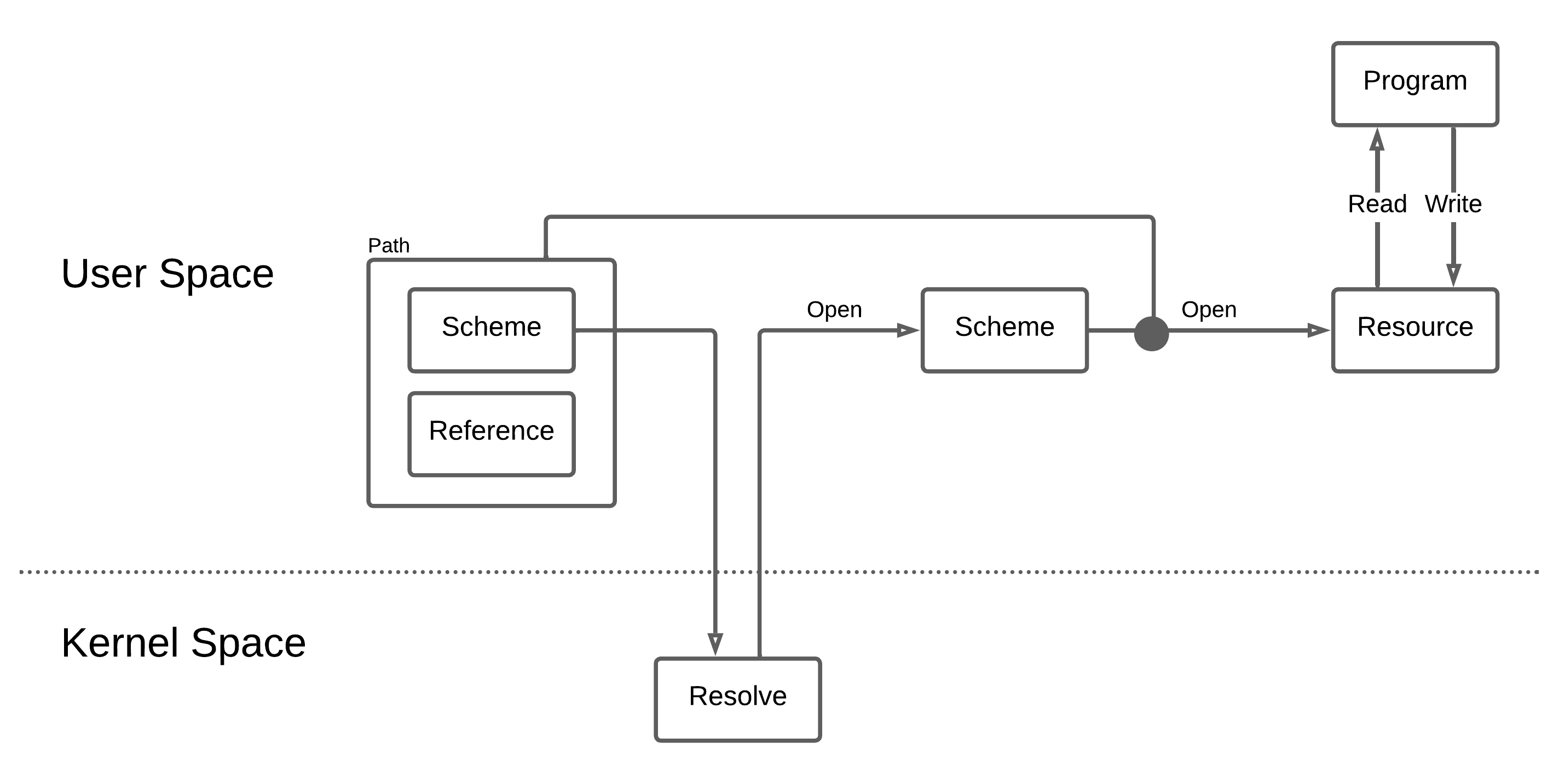
Scheme Operation
A kernel scheme is implemented directly in the kernel. A userspace scheme is typically implemented by a daemon.
A scheme is created in the root scheme and listens for requests using the event scheme.
Root Scheme
The root scheme is a special scheme provided by the kernel. It acts as the container for all other scheme names.
The root scheme is currently referenced as ":", so when creating a new scheme, the scheme provider calls File::create(":myscheme").
The file descriptor that is returned by this operation is a message passing channel between the scheme provider and the kernel.
File operations performed by a regular program are translated by the kernel into message packets that the scheme provider reads and responds to, using this file descriptor.
Event Scheme
The event scheme is a special scheme provided by the kernel that allows a scheme provider or other program to listen for events occurring on a file descriptor.
A more detailed explanation of the event scheme can be found on the Event Scheme page.
Note that very simple scheme providers do not use the event scheme.
However, if a scheme can receive requests or events from more than one source,
the event scheme makes it easy for the daemon (scheme provider) to block until something (an event) happens, do some work, then block again until the next event.
Daemons and Userspace Scheme Providers
A daemon is a program, normally started during system initialization. It runs with root permissions. It is intended to run continuously, handling requests and other relevant events. On some operating systems, daemons are automatically restarted if they exit unexpectedly. Redox does not currently do this but is likely to do so in the future.
On Redox, a userspace scheme provider is a typically a daemon, although it doesn't have to be.
The scheme provider informs the kernel that it will provide the scheme by creating it, e.g. File::create(":myscheme") will create the scheme myscheme.
Notice that the name used to create the scheme starts with ":", indicating that it is a new entry in the root scheme.
Since it is created in the root scheme, the kernel knows that it is a new scheme, as named schemes are the only thing that can exist in the root scheme.
In future, the scheme will register in a namespace using a different path format.
Namespaces
At the time a regular program is started, it becomes a process, and it exists in a namespace.
The namespace is a container for all the schemes, files and directories that a process can access.
When a process starts another program, the namespace is inherited,
so a new process can only access the schemes, files and directories that its parent process had available.
If a parent process wants to limit (sandbox) a child process, it would do so as part of creating the child process.
Currently, Redox starts all processes in the "root" namespace. This will be changed in the future, sandboxing all user programs so most schemes and system resources are hidden.
Redox also provides a null namespace.
A process that exists in the null namespace cannot open files or schemes by name, and can only use file descriptors that are already open.
This is a security mechanism, mostly used to by daemons running with root permission to prevent themselves from being hijacked into opening things they should not be accessing.
A daemon will typically open its scheme and any resources it needs during its initialization,
then it will ask the kernel to place it in the null namespace so no further resources can be opened.
Providing a Scheme
To provide a scheme, a program performs the following steps:
- Create the scheme, obtaining a file descriptor -
File::create(":myscheme") - Open a file descriptor for each resource that is required to provide the scheme's services, e.g.
File::open("/scheme/irq/{irq-name}") - Open a file descriptor for a timer if needed -
File::open("/scheme/time/{timer_type}") - Open a file descriptor for the event scheme (if needed) -
File::open("/scheme/event") - Move to the null namespace to prevent any additional resources from being accessed -
setrens(0,0) - Write to the
eventfile descriptor to register each of the file descriptors the provider will listen to, including the scheme file descriptor -event_fd.write(&Event{fd, ...})
Then, in a loop:
- Block, waiting for an event to read. For simple schemes, the scheme provider would not use this mechanism, it would simply do a blocking read of its scheme file descriptor.
- Read the event to determine (based on the file descriptor included in the event) if it is a timer, a resource event, or a scheme request.
- If it's a resource event, e.g. indicating a device interrupt, perform the necessary actions such as reading from the device and queuing the data for the scheme.
- If it's a scheme request, read a request packet from the scheme file descriptor and call the "handler". The request packet will indicate if it's an
open,read,write, etc. on the scheme:-
An
openwill include the name of the item to be opened. This can be parsed by the scheme provider to determine the exact resource the requestor wants to access. The scheme will allocate a handle for the resource, with a numbered descriptor. Descriptor numbers are in the range 0 to usize::MAX - 4096, leaving the upper 4096 values as internal error codes. These descriptors are used by the scheme provider to look up thehandledata structure it uses internally for the resource. The descriptors are typically allocated sequentially, but a scheme provider could return a pointer to the handle data structure if it so chooses.📝 Note: the descriptor returned from an
openrequest is not the same as the file descriptor returned to the client program. The kernel maps between the client's (process id,fdnumber) and the scheme provider's (process id,handlenumber). -
A
readorwrite, etc., will be handled by the scheme, using thehandlenumber to look up the information associated with the resource. The operation will be performed, or queued to be performed. If the request can be handled immediately, a response is sent back on the scheme file descriptor, matched to the original request.
-
- After all requests have been handled, loop through every
handleto determine if any queued requests are now complete. A response is sent back on the scheme file descriptor for each completed request, matched to that request. - Set a timer if appropriate, to enable handling of device timeouts, etc. This is performed as a
writeoperation on the timer file descriptor.
Kernel Actions
The kernel performs the following actions in support of the scheme:
- Any special resources required by a scheme provider are accessed as file operations on some other scheme. The kernel handles access to resources as it would for any other scheme.
- Regular file operations from user programs are converted by the kernel to request messages to the schemes. The kernel maps the user program's file descriptor to a scheme and a handle id provided by the scheme during the open operation, and places them in a packet.
- If the user program is performing a blocking read or write, the user program is suspended.
- The kernel sends event packets on the scheme provider's
eventfile descriptor, waking the blocked scheme provider. Each event packet indicates whether it is the scheme or some other resource, using the file descriptor obtained by the scheme provider during its initialization. - When the scheme provider reads from its scheme file descriptor, it receives the packets the kernel created describing the client request and handles them as described above.
- When the scheme provider sends a response packet, the kernel maps the response to a return value from the user program's file operation.
- When a blocking read or write is completed, the user program is marked ready to run, and the kernel will place it in the run queue.
Event Scheme
The event scheme is a special scheme that is central to the operation of device drivers, schemes and other programs that receive events from multiple sources. It's like a "clearing house" for activity on multiple file descriptors. The daemon or client program performs a read operation on the event scheme, blocking until an event happens. It then examines the event to determine what file descriptor is active, and performs a non-blocking read of the active file descriptor. In this way, a program can have many sources to read from, and rather than blocking on one of those sources while another might be active, the program blocks only on the event scheme, and is unblocked if any one of the other sources become active.
The event scheme is conceptually similar to Linux's epoll mechanism.
What is a Blocking Read
For a regular program doing a regular read of a regular file, the program calls read, providing an input buffer, and when the read call returns, the data has been placed into the input buffer. Behind the scenes, the system receives the read request and suspends the program, meaning that the program is put aside while it waits for something to happen. This is very convenient if the program has nothing to do while it waits for the read to complete. However, if the thing the program is reading from might take a long time, such as a slow device, a network connection or input from the user, and there are other things for the program to do, such as updating the screen, performing a blocking read can prevent handling these other activities in a timely manner.
Non-blocking Read
To allow reading from multiple sources without getting stuck waiting for any particular one, a program can open a path using the O_NONBLOCK flag. If data is ready to be read, the system immediately copies the data to the input buffer and returns normally. However, if data is not ready to be read, the read operation returns an error of type EAGAIN, which indicates that the program should try again later.
Now your program can scan many file descriptors, checking if any of them have data available to read. However, if none have any data, you want your program to block until there is something to do. This is where the event scheme comes in.
Using the Event Scheme
The purpose of the event scheme is to allow the daemon or client program to receive a message on the event_file, to inform it that some other file descriptor is ready to be read. The daemon reads from the event_file to determine which other file descriptor is ready. If no other descriptor is ready, the read of the event_file will block, causing the daemon to be suspended until the event scheme indicates some other file descriptor is ready.
Before setting up the event scheme, you should open all the other resources you will be working with, but set them to be non-blocking. E.g. if you are a scheme provider, open your scheme in non-blocking mode,
#![allow(unused)]
fn main() {
let mut scheme_file = OpenOptions::new()
            .create(true)
            .read(true)
            .write(true)
            .custom_flags(syscall::O_NONBLOCK as i32)
            .open(":myscheme")
            .expect("mydaemon: failed to create myscheme: scheme");
}
The first step in using the event scheme is to open a connection to it. Each program will have a connection to the event scheme that is unique, so no path name is required, only the name of the scheme itself.
#![allow(unused)]
fn main() {
let event_file = File::open("/scheme/event");
// you actually need to open it read/write
}
Next, write messages to the event scheme, one message per file descriptor that the event scheme should monitor. A message is in the form of a syscall::data::Event struct.
#![allow(unused)]
fn main() {
use syscall::data::Event;
let _ = event_file.write(&Event{ id: scheme_file.as_raw_fd(), ... });
// write one message per file descriptor
}
Note that timers in Redox are also handled via a scheme, so if you will be using a timer, you will need to open the timer scheme, and include that file descriptor among the ones your event_file should listen to.
Once your setup of the event scheme is complete, you begin your main loop:
- Perform a blocking read on the
eventfile descriptor.event_file.read(&mut event_buf); - When an event, such as data becoming available on a file descriptor, occurs, the
readoperation on theevent_filewill complete. - Look at the
event_bufto see which file descriptor is active. - Perform a non-blocking read on that file descriptor.
- Perform the appropriate processing.
- If you are using a timer, write to the timer file descriptor to tell it when you want an event.
- Repeat.
Non-blocking Write
Sometimes write operations can take time, such as sending a message synchronously or writing to a device with a limited buffer. The event scheme allows you to listen for write file descriptors to become unblocked. If a single file descriptor is opened in read-write mode, your program will need to register with the event scheme twice, once for reading and once for writing.
Implementing Non-blocking Reads in a Scheme
If your scheme supports non-blocking reads by clients, you will need to include some machinery to work with the event scheme on your client's behalf:
- Wait for an event that indicates activity on your scheme.
event_file.read(&mut event_buf); - Read a packet from your scheme file descriptor containing the request from the client program.
scheme_file.read(&mut packet)The packet contains the details of which file descriptor is being read, and where the data should be copied to. - If the client is performing a
readthat would block, then queue the client request and return theEAGAINerror, writing the error response to your scheme file descriptor. - When data is available to read, send an event by writing a special packet to your scheme, indicating the handle id that is active:
#![allow(unused)] fn main() { scheme_file.write(&Packet { a: syscall::number::SYS_FEVENT, b: handle_id, ... }); } - When routing this response back to the client, the kernel will recognize it as an event message, and post the event on the client's
event_fd, if one exists. - The scheme provider does not know whether the client has actually set up an
event_fd. The scheme provider must send the event "just in case". - If an event has already been sent, but the client has not yet performed a
read, the scheme should not send additional events. In correctly coded clients, extra events should not cause problems, but an effort should be made to not send unnecessary events. Be wary, however, as race conditions can occur where you think an extra event is not required but it actually is.
An Example
Enough theory! Time for an example.
We will implement a scheme which holds a vector. The scheme will push elements
to the vector when it receives writes, and pop them when it is read. Let's call
it vec.
The complete source for this example can be found at redox-os/vec_scheme_example.
TODO: the example has not been saved to the repo.
Setup
In order to build and run this example in a Redox environment, you'll need to be set up to compile the OS from source. The process for getting a program included in a local Redox build is laid out in the Including Programs in Redox page. Pause here and follow the helloworld example in that guide if you want to get this example running.
This example assumes that vec was used as the name of the crate instead of
helloworld. The crate should therefore be located at
cookbook/recipes/vec/source
Modify the Cargo.toml for the vec crate so that it looks something like
this:
[package]
name = "vec"
version = "0.1.0"
edition = "2018"

[[bin]]
name = "vec_scheme"
path = "src/scheme.rs"

[[bin]]
name = "vec"
path = "src/client.rs"

[dependencies]
redox_syscall = "^0.2.6"
Notice that there are two binaries here. We'll need another program to interact with
our scheme, since CLI tools like cat use more operations than we strictly
need to implement for our scheme. The client uses only the standard library.
The Scheme Daemon
Create src/scheme.rs in the crate. Start by useing a couple of symbols.
#![allow(unused)]
fn main() {
use std::cmp::min;
use std::fs::File;
use std::io::{Read, Write};

use syscall::Packet;
use syscall::scheme::SchemeMut;
use syscall::error::Result;
}
We start by defining our mutable scheme struct, which will implement the
SchemeMut trait and hold the state of the scheme.
#![allow(unused)]
fn main() {
struct VecScheme {
    vec: Vec<u8>,
}

impl VecScheme {
    fn new() -> VecScheme {
        VecScheme {
            vec: Vec::new(),
        }
    }
}
}
Before implementing the scheme operations on our scheme struct, let's briefly
discuss the way that this struct will be used. Our program (vec_scheme) will
create the vec scheme by opening the corresponding scheme handler in the root
scheme (:vec). Let's implement a main() function that intializes our scheme
struct and registers the new scheme:
fn main() {
    let mut scheme = VecScheme::new();

    let mut handler = File::create(":vec")
        .expect("Failed to create the vec scheme");
}
When other programs open/read/write/etc against our scheme, the Redox kernel will make those requests available to our program via this scheme handler. Our scheme will read that data, handle the requests, and send responses back to the kernel by writing to the scheme handler. The kernel will then pass the results of operations back to the caller.
fn main() {
    // ...

    let mut packet = Packet::default();

    loop {
        // Wait for the kernel to send us requests
        let read_bytes = handler.read(&mut packet)
            .expect("vec: failed to read event from vec scheme handler");

        if read_bytes == 0 {
            // Exit cleanly
            break;
        }

        // Scheme::handle passes off the info from the packet to the individual
        // scheme methods and writes back to it any information returned by
        // those methods.
        scheme.handle(&mut packet);

        handler.write(&packet)
            .expect("vec: failed to write response to vec scheme handler");
    }
}
Now let's deal with the specific operations on our scheme. The
scheme.handle(...) call dispatches requests to these methods, so that we
don't need to worry about the gory details of the Packet struct.
In most Unix systems (Redox included!), a program needs to open a file before it
can do very much with it. Since our scheme is just a "virtual filesystem",
programs call open with the path to the "file" they want to interact with
when they want to start a conversation with our scheme.
For our vec scheme, let's push whatever path we're given to the vec:
#![allow(unused)]
fn main() {
impl SchemeMut for VecScheme {
    fn open(&mut self, path: &str, _flags: usize, _uid: u32, _gid: u32) -> Result<usize> {
        self.vec.extend_from_slice(path.as_bytes());
        Ok(0)
    }
}
}
Say a program calls open("vec:/hello"). That call will work its way through
the kernel and end up being dispatched to this function through our
Scheme::handle call.
The usize we return here will be passed back to us as the id parameter of
the other scheme operations. This way we can keep track of different open files.
In this case, we won't make a distinction between two different programs talking
to us and simply return zero.
Similarly, when a process opens a file, the kernel returns a number (the file
descriptor) that the process can use to read and write to that file. Now let's
implement the read and write operations for VecScheme:
#![allow(unused)]
fn main() {
impl SchemeMut for VecScheme {
    // ...

    // Fill up buf with the contents of self.vec, starting from self.buf[0].
    // Note that this reverses the contents of the Vec.
    fn read(&mut self, _id: usize, buf: &mut [u8]) -> Result<usize> {
        let num_written = min(buf.len(), self.vec.len());

        for b in buf {
            if let Some(x) = self.vec.pop() {
                *b = x;
            } else {
                break;
            }
        }

        Ok(num_written)
    }

    // Simply push any bytes we are given to self.vec
    fn write(&mut self, _id: usize, buf: &[u8]) -> Result<usize> {
        for i in buf {
            self.vec.push(*i);
        }

        Ok(buf.len())
    }
}
}
Note that each of the methods of the SchemeMut trait provide a default
implementation. These will all return errors since they are essentially
unimplemented. There's one more method we need to implement in order to prevent
errors for users of our scheme:
#![allow(unused)]
fn main() {
impl SchemeMut for VecScheme {
    // ...

    fn close(&mut self, _id: usize) -> Result<usize> {
        Ok(0)
    }
}
}
Most languages' standard libraries call close automatically when a file object
is destroyed, and Rust is no exception.
To see all the possible operations on schemes, check out the API docs.
TODO: there is no scheme documentation at this link.
A Simple Client
As mentioned earlier, we need to create a very simple client in order to use our
scheme, since some command line tools (like cat) use operations other than
open, read, write, and close. Put this code into src/client.rs:
use std::fs::File;
use std::io::{Read, Write};

fn main() {
    let mut vec_file = File::open("/scheme/vec/hi")
        .expect("Failed to open vec file");

    vec_file.write(b" Hello")
        .expect("Failed to write to vec");

    let mut read_into = String::new();
    vec_file.read_to_string(&mut read_into)
        .expect("Failed to read from vec");

    println!("{}", read_into); // olleH ih/
}
We simply open some "file" in our scheme, write some bytes to it, read some bytes from it, and then spit those bytes out on stdout. Remember, it doesn't matter what path we use, since all our scheme does is add that path to the vec. In this sense, the vec scheme implements a global vector.
Running the Scheme
Since we've already set up the program to build and run in QEMU, simply run:
make r.scheme-name image qemu
We'll need multiple terminal windows open in the QEMU window for this step.
Notice that both binaries we defined in our Cargo.toml can now be found in
/usr/bin (vec_scheme and vec). In one terminal window, run
sudo vec_scheme. A program needs to run as root in order to register a new
scheme. In another terminal, run vec and observe the output.
Exercises for the Reader
- Make the
vecscheme print out something whenever it gets events. For example, print out the user and group IDs of the user who tries to open a file in the scheme. - Create a unique
vecfor each opened file in your scheme. You might find a hashmap useful for this. - Write a scheme that can run code for your favorite esoteric programming language.
Programs and Libraries
- Redox is a general-purpose operating system, thus it can run any type of program.
Some programs are interpreted by a runtime for the program's language, such as a script running in the GNU Bash shell or a Python program. Others are compiled into CPU instructions that run on a particular operating system (Redox) and specific hardware (e.g. x86 compatible CPU in 64-bit mode).
- In Redox, the binaries use the standard ELF ("Executable and Linkable Format") format.
Programs could directly invoke Redox system calls, but most call library functions that are higher-level and more easy to use. The program is linked with the libraries it needs.
- Most C/C++ programs call functions in a C Standard Library (libc) such as
fopen() - Redox includes a Rust implementation of the C Standard Library called relibc. This is how programs such as Git and Python can run on Redox. relibc has partial POSIX compatibility.
- relibc has Linux functions for libraries and programs
- Rust programs implicitly or explicitly call functions in the Rust Standard Library.
- The Rust libstd includes an implementation of its system-dependent parts (such as file access and setting environment variables) for Redox, in
src/libstd/sys/redox. Most of libstd works in Redox, so many Rust programs can be compiled for Redox.
The Redox Cookbook package system contains recipes (software ports) for compiling C, C++ and Rust programs into Redox binaries.
The porting of programs on Redox is done case-by-case, if a program just needs small patches, the programmer can modify the Rust crate source code or add .patch files on the recipe folder, but if big or dirty patches are needed, Redox create a fork of it on GitLab and rebase for a while in the redox branch of the fork (some Redox forks use branches for different versions).
Components of Redox
Redox is made up of several discrete components.
Core
- bootloader - Kernel bootstrap
- kernel - System manager
- bootstrap - User-space bootstrap
- init
- initfs
- drivers - Device drivers
- redoxfs - Filesystem
- audiod - Audio daemon
- netstack - TCP/UDP stack
- ps2d - PS/2 driver
- relibc - Redox C library
- randd
- zerod
- ion - Terminal shell
- orbital - Desktop environment
Orbital
- orblogin - Login manager
- launcher - App panel
- background - Wallpaper program
- viewer - Image viewer
- calculator - Math program
- COSMIC Files - File manager
- COSMIC Editor - Text editor
- COSMIC Terminal - Terminal emulator
- COSMIC Reader - Document viewer
GUI
The desktop environment of Redox (Orbital) is provided by a set of programs that run in user-space.
-
Orbital - The display server and window manager sets up the
orbital:scheme, manages the display, and handles requests for window creation, redraws, and event polling. -
Launcher - The launcher multi-purpose program that scans the applications in the
/apps/directory and provides the following services:- Called Without Arguments - A taskbar that displays icons for each application
- Called With Arguments - An application chooser that opens a file in a matching program.
- If one application is found that matches, it will be opened automatically
- If more than one application is found, a chooser will be shown
Programs
The following are GUI utilities that can be found in the /apps/ directory.
- Calculator - A calculator that provides similar functionality to the
calcprogram. - Editor - A simple editor that is similar to Notepad.
- File Browser - A file browser that displays icons, names, sizes, and details for files. It uses the
launchercommand to open files when they are clicked. - Image Viewer - A simple image viewer.
- Sodium - A vi-like editor that provides syntax highlighting.
- Terminal Emulator - An ANSI terminal emulator that launches the Ion shell by default.
Ion
Ion is a terminal shell and library for shells/command execution in Redox, and it's used by default. Ion has it's own manual, which you can find on the Ion Manual.
1. The default shell in Redox
What is a terminal shell?
A terminal shell is a layer around the operating system kernel and libraries, that allows users to interact with the operating system. That means a shell can be used on any operating system (Ion runs on both Linux and Redox) or implementation of a standard library as long as the provided API is the same. Shells can either be graphical (GUI) or command-line (CLI).
Text shells
Text shells are programs that provide interactive user interface with an operating system. A shell reads from users as they type and performs operations according to the input. This is similar to read-eval-print loop (REPL) found in many programming languages (e.g. Python).
Typical Unix shells
Probably the most famous shell is GNU Bash, which can be found in the majority of Linux distributions, and also in MacOSX. On the other hand, FreeBSD uses tcsh by default.
There are many more shell implementations, but these two form the base of two fundamentally different sets:
- Bourne shell syntax (bash, sh, zsh)
- C shell syntax (csh, tcsh)
Of course these two groups are not exhaustive; it is worth mentioning at least the fish shell and xonsh. These shells are trying to abandon some features of old-school shells to make the language safer and more sane.
Fancy features
Writing commands without any help from the shell would be very exhausting and impossible to use for everyday work. Therefore, most shells (including Ion of course!) include features such as command history, autocompletion based on history or man pages, shortcuts to speed-up typing, etc.
2. A scripting language
Ion can also be used to write simple scripts for common tasks or system configuration after startup. It is not meant as a fully-featured programming language, but more like a glue to connect other programs together.
Relation to terminals
Early terminals were devices used to communicate with large computer systems like IBM mainframes. Nowadays Unix-like operating systems usually implement so called virtual terminals (tty stands for teletypewriter ... whoa!) and terminal emulators (e.g. xterm, gnome-terminal).
Terminals are used to read input from a keyboard and display textual output of the shell and other programs running inside it. This means that a terminal converts key strokes into control codes that are further used by the shell. The shell provides the user with a command line prompt (for instance: user name and working directory), line editing capabilities (Ctrl + a,e,u,k...), history, and the ability to run other programs (ls, uname, vim, etc.) according to user's input.
TODO: In Linux we have device files like /dev/tty, how is this concept handled in Redox?
Shell
When Ion is called without "-c", it starts a main loop, which can be found inside Shell.execute().
#![allow(unused)]
fn main() {
        self.print_prompt();
        while let Some(command) = readln() {
            let command = command.trim();
            if !command.is_empty() {
                self.on_command(command, &commands);
            }
            self.update_variables();
            self.print_prompt();
        }
}
self.print_prompt(); is used to print the shell prompt.
The readln() function is the input reader. The code can be found in crates/ion/src/input_editor.
The documentation about trim() can be found on the libstd documentation.
If the command is not empty, the on_command method will be called.
Then, the shell will update variables, and reprint the prompt.
#![allow(unused)]
fn main() {
fn on_command(&mut self, command_string: &str, commands: &HashMap<&str, Command>) {
    self.history.add(command_string.to_string(), &self.variables);

    let mut pipelines = parse(command_string);

    // Execute commands
    for pipeline in pipelines.drain(..) {
        if self.flow_control.collecting_block {
            // TODO move this logic into "end" command
            if pipeline.jobs[0].command == "end" {
                self.flow_control.collecting_block = false;
                let block_jobs: Vec<Pipeline> = self.flow_control
                                               .current_block
                                               .pipelines
                                               .drain(..)
                                               .collect();
                match self.flow_control.current_statement.clone() {
                    Statement::For(ref var, ref vals) => {
                        let variable = var.clone();
                        let values = vals.clone();
                        for value in values {
                            self.variables.set_var(&variable, &value);
                            for pipeline in &block_jobs {
                                self.run_pipeline(&pipeline, commands);
                            }
                        }
                    },
                    Statement::Function(ref name, ref args) => {
                        self.functions.insert(name.clone(), Function { name: name.clone(), pipelines: block_jobs.clone(), args: args.clone() });
                    },
                    _ => {}
                }
                self.flow_control.current_statement = Statement::Default;
            } else {
                self.flow_control.current_block.pipelines.push(pipeline);
            }
        } else {
            if self.flow_control.skipping() && !is_flow_control_command(&pipeline.jobs[0].command) {
                continue;
            }
            self.run_pipeline(&pipeline, commands);
        }
    }
}
}
First, on_command adds the commands to the shell history with self.history.add(command_string.to_string(), &self.variables);.
Then the script will be parsed. The parser code is in crates/ion/src/peg.rs.
The parse will return a set of pipelines, with each pipeline containing a set of jobs.
Each job represents a single command with its arguments.
You can take a look in crates/ion/src/peg.rs.
#![allow(unused)]
fn main() {
pub struct Pipeline {
    pub jobs: Vec<Job>,
    pub stdout: Option<Redirection>,
    pub stdin: Option<Redirection>,
}
pub struct Job {
    pub command: String,
    pub args: Vec<String>,
    pub background: bool,
}
}
What Happens Next:
- If the current block is a collecting block (a for loop or a function declaration) and the current command is ended, we close the block:
- If the block is a for loop we run the loop.
- If the block is a function declaration we push the function to the functions list.
- If the current block is a collecting block but the current command is not ended, we add the current command to the block.
- If the current block is not a collecting block, we simply execute the current command.
The code blocks are defined in crates/ion/src/flow_control.rs.
pub struct CodeBlock {
    pub pipelines: Vec<Pipeline>,
}
The function code can be found in crates/ion/src/functions.rs.
The execution of pipeline content will be executed in run_pipeline().
The Command class inside crates/ion/src/main.rs maps each command with a description and a method
to be executed.
For example:
#![allow(unused)]
fn main() {
commands.insert("cd",
                Command {
                    name: "cd",
                    help: "Change the current directory\n    cd <path>",
                    main: box |args: &[String], shell: &mut Shell| -> i32 {
                        shell.directory_stack.cd(args, &shell.variables)
                    },
                });
}
cd is described by "Change the current directory\n cd <path>", and when called the method
shell.directory_stack.cd(args, &shell.variables) will be used. You can see its code in crates/ion/src/directory_stack.rs.
System Tools
coreutils
Coreutils is a collection of basic command line utilities included with Redox (or with Linux, BSD, etc.). This includes programs like ls, cp, cat and various other tools necessary for basic command line interaction.
Redox uses the Rust implementation of the GNU Coreutils, uutils.
Available programs:
ls- Shows the files and folders of the current directory.cp- Copies and pastes some file or folder.cat- Shows the output of some text file.chmod- Changes the permissions of some file or directory.clear- Cleans the terminal output.dd- Copies and converts a file.df- Shows the disk partitions information.du- Shows disk usage on file systems.env- Displays and modifies environment variables.free- Shows the RAM usage.kill- Kills a process.ln- Creates a link to a file.mkdir- Creates a directory.ps- Shows all running processes.reset- Restarts the terminal to allow the command-line input.shutdown- Shuts the system down.sort- Sorts, merges, or sequence checks text files.stat- Returns data about an inode.tail- Copies the last part of a file.tee- Duplicates the standard output.test- Evaluates expression.time- Counts the time that some command takes to finish its operation.touch- Updates the timestamp of some file or folder.uname- Shows the system information, like kernel version and architecture type.uptime- Shows how long your system has been running for.which- Shows the path where some program is located.
userutils
Userutils contains the utilities for dealing with users and groups in Redox OS.
They are heavily influenced by Unix and are, when needed, tailored to specific Redox use cases.
These implementations strive to be as simple as possible drawing particular inspiration by BSD systems. They are indeed small, by choice.
Available programs:
getty- Used byinit(8)to open and initialize the TTY line, read a login name and invokelogin(1).id- Displays user identity.login- Allows users to login into the systempasswd- Allows users to modify their passwords.su- Allows users to substitute identity.sudo- Enables users to execute a command as another user.useradd- Adds a userusermod- Modifies user informationuserdel- Deletes a usergroupadd- Adds a user groupgroupmod- Modifies group informationgroupdel- Removes a user group
extrautils
Some additional command line tools are included in extrautils, such as less, grep, and dmesg.
Available programs:
calc- Do math operations.cur- Move terminal cursor keys usingvikeybindings.dmesg- Show the kernel message buffer.grep- Search all text matches in some text file.gunzip- Decompresstar.gzarchives.gzip- Compress files intotar.gzarchives.info- Read Markdown files with help pages.keymap- Change the keyboard map.less- Show the text file content one page at a time.man- Show the program manual.mdless- Pager with Markdown support.mtxt- Various text conversions, like lowercase to uppercase.rem- Countdown tool.resize- Print the size of the terminal in the form of shell commands to export theCOLUMNSandLINESenvironment variables.screenfetch- Show system information.tar- Manipulatetararchives.unzip- Manipulateziparchives.watch- Repeat a command every 2 seconds.
binutils
Binutils contains utilities for manipulating binary files.
Available programs:
hex- Filter and show files in hexadecimal format.hexdump- Filter and show files in hexadecimal format (better output formatting).strings- Find printable strings in files.
contain
This program provides containers (namespaces) on Redox.
acid
The general-purpose test suite of Redox to detect crashes, regressions and race conditions.
resist
The POSIX test suite of Redox to see how much % the system is compliant to the POSIX specification (more means better compatibility).
Getting started
Redox is still at experimental/alpha stage, but there are many things that you can do with it, and it's fun to try it out. You can start by downloading and running the latest release. Read the instructions for running in a virtual machine or running on real hardware.
The Building Redox page has information about configuring your system to build Redox, which is necessary if you want to contribute to the development. The Advanced Podman Build page gives a look under the hood of the build process to help you maintain your build environment.
By reading the Build System page you can have a complete understanding of the build system.
Running Redox in a Virtual Machine
Download the bootable images
This section will guide you to download the Redox images.
(You need to use the harddrive.img image variant for QEMU or VirtualBox)
Stable Releases
The bootable images for the 0.9.0 release are located on the build server release folder. To try Redox using a virtual machine such as QEMU or VirtualBox, download the demo variant, check the SHA256 sum to ensure it has downloaded correctly.
sha256sum $HOME/Downloads/redox_demo_x86_64_*_harddrive.img.zst
If you have more than one demo image in the Downloads directory, you may need to replace the * symbol with the date of your file.
If the demo variant doesn't boot on your computer, try the desktop and server variants.
Even if the desktop and server variants doesn't work, use the daily images below.
Daily Images
If you want to test the latest Redox changes you can use our bootable images created each day by opening the build server images and downloading your preferred variant. Once the download is complete, check the SHA256 sum.
(Sometimes our daily images can be one week old or more because of breaking changes)
Decompression
The Redox images are compressed using the Zstd algorithm, to decompress follow the steps below:
Linux
GUI
- Install GNOME File Roller or KDE Ark (both can be installed from Flathub)
- Open the Redox image and click on the "Extract" button
If you are using the GNOME Nautilus or KDE Dolphin file manager, right-click the file and select the option to extract the file.
Terminal
Install the Zstd tool and run:
zstd -d $HOME/Downloads/redox_*_x86_64_*_harddrive.img.zst
Windows
GUI
- Install 7-Zip
- Right-click the Redox image, hover the 7-Zip section and click on the option to extract the file or open the file on 7-Zip and extract
VirtualBox Instructions
To run Redox in a VirtualBox virtual machine you need to do the following steps:
- Create a VM with 2048 MB of RAM memory (or less if using a simpler Redox image variant) and 32MB of VRAM (video memory)
- Enable Nested Paging
- Change the keyboard and mouse interface to PS/2
- Change the audio controller to Intel HDA
- Disable USB support
- Go to the network settings of the VM and change the NIC model to 82540EM
- Go to the storage settings of the VM, create an IDE controller and add the Redox bootable image on it
- Start the VM!
If you want to install Redox on the VM create a VDI disk of 5GB (or less if you are using a simplier Redox image variant).
Command for the pre-installed image
If you want to do this using the command-line, run the following commands:
-
VBoxManage createvm --name Redox --register -
VBoxManage modifyvm Redox --memory 2048 --vram 32 --nic1 nat --nictype1 82540EM \ --cableconnected1 on --usb off --keyboard ps2 --mouse ps2 --audiocontroller hda \ --audioout on --nestedpaging on -
VBoxManage convertfromraw $HOME/Downloads/redox_demo_x86_64_*_harddrive.img harddrive.vdi -
VBoxManage storagectl Redox --name SATA --add sata --bootable on --portcount 1 -
VBoxManage storageattach Redox --storagectl SATA --port 0 --device 0 --type hdd --medium harddrive.vdi -
VBoxManage startvm Redox
Command for the Live ISO image
If you want to use the Live ISO run the following commands:
-
VBoxManage createvm --name Redox --register -
VBoxManage modifyvm Redox --memory 2048 --vram 32 --nic1 nat --nictype1 82540EM \ --cableconnected1 on --usb off --keyboard ps2 --mouse ps2 --audiocontroller hda \ --audioout on --nestedpaging on -
VBoxManage storagectl Redox --name SATA --add sata --bootable on --portcount 1 -
VBoxManage storageattach Redox --storagectl SATA --port 0 --device 0 --type dvddrive --medium $HOME/Downloads/redox_demo_x86_64_*_livedisk.iso -
VBoxManage startvm Redox
QEMU Instructions
Linux
If you don't have QEMU installed use one of the following commands on Ubuntu, Debian or PopOS based on the image that you want:
- x86-32 (i586) and x86-64 images
sudo apt-get install qemu-system-x86 qemu-kvm
- ARM64 images
sudo apt-get install qemu-system-arm qemu-kvm
- RISC-V images
sudo apt-get install qemu-system-riscv
Use one of the following commands to run QEMU with a Redox-compatible configuration:
💡 Tip: if you encounter an error with the file name, verify that the name passed into the previous command (i.e.,
$HOME/Downloads/redox_demo_x86_64_*_harddrive.img) matches the file you downloaded.
x86-32 (i586) image
- Run QEMU
SDL_VIDEO_X11_DGAMOUSE=0 qemu-system-i386 -d cpu_reset,guest_errors -smp 1 -m 2048 \
    -chardev stdio,id=debug,signal=off,mux=on,"" -serial chardev:debug -mon chardev=debug \
    -machine pc -cpu pentium2 -device AC97 -netdev user,id=net0 \
    -device e1000,netdev=net0 -device nec-usb-xhci,id=xhci \
    -drive file=`echo $HOME/Downloads/redox_demo_i586_*_harddrive.img`,format=raw
x86-64 image
- Run QEMU
SDL_VIDEO_X11_DGAMOUSE=0 qemu-system-x86_64 -d cpu_reset,guest_errors -enable-kvm -smp 4 -m 2048 \
    -chardev stdio,id=debug,signal=off,mux=on,"" -serial chardev:debug -mon chardev=debug \
    -machine q35 -cpu host -device ich9-intel-hda -device hda-duplex -netdev user,id=net0 \
    -device e1000,netdev=net0 -device nec-usb-xhci,id=xhci \
    -drive file=`echo $HOME/Downloads/redox_demo_x86_64_*_harddrive.img`,format=raw
ARM64 image
- Run QEMU
SDL_VIDEO_X11_DGAMOUSE=0 qemu-system-aarch64 -d cpu_reset,guest_errors -smp 4 -m 2048 \
    -chardev stdio,id=debug,signal=off,mux=on,"" -serial chardev:debug -mon chardev=debug \
    -bios /usr/share/AAVMF/AAVMF_CODE.fd -machine virt -cpu max -vga none -device ramfb -netdev user,id=net0 \
    -device e1000,netdev=net0 -device nec-usb-xhci,id=xhci \
    -drive file=`echo $HOME/Downloads/redox_demo_aarch64_*_harddrive.img`,format=raw
RISC-V image
Verify if the QEMU UEFI firmware is installed
- PFLASH0
ls -1 /usr/share/qemu-efi-riscv64/RISCV_VIRT_CODE.fd /usr/share/edk2/riscv/RISCV_VIRT_CODE.fd /usr/share/qemu/edk2-riscv-code.fd /usr/share/qemu-efi-riscv64/RISCV_VIRT_VARS.fd /usr/share/qemu/edk2-riscv-vars.fd
- PFLASH1
ls -1 /usr/share/qemu-efi-riscv64/RISCV_VIRT_VARS.fd /usr/share/edk2/riscv/RISCV_VIRT_VARS.fd /usr/share/qemu/edk2-riscv-vars.fd
At least one of each PFLASH command must be present, if the file location present on your system is different from the one used in the command you need to change it.
- Run QEMU
TODO: fix not enough space for firmware error
SDL_VIDEO_X11_DGAMOUSE=0 qemu-system-riscv64 -d cpu_reset,guest_errors -smp 4 -m 2048 \
    -chardev stdio,id=debug,signal=off,mux=on,"" -serial chardev:debug -mon chardev=debug \
    -drive if=pflash,format=raw,unit=0,file=/usr/share/qemu-efi-riscv64/RISCV_VIRT_CODE.fd,readonly=on -drive if=pflash,format=raw,unit=1,file=/usr/share/qemu-efi-riscv64/RISCV_VIRT_VARS.fd -machine virt,acpi=off -cpu max -vga none -device ramfb -audio none -netdev user,id=net0 \
    -device e1000,netdev=net0 -device nec-usb-xhci,id=xhci \
    -drive file=`echo $HOME/Downloads/redox_demo_riscv64gc_*_harddrive.img`,format=raw
Windows
To install QEMU on Windows, follow the instructions here. The installation of QEMU will probably not update your command path, so the necessary QEMU command needs to be specified using its full path. Or, you can add the installation folder to your PATH environment variable if you will be using it regularly.
Use one of the following commands to run QEMU with a Redox-compatible configuration:
x86-32 (i586) image
- Run QEMU
TODO: test
"C:\Program Files\qemu\qemu-system-x86.exe" -d cpu_reset,guest_errors -smp 1 -m 2048
-chardev stdio,id=debug,signal=off,mux=on,"" -serial chardev:debug -mon chardev=debug
-machine pc -cpu pentium2 -device AC97 -netdev user,id=net0
-device e1000,netdev=net0 -device nec-usb-xhci,id=xhci -device usb-tablet
-drive file=redox_demo_i586_*_harddrive.img,format=raw
x86-64 image
- Run QEMU
TODO: test
"C:\Program Files\qemu\qemu-system-x86_64.exe" -d cpu_reset,guest_errors -smp 4 -m 2048
-chardev stdio,id=debug,signal=off,mux=on,"" -serial chardev:debug -mon chardev=debug
-machine pc -cpu host -device ich9-intel-hda -device hda-duplex -netdev user,id=net0
-device e1000,netdev=net0 -device nec-usb-xhci,id=xhci -device usb-tablet
-drive file=redox_demo_x86_64_2024-09-07_1225_harddrive.img,format=raw
ARM64 image
- Run QEMU
TODO: test
"C:\Program Files\qemu\qemu-system-aarch64.exe" -d cpu_reset,guest_errors -smp 4 -m 2048
-chardev stdio,id=debug,signal=off,mux=on,"" -serial chardev:debug -mon chardev=debug
-drive -bios "C:\Program Files\qemu\share\edk2-aarch64-code.fd"
-machine virt -cpu max -vga none -device ramfb -netdev user,id=net0
-device e1000,netdev=net0 -device nec-usb-xhci,id=xhci -device usb-tablet
-drive file=redox_demo_aarch64_*_harddrive.img,format=raw
RISC-V image
- Run QEMU
TODO: test
"C:\Program Files\qemu\qemu-system-riscv64.exe" -d cpu_reset,guest_errors -smp 4 -m 2048
-chardev stdio,id=debug,signal=off,mux=on,"" -serial chardev:debug -mon chardev=debug
-drive -bios "C:\Program Files\qemu\share\edk2-riscv-code.fd"
-machine virt,acpi=off -cpu max -vga none -device ramfb -audio none -netdev riscv,id=net0
-device e1000,netdev=net0 -device nec-usb-xhci,id=xhci -device usb-tablet
-drive file=redox_demo_riscv64gc_*_harddrive.img,format=raw
💡 Tip: if you get a filename error, change
redox_demo_x86_64_*_harddrive.imgto the name of the file you downloaded.
💡 Tip: if necessary, change
"C:\Program Files\qemu\qemu-system-x86_64.exe"to reflect where QEMU was installed. The quotes are needed if the path contains spaces.
Using the QEMU emulation
As the system boots, it will ask you for a screen resolution to use, for example 1024x768. After selecting a screen size, the system will complete the boot, start the Orbital GUI, and display a Redox login screen. Login as user user with no password. The password for root is password. Use Ctrl+Alt+G to toggle the mouse behavior if you need to zoom out or exit the emulation. If your emulated cursor is out of alignment with your mouse position, type Ctrl+Alt+G to regain full cursor control, then click on your emulated cursor. Ctrl+Alt+F toggles between full screen and window views.
See Trying Out Redox for things to try.
If you want to try Redox in server mode, add -nographic -vga none to the command line above. You may wish to switch to the redox_server edition. There are also i586 editions available, although these are not part of the release.
Running Redox on Real Hardware
(You need to use the *livedisk.iso image variant for real hardware)
Since version 0.8.0, Redox can now be installed on certain hard drives and internal SSDs, including some vintage systems. USB devices are not yet supported during run-time, although they can be used for installation and livedisk boot. Check the release notes for additional details on supported hardware. Systems with unsupported devices can still use the livedisk method described below. Ensure you backup your data before trying Redox on your hardware.
Hardware support is limited at the moment, so your milage may vary. Only USB input devices (HID) work. There is a PS/2 driver, which works with the keyboards and touchpads in many (but not all) laptops. For networking, the Realtek and Intel ethernet controllers are currently supported.
On some computers, hardware incompatibilities, e.g. disk driver issues, can slow down Redox performance. This is not reflective of Redox in general, so if you find that Redox is slow on your computer, please try it on a different model for a better experience.
The current ISO image uses a bootloader to load the filesystem into memory (livedisk) and emulates a hard drive. You can use the system in this mode without installing. Although its use of memory is inefficient, it is fully functional and does not require changes to your device. The ISO image is a great way to try out Redox on real hardware.
Creating a Bootable USB Drive
Download an Compressed ISO Image
You can obtain a livedisk ISO image either by downloading the latest release, or by building one. The demo ISO is recommended for most laptops. After downloading completes, check the SHA256 sum:
sha256sum $HOME/Downloads/redox_demo_x86_64_*_livedisk.iso.zst
If you have more than one demo image in the Downloads directory, you may need to replace the * symbol with the date of your file.
If the demo variant doesn't boot on your computer, try the desktop and server variants.
If even the desktop and server variants don't work, use the daily images below.
Daily Images
If you want to test the latest Redox changes you can use our bootable images created each day by opening the build server images and downloading your preferred variant.
(Sometimes our daily images can be one week old or more because of breaking changes) Once the download is complete, check the SHA256 sum.
Decompress the ISO Image
Downloaded Redox images are compressed using the Zstd algorithm. To decompress an image, follow the appropriate steps below for your system:
Linux (GUI)
- Install GNOME File Roller or KDE Ark (both can be installed from Flathub)
- Open the Redox image and click on the "Extract" button
If you are using the GNOME Nautilus or KDE Dolphin file manager, right-click the file and select the option to extract the file.
Linux (Terminal)
Install the Zstd tool and run:
zstd -d $HOME/Downloads/redox_*_x86_64_*_livedisk.iso.zst
Windows (GUI)
- Install 7-Zip
- Right-click the Redox image, hover the 7-Zip section and click on the option to extract the file or open the file on 7-Zip and extract
Flash the ISO Image
Linux Instructions
We recommend using the Popsicle tool to flash ISO images to USB devices on Linux. To flash an image, follow the steps below:
- Open the Releases section to open the Popsicle releases page and download the
.AppImagefile. - Open your file manager, click with the right-button of your mouse on the
.AppImagefile and open the "Properties", find the "Permissions" section and mark it as executable. - Open the Popsicle
.AppImagefile, select the downloaded Redox image and your USB device. - Confirm the flash process and wait until the progress bar reach 100%. If the flashing process completes with no errors, the flash was successful.
You can now restart your Linux machine and boot into Redox.
Windows Instructions
We recommend using the balenaEtcher tool on Windows to flash your USB device, follow the steps below:
- Open the balenaEtcher website, click on the "Download Etcher" button and download the "Etcher for Windows" asset.
- Install and open balenaEtcher, select the ISO image of Redox, select the USB device and click on "Flash!"
- Confirm the permission to erase the data of your device and wait until the progress bar reach 100%
Now you can now restart your Windows system and boot into Redox.
Booting the System
Some computers don't come with USB booting enabled, to enable it press the keyboard key to open your UEFI or BIOS setup and allow the booting from USB devices (the name varies from firmware to firmware).
If you don't know the keyboard keys to open your UEFI/BIOS setup or boot menu, press the Esc or F keys (from 1 until 12), if you press the wrong key or got the wrong timing, don't stop your operating system boot process to try again, as it could corrupt your data.
Once the ISO image boots, the system will display the Orbital GUI. Log in as the user named user with no password. The password for root is password.
See Trying Out Redox for things to try.
To switch between Orbital and the console, use the following keys:
- F1: Display the console log messages
- F2: Open a text-only terminal
- F3: Return to the Orbital GUI
If you want to be able to boot Redox from your HDD or SSD, follow the Installation instructions.
Redox isn't currently going to replace your existing operating system, but testing is important to help us fix bugs and add features: boot Redox on your computer, and see what works.
Installing Redox on a Drive
Once you have downloaded or built your ISO image, you can install it to your internal HDD or SSD. Please back up your system before attempting to install. Note that at this time (Release 0.8.0), you can't install onto a USB device, or use a USB device for your Redox filesystem, but you can install from it.
After starting your livedisk system from a USB device or CD/DVD, log in as the user named user with an empty password, click on the Redox OS icon in the Orbital bottom bar to open the app menu, then open the "System" app category and click on the "Redox Installer" app.
Of if you want to launch it from the terminal run the following command:
sudo redox_installer_gui
If you are using the server variant or want to use the TUI interface open a terminal window and type:
sudo redox_installer_tui
If Redox recognizes your device, it will prompt you to select a device to install on. Choose carefully, as it will erase all the data on that device. Note that if your device is not recognized, it may offer you the option to install on disk/live (the in-memory livedisk). Don't do this, as it will crash Redox.
You will be prompted for a redoxfs password. This is for a encrypted filesystem. Leave the password empty and press Enter if an encrypted filesystem is not required.
Once the installation completes, power off your computer, remove the USB device, power on your computer and you are ready to start using Redox!
Trying Out Redox
There are several programs, games, demos and other things to try on Redox. Most of these are not included in the regular Redox build, so you will need to run the demo variant from the list of available Redox images. Currently, Redox does not have Wi-Fi support, so if you need Internet access for some of the things you want to do, you are best to use an Ethernet cable or run Redox in a virtual machine. Most of the suggestions below do not require Internet access.
On the demo variant, click on the Redox symbol in the bottom left corner of the screen. This brings up a menu, which, for the demo variant, includes some games. Feel free to give them a try!
Many of the available commands are in the folders /usr/bin and /ui/bin, which are included in your command path. Open a Terminal window and type ls /usr/bin (or ls /scheme/file/usr/bin) to see some of the available commands.
💡 Note: some of the games listed below are installed in the
/usr/gamesdirectory, which is not detected in the terminal shell by default. To run these games from the terminal, you may have to specify the path of their executables.
Programs
FFMPEG
The most advanced multimedia library of the world.
- Run the following command to play an audio file:
ffplay music-name.mp3
(Change the audio format according to your file)
- Run the following command to play a video file:
ffplay video-name.mp4
(Change the video format according to your file)
COSMIC Files
An advanced file manager written in Rust, similar to GNOME Nautilus or Files.
COSMIC Editor
An advanced text editor written in Rust, similar to KDE KWrite.
Git
Git is a tool used for source code management.
- Run the following command to download a Git repository:
git clone repository-link
(Replace the "repository-link" part with your repository URL)
RustPython
RustPython is a Python 3.11+ interpreter written in Rust.
- Run the following command to run your Python script:
rustpython script-name.py
(The PyPI dependency manager is supported)
Periodic Table
The Periodic Table /usr/bin/periodictable is a demonstration of the OrbTk user interface toolkit.
Kibi
Kibi is the default terminal text editor inpisred on GNU Nano but with more features, run the kibi command to use it.
Rusthello
Rusthello is an advanced Reversi AI, made by HenryTheCat. It is highly concurrent, so this acts as a demonstration of Redox's multithreading capabilities. It supports various AIs, such as brute force, minimax, local optimizations, and hybrid AIs.
In a Terminal window, type rusthello.
Then you will get prompted for various things, such as difficulty, AI setup, and so on. When this is done, Rusthello interactively starts the battle between you and an AI or an AI and an AI.
Games
Freedoom
Freedoom is a first-person shooter in the form of content for a Doom engine. For Redox, we have included the PrBoom engine to run Freedoom. You can read more about Freedoom on the Freedoom website. PrBoom can be found on the PrBoom website.
Freedoom can be run by selecting its entry from the "Games" section of the Orbital system menu, or by running either /usr/games/freedoom1 or /usr/games/freedoom2 from a terminal.
Hit Esc and use the arrow keys to select Options->Setup->Key Bindings for keyboard help.
Neverball and Nevergolf
Neverball and Nevergolf are 3D pinball and golf games, respectively. Both can be run from the Orbital system menu, under "Games".
Sopwith
Sopwith is a game which allows players to pilot a small, virtual plane. The original game was written in 1984 and used PC graphics, but it is now presented to users using the SDL library. To play it, run the sopwith command from a terminal.
| Control Key | Description |
|---|---|
Comma (,) | Pull back |
Slash (/) | Push forward |
Dot (.) | Flip aircraft |
| Space | Fire gun |
b | Drop bomb |
Syobon Action
Syobon Action is 2D side-scrolling platformer that you won't enjoy. To play it, run syobonaction from a terminal window. It's recommended that you read the GitHub page so you don't blame us.
Terminal Games Written in Rust
Also check out some games that have been written in Rust, and use the Terminal Window for simple graphics. In a Terminal window, enter one of the following commands:
baduk- Baduk/Godem- Democracyflappy- Flappy Bird cloneice- Ice Sliding Puzzleminesweeper- Minesweeper but it wrapsreblox- Tetris-like falling blocksredoku- Sudokusnake- Snake
Tasks
This page contain commands used for common and specific tasks on Redox.
Hardware
Show CPU information
cat /scheme/sys/cpu
System
Change current keyboard layout (map)
- Show all available layouts
inputd --keymaps
- Change current layout
inputd -K layout-name
Show system information
uname -a
Or
screenfetch
Show memory (RAM) information
free -h
Show storage information
df -h
Restart the computer
sudo shutdown -r
Shutdown the computer
sudo shutdown
Show all running processes
ps
Show system-wide common programs
ls /usr/bin
Show all schemes
ls /scheme
Show all scheme resources
ls /scheme/scheme-name
Show the system log
dmesg
Or
cat /scheme/sys/log
Networking
Show system DNS name
hostname
Show all network addresses of your system
hostname -I
Ping a website or IP
ping (website-url/ip-address)
Show website information
whois https://website-name.com
Download a Git repository
git clone https://website-name.com/repository-name
Download a Git repository to the specified directory
git clone https://website-name.com/repository-name folder-name
Download a file with wget
wget https://website-name.com/file-name
Resume an incomplete download
wget -c https://website-name.com/file-name
Download from multiple links in a text file
wget -i file.txt
Download an entire website and convert it to work locally (offline)
wget --recursive --page-requisites --html-extension --convert-links --no-parent https://website-name.com
Download a file with curl
curl -O https://website-name.com
Download files from multiple websites at once
curl -O https://website-name.com/file-name -O https://website2-name.com/file-name
Host a website with Simple HTTP Server
- Point the program to the website folder
- The Home page of the website should be available on the root of the folder
- The Home page should be named as
index.html
simple-http-server -i -p 80 folder-name
This command will use the port 80 (the certified port for HTTP servers), you can change as you wish.
User
Clean the terminal content
clear
Exit the terminal session, current shell or root privileges
exit
Current user on the shell
whoami
Show the default terminal shell
echo $SHELL
Show your current terminal shell
echo $0
Show your installed terminal shells (active on $PATH)
cat /etc/shells
Change your default terminal shell permanently (common path is /usr/bin)
chsh -s /path/of/your/shell
Add an abbreviation for a command on the Ion shell
alias name='command'
Change the user password
passwd user-name
Show the commands history
history
Show the commands with the name specified in history
history name
Change the ownership of a file, folder, device and mounted-partition (recursively)
sudo chown -R user-name:group-name directory-name
Or
chown user-name file-name
Show system-wide configuration files
ls /etc
Show the user configuration files of programs
ls ~/.local/share ~/.config
Print a text on terminal
echo text
Show the directory paths in the PATH environment variable
echo $PATH
Show the dynamically linked libraries used by a program
ldd program-name
Add a new directory on the PATH environment variable of the Ion shell
TODO
Restore the shell variables to default values
reset
Measure the time spent by a program to run a command
time command
Run a executable file on the current directory
./
Run a non-executable shell script
sh script-name
Or
bash script-name
Files and Folders
Show files and folders in the current directory
ls
Print some text file
cat file-name
Edit a text file
kibi file-name
Save your changes by pressing Ctrl+S
Show the current directory
pwd
Change the active directory to the specified folder
cd folder-name
Change to the previous directory
cd -
Change to the upper directory
cd ..
Change the current directory to the user folder
cd ~
Show files and folders (including the hidden ones)
ls -A
Show the files, folders and subfolders
ls *
Show advanced information about the files/folders of the directory
ls -l
Create a new folder
mkdir folder-name
Copy a file
cp -v file-name destination-folder
Copy a folder
cp -v folder-name destination-folder
Move a folder
mv folder-name destination-folder
Remove a file
rm file-name
Remove a folder
(Use with caution if you called the command with su, sudo or doas)
rm -rf folder-name
Add text in a text file
echo "text" >> directory/file
Search for files
find . -type f -name file-name
(Run with sudo or su if these directories are under root permissions)
Search for folders
find . -type d -name folder-name
(Run with sudo or su if the directories are under root permissions)
Show files/folders in a tree
tree
Media
Play a video
ffplay video-name
Play a music
ffplay music-name
Show an image
image-viewer image-name
Graphics
Show the OpenGL information
glxinfo | grep OpenGL
Package Manager
pkg is the Redox package manager installing binary packages to a running system. If you want to build packages, or include binary packages during the build, please see the Including Programs in Redox page.
Due to limited device support, you may get better results in an virtual machine than on real hardware.
The most commonly used pkg commands are shown below:
-
Install a package:
sudo pkg install <package-name> -
Upgrade all installed packages:
sudo pkg upgrade -
List package contents:
pkg list <package-name> -
Get a file signature:
pkg sign <package-name> -
Download a package:
pkg fetch <package-name> -
Clean an extracted package:
pkg clean <package-name> -
Create a package:
pkg create <package-name> -
Extract a package:
pkg extract <package-name> -
Get detailed information about one of the above options:
pkg help <pkg-command>
📝 Note: Some
pkgcommands must be run withsudobecause they manipulate the contents of protected folders:/usr/binand/pkg.
The available packages can be found on the build server list.
Contributing
Now that you are ready to contribute to Redox, read our CONTRIBUTING document to guide you.
Please follow our guidelines for Using Redox GitLab and our Best Practices.
If you are contributing to Redox, it's important to join us on Chat. Merge Requests are only reviewed if you post a link in the MRs room on Chat. It's also important to join so you can align with our current efforts and avoid unnecessary work.
Chat
The best way to communicate with the Redox team is on Matrix Chat, to join our chat, you must request an invitation in the Join Requests room (this room acts as a guard against spam and bots)
When your invitation is sent, you will receive a notification on Matrix.
After you accept the invitation, you can open the Redox Matrix space and see the rooms that are available.
These rooms are English-only, we cannot offer support in other languages because the maintainers will not be able to verify the correctness of your responses, but if you post translator-generated messages, we will do our best to understand them.
About Matrix
Matrix is an open chat protocol and has several different clients. Element is a commonly used choice, it works on web browsers, Linux, MacOSX, Windows, Android and iOS.
Rules
We follow the Rust Code Of Conduct as rules of the chat rooms.
Threads
- If you want to have a big discussion in our Matrix space you should use a thread.
- A thread is a list of messages, like a forum topic.
- A thread is linked to the original message, but displayed to the side to help improve the visibility of new questions in the main message area.
Not all Matrix clients support threads, so if you are not able to see threads in your client, try a different client.
If you are unable to use a client that supports threads, let us know when you ask a question, and we will try to accommodate you as best we can.
- To start a thread on Element, hover your mouse cursor over the desired message and click on the button with the message icon (a rectangular speech bubble).
- To see all threads in a room click on the top-right button with a message icon.
We mostly use Element threads but there are other Matrix clients with threads support, like nheko.
The Redox Space
All rooms available on the Redox space:
- #redox-join:matrix.org - A room to be invited to Redox space.
- #redox-announcements:matrix.org - A room for important announcements.
- #redox-general:matrix.org - A room for Redox-related discussions (questions, suggestions, porting, etc).
- #redox-dev:matrix.org - A room for the development, here you can talk about anything development-related (code, proposals, achievements, styling, bugs, etc).
- #redox-gitlab-updates:matrix.org - GitLab activity notifications room
- #redox-rfcs:matrix.org - A room for system architecture design discussions and brainstorming for RFCs.
- #redox-support:matrix.org - A room for testing and building support (problems, errors, questions).
- #redox-mrs:matrix.org - A room to send all ready merge requests without conflicts (if you have a ready MR to merge, send there).
- #redox-gitlab:matrix.org - A room to send new GitLab accounts for approval.
- #redox-soc:matrix.org - A room for the Redox Summer Of Code program.
- #redox-board:matrix.org - A room for meetings of the Board of Directors.
- #redox-voip:matrix.org - A room for voice chat discussions.
- #redox-random:matrix.org - A room for off-topic discussions.
- #redox-memes:matrix.org - A room for memes.
Troubleshooting
If you don't want to deal with the Element problems, try Nheko or Fractal.
If you have connection problems see this website to see if the matrix.org homeserver is running normally.
Element
-
Threads on Element have some bugs, typically marking messages as still unread, even after you have read them.
-
Element in the web browser does not show new messages in a thread as part of its new message count. It only shows a green or red dot over the Threads icon on the lower left of the display. A red dot means that the message is a reply to you. Click the Threads icon to see which rooms have new thread messages.
-
To display all threads in a room on Element in the web browser, click on the Threads icon on the top right of the display.
-
If the Threads button on the top right has a dot, you may have unread messages on some thread, but this could be wrong.
-
If a thread has a dot to the right, you have unread messages in that thread. Click on the thread to read it.
-
When entering a room where you have previously received replies in a thread, you may hear a notification bell, even though there is no new message.
-
Due to bugs, a thread you have previously read can show a dot and possibly count as unread messages. Click on the thread and make sure you have read it, and to clear it. If it is still not cleared, click on the "Thread options"
...button on the top right and select "Show in room". This will often clear it.
You can also mark an entire room as "Read" by mousing over the room name and selecting "Mark as read" from the "Room options" ... button.
-
After doing the steps above, if you still have problems, try reloading the page.
-
Element uses a cache, but clearing the cache sometimes causes problems, if you have encrypted rooms, like DM rooms, save your encryption keys before clearing your cache or you may lose the room history.
Read the Element documentation to learn more about encryption keys.
Best Practices and Guidelines
These are a set of best practices to keep in mind when making a contribution to Redox. As always, rules are made to be broken, but these rules in particular play a part in deciding whether to merge your contribution (or not). So do try to follow them.
Literate programming
Literate programming is an approach to programming where the source code serves equally as:
- The complete description of the program, that a computer can understand
- The program's manual for the human, that an average human can understand
Literate programs are written in such a way that humans can read them from front to back, and understand the entire purpose and operation of the program without preexisting knowledge about the programming language used, the architecture of the program's components, or the intended use of the program. As such, literate programs tend to have lots of clear and well-written comments. In extreme cases of literate programming, the lines of "code" intended for humans far outnumbers the lines of code that actually gets compiled!
Tools can be used to generate documentation for human use only based on the original source code of a program. The rustdoc tool is a good example of such a tool. In particular, rustdoc uses comments with three slashes ///, with special sections like # Examples and code blocks bounded by three backticks. The code blocks can be used to writeout examples or unit tests inside of comments. You can read more about rustdoc on the Rust documentation.
Writing Documentation Correctly (TM)
Documentation for Redox appears in two places:
- In the source code
- On the website (the Redox Book and online API documentation)
Redox functions and modules should use rustdoc annotations where possible, as they can be used to generate online API documentation - this ensures uniform documentation between those two halves. In particular, this is more strictly required for public APIs; internal functions can generally eschew them (though having explanations for any code can still help newcomers to understand the codebase). When in doubt, making code more literate is better, so long as it doesn't negatively affect the functionality. Run rustdoc against any added documentation of this type before submitting them to check for correctness, errors, or odd formatting.
Documentation for the Redox Book generally should not include API documentation directly, but rather cover higher-level overviews of the entire codebase, project, and community. It is better to have information in the Book than not to have it, so long as it is accurate, relevant, and well-written. When writing documentation for the Book, be sure to run mdbook against any changes to test the results before submitting them.
Rust Style
Since Rust is a relatively small and new language compared to others like C, there's really only one standard. Just follow the official Rust standards for formatting, and maybe run rustfmt on your changes, until we setup the CI system to do it automatically.
Rusting Properly
Some general guidelines:
- Use
std::mem::replaceandstd::mem::swapwhen you can. - Use
.into()and.to_owned()over.to_string(). - Prefer passing references to the data over owned data. (Don't take
String, take&str. Don't takeVec<T>take&[T]). - Use generics, traits, and other abstractions Rust provides.
- Avoid using lossy conversions (for example: don't do
my_u32 as u16 == my_u16, prefermy_u32 == my_u16 as u32). - Prefer in place (
boxkeyword) when doing heap allocations. - Prefer platform independently sized integer over pointer sized integer (
u32overusize, for example). - Follow the usual idioms of programming, such as "composition over inheritance", "let your program be divided in smaller pieces", and "resource acquisition is initialization".
- When
unsafeis unnecessary, don't use it. 10 lines longer safe code is better than more compact unsafe code! - Be sure to mark parts that need work with
TODO,FIXME,BUG,UNOPTIMIZED,REWRITEME,DOCME, andPRETTYFYME. - Use the compiler hint attributes, such as
#[inline],#[cold], etc. when it makes sense to do so. - Try to banish
unwrap()andexpect()from your code in order to manage errors properly. Panicking must indicate a bug in the program (not an error you didn't want to manage). If you cannot recover from an error, print a nice error to stderr and exit. Check Rust's book about Error Handling.
Avoiding Panics
Panics should be avoided in kernel, and should only occur in drivers and other services when correct operation is not possible, in which case it should be a call to panic!().
Please also read the kernel README for kernel-specific suggestions.
Testing
-
It's always better to test boot every time you make a system change, because it is important to see how the OS boots and works after it compiles.
-
Even though Rust is a safety-oriented language, something as unstable and low-level as a work-in-progress operating system will almost certainly have problems in many cases and may completely break on even the slightest critical change.
-
Also, make sure you verified how the unmodified version runs on your machine before making any changes. Else, you won't have anything to compare to, and it will generally just lead to confusion. TLDR: rebuild and test boot often.
-
The real hardware testing is bigger than QEMU testing and thus detect more bugs.
-
The test suites can be executed in an automated way by running the
make rp.auto-test,--with-package-deps qemucommand from the build system and running theauto-testcommand inside of Redox (testing on real hardware is more rich and thus can have different results compared to QEMU).
Manual Test Suite Execution
acid
acid is the smallest test suite on Redox (quickest way to test), to use it run the following commands:
- Install the
acidsource to the Redox image, launch QEMU and go toaciddirectory
make rp.acid qemu
cd acid
- Run correctness tests
cargo test
Or a single test:
cargo test test-name
- Run stress tests
cargo bench
Or a single test:
cargo bench benchmark-name
Or if you don't want to install Cargo:
- Install the
acidbinary to the Redox image and launch QEMU
make crp.acid-bins qemu
- Run some test
acid test-name
relibc-tests
relibc-tests is the second most rich test suite in Redox and is used to complement the acid test suite (test faster than the os-test test suite), to use it run the following commands:
- Install the
relibc-testsbinaries to the Redox image, launch QEMU and go torelibc-testsdirectory
make rp.relibc-tests-bins qemu
cd /usr/share/relibc-tests
- Run all tests
make run
Or a single test:
make run-once TESTBIN=test-name
Or if you also want to build from source for more testing:
- Install the
relibc-testsbinaries to the Redox image, launch QEMU and go torelibc-testsdirectory
make rp.relibc-tests qemu
relibc-tests/check.sh --host --test
Or a single test:
relibc-tests/check.sh --host --test=test-dir/test-name
os-test
The os-test test suite has the largest number of tests and is the recommended method to test the system (but take more time to test), to use it run the following commands:
- Install the
os-testbinaries to the Redox image, launch QEMU and go toos-testdirectory
make crp.os-test-bins qemu
cd /usr/share/os-test
make test
Or to run a single suite:
cd /usr/share/os-test/suite-name
make test
Or if you also want to build from source for more testing:
- Install the
os-testsources to the Redox image, launch QEMU and go toos-testdirectory
make rp.os-test qemu
cd /home/user/os-test
make all
make test
Or to run a single suite:
cd /usr/share/os-test/suite-name
make all
make test
Test Images
There are Redox filesystem configurations for automated testing which shutdown the system if successful, to use these images run one of the following commands from the build system:
- Automated test suite execution
This image run the acid, relibc-tests, and os-test test suites.
make CONFIG_NAME=auto-test all qemu
- Automated
os-testtest suite execution
This image run the os-test test suite.
make CONFIG_NAME=os-test all qemu
- Automated system compilation
This image build Redox.
make CONFIG_NAME=sys-build all qemu
Using Redox GitLab
The Redox project is hosted here: Redox GitLab. You can download or clone the Redox source from there. However, if you wish to contribute, you will need a Redox Gitlab account.
This chapter provides an overview of Redox GitLab, how to get access, and how to use it as a Redox contributor.
Signing in to GitLab
Joining Redox GitLab
You don't need to join our GitLab to build Redox, but you will if you want to contribute. Obtaining a Redox account requires approval from a GitLab administrator, because of the high number of spam accounts (bots) that are created on this type of project. To join, first, go to Redox GitLab and click the Sign In/Register button. Create your User ID and Password. Then, send a message to the GitLab Approvals room indicating your GitLab User ID and requesting that your account be approved. Please give a brief statement about what you intend to use the account for. This is mainly to ensure that you are a genuine user.
The approval of your GitLab account may take some minutes or hours, in the meantime, join us on the chat and let us know what you are working on.
Setting up 2FA
Your new GitLab account will not require 2 Factor Authentication at the beginning, but it will eventually insist. Some details and options are described in detail below.
2FA Apps
Requirements Before Logging Into GitLab
Before logging-in, you'll need:
- your web browser open at Redox GitLab
- your phone
- your 2FA App installed on your phone.
- to add https://gitlab.redox-os.org/redox-os/ as a site in your 2FA App. Once added and the site listed, underneath you'll see 2 sets of 3 digits, 6 digits in all. i.e. 258 687. That's the 2FA Verification Code. It changes every so often around every minute.
Available 2FA Apps for Android
On Android, you may use:
- Aegis Authenticator - F-Droid/Play Store
- Google Authenticator
Available 2FA Apps for iPhone
On iPhone iOS, you may use:
Logging-In With An Android Phone
Here are the steps:
- From your computer web browser, open the Redox GitLab
- Click the Sign In button
- Enter your username/email
- Enter your password
- Click the Submit button
- Finally you will be prompted for a 2FA verification code from your phone. Go to your Android phone, go to Google/Aegis Authenticator, find the site gitlab redox and underneith those 6 digits in looking something like 258 687 that's your 2FA code. Enter those 6 digits into the prompt on your computer. Click Verify. Done. You're logged into Gitlab.
Logging-In With An iPhone
Here are the steps:
- From your computer web browser, open the Redox GitLab
- Click the Sign In button
- Enter your username/email
- Enter your password
- Click the Submit button
- Finally you will be prompted for a 2FA verification code from your phone. Go to your iPhone, go to 2stable/Tofu Authenticator or to your Settings->Passwords for iOS Authenticator, find the site gitlab redox and underneath those 6 digits in looking something like 258 687 that's your 2FA code. Enter those 6 digits into the prompt on your computer. Click Verify. Done. You're logged into Gitlab.
Setting up PAT
Personal Access Token (PAT) is a replacement for passwords when authenticating via Git clients. When pushing code to GitLab, you need to create one.
Here are the steps needed to create a PAT after logging in to GitLab:
- Open Personal access tokens in User settings
- Click "Add new Token" at the top right of the page
- Enter the token name (can be anything) and expiration date (max is 1 year from today)
- Check
read_repositoryandwrite_repositoryscopes - Click "Create Token"
- Copy the PAT (displayed as masked password) under the section "Your Token"
- Save the PAT somewhere safe, like your password manager
When doing git push, you'll be asked for username and password. Enter the password from the PAT token you've created. This will happen every time you run git push. To remember it forever, run the command below to store it later in ~/.git-credentials:
git config --global credential.helper store
If you don't like to store it as plain text, it's also possible to save it only in RAM cache:
# <timeout> is how long it will be preserved in memory, defaults to 900 (seconds)
git config --global credential.helper 'cache --timeout=<timeout>'
If you have lost your PAT, it's OK to create another one.
Repository Structure
The Redox GitLab consists of a large number of Projects, you will find the projects organized as a very large, flat alphabetical list. This is not indicative of the role or importance of the various projects.
The Redox Project
The redox project is actually just the root of the build system. It does not contain any of the code that the final Redox image will include. It includes the Makefiles, configuration files, package system and a few scripts to simplify setup and building. The redox project can be found at the GitLab repository.
Recipes
The many recipes that are added into the Redox image are built from the corresponding software sources. The name of a Redox package almost always matches the name of its program or library, although this is not enforced.
The recipe contains the instructions to download and build a program, for its inclusion in the Redox image.
Cookbook
The cookbook system contains the infrastructure for building the Redox recipes, you can find its source code in the src folder and recipes under the recipes folder.
Crates
Some Redox projects are built as Rust crates, and included in Redox recipes using Cargo's dependency management system. Updates to a crate must be pushed to the crate repository in order for it to be included in your build.
Forks, Tarballs and Other Sources
Some recipes obtain their source code from places other than Redox GitLab. The Cookbook system can pull in source from any Git repository URL. It can also obtain tarballs which is most used by C/C++ programs.
In some cases, the Redox GitLab has a fork of another repository, in order to add Redox-specific patches. Where possible, we try to push these changes upstream, but there are some reasons why this might not be feasible.
Personal Forks
When you are contributing to Redox, you are expected to make your changes in a personal fork of the relevant project, then create a Merge Request (PR) to have your changes pulled from your fork into the master or main branches. Note that your personal fork is required to have public visibility.
In some rare situations, e.g. for experimental features or projects with licensing that is not compatible with Redox, a recipe may download sources located in a personal repository. Before using one of these recipes, please check with us on the chat to understand why the project is set up this way, and do not commit a Redox configuration file containing such a recipe without permission.
Creating Proper Bug Reports
If you identify a problem with the system that has not been identified previously, please create a GitLab Issue. In general, we prefer that you are able to reproduce your problem with the latest build of the system.
- Make sure the code you are seeing the issue with is up to date with
upstream/master. This helps to weed out reports for bugs that have already been addressed. - Search Redox Issues to see if a similar problem has been reported before. Then search outstanding merge requests to see if a fix is pending.
- Make sure the issue is reproducible (trigger it several times). Try to identify the minimum number of steps to reproduce it. If the issue happens inconsistently, it may still be worth filing a bug report for it, but indicate approximately how often the bug occurs.
- Explain if your problem happens in a virtual machine, real hardware or both. Also say your configuration (default options or customized), if you had the problem on real hardware say your computer model.
- If it is a significant problem, join us on the chat and ask if it is a known problem, or if someone plans to address it in the short term.
- Identify the recipe that is causing the issue. If a particular command is the source of the problem, look for a repository on Redox GitLab with the same name. Or, for certain programs such as
gamesor command line utilities, you can search for the package containing the command withgrep -rnw COMMAND --include Cargo.toml, whereCOMMANDis the name of the command causing the problem. The location of theCargo.tomlfile can help indicate which recipe contains the command. This is where you should expect to report the issue. - If the problem involves multiple recipes, kernel interactions with other programs, or general build problems, then you should plan to log the issue against the
redoxrepository. - If the problem occurs during build, record the build log using
scriptortee, e.g.
make r.recipe-name 2>&1 | tee recipe-name.log
If the problem occurs while using the Redox command line, use script in combination with your Terminal window.
tee qemu.log
make qemu
- Wait for Redox to start, then in this window:
redox login: user
- Execute the commands to demonstrate the bug
- Terminate QEMU
sudo shutdown
- If shutdown does not work (there are known bugs) then
- Use the QEMU menu to quit
- Then exit the shell created by script
exit
-
Join us in the chat.
-
Record build information like:
- The rust toolchain you used to build Redox
rustc -Vand/orrustup showfrom your Redox project folder
- The commit hash of the code you used
git rev-parse HEAD
- The environment you are running Redox in (the "target")
qemu-system-x86_64 -versionor your current hardware configuration, if applicable
- The operating system you used to build Redox
uname -aor an alternative format
- The rust toolchain you used to build Redox
-
Format your log on the message in Markdown syntax to avoid a flood on the chat, you can see how to do it on the GitHub documentation.
-
Make sure that your bug doesn't already have an issue on GitLab. Feel free to ask in the Redox Chat if you're uncertain as to whether your issue is new.
-
Create a GitLab issue following the template. Non-bug report issues may ignore this template.
-
Once you create the issue don't forget to post the link on the Dev or Support rooms of the chat, because the GitLab email notifications have distractions (service messages or spam) and most developers don't leave their GitLab pages open to receive desktop notifications from the web browser (which require a custom setting to receive issue notifications).
By doing this you help us to pay attention to your issues and avoid them being accidentally forgotten.
- Watch the issue and be available for questions.
Creating Proper Pull Requests
In order for changes you have made to be added to Redox, or other related projects, it is necessary to have someone review your changes, and merge them into the official repository.
This is done by preparing a feature branch, and submitting a merge request.
For small changes, it is sufficient to just submit a pull request. For larger changes, which may require planning or more extensive review, it is better to start by creating an issue. This provides a shared reference for proposed changes, and a place to collect discussion and feedback related to it.
The steps given below are for the main Redox project repository - other projects may vary, though most of the approach is the same.
Please note:
- Once you have marked your MR as ready, don't add new commits.
- If you need to add new commits mark the MR as draft again.
- Sometimes you need to rebase your MR to fix the CI testing
Preparing your branch
-
In an appropriate directory, e.g.
~/tryredox, clone the Redox repository to your computer using the following command:git clone https://gitlab.redox-os.org/redox-os/redox.git --origin upstream --recursive
- If you used
podman_bootstrap.shornative_bootstrap.shscripts (see the Building Redox page), thegit clonewas done for you and you can skip this step. - You need to create a Personal Access Token for pushing your code into your repository fork later.
-
Change to the newly created redox directory and rebase to ensure you're using the latest changes:
cd redoxgit rebase upstream master -
You should have a fork of the repository on GitLab and a local copy on your computer. The local copy should have two remotes;
upstreamandorigin,upstreamshould be set to the main repository andoriginshould be your fork. Log into Redox Gitlab and fork the build system repository - look for the button in the upper right. -
Add your fork to your list of Git remotes with:
git remote add origin https://gitlab.redox-os.org/MY_USERNAME/redox.git
- Note: If you made an error in your
git remotecommand, usegit remote remove originand try again.
-
Alternatively, if you already have a fork and copy of the repo, you can simply check to make sure you're up-to-date. Fetch the upstream, rebase with local commits, and update the submodules:
git fetch upstream mastergit rebase upstream/mastergit submodule update --recursive --initUsually, when syncing your local copy with the master branch, you will want to rebase instead of merge. This is because otherwise it will create duplicate commits that don't actually do anything when merged into the master branch.
-
Before you start to make changes, you will want to create a separate branch, and keep the
masterbranch of your fork identical to the main repository, so that you can compare your changes with the main branch and test out a more stable build if you need to. Create a separate branch:git checkout -b MY_BRANCH -
Make your changes and test them.
-
Commit:
git add . --allgit commit -m "COMMIT MESSAGE"Commit messages should describe their changes in present-tense, e.g. "
Add stuff to file.ext" instead of "added stuff to file.ext". Try to remove duplicate/merge commits from PRs as these clutter up history, and may make it hard to read. -
Optionally run rustfmt on the files you changed and commit again if it did anything (check with
git difffirst). -
Test your changes with
make qemuormake virtualbox -
Pull from upstream:
git fetch upstreamgit rebase upstream/master
- Note: try not to use
git pull, it is equivalent to doinggit fetch upstream; git merge master upstream/master
-
Repeat step 10 to make sure the rebase still builds and starts.
-
Push your changes to your fork:
git push origin MY_BRANCH
Submitting a merge request
- On Redox GitLab, create a Merge Request, following the template. Explain your changes in the title in an easy way and write a short statement in the description if you did multiple changes. Submit!
- Once your merge request is ready, notify reviewers by sending the link to the Redox Merge Requests room.
Incorporating feedback
Sometimes a reviewer will request modifications. If changes are required:
-
Reply or add a thread to the original merge request notification in the Redox Merge Requests room indicating that you intend to make additional changes.
Note: It's best to avoid making large changes or additions to a merge request branch, but if necessary, please indicate in chat that you will be making significant changes.
-
Mark the merge request as "Draft" before pushing any changes to the branch being reviewed.
-
Make any necessary changes.
-
Reply on the same thread in the Redox Merge Requests room that your merge request is now ready.
-
Mark the merge request as "Ready"
This process communicates that the branch may be changing, and prevents reviewers from expending time and effort reviewing changes that are still in progress.
Using GitLab web interface
- Update your fork before new changes (click on the button to update the branch in the fork page)
- Fork the repository that you want and click in the "Web IDE" button inside the "Code" blue button.
- If you have many changes and prefer a faster review create a branch for each part of the changes by clicking in the button named as "master" or "main" in the bottom left position
- Make your changes in the files and click in the "Source Control" button on the left side.
- Explain your commits and apply
- After the first commit creation a pop-up window will appear suggesting to create a MR, if your changes are ready click on the "Create MR" button.
- If you want to make more changes continue in the IDE, once you finish to create commits return to the fork page and reload it
- Click on the "Create merge request" button that will appear
- Explain your changes and create the MR (you can squash your commits if their names don't contain relevant information)
- If your merge request is ready send the link in the Redox Merge Requests room.
GitLab Issues
GitLab issues are a formal way to communicate with Redox developers. They are best used to document and discuss specific features or to provide detailed bug reports. This communication is preserved and available for later reference.
For problems that can be quickly resolved, or require a quick response, using the chat is probably better.
Once you create an issue don't forget to post the link on the Dev or Support rooms of the chat, because the GitLab email notifications have distractions (service messages or spam) and most developers don't leave their GitLab pages open to receive desktop notifications from the web browser (which require a custom setting to receive issue notifications).
By doing this you help us to pay attention to your issues and avoid them being accidentally forgotten.
If you haven't joined the chat yet, you should (if at all interested in contributing)!
Please follow the Guidelines for your issues, if applicable. You will need a Redox GitLab account. See Signing in to GitLab.
The Build Process
This chapter will cover the advanced build process of Redox.
Building Redox
Congrats on making it this far! Now you will build Redox. This process is for x86-64 machines (Intel/AMD). There are also similar processes for i586 and AArch64/ARM64.
The build process fetches files from the Redox Gitlab server. From time to time, errors may occur which may result in you being asked to provide a username and password during the build process. If this happens, first check for typos in the git URL. If that doesn't solve the problem and you don't have a Redox GitLab login, try again later, and if it continues to happen, you can let us know through the chat.
To avoid bugs from different build environments (operating systems) we are using Rootless Podman for major parts of the build. Podman is invoked automatically and transparently within the Makefiles.
The TL;DR version is here. More details are available in the Advanced Podman Build page.
You can find out more about Podman on the Podman documentation.
(Don't forget to read the Build System page to know our build system organization and how it works)
Podman Build Overview
Podman is a container manager that creates containers to execute a Linux distribution image. In our case, we are creating an Debian image, with a Rust installation and all the dependencies needed to build the system and programs.
The build process is performed in your normal working directory, e.g., ~/tryredox/redox. Compilation of the Redox components is performed in the container, but the final Redox image (build/$ARCH/$CONFIG/harddrive.img or build/$ARCH/$CONFIG/livedisk.iso) is constructed using FUSE running directly on your host machine.
Setting PODMAN_BUILD? to 1 in .config, on the make command line (e.g., make PODMAN_BUILD=1 all) or in the environment (e.g., export PODMAN_BUILD=1; make all) will enable Podman.
First, a base image called redox_base will be constructed, with all the necessary packages for the build system. A "home" directory will also be created in build/podman. This is the home directory of your container alter ego, poduser. It will contain the rustup install, and the .bashrc. This takes some time, but is only done when necessary. The tag file build/container.tag is also created at this time to prevent unnecessary image builds.
Then, various make commands are executed in containers built from the base image. The files are constructed in your working directory tree, just as they would for a non-Podman build. In fact, if all necessary packages are installed on your host system, you can switch Podman on and off relatively seamlessly, although there is no benefit of doing so.
The build process is using Podman's keep-id feature, which allows your regular User ID to be mapped to poduser in the container. The first time a container is built, it takes some time to set up this mapping. After the first container is built, new containers can be built almost instantly.
TL;DR - New or Existing Working Directory
Here are TL;DR instructions for Podman Build (recommended). Native build is also available.
New Working Directory
-
Ensure you have the
curlprogram installed. e.g., for Pop!_OS/Ubuntu/Debian:which curl || sudo apt-get install curl -
Create a new directory and run
podman_bootstrap.shinside of it. This will clone the repository and install Podman.mkdir -p ~/tryredoxcd ~/tryredoxcurl -sf https://gitlab.redox-os.org/redox-os/redox/raw/master/podman_bootstrap.sh -o podman_bootstrap.shtime bash -e podman_bootstrap.shYou may be asked which QEMU installation you want. Please select
full.You may be asked which Podman container runtime you want to use,
crunorrunc. Choosecrun, butruncwill also work. -
Update your path to include
cargoand the Rust compiler.source ~/.cargo/env -
Navigate to the
redoxdirectory.cd ~/tryredox/redox -
Build the system. This will take some time.
time make all
- If the command ask your to choose an image repository select the first item, it will give an error and you need to run the
time make allcommand again
Existing Working Directory
If you already have the build system, simply perform the following steps:
-
Change to your working directory
cd ~/tryredox/redox -
Update the build system and wipe all binaries
make clean pull -
Install Podman. If your Linux distribution is not supported, check the installation instructions to determine which dependencies are needed. Or, run the following in your
redoxbase` directory:./podman_bootstrap.sh -d -
Enable Podman.
nano .configPODMAN_BUILD?=1📝 Note: the initial container setup for the Podman build can take 15 minutes or more, but it is comparable in speed to native build after that.
-
Build the Redox image.
make all
Run in a virtual machine
You can immediately run the new image (build/x86_64/desktop/harddrive.img) in a virtual machine with the following command:
make qemu
📝 Note: if you are building the system using
build.shto change the CPU architecture or filesystem contents, you can also provide theqemuoption to run the virtual machine:./build.sh -a i586 -c demo qemuThis will build
build/i586/demo/harddrive.img(if it doesn't already exist) and run it in the QEMU emulator.
The emulator will display the Redox GUI (Orbital). See Using the emulation for general instructions and Trying out Redox for things to try.
Run without a GUI
To run the virtual machine without a GUI, use:
make qemu gpu=no
If you want to capture the terminal output, read the Debug Methods section.
💡 Tip: if you encounter problems running the virtual machine, try turning off various virtualization features with
make qemu kvm=noormake qemu iommu=no. These same arguments can also be used withbuild.sh.
QEMU Tap For Network Testing
Expose Redox to other computers in the same local network. Configure QEMU with a "TAP" which will allow other computers to test Redox client/server/networking capabilities.
Please join the chat if this is something you are interested in pursuing.
Building A Redox Bootable Image
Read the Testing on Real Hardware section.
Contributor Note
If you intend to contribute to Redox or its subprojects, please read the CONTRIBUTING document to understand how the Redox build system works, and how to set up your repository fork appropriately. You can use ./bootstrap.sh -d in the redox folder to install the prerequisite packages if you have already done a git clone of the sources.
If you encounter any bugs, errors, obstructions, or other annoying things, please join the chat or report the issue to the build system repository or a proper repository for the component. Thanks!
build.sh
build.sh is a shell script for quickly invoking make for a specified variant, CPU architecture, and output file.
💡 Tip: for doing Redox development, such settings should usually be configured in the
.configfile (see the Configuration Settings page). But for users who are just trying things out, thebuild.shscript can be used to runmakefor you.
Example 1
The following builds the server variant of Redox for the i586 (32-bit Intel/AMD) CPU architecture (defined in config/i586/server.toml):
./build.sh -a i586 -c server live
The resulting image is build/i586/server/livedisk.iso, which can be used to install Redox from a USB device.
Example 2
The following builds the desktop variant of Redox for the aarch64 (64-bit ARM) CPU architecture (defined in config/aarch64/desktop.toml).
./build.sh -f config/aarch64/desktop.toml qemu
The resulting image is build/aarch64/desktop/harddrive.img, which is then run in the QEMU emulator upon completion of the build.
💡 Tip: if you are going to use
build.shrepeatedly, it's recommended that you do so consistently. The script's underlyingmakecommand doesn't keep any record of the build settings used betweenbuild.shruns.
Details of build.sh and other settings are described in the Configuration Settings page.
Native Build
This page explains how to build Redox in your operating system's native environment, without Podman.
⚠️ Warning: Building outside Podman is not guaranteed to succeed. Unless you have problems using Podman, we recommend you to use the Podman Build before trying the Native Build to avoid build environment bugs.
📝 Note: Read the Build System Reference page after installation for an explanation of the build system's organization and functionality.
Supported Unix-like Distributions and Podman Build
The following Unix-like systems are supported:
- Pop_OS!
- Ubuntu
- Debian
- Fedora
- Arch Linux
- OpenSUSE
- Gentoo
- FreeBSD (experimental)
- MacOS (experimental, require workarounds)
- Nix (experimental)
- Solus (not maintained)
If you encounter a weird or difficult-to-fix problem, test the Podman Build to determine if the problem occurs there as well.
Preparing the Build
Bootstrap Prerequisites and Fetch Sources
On supported Linux distributions, build system preparation can be performed automatically via the build system's bootstrap script:
-
Ensure you have the
curlprogram installed. e.g., for Pop!_OS/Ubuntu/Debian:which curl || sudo apt-get install curl -
Create a new directory and run the
native_bootstrap.shscript in it.mkdir -p ~/tryredoxcd ~/tryredoxcurl -sf https://gitlab.redox-os.org/redox-os/redox/raw/master/native_bootstrap.sh -o native_bootstrap.shtime bash -e native_bootstrap.shYou will be asked to confirm some steps: answer with
yor1.For an explanation of what the
native_bootstrap.shscript does, read this section.Note that
curl -sfoperates silently, so if there are errors, you may get an empty or incorrect version ofnative_bootstrap.sh. Check for typos in the command and try again. If you continue to have problems, join the chat and let us know.Please be patient. The bootstrapping process can take anywhere from 5 minutes to an hour depending on the hardware and network it's being run on.
If the
native_bootstrap.shscript does not work for you, please try reading the Advanced Build page to install the right packages for your operating system. -
After bootstrapping is completed, update the
PATHenvironment variable for the current shell:source ~/.cargo/env
Setting Configuration Values
The build system uses several configuration files, which contain settings that you may wish to change. These are detailed in the Configuration Settings page. For the Native Build we recommend setting these in the .config file:
ARCH=x86_64CONFIG_NAME=desktopPODMAN_BUILD=0to disable Podman BuildPREFIX_BINARY=0to disable prebuilt prefix binaryPREFIX_USE_UPSTREAM_RUST_COMPILER=1to avoid compiling Rust compiler
The build.sh script also allows the user to specify the CPU architecture and filesystem contents to be used in the build, although these settings needs to be written again every time the script is executed.
Compiling Redox
At this point we have:
- Downloaded the sources
- Tweaked the settings to our liking
- Probably added our recipe to the filesystem
We are ready to build the Redox operating system image. Skip ahead to Configuration Settings if you want to build for a different CPU architecture or with different filesystem contents.
Build all system components and programs
To build all the components and packages to be included in the filesystem.
cd ~/tryredox/redox
time make all
This will build the target build/x86_64/desktop/harddrive.img, which can be run in a virtual machine.
Give it a while. Redox is big. Read the make all (first run) section for an explanation of what the make all command does.
💡 Tip: the filesystem parts are merged into the final system image using the FUSE library. The
bootstrap.shscript installslibfuseautomatically. If you encounter problems with the final Redox image, verifylibfuseis installed and that you are able to use it.
Self-hosted Development
This page explain how to configure the build system or Redox for development from Redox.
QEMU in Linux
This method is used if you are doing self-hosted development in QEMU from Linux.
- Add the
cookbookrecipe to your Redox image and go to thecookbookdirectory:
make rp.cookbook qemu
cd cookbook
- Build Redox from source
make prefix r.sys
- Build and install your system changes
make ri.recipe-name
Or (if you changed multiple recipes)
make ri.sys
If the process is successful you can reboot the system to load your changes:
sudo shutdown -r
Real Hardware
TODO
From Nothing To Hello World
This page explain the quickest way to test a program on Redox. This tutorial doesn't build Redox from source.
In this example we will use a "Hello World" program written in Rust.
-
Create the
tryredoxfolder.mkdir -p ~/tryredox -
Navigate to the
tryredoxfolder.cd ~/tryredox -
Download the script to configure Podman and download the Redox build system.
curl -sf https://gitlab.redox-os.org/redox-os/redox/raw/master/podman_bootstrap.sh -o podman_bootstrap.sh -
Execute the downloaded script.
time bash -e podman_bootstrap.sh -
Enable the Rust toolchain in the current shell.
source ~/.cargo/env -
Navigate to the Redox build system directory.
cd ~/tryredox/redox -
Create the
.configfile and add theREPO_BINARYenvironment variable to download the pre-compiled packages.echo "REPO_BINARY?=1 \n CONFIG_NAME?=my-config" >> .config -
Create the
hello-worldrecipe folder.mkdir recipes/other/hello-world -
Create the
sourcefolder for the recipe.mkdir recipes/other/hello-world/source -
Navigate to the recipe's
sourcefolder.cd recipes/other/hello-world/source -
Initialize a Cargo project with the "Hello World" string.
cargo init --name="hello-world" -
Create the
hello-worldrecipe configuration.cd ~/tryredox/redoxnano recipes/other/hello-world/recipe.toml -
Add the following to the recipe configuration:
[build] template = "cargo" -
Create the
my-configfilesystem configuration.cp config/x86_64/desktop.toml config/x86_64/my-config.toml -
Open the
my-configfilesystem configuration file (i.e.,config/x86_64/my-config.toml) and add thehello-worldpackage to it.[packages] # Add the item below hello-world = "source" -
Build the Hello World program and updae the Redox image.
time make prefix rp.hello-world -
Start the Redox virtual machine without a GUI.
make qemu gpu=no -
At the Redox login screen, write "user" for the user name and press Enter.
-
Run the "Hello World" program.
helloworld -
Shut down the Redox virtual machine.
sudo shutdown
Configuration Settings
The Redox build system applies configuration settings from various places to determine the final Redox image. Most of these settings ultimately come from the build system's environment variables (or similarly-named Make variables) and the contents of the chosen filesystem configuration file.
Environment Variables
The default values for the build system's Makefile variables are mostly defined in the mk directory—particularly in mk/config.mk. Local changes from the default values, however, should be applied in the .config file, or temporarily on the make command line.
The build system uses GNU Make and Cookbook to coordinate the build system in order. The build system reference and porting application guide have more information about Cookbook.
Three important Makefile variables of interest are ARCH, CONFIG_NAME, and BOARD, as they specify the system to be built. These, and other important environment variables, can be seen in the following table:
| Variable | Definition |
|---|---|
ARCH | Specifies the CPU architecture that the system is to be built for. The default value is x86_64. |
CONFIG_NAME | Determines the name of the filesystem configuration, and is normally used to construct the FILESYSTEM_CONFIG name (the desktop variant is used by default). |
BOARD | For supported QEMU single board computers such as Raspberry Pi 3B+ (raspi3bp) that require special configuration. Defaults to empty. |
FILESYSTEM_CONFIG | Determines the filesystem configuration file location. See the Filesystem Configuration section below. The default value is config/$ARCH/$BOARD/$CONFIG_NAME.toml or config/$ARCH/$CONFIG_NAME.toml if $BOARD is empty, but this can be changed if the desired configuration file is in a different location. |
QEMU_MEM | Sets the QEMU RAM memory quantity, e.g., QEMU_MEM=2048. |
QEMU_SMP | Sets the QEMU CPU core quantity, e.g., QEMU_SMP=4. |
PREFIX_BINARY | If set to 0 (PREFIX_BINARY=0), the build system will build the Redox toolchain from source and will not download the toolchain binaries from the Redox build server. |
PREFIX_USE_UPSTREAM_RUST_COMPILER | If set to 1 (PREFIX_BINARY=1) the build system will download the Rust compiler from rustup (Rust upstream compiler binaries) instead of building it (only used with PREFIX_BINARY=0) |
REPO_BINARY | If set to 1 (REPO_BINARY=1), the build system will download/install pre-compiled packages from the Redox package server by default, rather than build them from source (i.e., recipes). |
REPO_OFFLINE | Enable the offline mode of Cookbook where recipe sources will not be updated and download the smallest amount of data from the Internet as possible. |
REPO_NONSTOP | Enable the nonstop mode of Cookbook where recipe build failure will not stop the compilation of other recipes. |
FILESYSTEM_SIZE | The size in MB of the filesystem contained in the final Redox image. See the Filesystem Size section before changing it. |
REDOXFS_MKFS_FLAGS | Flags to the program that builds the Redox filesystem. The --encrypt option enables disk encryption. |
PODMAN_BUILD | If set to 0 (PODMAN_BUILD?=0), the build system will use the build environment from your Linux distribution or Unix-like system instead of Podman, see the Native Build page for more information. If used in the .config file it must include the ? symbol in the end of the variable name to work correctly (PODMAN_BUILD?=1) |
SCCACHE_BUILD | If set to 1 it will enable the sccache object cache for Native Build. See sccache in Native Build page for more information. |
PODMAN_CACHE_PULL | If set to 1 will download the cached Podman container instead of creating one from scratch, disable if the cached container is broken |
FSTOOLS_IN_PODMAN | If set to 1 (FSTOOLS_IN_PODMAN=1), the build system will build the installer inside Podman to avoid FUSE in the host system. See the Installing without FUSE page for more information. |
FSTOOLS_NO_MOUNT | If set to 1 (FSTOOLS_NO_MOUNT=1), the installer will not use FUSE to create images. See the Installing without FUSE section for more information. |
CONTAINERFILE | The Podman container configuration file. See the Podman Build page for more information. |
COOKBOOK_MAKE_JOBS | The number of maximum CPU cores used when building recipes, default is using all CPU cores from nproc. |
CI | If set to any value (CI=1), the build system will not activate TUI, and parallel execution of the build step is disabled . |
The Redox image that is built is typically named build/$ARCH/$CONFIG_NAME/harddrive.img or build/$ARCH/$CONFIG/livedisk.iso.
.config
The purpose of the .config file is to allow default configuration settings to be changed without explicitly setting those changes in every make command (or modifying the contents of the mk directory). The file is also included in the .gitignore list to ensure it won't be committed by accident.
To permanently override the settings in the mk/config.mk section, add a .config file to the redox base directory (i.e., where make commands are run) and set the overriding values in that file.
For example, the following configuration specifies the desktop-minimal image variant will be built for the i586 CPU architecture. These settings will be applied implicitly to all subsequent make commands:
ARCH?=i586
CONFIG_NAME?=desktop-minimal
📝 Note:
PODMAN_BUILD?=1must include the question mark to work correctly 📝 Note: Comments are supported using the#character 📝 Note: Any QEMU option can be inserted 📝 Note: ifpodman_bootstrap.shwas run previously, the.configfile may already exist. 💡 Tip: When adding environment variables in the.configfile you can add the?symbol at the end of variable names to allow the variable value to be overridden on the command line shell environment.
Cookbook Environment Variables
Cookbook (the build system) has environment variables that can be tuned for more customization. To set these environment variables, write export KEY=VALUE to .config. Note that these are environment, not Makefile variables, so the export keyword is necessary.
Each Cookbook configuration defaults to environment variables:
| Environment Variable | How to use the variable | Description |
|---|---|---|
CI | CI=1, CI= | Disables TUI |
COOKBOOK_MAKE_JOBS | COOKBOOK_MAKE_JOBS=4 | Override build job count |
COOKBOOK_LOGS | COOKBOOK_LOGS=true | Override whether to save logs |
COOKBOOK_OFFLINE | COOKBOOK_OFFLINE=true | Override offline behaviour (see notes) |
COOKBOOK_VERBOSE | COOKBOOK_VERBOSE=false | Override verbosity |
COOKBOOK_NONSTOP | COOKBOOK_NONSTOP=true | Override nonstop (see notes) |
COOKBOOK_CLEAN_TARGET | COOKBOOK_CLEAN_TARGET=true | Clean target directory after build |
COOKBOOK_CLEAN_BUILD | COOKBOOK_CLEAN_BUILD=true | Clean build directory before build |
COOKBOOK_COMPRESSED | COOKBOOK_COMPRESSED=true | Override package compression |
COOKBOOK_WEB | COOKBOOK_WEB=true | Override web content generation |
📝 Note:
REPO_OFFLINE=1andREPO_NONSTOP=1are the recommended ways to set options instead ofexport COOKBOOK_OFFLINE=trueandexport COOKBOOK_NONSTOP=true💡 Tip: Running Cookbook withCI=1 COOKBOOK_LOGS=true COOKBOOK_VERBOSE=falsewill hide successful build logs in the terminal
cookbook.toml
Cookbook also has a configuration file. This file is rarely used because .config should be sufficient. Any configuration in this file will override configuration from .config or environment variables. The cookbook.toml configuration below can be used as a template:
The cookbook.toml file mainly configures Cookbook options ([cook]) and mirrors ([mirror]). Mirrors are used to replace the main code and binary source URLs used in Cookbook recipes, useful for a quick way to use alternative sources when the main server is offline or slow.
# These options have defaults set below
#[cook]
#jobs = <nproc>
#nonstop = false
#offline = false
#tui = true
#logs = true
#verbose = true
#web = false
#compressed = false

[mirrors]
# The uncommented option below is the default if [mirrors] is not set
# see the list of GNU FTP mirrors at: https://www.gnu.org/prep/ftp.en.html
"ftp.gnu.org/gnu" = "mirrors.ocf.berkeley.edu/gnu"
# "github.com/foo/bar" = "github.com/baz/bar"
💡 Tip: Mirrors option can also be used to override precompiled Redox packages source URL.
Changing the QEMU Properties
To change the CPU core and RAM memory quantities used when running the Redox image in QEMU, add the following environment variables to your .config file:
QEMU_SMP?=<number-of-cpu-threads>
QEMU_MEM?=<number-of-memory-in-mib>
There's also an option to customize the QEMU machine and CPU type, which is influenced by how ARCH and BOARD is set. Read the QEMU documentation for more information:
QEMU_MACHINE?=<qemu-machine>
QEMU_CPU?=<qemu-cpu-type>
There is more options that can be customized, these are defined in mk/qemu.mk:
audio?=<no|ac97|hda>
disk?=<ata|nvme|usb|virtio|cdrom|sdcard>
net?=<e1000|rtl8139|virtio|usb-net|redir>
netboot?=<yes|no>
kvm?=<yes|no>
bridge?=...
gpu?=<no|vga|ramfb|multi|virtio|virtio-sdl|virtio-gl>
uefi?=<yes|no>
gdb?=<yes|nonblock|no>
Command Line
The default settings in mk/config.mk can be overridden by explicitly setting them on the make command line.
For example, the following command builds the demo image variant and loads it into QEMU:
make CONFIG_NAME=demo qemu
Some environment variables can also be set for the lifetime of the current shell by setting them at the command line:
export ARCH=i586; make all
Overriding settings in this way is only temporary, however. Additionally, for those using the Podman Build, some settings may be ignored when using this method. For best results, use .config.
mk/config.mk
The Redox build system uses several Makefiles, most of which are in the mk directory. Most settings of interest have have been grouped together in mk/config.mk.
Feel free to open mk/config.mk in your favorite editor and have a look through it; just be sure not to apply any changes:
nano mk/config.mk
The mk/config.mk file should never be modified directly, especially if you are contributing to the Redox project, as doing so could create conflicts in the make pull command.
To apply lasting changes to environment variables, please refer to the .config section. To apply changes only temporarily, see the Command Line section.
build.sh
The build.sh script allows you to easily set ARCH, FILESYSTEM_CONFIG and CONFIG_NAME when running make. If you are not changing the values very often, it is recommended that you set the values in .config rather than use build.sh. But if you are testing against different CPU architectures or configurations, this script can help minimize effort, errors and confusion.
./build.sh [-a <ARCH>] [-c <CONFIG_NAME>] [-f <FILESYSTEM_CONFIG>] <TARGET> ...
The TARGET parameter may be any valid make target, although the recommended target is qemu. Additional variable settings may also be included, such as gpu=no
| Option | Description |
|---|---|
-a <ARCH> | The CPU architecture you are building for, x86_64, i586, aarch64 or riscv64gc. Uppercase options -X, -5, -A, -R can be used as shorthands for -a x86_64, -a i586, -a aarch64 and riscv64gc, respectively. |
-c <CONFIG_NAME> | The name of the filesystem configuration which appears in the name of the image being built. |
-f <FILESYSTEM_CONFIG> | Determines the filesystem configuration file location, which can be in any location but is normally in directory config/$ARCH.📝 Note: If you do specify -f <FILESYSTEM_CONFIG>, but not -a or -c, the file path determines the other values. Normally the file would be located at e.g., config/x86_64/desktop.toml. ARCH is determined from the second-to-last element of the path. If the second last element is not a known ARCH value, you must specify -a ARCH. CONFIG_NAME is determined from the basename of the file. |
The default value of FILESYSTEM_CONFIG is constructed from ARCH and CONFIG_NAME: config/$ARCH/$CONFIG_NAME.toml.
The default values for ARCH and CONFIG_NAME are x86_64 and desktop, respectively. These produce a default FILESYSTEM_CONFIG value of config/x86_64/desktop.toml.
Filesystem Configuration
The packages to be included in the final Redox image are determined by the chosen filesystem configuration file, which is a .toml file (e.g., config/x86_64/desktop.toml). Open desktop.toml and have a look through it:
nano config/x86_64/desktop.toml
For each supported CPU architecture, there are some filesystem configurations to choose from. For x86_64, there are desktop, demo and server configurations, as well as a few others. For i586, there are also some stripped down configurations for embedded devices or legacy systems with minimal RAM. Feel free to browse the config/x86_64 directory for more examples.
For more details on the filesystem configuration, and how to add additional packages to the build image, please see the Including Programs in Redox page.
Feel free to create your own filesystem configuration.
CPU Architecture Codenames
The Redox build system supports cross-compilation to other CPU architectures. The CPU architecture that Redox is built for (specified by the ARCH environment variable) usually determines the filesystem configuration file that will be used by the build system.
See the currently supported CPU architectures by Redox below:
| CPU Architecture | Other Aliases |
|---|---|
i586 | x86 (32-bit), IA32 , x86 |
x86_64 | x86 (64-bit), x86-64, amd64, x64 |
aarch64 | ARM (64-bit), ARMv8, ARM64 |
riscv64gc | RISC-V (64-bit) |
The filesystem configurations for a given CPU architecture can be found in the config folder's correspondingly named sub-directory (e.g. config/x86_64).
Filesystem Size
The filesystem size is the total amount of storage space allocated for the filesystem that is built into the image, including all programs. It is specified in Megabytes (MB). The typical size is 512MB, although some configs (e.g., demo) are larger. The filesystem must be large enough to accommodate the packages included in the filesystem. For a livedisk system, the filesystem must not exceed the size of your system's RAM, and must also leave room for the package's installation and system execution.
The filesystem size is normally set from the filesystem configuration file, e.g. config/x86_64/demo.toml.
[general]
...
filesystem_size = 768
...
To change this, it is recommended that you create your own filesystem configuration and apply changes there. However, this can be temporarily overridden on the make command line, e.g.:
make FILESYSTEM_SIZE=512 image qemu
⚠️ Warning: setting the
filesystem_sizevalue too low will produce an error resembling the following:thread 'main' panicked at src/lib.rs:94:53: called `Result::unwrap()` on an `Err` value: Error(Path("/tmp/redox_installer_759506/include/openssl/.pkgar.srtp.h"), State { next_error: Some(Os { code: 28, kind: StorageFull, message: "No space left on device" }), backtrace: InternalBacktrace { backtrace: None } })
Filesystem Customization
The Redox image can be customized by tweaking the configuration files at config/$ARCH/*.toml. However, it is recommended that you create your own configuration file and apply changes there.
(The configuration files at config/$ARCH can override the data type values from the filesystem templates at config)
Creating a custom filesystem configuration
The following items describe the process for creating a custom filesystem configuration file (my-desktop.toml):
-
Create the
my-desktop.tomlfile from an existing filesystem configuration:cp config/$ARCH/desktop.toml config/$ARCH/my_desktop.toml -
Add the following to the
.configfile to set the new configuration as the build system's default:CONFIG_NAME?=my_desktop
Many filesystem configuration settings can be adjusted. See the templates in the config folder for reference.
💡 Tip: files named with the prefix "
my-" in theredoxrepo are git-ignored. Be sure to follow this convention for all custom filesystem configurations to avoid accidentally committing them to the Redox project.
Adding a package to the filesystem configuration
In the following example, the acid package is added to the my_desktop.toml configuration:
-
Open the
my-desktop.tomlfile:nano config/$ARCH/my-desktop.toml -
Add the
acidpackage to the[packages]section:[packages] acid = {} -
Build the
acidpackage and update the Redox image:make rp.acid
Done! The acid package is now included in your Redox image.
Binary Recipe Mode
By default, the Redox build system builds all packages from source (i.e., recipes). If you want to use pre-built packages from our build server, however, there's a recipe rule and filesystem configuration option for it.
This is useful for some purposes, such as producing development builds, confirming package status from the package server, and reducing image build time with large programs.
- This mode will use the pre-built packages of recipe dependencies if compilation is needed
- If a pre-built package of the recipe is not available, it will fallback to source compilation
You can learn how to enable this mode in one recipe below:
- Temporary pre-built recipe package
The following command will change the recipe rule to binary and install to a existing Redox image, the package will be removed once a new Redox image is created.
```sh
make bcrp.recipe-name
```
- Permanent pre-built recipe package
-
Open the
my-config.tomlfile:nano config/my-config.toml -
Add the binary package below the
[packages]section:[packages] ... recipe-name = "binary" ... -
Download and add the binary package on your Redox image:
make bc.recipe-name p.recipe-name -
Open QEMU to verify your package:
make qemu
REPO_BINARY
In the previous example, the build system's default behavior was overridden by explicitly setting a package to use a pre-built binary. To configure the build system to download pre-built packages by default, however, we can set the REPO_BINARY environment variable (REPO_BINARY?=1).
When REPO_BINARY is enabled, the Redox image is made to use pre-built binaries for all packages assigned to {}; when REPO_BINARY is disabled, however, those same packages are compiled from source (i.e., recipes).
(This environment variable has the same source compilation behavior of recipe = "binary" seen above)
For example:
[packages]
...
recipe-name1 = {} # use the REPO_BINARY setting ("source" if 0; "binary" if 1)
recipe-name2 = "binary" # pre-built package
recipe-name3 = "source" # source-based recipe
...
If you just want to use pre-built packages in one filesystem configuration you can add the repo_binary = true data type below the [general] section on it.
You can also use the following command to quickly enable source compilation in one recipe:
make sc.recipe-name
Local Recipe Changes
By default every time a recipe build is triggered, Cookbook will update the recipe source. Cookbook will check the tarball BLAKE3 hash from the recipe configuration (recipe.toml), or pull from the origin remote when the recipe source is a Git repository. This will also remove local changes that are not saved in a branch.
To preserve and use local changes and skip updating the source for a specific recipe, change the recipe rule or type to "local". Use one of the following methods:
- Command line
make lc.recipe-name
- Filesystem configuration
You can also use this method to prevent accidents.
[packages]
...
package-name = "local"
...
The old way for preserving and using local changes is by commenting out the [source] section at the top of the file of a recipe.toml is also working but less recommended as it's prone to merge conflicts when pulling Redox repository.
Use this if you want to prevent accidents.
Example:
# [source]
# git = "https://gitlab.redox-os.org/redox-os/games.git"
Ignored Recipes
You can disable the installation of some recipes in the Redox image by ignoring, this is commonly used to disable recipes imported from other filesystem configurations to yours using the include data type.
To quickly ignore them use the following command:
make nc.recipe-name
You can also do this on your filesystem configuration:
[packages]
recipe-name = "ignore"
Advanced Cookbook Options
This section has details of the Cookbook Environment Variables options.
Cookbook TUI Mode
Cookbook has a TUI mode which is enabled by default. This mode speedup the build process because it allows the source fetch and compilation to be done in parallel. When the CI environment variable is set the TUI mode will be disabled, which is desired for builds under Continuous Integration (CI).
Cookbook Offline Mode
Cookbook also has a mode where it will reduce Internet activity by adding REPO_OFFLINE=1 into .config. This mode is useful when you are in places where the Internet connection is slow or absent, or when you want a fixed build system state or faster incremental compilation.
In this mode, Cookbook will not update the source of any recipe or a package binary if also set with REPO_BINARY=1. It also adds the --offline option to some Cargo build methods inside recipes where it is supported. When Cookbook or Cargo must access the Internet because sources do not exist locally it will throw an error instead.
To temporarily allow Cookbook and Cargo to have Internet activity and update sources, run make f.package-name (single recipe source fetch) or make fetch (to fetch all enabled recipe sources), as these commands will ignore the REPO_OFFLINE environment variable.
Cookbook Logs
When export COOKBOOK_LOGS=true is set, all build logs will be written into the build/logs/$TARGET directory. This is enabled by default when TUI mode is enabled because build logs are captured anyway. When logs are enabled it can alter the build script and maybe hide some essential progress bar. Which is why when CI=1, logs are disabled.
Under the hood when the TUI mode or log capture is enabled, Cookbook will try to provide pseudo-terminal support and pipe them as-is to the terminal, then strip colors before saving them to logs.
Cookbook Verbosity
When export COOKBOOK_VERBOSE=false is set, it disables certain debug logs and disables the GNU Bash's set -x command, if combined with CI=1 COOKBOOK_LOGS=true, it will hide success build logs to the terminal.
Usually you want to combine CI=1 COOKBOOK_LOGS=true COOKBOOK_VERBOSE=false because it will not replace build logs that are doing the build instead of caching it and creating a minimally distracting build output on terminal.
Cookbook Compressed Packages
When export COOKBOOK_COMPRESSED=true is set, it will package software with compression turned on. Under the hood it's compressing with the LZMA2 algorithm which is quick to decompress but slow to compress.
It is not enabled by default because it uses considerable CPU time to compress and storage saving is negligible compared to Cookbook Clean Target.
Cookbook Clean Build
When export COOKBOOK_CLEAN_BUILD=true is set, it will always remove the build directory before building. This is intended for build servers where build consistency matters and avoid a build failure due to a stale build directory. It has the side effect of disabling incremental compilation thus generally avoided for local development.
Cookbook Clean Target
When export COOKBOOK_CLEAN_TARGET=true is set, it will remove the build, stage, and sysroot directories after a build success. This is intended to save storage space for local development that frequently jumps between recipes.
Unlike COOKBOOK_CLEAN_BUILD, it allows inspection of build directory and allows incremental compilation if build is failing. It does not allow visualization of the build and stage directories but creates stage.files which contains tree of files in the stage directory before deletion.
Cookbook Web Generator
When export COOKBOOK_WEB=true is set, it will create a web directory containing HTML files for published repo. It contains much more information including the published file tree and dependents, intended for easy browsing.
Build System Reference
The build system downloads and creates several files that you may want to know about. There are also several make commands mentioned below, and a few extras that you may find useful. Here's a quick summary. All file paths are relative to your redox base directory.
- Build System Organization
- GNU Make Commands
- Environment Variables
- Git Auto-checkout
- Update The Build System
- Fix Breaking Changes
- Configuration
- Cross-Compilation
- Build Phases
- Scripts
Context
$ARCHis the environment variable for a CPU architecture directory$BOARDis the environment variable for a board model directory$TARGETis the environment variable for CPU-specific recipe binaries
Build System Organization
Root directory
podman_bootstrap.sh- The script used to configure the Podman buildnative_bootstrap.sh- The script used to configure the Native buildMakefile- The main Makefile of the build system, it loads all the other Makefiles..config- Where you override your build system settings. It is loaded by the Makefile (it is ignored bygit).
GNU Make Configuration
mk/config.mk- The build system settings are here. You can override these settings in your.config, don't change them here to avoid conflicts in themake pullcommand.mk/*.mk- The rest of the Makefiles. You should not need to change them.
Podman Configuration
podman/redox-base-containerfile- The file used to create the image used by the Podman build. The installation of packages needed for the build is done here. See the Adding Packages to the Build section if you need to add additional packages.
Filesystem Configuration
config- This directory contains all filesystem configurations.config/*.toml- Filesystem configurations (a template can use other template to reduce duplication)config/base.toml- Essential configurationconfig/minimal.toml- The variant without server tools and Orbital. Aimed for low-end computers, embedded hardware, testers and developers.config/server.toml- The variant with some important tools without Orbital. Aimed for servers, low-end computers, testers and developers (try this config if you have boot problems on QEMU or real hardware).config/$ARCH/server-demo.toml- Configuration with for server demonstrationconfig/desktop-minimal.toml- The minimaldesktopvariant for low-end computers and embedded hardware. Aimed for servers, low-end computers, embedded hardware and developers.config/desktop.toml- The variant with some important CLI and GUI programs (this is the default configuration of the build system). Aimed for end-users, gamers, testers and developers.config/$ARCH/desktop-contain.toml-desktopvariant with sandbox enabled by defaultconfig/dev.toml- The variant with development tools included. Aimed for developers.config/demo.toml- The variant with a complete system and optional programs and games. Aimed for end-users, gamers, testers and developers.config/x11.toml- Configuration for X11 sessions and applicationsconfig/wayland.toml- Configuration for Wayland sessions and applicationsconfig/acid.toml- Configuration with theacidRedox test suite. Aimed for developers.config/os-test.toml- Configuration with theos-testtest suiteconfig/auto-test.toml- Configuration with automated test suites executionconfig/sys-build.toml- Configuration with automated system compilation testingconfig/tests.toml- Configuration for testsconfig/redoxer.toml- Configuration used to create the Redoxer imageconfig/redoxer-gui.toml- Configuration used to create the Redoxer GUI imageconfig/aarch64/$BOARD/*.toml- ARM64 board model specific configurationsconfig/riscv64gc/$BOARD/*.toml- RISC-V board model specific configurationsconfig/$ARCH/redoxer.toml- CPU-specific Redoxer configurationconfig/$ARCH/full.toml- Configuration with all recipes enabled in the package serverconfig/$ARCH/ci.toml- Package server configuration, recipes added here become packages on the build server. Aimed for packagers and developers.config/$ARCH/jeremy.toml- The configuration of Jeremy Soller (creator/BDFL of Redox) with the recipes that he is testing in the moment.
Build System Files
build- The directory where the build system will place the final image. Usuallybuild/$(ARCH)/$(CONFIG_NAME), e.g.build/x86_64/desktopbuild/$ARCH/your-config/harddrive.img- The Redox image file, to be used by QEMU or VirtualBox for virtual machine execution on a Unix-like host.build/$ARCH/your-config/redox-live.iso- The Redox bootable image file, to be used on real hardware for testing and possible installation.build/$ARCH/your-config/fetch.tag- An empty file that, if present, tells the build system that the downloading of recipe sources is done.build/$ARCH/your-config/repo.tag- An empty file that, if present, tells the build system that all recipes required for the Redox image have been successfully built. The build system will not check for changes to your code when this file is present. Usemake rebuildto force the build system to check for changes.build/podman- The directory where Podman Build places the container user's home directory, including the container's Rust installation. Usemake container_cleanto remove it. In some situations, you may need to remove this directory manually, possibly with root privileges.build/container.tag- An empty file, created during the first Podman build, so a Podman build knows when a reusable Podman image is available. Usemake container_cleanto force a rebuild of the Podman image on your nextmake rebuildrun.build/logs/$TARGET/recipe.log- Where recipe build logs are stored.
Cookbook
prefix/*- Tools used by the Cookbook system. They are normally downloaded during the first system build (if you are having a problem with the build system, you can remove theprefixdirectory and it will be recreated during the next build).repo- Contains all packaged recipes.web- Contains optional generated web content forrepo.recipes/recipe- A recipe (software port) directory (represented asrecipe), this directory holds therecipe.tomlfile.recipes/recipe/recipe.toml- The recipe configuration file, this configuration contains instructions for downloading Git repositories or tarballs, then creating executables or other files to include in the Redox filesystem. Note that a recipe can contain dependencies that cause other recipes to be built, even if the dependencies are not otherwise part of your Redox build.
(To learn more about the recipe system read the Porting Applications using Recipes page)
recipes/recipe/recipe.sh- The old recipe configuration format (can't be used as dependency of a recipe with a TOML syntax).recipes/recipe/source.tar- The tarball of the recipe (renamed).recipes/recipe/source- The directory where the recipe source is extracted or downloaded.recipes/recipe/target- The directory where the recipe binaries are stored.recipes/recipe/target/${TARGET}- The directory for the recipe's binaries of the CPU architecture.recipes/recipe/target/${TARGET}/build- The directory where the recipe build system runs its commands.recipes/recipe/target/${TARGET}/stage- The directory where recipe binaries go before the packaging, aftermake all,make rebuildandmake imagethe installer will extract the recipe package on the QEMU image, generally at/usr/binor/usr/libin a Redox filesystem hierarchy.recipes/recipe/target/${TARGET}/sysroot- The directory where recipe build dependencies (libraries) are shared, for example:*.so,*.aandcmakefiles.recipes/recipe/target/${TARGET}/toolchain- The directory where recipe tool dependencies (toolchain) are shared, for example: binaries.recipes/recipe/target/${TARGET}/stage.pkgar- Redox package file.recipes/recipe/target/${TARGET}/stage.toml- Contains the runtime dependencies of the package and is part of both package formats.
GNU Make Commands
You can combine make commands, but order is significant. For example, make r.games image will build the games recipe and create a new Redox image, but make image r.games will make the Redox image before the recipe building, thus the new recipe binary will not be included on your Redox filesystem.
Build System
make pull- Update the source code of the build system without building.make cookbook- Update Cookbook binaries with local changes (whenmake pullis not used)make all- Builds the entire system, checking for changes and only building as required. Only use this for the first build. If the system was successfully built previously, this command may reportNothing to be done for 'all', even if some recipes have changed. Usemake rebuildinstead.make rebuild- Update all binaries from recipes with source code changes (it doesn't detect changes on the Redox toolchain). This should be your normalmaketarget.make rebuild-push- Similar tomake rebuildbut push updated recipes instead of a image rebuild, use this to preserve your changes on the Redox image after a full update (it will update downloaded packages ifREPO_BINARYis enabled)make prefix- Download the Rust/GCC forks and build relibc.make fstools- Build the Redox image builder (installer), Cookbook and RedoxFS.make fstools_clean- Clean the image builder, Cookbook and RedoxFS binaries.make fetch- Update recipe sources, according to each recipe, without building them. Only the recipes that are included in your(CONFIG_NAME).tomlare downloaded. Does nothing if$(BUILD)/fetch.tagis present. You won't need this.make unfetch- Clean all recipe sources.make cook- Build recipes enabled in the active filesystem configurationmake repo- Package the recipe binaries, according to each recipe. Does nothing if$(BUILD)/repo.tagis present. You won't need this.make repo_clean- Clean all recipe binariesmake repo_clean_target- Clean all recipe binaries compiled to the active CPU architecture (ARCH=valueenvironment variable)make repo-lock- Lock the commit hashes of recipe sources using a Git repositoriesmake repo-unlock- Unlock the commit hashes of recipe sources using a Git repositoriesmake repo-rollback- Return to a specific Cookbook commit hash for debugging, don't work with commits from before 2026make clean- Clean all recipe binaries and packages (Note thatmake cleanmay require some tools to be built).make static_clean- Clean all statically linked recipe binariesmake distclean- Clean all recipe sources, binaries, and packages (please backup or submit your source changes before the execution of this command).make find- Show the recipe packages locationmake tree- Show all recipe and package dependencies from the current filesystem configuration that will be built and pushedmake repo-tree- Show all recipe dependencies (build.dependenciesdata type) that will be built, also check what dependencies were built or notmake image-tree- Show the package dependencies (package.dependenciesdata type) that will be pushed into the Redox imagemake image- Builds a new QEMU image,build/harddrive.img, without checking if any recipes have changed. It can save you some time if you are just updating one recipe withmake r.recipemake push- Only install recipes with new changes in an existing Redox image (it can still be used aftermake c.--allormake u.--allexecution)make install- Install the recipe binaries in the system for self-hosted development testingmake mount- Mounts the Redox image as a filesystem at$(BUILD)/filesystem. Do not use this if QEMU is running, and remember to usemake unmountas soon as you are done. This is not recommended, but if you need to get a large file onto or off of your Redox image, this is available as a workaround.make unmount- Unmounts the Redox image filesystem. Use this as soon as you are done withmake mount, and do not start QEMU until this is done.make live- Creates a bootable image,build/livedisk.iso. Recipes are not usually rebuilt.make popsicle- Flash the Redox bootable image on your USB device using the Popsicle tool (the program executable must be present on your shell$PATHenvironment variable, you can get the executable by extracting the AppImage, installing from the package manager or building from source)make mount_live- Mount the live disk ISOmake env- Creates a shell with a build environment configured to use the Redox toolchain. If you are using Podman Build it will change your current terminal shell to the container shell, you can use it to update crates of Rust programs or debug build issues such as missing packages (if you are using the Podman Build you can only use this command in one terminal shell, because it will block the build system directory access from other Podman shell)
Podman
make container_shell- Open the GNU Bash shell of the Podman container as the active shell of your terminal, it's logged as thepodmanuser withoutrootprivileges (don't use this command to replace themake envcommand because it don't setup the Redox toolchain in the Podman container shell)make container_clean- This will discard images and other files created by Podman.make container_touch- If you have removed the filebuild/container.tag, but the container image is still usable, this will recreate thecontainer.tagfile and avoid rebuilding the container image.make container_kill- If you have started a build using Podman Build, and you want to stop it,Ctrl-Cmay not be sufficient. Use this command to terminate the most recently created container.
Recipe
(The recipe in make x.recipe is the recipe directory name)
-
make f.recipe(abbreviation offetch) - Download one or multiple recipe sources -
make r.recipe(abbreviation ofrepo) - Build one or multiple recipes, checking if the recipe source has changed, and creating the executable, etc. e.g.make r.games(you can't use this command to replace themake all,make fstoolsandmake prefixcommands because it don't trigger them, make sure to run them before to avoid errors)- Meta-packages need the
--with-package-depsoption, for example:make r.meta-package,--with-package-deps - The recipe is built even if it's not in your filesystem configuration.
- This command will continue where you stopped the build process, it's useful to save time if you had a compilation error and patched a crate
- Meta-packages need the
-
make ri.recipe- Build or rebuild and install the recipe to Redox -
make p.recipe(abbreviation ofpush) - Install one or multiple recipe packages to an existing Redox image (it can still be used aftermake c.recipeormake u.recipeexecution) -
make i.recipe(abbreviation ofinstall) - Install a recipe to Redox for self-hosted development testing -
make bc.recipe- Set the recipe rule tobinary(pre-built package) and clean existing recipe binaries -
make bcr.recipe- A shortcut formake bc.recipe r.recipe -
make bcrp.recipe- A shortcut formake bc.recipe rp.recipe -
make sc.recipe- Set the recipe rule tosource(enable compilation) and clean existing recipe binaries -
make scr.recipe- A shortcut formake sc.recipe r.recipe -
make scrp.recipe- A shortcut formake sc.recipe rp.recipe -
make lc.recipe- Set the recipe rule tolocal, which dies the following things:- Disable automatic remote Git repository fetch to prevent the breakage of local changes and clean existing recipe binaries
- Automatically download sources if they don't exist
- Enable source compilation with pre-built dependencies when when
REPO_BINARYis enabled
-
make lcrp.recipe- A shortcut formake lc.recipe rp.recipe -
make nc.recipe- Set the recipe rule toignore(disable installation on Redox image) and clean existing recipe binaries -
make cc.recipe- Reset recipe rule to default (source) and clean existing recipe binaries -
make c.recipe(abbreviation ofclean) - Clean one or multiple recipe binaries, while preserving packages. -
make cr.recipe- A shortcut formake c.recipe r.recipe -
make crp.recipe- A shortcut formake c.recipe r.recipe p.recipe -
make cri.recipe- A shortcut formake c.recipe r.recipe i.recipe -
make u.recipe(abbreviation ofunfetch) - Clean one or multiple recipe source code and binaries, while preserving packages (please backup or submit your source changes before the execution of this command). -
make uc.recipe- A shortcut formake u.recipe c.recipe -
make ucr.recipe- A shortcut formake u.recipe c.recipe r.recipe -
make ucrp.recipe- A shortcut formake u.recipe c.recipe r.recipe p.recipe -
make ucri.recipe- A shortcut formake u.recipe c.recipe r.recipe i.recipe -
make ucf.recipe- A shortcut formake u.recipe c.recipe f.recipe -
make rt.recipe(abbreviation ofrepo-tree) - Show the recipe dependencies that will be built, also check what dependencies were built or not -
make pt.recipe(abbreviation ofpush-tree) - Show the package dependencies that will be pushed into the Redox image -
make ur.recipe- A shortcut formake u.recipe r.recipe(please backup or submit your source changes before the execution of this command). -
make rp.recipe- A shortcut formake r.recipe p.recipe -
make x.--all- Any recipe target (x) can be run in all previously used recipes (remembered atcookbook.lock) -
make f.--all-binaries- Update all previously downloaded pre-built packages whenREPO_BINARYis enabled -
make u.--all- Remove all previously downloaded source and built binaries, whenREPO_BINARYis enabled it only clean downloaded sources and preserve pre-built packages -
make x.--category- Run any recipe target (x) in all recipes -
make x.--category-directory-name- Run any recipe target (x) in all recipes of some category directory atrecipes(likemake u.--category-wipwhich clean all recipe sources and binaries from thewipdirectory, for example), if you need to use a sub-category use--category-directory-name/subdirectory
All recipe targets also support multiple recipe entries by separating each recipe name with a comma. for example: make f.recipe1,recipe2 will download the sources of recipe1 and recipe2
QEMU/VirtualBox
make qemu- Boot Redox in QEMU, if abuild/harddrive.imgfile exists QEMU will run using that image. If you want to force a rebuild first, run themake rebuild qemucommand. Sometimesmake qemuwill detect changes and rebuild, but this is not typical. If you are interested in a particular combination of QEMU command line options, have a look throughmk/qemu.mkmake qemu gpu=no- Start QEMU without a GUI (disables Orbital).make qemu gpu=virtio- Start QEMU with the VirtIO GPU driver.make qemu audio=no- Disable all sound drivers.make qemu usb=no- Disable all USB drivers.make qemu uefi=yes- Enable the UEFI boot loader (it supports more screen resolutions).make qemu live=yes- Fully load the Redox image to RAM.make qemu disk=nvme- Boot Redox from a NVMe interface (high-performance SSD emulation).make qemu disk=usb- Boot Redox from a virtual USB device.make qemu disk=cdrom- Boot Redox from a virtual CD-ROM disk.make qemu kvm=no- Start QEMU without the Linux KVM acceleration if it's not supported.make qemu iommu=yes- Start QEMU with IOMMU enabled.make qemu gdb=yes- Start QEMU with the GDB configuration enabled, you need to run themake rp.gdbservercommand before to install the GDB server in the Redox image (persist until the next image creation) or add thegdbserverrecipe on your filesystem configuration (gdbserver = {}) to persist in new images, then run themake gdbcommand in another shell to connect the GDB processes.make gdb- Connects the host system GDB to the GDB server (gdbserverrecipe) running inside of Redox in QEMU.make qemu option1=value option2=value- Cumulative QEMU options are supported.make virtualbox- Boot Redox in VirtualBox, it requires the VirtualBox service to be running, runsystemctl status vboxdrv.serviceto verify orakmods; systemctl restart vboxdrv.serviceto enable on systems using systemd.
Environment Variables
$(BUILD)- Represents thebuilddirectory.$(ARCH)- Represents the CPU architecture directory atbuild${TARGET}- Represents the CPU architecture directory at therecipes/recipe/targetdirectory$(CONFIG_NAME)- Represents your filesystem configuration directory atbuild/$ARCH
We recommend that you use these variables with the " symbol to clean any spaces on the path, spaces are interpreted as command separators and will break the commands.
Example:
"${VARIABLE_NAME}"
If you have a directory inside the variable directory you can call it with:
"${VARIABLE_NAME}"/directory-name
Or
"${VARIABLE_NAME}/directory-name"
Git Auto-checkout
The make rebuild and make r.recipe commands will Git checkout (change the active branch) of the recipe source to master (only recipes that fetch Git repositories are affected, thus all Redox components).
If you are working in a separated branch on the recipe source and want to disable this, change the type of your recipe on your filesystem configuration :
[packages]
...
your-recipe = "local"
...
Update The Build System
This is the recommended way to update your build system/recipe sources and binaries.
make pull
Update Redox
This is the recommended way to update the system and applications sources and binaries.
make rebuild-push
(If you need a new Redox image, run the make rebuild command)
Or (if you enabled the REPO_BINARY environment variable)
make fetch push
(If you need a new Redox image, run the make fetch push command)
If you want to just update the system without non-essential programs, run the following command:
make rp.sys,--with-package-deps
Or if you are using Orbital:
make rp.sys,sys-gui,--with-package-deps
Sometimes you need to update the statically linked recipes manually with the make static_clean rebuild command or also rebuild all dynamically linked recipes with the make repo_clean all command (not needed if REPO_BINARY is enabled, except compiled recipes).
If you want to just rebuild the system without non-essential programs, run the following command:
make crp.sys,--with-package-deps
Or if you are using Orbital:
make crp.sys,sys-gui,--with-package-deps
(The Podman container is updated automatically if upstream add new packages to the Containerfile, but you can also force the container image to be updated with the make container_clean command)
Fix Breaking Changes
To learn how to fix breaking changes before and after build system updates read this section.
All recipes
To pass the new relibc changes for all recipes (programs are the most common case) you will need to rebuild all recipes, unfortunately it's not possible to use make rebuild because it can't detect the relibc changes to trigger a complete rebuild.
To clean all recipe binaries and trigger a complete rebuild, run:
make repo_clean repo
One Recipe
To pass the new relibc changes to one recipe, run:
make cr.recipe
Configuration
You can find the global settings on the Configuration Settings page.
Format
The Redox configuration files use the TOML format, which has a very easy syntax and is very flexbile.
You can see what the format supports on the TOML website.
Filesystem Customization
Read the Filesystem Customization section.
Cross-Compilation
The Redox build system is an example of cross-compilation. The Redox toolchain runs on Linux, and produces Redox executables. Anything that is installed with your package manager is just part of the toolchain and does not go on Redox.
In the background, the make all command downloads the Redox toolchain to build all recipes (patched forks of rustc, GCC and LLVM).
If you are using Podman (e.g. by using the podman_bootstrap.sh script), make all will install the Redox toolchain and compile all recipes in a container.
The recipes produce Redox-specific executables. At the end of the build process, these executables are installed inside the QEMU image.
The relibc (Redox C Library) provides the Redox system calls to any software.
Build Phases
Every build system command/script has phases, read this page to know them.
Scripts
You can use these scripts to perform actions not implemented as make commands in the build system.
- To run a script use the following command:
scripts/script-name.sh input-text
The "input-text" is the word used by the script.
Changelog
scripts/changelog.sh- Show the changelog of all Redox components.
Recipe Files
Show all files installed by a recipe.
scripts/find-recipe.sh recipe
Recipe Categories
Run make options on some recipe category.
scripts/category.sh -x category-name
Where x is your make option, it can be f, r, c, u, cr, ur or uf
Include Recipes
Create a list with recipe = {} #TODO for quick testing of WIP recipes.
scripts/include-recipes.sh "TODO.text"
You will insert the text after the #TODO in the text part, it can be found on the recipe.toml file of the recipe.
If you want to add recipes to the ci.toml filesystem configuration to be available on the package build server, the recipe names must be sorted in alphabetical order, to do this from the output of this script use the following command:
scripts/include-recipes.sh "TODO.text" | sort
Recipe Analysis
Show the directories and files on the stage and sysroot directorys of some recipe (to identify packaging issues or violations).
scripts/show-package.sh recipe
Recipe Commit Hash
Show the current Git branch and commit of the recipe source.
scripts/commit-hash.sh recipe
Package Size
Show the package size of the recipes (stage.pkgar and stage.tar.gz), it must be used by package maintainers to enforce the library linking size policy.
scripts/pkg-size.sh recipe
Recipe Location
Show the location of the written recipe.
scripts/recipe-path.sh recipe
Recipe Match
Search for some text inside the recipe.toml of all recipes and show their content.
(Requires bat and ripgrep to be installed, run cargo install bat ripgrep to install)
scripts/recipe-match.sh "text"
Print Recipe
Show the content of the recipe configuration.
scripts/print-recipe.sh recipe
Recipe Executables
List the recipe executables to find duplicates and conflicts.
- By default the script will only verify duplicates, if the
-aoption is used it will print the executable names of all compiled recipes - The
-arm64option will show the ARM64 recipe executables - The
-i586option will show the i586 recipe executables
scripts/executables.sh
Cargo Update
Download the recipe source and run cargo update
scripts/cargo-update.sh recipe
Dual Boot
scripts/dual-boot.sh- Install Redox in the free space of your storage device and add a boot entry (if you are using the systemd-boot boot loader).
Ventoy
scripts/ventoy.sh- Create and copy the Redox bootable image to a Ventoy-formatted device.
Recipe Debugging (Rust)
scripts/backtrace.sh- Allow the user to copy a Rust backtrace from Redox and retrieve the symbols (use the-hoption to show the "Usage" message).
Advanced Podman Build
To make the Redox build process more consistent across platforms, we are using Rootless Podman for major parts of the build.
Before reading through this section, make sure you have already read:
This chapter provides a detailed discussion, including tips, tricks and troubleshooting, as well as some extra detail for those who might want to leverage or improve Redox's use of Podman.
Build Environment
-
Environment and command line Variables, other than
ARCH,CONFIG_NAMEandFILESYSTEM_CONFIG, are not passed to the part ofmakethat is done in Podman. You must set any other configuration variables, e.g.REPO_BINARY, in .config and not on the command line or on your environment. -
If you are building your own software to add in Redox, and you need to install additional packages using
apt-getfor the build, follow the Adding Packages to the Build section.
Installation
Most of the packages required for the build are installed in the container as part of the build process. However, some packages need to be installed on the host operating system. You may also need to install an emulator such as QEMU. For most Linux distributions, this is done for you in the podman_bootstrap.sh script.
If you can't use the podman_bootstrap.sh script, you need to install at least:
- Podman 4.0 or later
- Rust
- libfuse 3.x (to build an image)
- QEMU (to run the image)
You can attempt to install the necessary packages below.
Pop!_OS/Ubuntu/Debian
sudo apt-get install git make curl podman fuse fuse-overlayfs slirp4netns qemu-system-x86 qemu-kvm qemu-system-arm qemu-system-riscv
⚠️ Warning: Ubuntu 22.04 ships with old Podman (3.x version), which will have issues. The official Podman installation guide requires Ubuntu 20.10 and newer to operate. If you do use the 22.04 version or older, please read Gory Details.
Arch Linux
sudo pacman -S --needed git make curl podman fuse3 fuse-overlayfs slirp4netns qemu-system-x86 qemu-system-arm qemu-system-riscv
Fedora
sudo dnf install git-all make curl podman fuse3 fuse-overlayfs slirp4netns qemu-system-x86 qemu-kvm qemu-system-arm qemu-system-riscv
OpenSUSE
sudo zypper install git make curl podman fuse fuse-overlayfs slipr4netns
FreeBSD
sudo pkg install git gmake curl fusefs-libs3 podman
MacOS
Building Redox using MacOS is experimental at the moment, even if using Podman you will experience clock skew which breaks the Makefile caching mechanism.
We recommend you to install QEMU, VirtualBox or UTM and create ARM64 or x86-64 Linux distribution virtual machine to build Redox and follow Podman or Native Build using the Linux distribution of your choice.
If you insist on using MacOS, please read Installing without FUSE. Otherwise, you will have a problem installing FUSE which requires you to turn off SIP for Apple Silicon-based MacOS.
- Homebrew
sudo brew install git make curl osxfuse podman fuse-overlayfs slirp4netns
- MacPorts
sudo port install git gmake curl osxfuse podman
NixOS
Before building Redox with NixOS, you must have configured Podman on your system. Just follow the instructions of the NixOS wiki:
{ pkgs, ... }:
{
# Enable common container config files in /etc/containers
virtualisation.containers.enable = true;
virtualisation = {
podman = {
enable = true;
# Create a `docker` alias for podman, to use it as a drop-in replacement
dockerCompat = true;
# Required for containers under podman-compose to be able to talk to each other.
defaultNetwork.settings.dns_enabled = true;
};
};
# Useful other development tools
environment.systemPackages = with pkgs; [
dive # look into docker image layers
podman-tui # status of containers in the terminal
docker-compose # start group of containers for dev
podman-compose # start group of containers for dev
];
}
You will then have to configure your user to be able to use Podman:
users.extraUsers.${user-name} = {
subUidRanges = [{ startUid = 100000; count = 65536; }];
subGidRanges = [{ startGid = 100000; count = 65536; }];
};
The last step is to activate the development shell:
nix develop --no-warn-dirty --command $SHELL
build/container.tag
The building of the image is controlled by the tag file build/container.tag. If you run make all with PODMAN_BUILD=1 in .config, the file build/container.tag will be created after the image is built. This file tells make that it can skip the image update after the first time.
Many targets in the Makefiles mk/*.mk include build/container.tag as a dependency. If the tag file is missing, building any of those targets may trigger an image to be created, which can take some time.
When you move to a new working directory, if you want to save a few minutes, and you are confident that your image is correct and your poduser home directory build/podman/poduser is valid, you can do
make container_touch
This will create the file build/container.tag without rebuilding the image. However, it will fail if the image does not exist. If it fails, just do a normal make, it will create the container when needed.
Installing without FUSE
If installing FUSE is difficult for your operating system, you can avoid installing it by adding FSTOOLS_IN_PODMAN=1 in the .config file. It makes the installer run inside Podman. If you do set it, then you can avoid installing FUSE and Rust altogether in your host system.
An additional environment variable (FSTOOLS_NO_MOUNT) can also be set to not use FUSE during image creation, however image creation relies on correct files permission bit and ownership which means it only can be used within Podman. This configuration can be used as a last resort if FUSE is not working at all.
Cleaning Up
To remove the base image, any lingering containers, poduser's home directory, including the Rust installation, and build/container.tag, run:
make container_clean
- To verify that everything has been removed
podman ps -a
- Show any remaining images or containers
podman images
- Remove all images and containers. You still may need to remove
build/container.tagif you did not domake container_clean.
podman system reset
Note:
make cleandoes not runmake container_cleanand will not remove the container image.- If you already did
make container_clean, doingmake cleanwill not work.
Debugging Your Build Process
If you are developing your own components and wish to do one-time debugging to determine what library you are missing in the Podman Build environment, the following instructions can help. Note that your changes will not be persistent. After debugging, you must Add your Libraries to the Build. With PODMAN_BUILD=1, run the following command:
make container_shell
- Within that environment, you can build the Redox components with:
make repo
- If you need to change
ARCHorCONFIG_NAME, run:
./build.sh -a ARCH -c CONFIG_NAME repo
Note: Your changes will not persist once both shells have been exited.
Type exit on both shells once you have determined how to solve your problem.
Adding Packages to the Build
📝 Note: This section is no longer being recommended as the primary way to do development on new recipes. Any new dependencies should be compiled in a Cookbook recipe using the
host:recipe-namesyntax.
This method can be used if you want to make changes/testing inside the Debian container with make env.
The default Containerfile, podman/redox-base-containerfile, imports all required packages for a normal Redox build.
However, you cannot easily add packages after the base image is created. You must add them to your own Containerfile and rebuild the container image.
Copy podman/redox-base-containerfile and add to the list of packages in the initial apt-get.
cp podman/redox-base-containerfile podman/my-containerfile
nano podman/my-containerfile
...
xxd \
rsync \
MY_PACKAGE \
...
Make sure you include the continuation character \ at the end of each line except after the last package.
Then, edit .config, and change the variable CONTAINERFILE to point to your Containerfile, e.g.
CONTAINERFILE?=podman/my-containerfile
If your Containerfile is newer than build/container.tag, a new image will be created. You can force the image to be rebuilt with make container_clean.
If you feel the need to have more than one image, you can change the variable IMAGE_TAG in mk/podman.mk to give the image a different name.
If you just want to install the packages temporarily, run make env, open a new terminal tab/windows, run make container_shell and use apt install on this tab/window.
Summary of Podman-related Make Targets, Variables and Podman Commands
-
PODMAN_BUILD?- If set to 1 in .config, or in the environment, or on themakecommand line, much of the build process takes place in Podman. -
CONTAINERFILE- The name of the containerfile used to build the image. This file includes theapt-getcommand that installs all the necessary packages into the image. If you need to add packages to the build, edit your own containerfile and change this variable to point to it. -
make build/container.tag- If no container image has been built, build one. It's not necessary to do this, it will be done when needed. -
make container_touch- If a container image already exists andpoduser's home directory is valid, but there is no tag file, create the tag file so a new image is not built. -
make container_clean- Remove the container image,poduser's home directory and the tag file. -
make container_shell- Start an interactive Podmanbashshell in the same environment used bymake; for debugging theapt-getcommands used during image build. -
make env- Start an interactivebashshell with theprefixtools in your PATH. Automatically determines if this should be a Podman shell or a host shell, depending on the value ofPODMAN_BUILD. -
make repoor./build.sh -a ARCH -c CONFIG repo- Used while in a Podman shell to build all the Redox component packages.make allwill not complete successfully, since part of the build process must take place on the host. -
podman system reset- Use this command whenmake container_cleanis not sufficient to solve problems caused by errors in the container image. It will remove all images, use with caution. If you are using Podman for any other purpose, those images will be deleted as well.
Gory Details
If you are interested in how we are able to use your working directory for builds in Podman, the following configuration details may be interesting.
Historically, we've used --userns keep-id which means the container's root user is actually mapped to your User ID on the host system. It was necessary in Podman 3.x and previous versions as Podman user mapping was not quite as good and often broke with tar and buildah. In Podman 4.x onwards the workaround is no longer necessary and we can drop it.
For Ubuntu 22.04 there's a temporary fix by manually updating crun.
The working directory is made available in the container by mounting it as a volume. The Podman option:
--volume "`pwd`":$(CONTAINER_WORKDIR):Z
takes the directory that make was started in as the host working directory, and mounts it at the location $CONTAINER_WORKDIR, normally set to /mnt/redox. The :Z at the end of the name indicates that the mounted directory should not be shared between simultaneous container instances. It is optional on some Linux distros, and not optional on others.
For our invocation of Podman, we set the PATH environment variable as an option to podman run. This is to avoid the need for our make command to run .bashrc, which would add extra complexity. The ARCH, CONFIG_NAME and FILESYSTEM_CONFIG variables are passed in the environment to allow you to override the values in mk/config.mk or .config, e.g. by setting them on your make command line or by using build.sh.
We also set PODMAN_BUILD=0 in the environment, to ensure that the instance of make running in the container knows not to invoke Podman. This overrides the value set in .config.
In the Containerfile, we use as few RUN commands as possible, as Podman commits the image after each command. We also avoid using ENTRYPOINT to allow us to specify the podman run command as a list of arguments, rather than just a string to be processed by the entrypoint shell.
Containers in our build process are run with --rm to ensure the container is discarded after each use. This prevents a proliferation of used containers. However, when you use make container_clean, you may notice multiple items being deleted. These are the partial images created as each RUN command is executed while building.
Container images and container data is normally stored in the directory $HOME/.local/share/containers/storage. The following command removes that directory in its entirety. However, the contents of any volume are left alone:
podman system reset
Advanced Build
In this section, we provide the gory details that may be handy to know if you are contributing to or developing for Redox.
Before reading through this section, make sure you have already read:
Setup Your Environment
Advanced users may accomplish the same as the native_bootstrap.sh script with the following steps:
- Clone The Repository
- Install The Necessary Packages
- Install Rust
- Adjust Your Configuration Settings
- Build the system
Clone The Repository
- Create a directory and clone the repository
mkdir -p ~/tryredox
cd ~/tryredox
git clone https://gitlab.redox-os.org/redox-os/redox.git --origin upstream
cd redox
make pull
Please be patient, this can take minutes to hours depending on the hardware and network you're using.
In addition to installing the various packages needed for building Redox, native_bootstrap.sh and podman_bootstrap.sh both clone the repository, so if you used either script, you have completed Step 1.
Install The Necessary Packages and Emulator
If you cloned the sources before running native_bootstrap.sh, you can use:
cd ~/tryredox/redox
./native_bootstrap.sh -d
If you can't use the native_bootstrap.sh script, you need to install at least:
- Essential compilers: GCC, Rust and Nasm
- GNU search, text, and build tools:
find,grep,make,patch,pkg-config, andsed - Other build tools:
autotools,cmake,meson,perlandpython3 - Other file tooling:
curl,git,rsync,tarandwget - Rust tooling:
cbindgenandjust - FUSE (to build an image) and QEMU (to run the image)
Additional programs or libraries might be needed to build more packages. You can attempt to install the necessary packages below.
⚠️ Warning: The following commands may be outdated
📝 Note: Always use the latest stable version of the Linux or Unix-like distribution of your choice, as any outdated tools might result in unexpected build errors. Redox cross-compilation is guaranteed to work reliably only in the current Podman environment, which is Debian 13 (Trixie).
Pop!_OS/Ubuntu/Debian Users
Install the build system dependencies:
sudo apt-get install ant autoconf automake autopoint bison \
build-essential clang cmake curl dos2unix doxygen file flex \
fuse3 g++ genisoimage git gperf intltool libexpat-dev libfuse-dev \
libgmp-dev libhtml-parser-perl libjpeg-dev libmpfr-dev libpng-dev \
libsdl1.2-dev libsdl2-ttf-dev libtool llvm lua5.4 m4 make meson nasm \
ninja-build patch perl pkg-config po4a protobuf-compiler python3 \
python3-mako rsync scons texinfo unzip wget xdg-utils xxd zip zstd
- If you want to use QEMU, run:
sudo apt-get install qemu-system-x86 qemu-kvm qemu-system-arm qemu-system-riscv
- If you want to use VirtualBox, run:
sudo apt-get install virtualbox
Fedora Users
Install the build system dependencies:
sudo dnf install autoconf vim bison flex genisoimage gperf \
glibc-devel.i686 expat expat-devel fuse-devel fuse3-devel gmp-devel \
libpng-devel perl perl-HTML-Parser libtool libjpeg-turbo-devel
SDL2_ttf-devel sdl12-compat-devel m4 nasm po4a syslinux \
texinfo ninja-build meson waf python3-mako make gcc gcc-c++ \
openssl patch automake perl-Pod-Html perl-FindBin gperf curl \
gettext-devel perl-Pod-Xhtml pkgconf-pkg-config cmake llvm zip \
unzip lua luajit make clang doxygen ant protobuf-compiler zstd
- If you want to use QEMU, run:
sudo dnf install qemu-system-x86 qemu-kvm qemu-system-arm qemu-system-riscv
- If you want to use VirtualBox, install from the VirtualBox Linux Downloads page.
Arch Linux Users
Install the build system dependencies:
pacman -S --needed cmake fuse git gperf perl-html-parser nasm \
wget texinfo bison flex po4a autoconf curl file patch automake \
scons waf expat gmp libtool libpng libjpeg-turbo sdl12-compat \
m4 pkgconf po4a syslinux meson python python-mako make xdg-utils \
zip unzip llvm clang perl doxygen lua ant protobuf
- If you want to use QEMU, run:
sudo pacman -S qemu-system-x86 qemu-system-arm qemu-system-riscv
- If you want to use VirtualBox, run:
sudo pacman -S virtualbox
OpenSUSE Users
Install the build system dependencies:
sudo zypper install gcc gcc-c++ glibc-devel-32bit nasm make fuse-devel \
cmake openssl automake gettext-tools libtool po4a patch flex gperf autoconf \
bison curl wget file libexpat-devel gmp-devel libpng16-devel libjpeg8-devel \
perl perl-HTML-Parser m4 patch scons pkgconf syslinux-utils ninja meson python-Mako \
xdg-utils zip unzip llvm clang doxygen lua54 ant protobuf
- If you want to use QEMU, run:
sudo zypper install qemu-x86 qemu-kvm
Gentoo Users
Install the build system dependencies:
sudo emerge dev-lang/nasm dev-vcs/git sys-fs/fuse
- If you want to use QEMU, run:
sudo emerge app-emulation/qemu
- If you want to use VirtualBox, install from the VirtualBox Linux Downloads page.
GNU Guix Users
Rust nightly isn't packaged in Guix currently, so you need a FHS-enabled (Filesystem Hierarchy Standard) container to use rustup:
guix shell --pure --container --emulate-fhs --network --share=$HOME \
coreutils bash curl grep gcc-toolchain@14.3.0 nss-certs \
-- bash -c 'curl --proto "=https" --tlsv1.2 -sSf https://sh.rustup.rs | sh -s -- -y --default-toolchain nightly'
guix shell --pure --container --emulate-fhs --network --share=$HOME \
coreutils bash gcc-toolchain@14.3.0 nss-certs zlib glibc \
-- bash -c 'export LD_LIBRARY_PATH=$(dirname $(gcc -print-file-name=libgcc_s.so.1)):$LD_LIBRARY_PATH && source ~/.cargo/env && cargo install cbindgen'
Then you will be able to run the actual build except for the part that
uses FUSE to build the root filesystem. Modify tryredox/redox in the
command below to match where your sources are:
guix shell --pure --container --emulate-fhs --network --share=$HOME \
coreutils bash curl wget gcc-toolchain@14.3.0 pkg-config fuse nss-certs zlib \
grep make which findutils sed gawk diffutils tar gzip perl git git-lfs \
binutils nasm just m4 patch autoconf automake help2man texinfo xz \
bzip2 mpfr gmp file ncurses readline flex bison python ninja cmake \
-- bash -c '
export LD_LIBRARY_PATH="/lib64:/lib:$LD_LIBRARY_PATH"
export CI=1
source ~/.cargo/env
cd ~/tryredox/redox
make all PODMAN_BUILD=0 REPO_BINARY=1
'
The FUSE portion needs to run outside of a Guix shell container. To
do that, we will patch the Rust executables so they can find
libgcc_s.so.1 under /gnu/store instead of /lib :
LIBGCC_DIR=$(guix shell --container --emulate-fhs gcc-toolchain bash coreutils \
-- bash -c 'dirname $(readlink -f /lib64/libgcc_s.so.1)')
guix shell patchelf -- patchelf --set-rpath "$LIBGCC_DIR" build/fstools/bin/redox_installer
guix shell patchelf -- patchelf --set-rpath "$LIBGCC_DIR" build/fstools/bin/redoxfs
guix shell patchelf -- patchelf --set-rpath "$LIBGCC_DIR" build/fstools/bin/redoxfs-mkfs
Finally, you can run the image building part outside of a container so that FUSE works and launch qemu:
guix shell make just nasm qemu -- make qemu PODMAN_BUILD=0
FreeBSD Users
Install the build system dependencies:
sudo pkg install coreutils findutils gcc nasm pkgconf fusefs-libs3 \
cmake gmake wget openssl texinfo python automake gettext bison gperf \
autoconf curl file flex expat2 gmp png libjpeg-turbo sdl12 sdl2_ttf \
perl5.36 p5-HTML-Parser libtool m4 po4a syslinux ninja meson xdg-utils \
zip unzip llvm doxygen patch automake scons lua54 py-protobuf-compiler
- If you want to use QEMU, run:
sudo pkg install qemu qemu-system-x86_64
- If you want to use VirtualBox, run:
sudo pkg install virtualbox
MacOS Users
Please read the MacOS warning in Advanced Podman Build. We recommend you to use the Podman Build if you insist on using MacOS.
MacPorts
Install the build system dependencies:
sudo port install coreutils findutils gcc49 gcc-4.9 nasm pkgconfig \
osxfuse x86_64-elf-gcc cmake ninja po4a findutils texinfo autoconf \
openssl3 openssl11 bison curl wget file flex gperf expat gmp libpng \
jpeg libsdl12 libsdl2_ttf libtool m4 ninja meson python311 py37-mako \
xdg-utils zip unzip llvm-16 clang-16 perl5.24 p5-html-parser doxygen \
gpatch automake scons gmake lua protobuf-c
- If you want to use QEMU, run:
sudo port install qemu qemu-system-x86_64
- If you want to use VirtualBox, run:
sudo port install virtualbox
If you have some problem, try to install this Perl module:
cpan install HTML::Entities
Homebrew
Install the build system dependencies:
brew install automake bison gettext libtool make nasm gcc@7 \
gcc-7 pkg-config cmake ninja po4a macfuse findutils texinfo \
openssl@1.1 openssl@3.0 autoconf curl wget flex gperf expat \
gmp libpng jpeg sdl12-compat sdl2_ttf perl libtool m4 ninja \
meson python@3.11 zip unzip llvm doxygen gpatch automake scons \
lua ant protobuf redox-os/gcc_cross_compilers/x86_64-elf-gcc x86_64-elf-gcc
- If you want to use QEMU, run:
brew install qemu qemu-system-x86_64
- If you want to use VirtualBox, run:
brew install virtualbox
If you have some problem, try to install this Perl module:
cpan install HTML::Entities
Install Rust Stable And Nightly
Install Rust, make the nightly version your default toolchain, list the installed toolchains, then install more Rust tooling:
curl https://sh.rustup.rs -sSf | sh
then
source ~/.cargo/env
rustup default nightly
rustup toolchain list
cargo install cbindgen just
The . "$HOME/.cargo/env command (equivalent to source ~/.cargo/env) have been added to your shell start-up file, ~/.bashrc, but you may wish to add it elsewhere or modify it according to your own environment.
Customizing C compiler
Redox requires a GCC-compatible compiler for the operating system to build additional host tools. GCC for the host system is searched automatically from PATH environment variable with a binary named as $GNU_TARGET-gcc (e.g. x86_64-linux-gnu-gcc).
If you have to use a different compiler because GCC is not installed or is incompatible, you can export more environment variables in the .config file:
export REDOXER_HOST_AR=ar
export REDOXER_HOST_AS=as
export REDOXER_HOST_CC=cc
export REDOXER_HOST_CXX=c++
export REDOXER_HOST_LD=ld
export REDOXER_HOST_NM=nm
export REDOXER_HOST_OBJCOPY=objcopy
export REDOXER_HOST_OBJDUMP=objdump
export REDOXER_HOST_PKG_CONFIG=pkg-config
export REDOXER_HOST_RANLIB=ranlib
export REDOXER_HOST_READELF=readelf
export REDOXER_HOST_STRIP=strip
📝 Note: FreeBSD and MacOS default compiler is Clang, so their support is experimental, as is using a GCC version other than 14.x (i.e. the GCC version in Debian 13). Try to set these environment variables if you find any issues in any recipe compilation.
Prefix
In addition to build tools from the system, building Redox requires additional compilers and tools bootstrapped from your host compilers:
- GCC
- GNU Binutils
- libtool
- Rust
- Relibc
The tools that build Redox are specific to each CPU architecture. These tools are located in the directory prefix, in a subdirectory named for the architecture, e.g. prefix/x86_64-unknown-redox. If you have problems with these tools, you can remove the subdirectory or even the whole prefix directory, which will cause the tools to be re-downloaded or rebuilt. The variable PREFIX_BINARY in mk/config.mk controls whether they are downloaded or built.
Prebuilt Prefix
Redox provides a prebuilt prefix toolchain to make building fast. The prebuilt prefix is only suitable for use inside Podman requiring glibc version 2.41 or newer (as the Podman Build container is based on Debian 13) and not all CPU compiler targets are available for ARM-based Linux.
If your Linux distribution is not using glibc or its version is older than 2.41, you need to set PREFIX_BINARY=0 and build your own prefix toolchain.
Prefix: GCC
Redox compiles its own GCC, GNU Binutils and Libtool to create a cross-compilation target to Redox. The whole build takes about a half hour or less if your hardware is relatively powerful. When it's completed it generates the gcc-install directory containing these cross-compilers.
Prefix: Rust
Redox OS is listed as both Tier 2 and Tier 3 platform support on Rust. The x86_64 architecture is listed as Tier 2 target which means that Rust's libstd is available for this target.
Redox compiles its own Rust compiler to be able to build Tier 3 libstd. Fortunately, we can choose to download from rustup instead of building the Rust compiler using the environment variable: PREFIX_USE_UPSTREAM_RUST_COMPILER in mk/config.mk.
Building Rust takes about 2 hours or more (if your hardware is relatively powerful) and it's also needed to compile LLVM. If you are building for the x86_64 target, downloading Rust from rustup (the official Rust binaries) might be preferable. When it's completed it generates the rust-install directory containing both GCC and Rust compiler.
Note that there maybe some patches in Redox Rust fork that has not been upstreamed, so your experience with using Rust from rustup might be different than building it.
Prefix: Relibc
Relibc is the C standard library written for Redox. Relibc is needed for both GCC and Rust to compile programs.
Relibc is very active in development, so even with PREFIX_BINARY=1 it will be compiled anyway to make sure we always have the updated libc. Fortunately, compiling it is very quick. When it's completed it generates the relibc-install directory containing GCC and Rust bundled with updated relibc.
Cookbook
The Cookbook system is an essential part of the Redox build system. Each Redox component package is built and managed by the Cookbook toolset. The variable REPO_BINARY in mk/config.mk controls if the recipes are compiled from sources or use binary packages from Redox CI server, read the section REPO_BINARY for more details. See the Including Programs in Redox page for examples of using the Cookbook toolset. If you will be developing recipes to include in Redox.
sccache
sccache is an important object compilation cache optimization to make rebuilds fast. It is automatically installed and enabled in Podman Build, but it's not the case with Native Build, as it has some caveats.
To enable it, download the prebuilt binaries in their releases page to a directory read by the PATH environment variable (typically ~/.cargo/bin) and add this to .config:
SCCACHE_BUILD=1
sccache will run automatically in the background after the first time it runs. See their configuration file to customize many aspects of it. Do note that when running Podman build while native sccache exists and is started, you have to turn it off because it conflicts with sccache inside Podman which causes port conflicts:
sccache --stop-server
There is a very rare occasion where sccache won't pick up build cache, such as when platform ABI changed. In this case, you have to remove sccache cache (~/.cache/sccache) manually. This is not a problem with Podman build as sccache cache is contained in the Podman container.
Creating a Build Environment Shell
If you are working on specific components of the system, and will be using some of the tools in the redox directory and bypassing make, you may wish to create a build environment shell. This shell includes the prefix tools in your PATH. You can do this with:
make env
This command also works with a Podman Build, creating a shell in Podman and setting PATH to include the necessary build tools.
Updating The Sources
If you want to update the build system or if some of the recipes have changed, you can update those parts of the system with make pull. However, this will not update the sources of the recipes.
cd ~/tryredox/redox
make pull
If you want to update the source for the recipes, use make rebuild, or remove the file $(BUILD)/fetch.tag and run make fetch
Changing the Filesystem Size and Contents
You can modify the size and contents of the filesystem for emulation and livedisk as described in the Configuration Settings page.
Next Steps
Once this is all set up, we can finally build! See the Compiling Redox section.
ARM64
The build system support cross-compilation for multiple CPU architectures in the same directory. Building for aarch64 only requires that you set the ARCH environment variable to the correct value. Normally, you would do this in .config, but you can also do this temporarily with the make ARCH=aarch64 command, in the shell environment (export ARCH=aarch64) or with the build.sh script.
(ARM64 has limited support)
Boards
Raspberry Pi
QEMU
TODO: update outdated information
Build and run device-specific images
Most ARM motherboards do not use the default image for booting, which requires us to do some extra steps with building images.
Raspberry Pi 3 Model B+
It is easy to port Raspberry Pi 3 Model B+ (raspi3b+) since the bootloader of Raspberry Pi family uses a similar filesystem (FAT32) for booting.
In order to build a RasPi3B+ image:
- Add
BOARD?=raspi3bpandCONFIG_NAME?=minimalto.config - Run
make all - Download the firmware
cd ~/tryredox
git clone https://gitlab.redox-os.org/Ivan/redox_firmware.git
Run in QEMU
Assume that we are using the server-minimal configuration and built the image successfully, run:
- Add two additional dtb files to EFI system partition:
DISK=build/aarch64/server-minimal/harddrive.img
MOUNT_DIR=/mnt/efi_boot
DTB_DIR=$MOUNT_DIR/dtb/broadcom
WORKPLACE=/home/redox/tryredox
DTS=$WORKPLACE/redox_firmware/platform/raspberry_pi/rpi3/bcm2837-rpi-3-b-plus.dts
mkdir -p $MOUNT_DIR
mount -o loop,offset=$((2048*512)) $DISK $MOUNT_DIR
mkdir -p $DTB_DIR
dtc -I dts -O dtb $DTS > $DTB_DIR/bcm2837-rpi-3-b.dtb
cp $DTB_DIR/bcm2837-rpi-3-b.dtb $DTB_DIR/bcm2837-rpi-3-b-plus.dtb
sync
umount $MOUNT_DIR
- Run
make qemu_raspi live=no
Real Hardware
Booting from USB
Assume that we are using the server-minimal configuration and access serial console using GPIOs 14 and 15 (pins 8 and 10 on the 40-pin header). Do the following:
- Run
make live - Download the firmware from official repository
cd ~/tryredox
git clone --depth=1 https://github.com/raspberrypi/firmware.git
- Copy all required firmware to EFI system partition
DISK=build/aarch64/server-minimal/livedisk.iso
MOUNT_DIR=/mnt/efi_boot
DTB_DIR=$MOUNT_DIR/dtb/broadcom
WORKPLACE=/home/redox/tryredox
DTS=$WORKPLACE/redox_firmware/platform/raspberry_pi/rpi3/bcm2837-rpi-3-b-plus.dts
UBOOT=$WORKPLACE/redox_firmware/platform/raspberry_pi/rpi3/u-boot-rpi-3-b-plus.bin
CONFIG_TXT=$WORKPLACE/redox_firmware/platform/raspberry_pi/rpi3/config.txt
FW_DIR=$WORKPLACE/firmware/boot
mkdir -p $MOUNT_DIR
mount -o loop,offset=$((2048*512)) $DISK $MOUNT_DIR
cp -rf $FW_DIR/* $MOUNT_DIR
mkdir -p $DTB_DIR
dtc -I dts -O dtb $DTS > $DTB_DIR/bcm2837-rpi-3-b.dtb
cp $DTB_DIR/bcm2837-rpi-3-b.dtb $DTB_DIR/bcm2837-rpi-3-b-plus.dtb
cp $UBOOT $MOUNT_DIR/u-boot.bin
cp $CONFIG_TXT $MOUNT_DIR
sync
umount $MOUNT_DIR
- Run:
dd if=build/aarch64/server-minimal/livedisk.iso of=/dev/sdX
(/dev/sdX is your USB device.)
Booting from SD Card
This process is similar to that of "Booting from USB", but has some differences:
- Use
harddrive.imginstead oflivedisk.iso - After
ddcommand, try to make the EFI system partition of the SD card become a hybrid MBR. See this post for more details
root@dev-pc:/home/ivan/code/os/redox# gdisk /dev/sdc
GPT fdisk (gdisk) version 1.0.8
Partition table scan:
MBR: protective
BSD: not present
APM: not present
GPT: present
Found valid GPT with protective MBR; using GPT.
Command (? for help): r
Recovery/transformation command (? for help): p
Disk /dev/sdc: 61067264 sectors, 29.1 GiB
Model: MassStorageClass
Sector size (logical/physical): 512/512 bytes
Disk identifier (GUID): B37FD04D-B67D-48AA-900B-884F0E3B2EAD
Partition table holds up to 128 entries
Main partition table begins at sector 2 and ends at sector 33
First usable sector is 34, last usable sector is 524254
Partitions will be aligned on 2-sector boundaries
Total free space is 2015 sectors (1007.5 KiB)
Number Start (sector) End (sector) Size Code Name
1 34 2047 1007.0 KiB EF02 BIOS
2 2048 264191 128.0 MiB EF00 EFI
3 264192 522239 126.0 MiB 8300 REDOX
Recovery/transformation command (? for help): h
WARNING! Hybrid MBRs are flaky and dangerous! If you decide not to use one,
just hit the Enter key at the below prompt and your MBR partition table will
be untouched.
Type from one to three GPT partition numbers, separated by spaces, to be
added to the hybrid MBR, in sequence: 2
Place EFI GPT (0xEE) partition first in MBR (good for GRUB)? (Y/N): n
Creating entry for GPT partition #2 (MBR partition #1)
Enter an MBR hex code (default EF): 0c
Set the bootable flag? (Y/N): n
Unused partition space(s) found. Use one to protect more partitions? (Y/N): n
Recovery/transformation command (? for help): o
Disk size is 61067264 sectors (29.1 GiB)
MBR disk identifier: 0x00000000
MBR partitions:
Number Boot Start Sector End Sector Status Code
1 2048 264191 primary 0x0C
2 1 2047 primary 0xEE
Recovery/transformation command (? for help): w
Warning! Secondary header is placed too early on the disk! Do you want to
correct this problem? (Y/N): y
Have moved second header and partition table to correct location.
Final checks complete. About to write GPT data. THIS WILL OVERWRITE EXISTING
PARTITIONS!!
Do you want to proceed? (Y/N): y
OK; writing new GUID partition table (GPT) to /dev/sdc.
The operation has completed successfully.
root@dev-pc:/home/ivan/code/os/redox#
Troubleshooting the Build
This page covers all troubleshooting methods and tips for our build system.
(You must read the Build System page before)
- Notes
- Setup
- Building the System
- Solving Compilation Problems
- Debug Methods
- Kill A Frozen Redox VM
- Kernel Panic
Notes
This section contain details which apply to Redox problems on virtual machines and real hardware.
General
- If you aren't doing development and has a compilation or runtime problem be sure to verify if your build system/recipes sources and binaries are up-to-date or holding breaking changes, a build system update, single or complete recipe binary cleanup may fix your problems in most cases
Read the Debug Methods and Boot sections for more details.
Real Hardware
- Test if your boot problem happens with live mode enabled and disabled, press the
Lkey in the boot screen resolution menu to toggle - If possible verify if your boot problem happens in UEFI and BIOS (UEFI has BIOS emulation which is called "CSM mode" and can be enabled in the UEFI settings)
- Photos are safer and faster to send boot logs than boot log text written by hand, which is error-prone and time consuming
- Verify if your computer has enough RAM to load the whole Redox image because data streaming from USB is not supported yet, if it has 1GB or less of RAM we recommend the
server,desktop-minimalordesktopimage variants to avoid OOM panics - If you have a very weak 64 bits Intel or AMD CPU (single core and L cache smaller than 1MB, like Intel Atom CPUs released before 2010) and 1GB or less of RAM we recommended the Intel/AMD 32 bits Redox images and the
server,desktop-minimalordesktopvariants to avoid OOM panics and have better performance
Read the Debug Methods and Boot sections for more details.
Reporting
- Use Markdown code blocks to send logs, avoiding syntax breakage on Matrix clients or GitLab
- Use the "fresh build" or "clean build" terms to easily/quickly explain that you rebuilt all build system and recipe binaries from scratch (
make clean allcommand) - Use the "fresh clone" or "fresh copy" terms to easily/quickly explain that you downloaded a new build system copy from Git or bootstrap scripts
Setup
When you run podman_bootstrap.sh or native_bootstrap.sh, the Linux tools and libraries required to support the toolchain and build all recipes are installed. Then the redox project is downloaded from the Redox GitLab server. The redox project does not contain the system sources, it only contains the build system.
Podman
-
If your Podman environment becomes broken, you can use
make container_clean all PODMAN_CACHE_PULL=0(podman system reset) orrm -rf build/podman. In some cases, you may need to run thesudo rm -rf build/podmancommand. -
If any command ask your to choose an image repository (after the
make container_cleancommand execution) select the first item, it will give an error and you need to run thetime make allcommand again -
If your build appears to be missing libraries, have a look at the Debugging Your Podman Build Process section.
Manual Configuration
If you have problems setting Podman to rootless mode, do the following steps:
(These commands were taken from the official Podman rootless wiki and Shortcomings of Rootless Podman, thus it could be broken/wrong in the future, read the wiki to see if the commands match, we will try to update the method to work with everyone)
- Install the
podman,crun,slirp4netnsandfuse-overlayfspackages on your system. podman ps -a- This command will show all your Podman containers, if you want to remove all of them, runpodman system reset- Follow this step if necessary (if the Podman of your distribution use cgroups V2), you will need to edit the
containers.conffile at/etc/containersor your user folder at~/.config/containers, change the lineruntime = "runc"toruntime = "crun" - Execute the
cat /etc/subuidandcat /etc/subgidcommands to see user/group IDs (UIDs/GIDs) available for Podman.
If you don't want to edit the file, you can use this command:
sudo usermod --add-subuids 100000-165535 --add-subgids 100000-165535 your-user
You can use the values 100000-165535 for your user, just edit the two text files, we recommend sudo nano /etc/subuid and sudo nano /etc/subgid, when you finish, press Ctrl+X to save the changes.
- After the change on the UID/GID values, execute this command:
podman system migrate
- If you have a network problem on the container, this command will allow connections on the port 443 (without root):
sudo sysctl net.ipv4.ip_unprivileged_port_start=443
- Hopefully, you have a working Podman build now.
(If you still have problems with Podman, read the Troubleshooting chapter or join us on the chat)
Let us know if you have improvements for Podman troubleshooting on the chat.
Native Build
Not all Linux distributions are supported by native_bootstrap.sh, so if you have frequent compilation problems try the podman_bootstrap.sh script for Podman builds.
If you want to support your Unix-like system without Podman, you can try to install the Debian/Ubuntu package equivalents for your system from your package manager/software store, you can see them on the ubuntu() function of the native_bootstrap.sh script.
The native_bootstrap.sh script and redox-base-containerfile covers the build system packages needed by the recipes at the demo.toml filesystem configuration.
(Note that some systems may have build environment problems hard and time consuming to fix, on these systems Podman will fix most headaches)
Git
If you did not use podman_bootstrap.sh or native_bootstrap.sh to setup your environment, you can download the sources with:
git clone https://gitlab.redox-os.org/redox-os/redox.git --origin upstream
- Ensure that all the libraries and packages required by Redox are installed by running
./podman_bootstrap.sh -dor, if you will be using the Podman build run the./podman_bootstrap.sh -dcommand.
Building The System
When you run make all, the following steps occur.
.config and mk/config.mk
makescans .config and mk/config.mk for settings, such as the CPU architecture, configuration name, and whether to use Podman during the build process. Read through the Configuration Settings page to make sure you have the settings that are best for you.
Prefix
The Redox toolchain, referred to as prefix because it is prefixed with the CPU architecture name, is downloaded and/or built. Modified versions of cargo, rustc, gcc and many other tools are created. They are placed in the prefix directory.
If you have a problem with the toolchain, try the rm -rf prefix and make prefix or make clean all (if make prefix is not enough) commands.
Filesystem Configuration
The list of Redox recipes to be built is read from the filesystem configuration file, which is specified in .config or mk/config.mk. If your recipe is not being included in the build, verify if you have set the CONFIG_NAME or FILESYSTEM_CONFIG in the .config file.
Fetch
Each recipe source is downloaded using git or curl, according to the [source] section of the recipe.toml file. Source is placed at recipes/recipe-name/source
(Some recipes still use the old recipe.sh format, they need to be converted to TOML)
If you are doing work on a recipe, you may want to comment out the [source] section of the recipe. To discard your changes to the source for a recipe, or to update to the latest version, uncomment the [source] section of the recipe, and use make uc.recipe-name in the recipe directory to remove both the source and any compiled code.
After all recipes are fetched, a tag file is created as build/$ARCH/$CONFIG_NAME/fetch.tag, e.g. build/x86_64/desktop/fetch.tag. If this file is present, fetching is skipped. You can remove it manually, or use make rebuild, if you want to force refetching.
Cookbook
Each recipe is built according to the recipe.toml file. The recipe binaries or library objects are placed in the target directory, in a subdirectory named based on the CPU architecture.
If you have a problem with a recipe you are building, try the make c.recipe-name command. A common problem when building on unsupported systems is that certain recipes will fail to build due to missing dependencies. Try using the Podman Build or manually installing the recipe dependencies.
After all recipes are cooked, a tag file is created as build/$ARCH/$CONFIG_NAME/repo.tag. If this file is present, cooking is skipped. You can remove it manually, or use make rebuild, which will force refetching and rebuilding.
Create the Image with FUSE
To build the final Redox image, redox_installer uses FUSE, creating a virtual filesystem and copying the recipe packages into it. This is done outside of Podman, even if you are using Podman Build.
On some Linux distributions, FUSE may not be permitted for some users, or podman_bootstrap.sh and native_bootstrap.sh might not install it correctly. Investigate whether you can address your FUSE issues, or join the chat if you need advice.
Solving Compilation Problems
-
Verify your Rust version (run
make envandcargo --version, thenexit), make sure you have the latest version of Rust nightly!.- rustup.rs is recommended for managing Rust versions. If you already have it, run the
rustupcommand.
- rustup.rs is recommended for managing Rust versions. If you already have it, run the
-
Verify if your
makeandnasmare up-to-date. -
Verify if the build system is using the latest commit by running the
git branch -vcommand. -
Verify if the submodules are using the latest pinned commit, to do this run:
cd submodule-name
git branch -v
- Verify if the recipe source is using the latest commit of the default branch, to do this run:
cd recipes/some-category/recipe-name/source
git branch -v
- Run
make clean pull fetchto remove all your compiled binaries and update all sources. - Sometimes there are merge requests that briefly break the build, so check the Chat if anyone else is experiencing your problems.
- Sometimes both the source and the binary of some recipe is wrong, run
make ur.recipe-nameand verify if it fix the problem.
Environment Leakage
Environment leakage is when some program or library is not fully cross-compiled to Redox, thus its dependency chain has Linux references that don't work on Redox.
It usually happens when the program or library get objects from outside the Redox build system PATH.
- The Redox build system PATH only reads at
/usr/binand/binto use the host system build tools - The program build system must use the host system build tools and the Cookbook recipe dependencies, not the host system libraries.
- The most common way to detect this is to install the
*-devdependency package equivalent to the program recipe dependency, for example:
The program named "my-program" needs to use the OpenSSL library, thus you add the openssl recipe on the recipe.toml of the program, but the program don't detect the OpenSSL source code.
Then you install the libssl-dev package on your Ubuntu system and rebuild the program with the make cr.my-program command, then it finish the build process successfully.
But when you try to open the executable of the program inside of Redox, it doesn't work. Because it contains Linux references.
To fix this problem you need to find where the program build system get the OpenSSL source code and patch it with ${COOKBOOK_SYSROOT} environment variable (where the openssl recipe contents were copied)
Update Your Build System
Sometimes your build system can be outdated because you forgot to run make pull before other commands, read this section to learn the complete way to update the build system.
Prevent and Fix Breaking Changes
Sometimes build system or recipe breaking changes are merged (you need to monitor the Dev room in our chat to know if some commit or MR containing breaking changes were merged) and you need to cleanup your recipe or build system tooling binaries before the recipe or build system source updates to avoid conflicts with the new configuration.
Build System Breakage Prevention
The following methods can prevent a build system breakage after updates that change file configuration behavior.
- Wipe all statically linked recipe binaries, update build system source and rebuild the system (most common prevention)
make static_clean pull rebuild
Or also clean the toolchain if needed:
make static_clean prefix_clean pull prefix rebuild
- Wipe all recipe binaries, update build system source and rebuild the system (second most common prevention)
make repo_clean pull repo
Or also clean the toolchain if needed:
make repo_clean prefix_clean pull prefix repo
- Wipe all recipe binaries, toolchain and Podman container, update build system source and rebuild the system
make clean container_clean pull all
- Wipe all recipe binaries/sources, update build system source and rebuild the system (least common prevention)
make distclean pull all
Build System Fixing
If the breaking change affect multiple recipes or any recipe can't be built, read the following instructions:
- Wipe the build system binaries and build the system (most common fix)
make clean all
Check if the compilation or runtime error continues after this command, if the error continues run the command below:
- Wipe and rebuild the filesystem tooling
make fstools_clean fstools
Check if the compilation or runtime error continues after this command, if the error continues run the command below:
- Wipe the Podman container (not common fix)
make container_clean
Check if the compilation or runtime error continues after this command, if the error continues it doesn't happen because of breaking changes on the build system.
Recipe Fixing
Some types of recipe errors can be backwards-incompatible build system, system component or relibc changes after the make pull rebuild command execution. Run the following tests to verify if the recipe error is an isolated problem or a breaking change:
- Rebuild the recipe binaries
make cr.recipe-name
Check if the compilation or runtime error continues after this command, if the error continues run the following command:
- Wipe the recipe sources and binaries and rebuild
make ur.recipe-name
Check if the compilation or runtime error continues after this command, if the error continues run the following command:
- Reconfigure the Redox toolchain and rebuild the recipe
rm -rf prefix
make prefix cr.recipe-name
Check if the compilation or runtime error continues after this command, if the error continues run the following command:
- Wipe all statically linked recipe binaries and rebuild the system (run this command if the binaries of multiple recipes are broken)
make static_clean rebuild
Or also clean the toolchain if needed:
make static_clean prefix_clean prefix rebuild
Check if the compilation or runtime error continues after this command, if the error continues run the following command:
- Wipe all recipe binaries and rebuild the system (run this command if the binaries of multiple recipes are broken)
make repo_clean repo
Check if the compilation or runtime error continues after this command, if the error continues run the following command:
- Wipe all build system binaries and rebuild the system (run this command if the binaries of multiple recipes are broken)
make clean all
Or clean the Podman container if needed:
make clean container_clean all
Check if the compilation or runtime error continues after this command, if the error continues run the following command:
- Wipe all recipe sources and build system binaries and rebuild the system (run this command if the sources and binaries of multiple recipes are broken)
make distclean all
Check if the compilation or runtime error continues after this command, if the error continues read the section below.
New Build System Copy
If the methods above doesn't work you need to download a new copy of the build system by running the podman_bootstrap.sh or native_bootstrap.sh scripts or using the following commands:
git clone https://gitlab.redox-os.org/redox-os/redox.git --origin upstream
cd redox
make all
Update Your Branch
If you are doing local changes on the build system, probably you left your branch active on the folder (instead of master branch).
New branches don't sync automatically with master, thus if the master branch receive new commits, you wouldn't use them because your branch is outdated.
To fix this, run:
git checkout master
git pull
git checkout your-branch
git merge master
Or
git checkout master
git pull
git merge your-branch master
If you want an anonymous merge, read the Anonymous Commits section.
Update Crates
Sometimes a Rust program uses an old crate version lacking Redox support, read this section to learn how to update them.
Verify The Dependency Tree
Some crates take a long time to do a new release (years in some cases), thus these releases will hold old versions of other crates, versions where the Redox support is not available (causing errors during the program compilation).
The redox_syscall crate is the most affected by this, some crates hold a very old version of it and will require patches (cargo update -p alone doesn't work).
To identify which crates are using old versions of Redox crates you will need to verify the dependency tree of the program, inside the program source directory, run:
cargo tree --target=x86_64-unknown-redox
(If you aren't building Redox for x86_64 change x86_64 in x86_64-unknown-redox to the CPU architecture that you are using)
This command will draw the dependency tree and you will need to find the crate name on the tree.
If you don't want to find it, you can use the grep tool with a pipe to see all crate versions used in the tree, sadly grep don't preserve the tree hierarchy, thus it's only useful to see versions and if some patched crate works (if the patched crate works all crate matches will report the most recent version).
To do this, run:
cargo tree --target=x86_64-unknown-redox | grep crate-name
Debug Methods
-
Read this Wikipedia section to learn about debugging techniques
-
Use the
dmesgcommand to read the kernel and userspace daemons log -
If Orbital hangs you need to verify if the system also froze by pressing Super+F1 to see the boot log or Super+F2 to switch to other
tty, login asrootand rundmesgto read the system log ("Super" is the key with Windows logo) -
You can start the QEMU with the
make qemu gpu=nocommand to easily copy the terminal text -
You can write to the
debug:scheme, which will output on the console, but you must be therootuser. This is useful if you are debugging a program where you need to use Orbital but still want to capture messages -
Currently, the build system strips function names and other symbols from programs, as support for symbols is not implemented yet
-
To use GDB add the
gdbserverrecipe in your filesystem configuration, run themake qemu gdb=yescommand in one shell, start thegdbserverprogram on QEMU and run themake gdbcommand in another shell -
Use the following command for advanced logging:
make some-command 2>&1 | tee file-name.log
Recipes
You will see the available debug methods for recipes on this section.
- If you change the recipe build mode (
releasetodebugor the opposite) while debugging, don't forget to rebuild withmake cr.recipe-namebecause the build system may not detect the changes.
Rust
Rust programs can carry assertions, checking and symbols, but they are disabled by default.
REPO_DEBUG- This environment variable will build the Rust program with assertions, checking and symbols.
(Debugging with symbols inside of Redox is not supported yet)
To enable them you can use the following commands or scripts:
- Permanently enable
REPO_DEBUGfor all recipes by adding the following text to your.configfile:
REPO_DEBUG?=1
- Enable the
REPO_DEBUGenvironment variable for one command, rebuild/package a recipe and add to the Redox image:
REPO_DEBUG=1 make cr.recipe-name image
- Enable the
REPO_DEBUGenvironment variable for multiple commands, rebuild/package a recipe and add to the Redox image:
export REPO_DEBUG=1
make cr.recipe-name image
- Enable the
COOKBOOK_DEBUGandCOOKBOOK_NOSTRIP(they are equivalent toREPO_DEBUGenvironment variable) inside therecipe.toml:
template = "custom"
script = """
COOKBOOK_DEBUG=true
COOKBOOK_NOSTRIP=true
cookbook_cargo
"""
- Backtrace
A backtrace helps you to detect bugs that happen with unexpected input parameters, and allow you to trace back through the callers to see where the bad data is coming from.
You can see how to use it below:
- Start QEMU with logging:
make qemu 2>&1 | tee file-name.log
- Enable this environment variable globally (on Redox):
export RUST_BACKTRACE=full
-
Run the program and repeat the bug (capturing a backtrace in the log file)
-
Close QEMU
-
Open the log file, copy the backtrace and paste in an empty text file
-
Run the
backtrace.shscript in theredoxdirectory (on Linux):
scripts/backtrace.sh -r recipe-name -b your-backtrace.txt
It will print the file and line number for each entry in the backtrace.
(This is the most simple example command, use the -h option of the backtrace.sh script to see more combinations)
GDB On QEMU
Use the following instructions to debug a recipe with GDB:
- Build or rebuild the recipe with assertions/checking/symbols and install into the Redox image:
make crp.recipe-name REPO_DEBUG=1
If you want to permanently enable debug binaries add the following environment variable to your .config file:
REPO_DEBUG?=1
- Build and install the GDB server into the Redox image
make rp.gdbserver
- Start QEMU with the GDB configuration enabled:
make qemu kvm=no QEMU_SMP=1 gdb=yes
If the recipe has one executable, run the following command:
make debug.recipe-name
If the recipe has multiple executables use the following command:
make debug.recipe-name DEBUG_BIN=executable-name
Boot
If your boot hangs and the log don't show the reason, you can use the following environment variables to help:
BOOTSTRAP_LOG_LEVEL=value: Bootstrap and process manager logging verbosity levelINIT_LOG_LEVEL=value: Init logging verbosity levelDRIVER_LOG_LEVEL=value: Logging verbosity level of all driversDRIVER_*_LOG_LEVEL=value: Driver-specific logging verbosity level, for example:DRIVER_PS2_LOG_LEVEL=valuefor PS/2 logging andDRIVER_USB_LOG_LEVEL=valuefor USB loggingRELIBC_LOG_LEVEL=value: Relibc logging verbosity level, you need to disable theno_tracefeature flag by removing it from the default feature group and run themake static_clean rebuildcommand to use itINIT_SKIP=executable-name: Skip the execution of executables with hangs or errors, commas are supported if you want to skip multiple executables
They accept the following values:
ERRORvalue: Known event that is a fatal error but recoverable.WARNvalue: Unexpected event coming from unexpected condition.INFOvalue: Significant event mostly useful for developer.DEBUGvalue: Detailed event monitoring to show how the service is being used.TRACEvalue: Very verbose information which is only useful when debugging.
Once you determine what you need press the E key to open the boot environment editor and add in the last lines and boot, for example:
default environment variables here
INIT_LOG_LEVEL=DEBUG
DRIVER_LOG_LEVEL=DEBUG
You can see an example output below:
2026-01-12T22-27-51.758Z [@ps2d::controller:468 WARN] ps2d: post-test unexpected value: 9C
2026-01-12T22-27-51.760Z [@ps2d::controller:337 ERROR] ps2d: keyboard failed to reset: 55
Press Shift+Up or Shift+Down to scroll the log, if nothing happens probably the input is not working.
To disable the environment variables after boot run the export *_LOG_LEVEL=OFF command, for example: the export RELIBC_LOG_LEVEL=OFF command will disable relibc logging.
Kill A Frozen Redox VM
Sometimes Redox can freeze or rarely get a kernel panic, to kill the QEMU process run this command:
pkill qemu-system
Kernel Panic
A kernel panic is when some bug prevents the safe execution of the kernel code, thus the system needs to be restarted to avoid memory corruption.
We use the following kernel panic message format:
KERNEL PANIC: panicked at some-path/file-name.rs:line-number:character-position:
the panic description goes here
- You can use the following command to search it in a big log:
grep -nw "KERNEL PANIC" --include "file-name.log"
QEMU
If you get a kernel panic in QEMU, copy the terminal text or capture a screenshot and send to us on Matrix or create an issue on GitLab.
Real Hardware
If you get a kernel panic in real hardware, capture a photo and send to us on Matrix or create an issue on GitLab.
Build Process
This page explains what each build system command does in detail.
(Read the Build System to know the context of each command)
Bootstrap Scripts
podman_bootstrap.sh
- Install Podman, GNU Make, Rust, FUSE and QEMU if it's not installed in the host system.
- Download the build system sources (if you run without the
-doption:./podman_bootstrap.sh -d) - Show a message with the commands to build the Redox system.
native_bootstrap.sh
- Install the Rust toolchain (using rustup.rs).
- Install the recipe build tools from your Linux or Unix-like distribution.
- Download the build system sources (if you run without the
-doption:./native_bootstrap.sh -d) - Show a message with the commands to build the Redox system.
Toolchain
make prefix
- Download our Rust and GCC forks from the Redox build server (if it's not present or you if you executed
rm -rf prefixto fix issues). - Build the
relibcsubmodule.
make prefix (after "touch relibc" command)
- Build the new relibc changes
Build System
make pull
- Update the build system source and submodules
- Checkout submodules to the latest pinned commit
make all (first execution)
- Download the binaries of the Redox toolchain from the build server (if
make prefixwas not executed before). - Download the sources of the recipes specified on your filesystem configuration.
- Cross-compile recipes to Redox.
- Package recipe binaries as
pkgarfiles. - Install packages in the QEMU virtual disk formatted with RedoxFS.
make all (second execution and next)
If the build/$ARCH/$CONFIG/repo.tag file is up to date, it won't do anything. If the repo.tag file is missing it will work like the make rebuild command.
make all (Podman environment, first execution)
- Download the Redox container image.
- Install the Rust and Redox toolchains (inside the container).
- Install the recipe build tools (inside the container).
- Download the sources of the recipes specified on your filesystem configuration.
- Cross-compile recipes to Redox (inside the container).
- Package recipe binaries as
pkgarfiles. - Install recipe packages in the QEMU virtual disk formatted with RedoxFS.
make rebuild
- Verify source changes on recipes (if available, download them) or if a new recipe was added to the filesystem configuration.
- Cross-compile recipes with changes to Redox.
- Package recipe binaries with changes as
pkgarfiles. - Install recipe packages with changes in the QEMU virtual disk formatted with RedoxFS.
make image
- Verify source changes on recipes (if the build system was updated or has changes)
- Create a new Redox image with new recipe changes or recipes
Recipes
make r.recipe
- Search the recipe location.
- Verify if the
sourcefolder is present, if not, download the source from the method specified inside therecipe.toml(this step will be ignored if the[source]section and its data types aren't present or were commented out). - Build the recipe library dependencies as shared or static objects.
- Start the compilation based on the template of the
recipe.toml - If the recipe is using Cargo, it will download the crates, build them, link them/relibc to the program binary.
- If the recipe is using GNU Autotools, CMake or Meson, they will check the build environment and dependencies presence/versions for compatibility, build the libraries or the program and link them/relibc to the final binary.
- Package the recipe binaries.
QEMU
make qemu
- It checks for pending changes, if found, it will trigger
make rebuild. - It checks the existence of the QEMU image, if not available, it will works like
make image. - A command with custom arguments is passed to QEMU to boot Redox without problems.
- The QEMU window is shown with a menu to choose the resolution.
- The bootloader does a bootstrap of the kernel, the kernel starts the init, the init starts the user-space daemons and Orbital.
- The Orbital login screen appears.
Developing for Redox
Currently Redox does not have a complete set of development tools that run natively. You must do your development on Linux or another Unix-like system, then include or copy your program to your Redox filesystem. This chapter outlines some of the things you can do as a developer.
(Before reading this chapter you must read the Build System page)
Developer FAQ
The General FAQ have questions and answers of/for newcomers and end-users, while this FAQ contain organization, technical questions and answers of/for developers and testers, feel free to suggest new questions and answers.
(If the following questions aren't enough, ask us in the Chat)
- General Questions
- Why does Redox have unsafe Rust code?
- Why does Redox have Assembly code?
- Why does Redox do cross-compilation?
- When relibc ABI breaks?
- What are the CPU requirements of Redox?
- How can I port a program?
- How can I write a driver?
- How can I debug?
- What are the software and hardware requirements for development?
- Does Redox support OpenGL and Vulkan?
- Build System Questions
- What is the correct way to update the build system?
- How can I verify if my build system is up-to-date?
- What is a recipe?
- When I should rebuild the build system or recipes from scratch?
- How can I test my changes on real hardware?
- How can I insert files into the Redox image?
- How can I change my Redox variant?
- How can I increase the filesystem size of my QEMU image?
- How can I change the CPU architecture of my build system?
- How can I cross-compile to ARM64 from a x86-64 computer?
- How can I use a recipe in my Redox image?
- How to update RedoxFS?
- I made changes to my recipe. What is the quickest way to test it in QEMU?
- I made changes to multiple recipes. What is the quickest way to test it in QEMU?
- How can I disable recipe compilation?
- How can I disable recipe compilation except for a specific recipe?
- How to disable the automatic recipe source update?
- How can I install the packages needed by recipes (Native Build) or Podman without a new download of the build system?
- How can I build the toolchain from source?
- Porting Questions
- How to determine if some program is portable to Redox?
- How to determine the dependencies of some program?
- How can I configure the build system of the recipe?
- How can I search for functions in relibc?
- Which are the upstream requirements to accept my recipe?
- What are the possible problems when porting applications and libraries?
- Why are C/C++ applications and libraries hard and time consuming to port?
- Scheme Questions
- What is a scheme?
- When does a regular program need to use a scheme?
- When would I write a program to implement a scheme?
- How do I use a scheme for sandboxing a program?
- How can I see all userspace schemes?
- How can I see all kernel schemes?
- What is the difference between kernel and userspace schemes?
- How does a userspace daemon provide file-like services?
- How are the system calls used by userspace daemons?
- GitLab Questions
- Documentation Questions
- Troubleshooting Questions
- Scripts
- Build System
- Recipes
- I had an error with a recipe, how can I fix that?
- I tried all methods of the "Troubleshooting the Build" page and my recipe still doesn't build, what can I do?
- When I run "make r.recipe" I get a syntax error, how can I fix that?
- When I run "cargo update" on some recipe source it calls Rustup to install other Rust toolchain version, how can I fix that?
- I added the dependency of my program in the "recipe.toml" file but the program build system doesn't detect it, then I installed the program dependency on my Linux distribution and it detected it, why?
- I made changes to system daemons, drivers and RedoxFS but they aren't applied in the Redox image, how can I fix that?
- QEMU
- Real Hardware
General Questions
Why does Redox have unsafe Rust code?
In some cases we must use unsafe declarations to allow some low-level tasks, for example at certain parts in the kernel and drivers, these unsafe parts are generally wrapped with a safe interface.
These are the cases where unsafe Rust is mandatory:
- Implementing a foreign function interface (FFI) (for example the relibc API)
- Working with system calls directly (you should use
libredox,relibcor Rustlibstdlibrary instead ofredox_syscall) - Creating or managing processes and threads
- Working with memory mapping and stack allocation
- Working with hardware devices
It is an important goal for Redox to minimize the amount of unsafe declared Rust code. If you want to use unsafe Rust code on Redox anywhere other than interfacing with system calls, ask for Jeremy Soller's approval before.
Unsafe Rust still has most of the compiler verification and allows some safe Rust syntax usage, thus it is still more safe than C and C++.
Read the following pages to learn more about Unsafe Rust:
- https://doc.rust-lang.org/book/ch20-01-unsafe-rust.html
- https://doc.rust-lang.org/nomicon/meet-safe-and-unsafe.html
Why does Redox have Assembly code?
Assembly is the core of low-level because it's a CPU-specific programming language and deals with things that aren't possible or feasible to do in high-level languages like Rust.
Sometimes required or preferred for accessing hardware, or for carefully optimized hot spots.
Reasons to use Assembly instead of Rust:
- Deal with low-level things (those that can't be handled by Rust)
- Writing constant time algorithms for cryptography
- Optimizations
Places where Assembly is used:
kernel- Interrupt and system call entry routines, context switching, special CPU instructions and registersdrivers- Port IO need special instructions (x86_64)relibc- Some parts of the C runtime
Why does Redox do cross-compilation?
Cross-compilation is when you build a program or library from one CPU architecture to another CPU architecture or one operating system to another operating system, but it requires more configuration than native compilation.
Read some of the reasons below:
- When developing a new operating system you can't build applications inside of it because the system interfaces are premature. Thus you need to build the applications from your host system to the new OS and transfer the binaries to the filesystem of the new OS.
- Cross-compilation reduces the porting requirements because you don't need to support the compiler of the program's programming language, the program's build system and build tools. You just need to port the programming language standard library (if used), program libraries or the program source code (dependency-free).
- Some developers prefer to develop from other operating systems like Linux, MacOS, FreeBSD or Windows, the same applies for Linux where some developers write code on MacOS and test their kernel builds in a virtual machine (mostly QEMU) or real hardware.
(Interpreted applications and scripts don't need cross-compilation but the programming language's interpreter or possible compiled dependencies needs to be ported and cross-compiled to Redox)
When relibc ABI breaks?
When dynamically linked (most cases) it breaks when:
- A function is renamed
- A function is removed
- Any function with
extern Chave their arguments changed - The size or alignment of any struct is changed
New functions don't break ABI but are backwards-incompatible (programs compiled to previous relibc API can't use them).
When statically linked, the kernel ABI can't break.
What are the CPU requirements of Redox?
Read this section.
How can I port a program?
Read the Application Porting page.
How can I write a driver?
Read the drivers repository README.
How can I debug?
Read the Debug Methods section.
Does Redox support OpenGL and Vulkan?
Read the Software Rendering section.
What are the software and hardware requirements for development?
- If you are using the Podman Build you need any Linux or Unix-like distribution supporting Podman 4.0 or newer and FUSE 3.x (if you have problems with FUSE in the host system there's this workaround to run FUSE inside the Podman container instead of host system)
- If you are using the Native Build a recent Ubuntu, PopOS or Fedora version is recommended
The following hardware requirements are enough for fast compilation of the system and most applications, but some heavy applications may require more.
- An Intel or AMD CPU newer than 10 years with 4 cores/threads or more
- 4GB DDR4 RAM or more (8GB or 16GB for heavy applications)
- 50GB of storage space or more (a high-performance HDD, SATA SSD, and/or NVMe SSD is recommended)
- An Internet connection good enough to not cause timeouts
Build System Questions
What is the correct way to update the build system?
Read the Update The Build System section.
How can I verify if my build system is up-to-date?
After the make pull command, run the git rev-parse HEAD command to verify if it matches the latest commit hash on GitLab.
What is a recipe?
A system component or tooling, application or library port, and meta-package to Redox.
When I should rebuild the build system or recipes from scratch?
Sometimes the execution of the make pull rebuild command is not enough to update the build system and recipes because of breaking changes, learn what to do on the following changes:
- New relibc functions and fixes: to allow a recipe to use the new relibc functions you need to rebuild it with the
make cr.recipe-namecommand, sometimes relibc fixes require a complete system rebuild by running themake repo_clean allcommand - Dependency changes on recipes: if the shared objects had symbol changes or the recipe is statically linked, run the
make cr.recipe-namecommand - Configuration changes on recipes: run the
make cr.recipe-namecommand - Source code changes on recipes: if the shared objects had symbol changes or the recipe is statically linked, run the
make ucr.recipe-namecommand - Changes on the location of the build system artifacts: run the
make clean pull allcommand to not cause breakage with the previous artifacts locations, if the previous location of the build artifacts had contents you can try to fix manually or download the build system again to avoid confusion or fix difficult breakage
How can I test my changes on real hardware?
Read the Testing on Real Hardware section.
How can I insert files into the Redox image?
If you use a recipe your changes will persist after the make image command, but you can also mount the Redox filesystem to insert them directly.
How can I change my Redox variant?
Insert the CONFIG_NAME?=your-config-name environment variable to your .config file, read the config section for more details.
How can I increase the filesystem size of my QEMU image?
Change the filesystem_size data type of your filesystem configuration at: config/$ARCH/your-config.toml and run the make image command, read the Filesystem Size section for more details.
How can I change the CPU architecture of my build system?
Insert the ARCH?=your-cpu-arch environment variable on your .config file and run the make all command, read the config section for more details.
If you want to do it temporarily run the make all ARCH=$ARCH command.
If you want to clean the binaries of the previous CPU architecture run the following command:
make repo_clean ARCH=previous-cpu-arch
How can I cross-compile to ARM64 from a x86-64 computer?
Insert the ARCH?=aarch64 environment variable on your .config file and run the make all command.
If you want to do it temporarily run the make all ARCH=aarch64 command.
How can I use a recipe in my Redox image?
If you want to quickly install the recipe package until the next image creation, run the following command:
make rp.recipe-name
Or (if you want to use a remote package if you want to use it more quickly)
make rp.recipe-name REPO_BINARY=1
If you want to permanently install the recipe on your image, read the following steps.
- Go to your filesystem configuration and add the recipe:
nano config/$ARCH/your-config.toml
[packages]
...
recipe-name = {}
...
Or (for a remote package)
[packages]
...
recipe-name = "binary"
...
- Build the recipe and install in an existing image
make rp.recipe-name
Or (for a remote package)
make rp.recipe-name REPO_BINARY=1
How to update RedoxFS?
The base recipe doesn't automatically add your RedoxFS changes to initfs, thus it need a manual update.
Read this section to learn how to do it.
I made changes to my recipe. What is the quickest way to test it in QEMU?
If you did incremental changes (which don't change the binary symbols), run the following command:
- Rebuild the recipe, install to an existing image and launch QEMU
make rp.recipe-name qemu
If you did breaking changes (which changed the binary symbols) run the following command:
- Rebuild the recipe, install to an existing image and launch QEMU
make crp.recipe-name qemu
I made changes to multiple recipes. What is the quickest way to test it in QEMU?
- Rebuild the modified recipes, install to an existing image and launch QEMU:
make rp.recipe1,recipe2 qemu
If you don't want to specify all modified recipes run the following command:
- Rebuild the modified recipes, install to an existing image and launch QEMU:
make rebuild-push qemu
How can I disable the recipe compilation?
If you just want to download the pre-built package of one recipe, run the following command:
make bcr.recipe-name
If you want to download the pre-built packages of all recipes, insert the REPO_BINARY?=1 environment variable to your .config file, it will download pre-compiled packages from the build server if available.
How can I disable recipe compilation except for a specific recipe?
After inserting the REPO_BINARY?=1 environment variable to your .config file, run the following command:
make scr.recipe-name
Or go to your filesystem configuration and change the recipe type to source :
nano config/$ARCH/your-config.toml
[packages]
...
recipe-name = "source"
...
- Install the recipe package in the Redox image
make rp.recipe-name
Or (if the above doesn't work)
make rebuild
How to disable the automatic recipe source update?
The build system automatically update recipe sources if new upstream commits exist, which can break your local changes.
To learn how to disable it for one or multiple recipes read this section.
To learn how to disable it for all recipes read this section.
How can I install the packages needed by recipes (Native Build) or Podman without a new download of the build system?
- Run the following command from your build system:
./native_bootstrap.sh -d
(If you are using Podman this process is automatic)
Or (for Podman dependencies)
- Run the following command from your build system:
./podman_bootstrap.sh -d
How can I build the toolchain from source?
- Disable the
PREFIX_BINARYenvironment variable inside of your.configfile:
nano .config
PREFIX_BINARY?=0
- Clean the previous toolchain and recipe binaries and build new ones:
make prefix_clean repo_clean prefix all
Porting Questions
How to determine if some program is portable to Redox?
- The source code of the program must be available
- The program should use cross-platform libraries (if not, more porting effort is required)
- The program's build system should support cross-compilation (if not, more porting effort is required)
- The program shouldn't directly use the Linux kernel API in its code (if not, more porting effort is required)
Some APIs of the Linux kernel can be ported while others cannot, because they require a complete Linux kernel.
How to determine the dependencies of some program?
Read the Dependencies section.
How can I configure the build system of the recipe?
Read the Templates section.
How can I search for functions in relibc?
Read the Search For Functions in Relibc section.
Which are the upstream requirements to accept my recipe?
Read the Package Policy section.
What are the possible problems when porting applications and libraries?
- Missing build tools
- Cross-compilation configuration problems
- Lack of Redox patches
- Missing C, POSIX or Linux library functions in relibc
- Runtime crashes or errors
Why are C/C++ applications and libraries hard and time consuming to port?
- C/C++ don't have an official, advanced and automatic dependency manager and build system which force applications and libraries to select competing build systems with different configurations (GNU Make, GNU Autotools, CMake, Meson and others), projects like Conan and vcpkg tried to solve this problem but weren't adopted by most applications/libraries and lack many libraries
- applications and libraries need to manually manage the library versions, to workaround this some applications use bundled libraries which can difficult patching when needed
- Some build systems lack good cross-compilation support which means they require more tweaks and sometimes hacks
- As libraries are manually managed applications with many dependencies, they can take hours to port depending on available library documentation/configuration and developer experience
- Some applications and libraries have bad or lacking documentation about build instructions and configuration
Scheme Questions
What is a scheme?
Read the Schemes and Resources page.
When does a regular program need to use a scheme?
Most schemes are used internally by system components or relibc, you don't need to access them directly. One exception is the pseudoterminal for your command window, which is accessed using the value of $TTY, which might have a value of e.g. pty:18. Some low-level graphics programming might require you to access your display, which might have a value of e.g. display:3
When would I write a program to implement a scheme?
If you are implementing a kernel service, userspace service or a device driver.
How do I use a scheme for sandboxing a program?
The contain program provides a partial implementation of sandboxing using schemes and namespaces.
How can I see all userspace schemes?
Read the Userspace Schemes section.
How can I see all kernel schemes?
Read the Kernel Schemes section.
What is the difference between kernel and userspace schemes?
Read the Kernel vs Userspace Schemes section.
How does a userspace daemon provide file-like services?
When a regular program calls open, read, write, etc. on a file-like resource, the kernel translates that to a message of type syscall::data::Packet, describing the file operation, and makes it available for reading on the appropriate daemon's scheme file descriptor. See the Providing A Scheme section for more information.
How are the system calls used by userspace daemons?
All userspace daemons use the system calls through relibc like any normal program.
GitLab Questions
How do I request a review or review MRs properly?
These rules prevent you from wasting time and stress.
- Don't edit your code suggestions without a warning before to prevent merge errors and review disorganization
- If you are requesting a review it's recommended that it's done by one reviewer per time to avoid extra coordination effort with multiple reviewers to confirm when each reviewer finished their review, but if you accept multiple reviewers at once each reviewer should warn when they've started and finished their review to prevent code suggestion conflicts between reviewers due to possible different file states while you apply the code suggestions
- If you are requesting a review where code suggestions will not be used, you can accept multiple reviewers without coordination of when they started and finished their reviews
- Once you finish your review warn to avoid conflicts with other reviewers
- It's recommended to use code suggestions for normal text and code to help and save time for developers, that way they can quickly improve or apply the text or code.
You can start a code suggestion by clicking on the file icon with the + symbol when you click to comment in some line of a file.
I have a merge request with many commits, should I squash them after merge?
If they don't have relevant information in the titles, yes.
Should I delete my branch after merge?
Yes.
How can I have an anonymous account?
During the account creation process you can add a fake name on the "First Name" and "Last Name" fields and change it later after your account approval (single name field is supported).
Read the Anonymous Commits section if you need more anonymity.
Documentation Questions
How can I write code documentation properly?
Read the following pages:
How can I write book documentation properly?
Read the entire book before writing new documentation and submiting MRs to avoid information duplication
- Only add work-in-progress information if really necessary, as it may unnecessarily increase maintenance cost
- Don't use informal grammar abbreviations such as "config" (except technical terms such as "CPU")
- Use spaces instead of tabs to avoid formatting breakage with different text editor tab configurations
- Use Oxford commas
- The documentation grammar is not strictly formal to allow better understanding and readability, the grammar is a mix of American, British and International English
How can I insert commands or code correctly?
Commands or code should be inserted inside Markdown code blocks (using 3 backticks above and below the line of the command), for example:
your-command-or-code
- Multiple commands should use an unique code block for each command to allow them to be copied with one cursor click
- If you can't use a code block due to incompatible wording in the explanation, you can use the simple code highlighting using 1 backtick before and after the command on the same line
How can I create diagrams?
For diagrams to this book read this article.
For diagrams in the GitLab web interface the GitLab Markdown has support for some diagram syntaxes, read this article to learn how to use them.
Troubleshooting Questions
Scripts
I can't download the build system bootstrap scripts, how can I fix this?
Verify if you have curl installed or download the script from your web browser.
I tried to run the "podman_bootstrap.sh" and "native_bootstrap.sh" scripts but got an error, how to fix this?
- Verify if you have the GNU Bash shell installed on your system.
- Verify if Podman is supported on your operating system.
- Verify if your operating system is supported on the
native_bootstrap.shscript
Build System
I ran "make all" but it showed a "rustup can't be found" message, how can I fix this?
Run the following command:
source ~/.cargo/env
(If you installed rustup before the first podman_bootstrap.sh or native_bootstrap.sh execution, this error doesn't happen)
I tried all troubleshooting methods but my build system is still broken, how can I fix that?
If the make clean pull container_clean all command doesn't work download a new build system copy or wait for an upstream fix.
Recipes
I had an error with a recipe, how can I fix that?
Read the Solving Compilation Problems section.
I tried all methods of the "Troubleshooting the Build" page and my recipe still doesn't build, what can I do?
- Missing dependencies
- Environment leakage: when some part of the recipe build system does native Linux compilation instead of cross-compilation to Redox
- Misconfigured cross-compilation
- The recipe needs to be ported to Redox
When I run "make r.recipe" I get a syntax error, how can I fix that?
Verify if your recipe.toml file has some typo, missing data type or value.
When I run "cargo update" on some recipe source it calls rustup to install other Rust toolchain version, how can I fix that?
It happens because Cargo is not using the Redox fork of the Rust compiler, to fix that run make env from the Redox build system root.
It will import the Redox Makefile environment variables to your active shell (it already does that when you run other make commands from the Redox build system root).
I added the dependency of my program in the "recipe.toml" file but the program build system doesn't detect it, then I installed the program dependency on my Linux distribution and it detected it, why?
Read the Environment Leakage section.
I made changes to system daemons, drivers and RedoxFS but they aren't applied in the Redox image, how can I fix that?
You forgot to update initfs which is manual, read this section to learn how to do this.
QEMU
How can I kill the QEMU process if Redox freezes or gets a kernel panic?
Read the Kill A Frozen Redox VM section.
Real Hardware
I got a kernel panic, what can I do?
Read the Kernel Panic section.
Some driver is not working with my hardware, what can I do?
Read the Debug Methods section and ask us for instructions in the Matrix chat.
References
This page contain a list of references for Rust programming, OS development, ideas, porting and computer science to help developers.
The sections are ordered by knowledge importance.
Computer Science
- Putting the "You" in CPU - This website explains how a program works, from a Linux system call until the CPU.
- GeeksforGeeks - A computer science portal with many articles for several areas and tasks.
- computer-science - A list for computer science education.
- freeCodeCamp: Harvard CS50
- Developer Roadmaps - Computer Science - A guide to learn computer science.
- Minix - You can find great papers and articles about the microkernel architecture and reliable systems.
- Plan 9 - You can find papers and documentation about distributed systems.
- seL4 - You can find papers and documentation about a secure and fast microkernel design.
- The Coded Message - Computing/Programming articles
OS development
- OSDev Wiki - The best wiki about OS development of the world.
- Writing an OS in Rust - Blog series about writing an operating system in Rust.
- Rust OSDev - Monthly reports with updates on the Rust low-level ecosystem libraries and operating systems.
Rust
- Learn Rust - The official ways to learn the Rust programming language.
- Rust Playground - Test your Rust code in the web browser.
- Awesome Rust - Curated list of Rust programs, libraries and resources.
- rust-learning - A list with articles and videos to learn Rust.
- Learn Rust With Entirely Too Many Linked Lists - How to implement a linked list in Rust.
- Rust Design Patterns - About idioms, design patterns, and anti-pattern in Rust.
- Rust 101 - Exercises - A Rust university course (but lacking answers for exercises).
- teach-rs - A university course to learn Rust.
- Rust Security Handbook - Helpful security related practices when coding in Rust.
- Developer Roadmaps - Rust - A guide to learn Rust.
- No Boilerplate - Rust playlist - Short documentaries about special things on Rust.
- This Week in Rust - Weekly updates on the Rust ecosystem, it covers the programming language improvements, organization updates, library/application updates and articles.
- The Coded Message - Rust articles
- fasterthanlime - Rust articles
Porting
If you don't know how to port some program or library, you can see the build system documentation or software ports of other operating systems.
- GNU Make - GNU command runner, the most used build system in the world.
- GNU Autotools - GNU build system, used by most old POSIX/Linux programs.
- CMake - The second most used build system in the world.
- Meson - A build system used by many POSIX/Linux programs.
- Cargo - The project and dependency manager of the Rust programming language.
- FreeBSD - Software Ports (cgit) - The official web interface for the software ports of FreeBSD.
- FreeBSD - Software Ports (GitHub mirror) - GitHub mirror for the software ports of FreeBSD.
- NetBSD - Software Ports (GitHub mirror) - GitHub mirror for the software ports of NetBSD.
- Gentoo Packages - It contains advanced information about the port configuration.
- Nix Packages
- Guix Packages
Manual Pages
- Unix Manual Sections
- FreeBSD Manual Pages - Powerful source for Unix/BSD documentation.
- Linux Manual Pages (man7) - Very popular source for Linux documentation.
- Linux Manual Pages (die.net) - Another popular source for Linux documentation.
- OpenGroup Specification (POSIX and C Standard Library) - This is important to improve the support for Linux/BSD programs written in C/C++.
- POSIX errors
- Linux FHS Directory Structure
Source Code
If you want to implement something (drivers, hardware interfaces, fix bugs, etc) but the documentation is not good or not available, you can verify the implementation of other operating systems.
- Linux - cgit - Official web interface for the Linux kernel source code.
- Linux - GitHub mirror - GitHub mirror for the Linux kernel source code, it contain more features to read the files.
- FreeBSD - cgit - Official web interface for the FreeBSD source code.
- FreeBSD - GitHub mirror
- NetBSD - CVSWeb - Official web interface for the NetBSD source code.
- NetBSD - GitHub mirror
- OpenBSD - CVSWeb - Official web interface for the OpenBSD source code.
- OpenBSD - GitHub mirror
- Minix - Official web interface for the Minix source code.
- seL4
Ideas
- Linux - The Linux kernel contains lots of ideas that improved the Unix design (POSIX) and system engineering.
- Android - Android created many ideas to improve the system security and power efficiency.
- FreeBSD - Ideas - The future ideas of FreeBSD.
- FreeBSD - Documentation
- Fedora - Change Proposals - For years the Fedora Linux distribution tested and implemented new technologies for the Linux ecosystem.
Libraries and APIs
This page covers the context of the libraries and APIs on Redox.
Terms
Versions
The Redox crates follow the SemVer model from Cargo for version numbers (except redox_syscall), you can read more about it below:
Redox
This section covers the versioning system of Redox and important components.
- Redox OS:
x.y.z
x is ABI version, y is API updates with backward compatibility and z is fixes with backward compatiblity.
-
libredox: Currently it don't follow the SemVer model but will in the future
-
redox_syscall:
x.y.z
x is the ABI version (it will remain 0 for a while), y is the API updates and z is fixes (no backward compatibility).
Providing a Stable ABI
The implementation of a stable ABI is important to avoid frequent recompilation when an operating system is under heavy development, thus improving the development speed.
A stable ABI typically reduces development speed for the ABI provider (because it needs to uphold backward compatibility), whereas it improves development speed for the ABI user. Because relibc will be smaller than the rest of Redox, this is a good tradeoff, and improves development speed in general
It also offer backward compatibility for binaries compiled with old API versions.
Currently only libredox will have a stable ABI, relibc will be unstable only as long as it's under heavy development and redox_syscall will remain unstable even after the 1.0 version of Redox.
Our final goal is to keep the Redox ABI stable in all 1.x versions, if an ABI break happens, the next versions will be 2.x
A program compiled with an old API version will continue to work with a new API version, in most cases statically linked library updates or program updates will require recompilation, while in others a new ABI version will add performance and security improvements that would recommend a recompilation of the program.
If the dynamic linker can't resolve the references of the program binary, a recompilation is required.
Interfaces
Redox uses different mechanisms, compared to Linux, to implement system capabilities.
relibc
relibc is an implementation of the C Standard Library (libc) and POSIX in Rust.
relibc knows if it's compiled for Linux or Redox ahead-of-time (if the target is Redox relibc calls functions in libredox), the goal is to organize platform-specific functionality into clean modules.
Since Redox and Linux executables look so similar and can accidentally be executed on the other platform, it checks that it's running on the same platform it was compiled for, at runtime.
libredox
libredox is a system library for Redox components and Rust programs/libraries, it will allow Rust programs to limit their need to use C-style APIs (the relibc API and ABI).
It's both a crate (calling the ABI functions) and an ABI, the ABI is provided from relibc while the crate (library) is a wrapper above the libredox ABI.
(Redox components, Rust programs and libraries use this library)
You can see Rust crates using it on the Reverse Dependencies category.
redox_syscall
redox_syscall contains the system call numbers and Rust API wrappers for the inline Assembly code of system calls to be used with low-level components and libraries.
(redox_syscall should not be used directly by programs, use libredox instead)
Crates
Some Redox projects have crates on crates.io thus they use a version-based SemVer development, if some change is sent to their repository they need to release a new version on crates.io
- libredox
- redox_syscall
- redox-path
- redox-scheme
- redoxfs
- redoxer
- redox_installer
- redox-kprofiling
- redox-users
- redox-buffer-pool
- redox_log
- redox_termios
- redox-daemon
- redox_event
- redox_event_update
- redox_pkgutils
- redox_uefi
- redox_uefi_alloc
- redox_dmi
- redox_hwio
- redox_intelflash
- redox_liner
- redox_uefi_std
- ralloc
- orbclient
- orbclient_window_shortcuts
- orbfont
- orbimage
- orbterm
- orbutils
- slint_orbclient
- ralloc_shim
- ransid
- gitrepoman
- pkgar
- pkgar-core
- pkgar-repo
- termion
- reagent
- gdb-protocol
- orbtk
- orbtk_orbclient
- orbtk-render
- orbtk-shell
- orbtk-tinyskia
Manual Patching
If you don't want to wait a new release on crates.io, you can patch the crate temporarily by fetching the version you need from GitLab and changing the crate version in Cargo.toml to crate-name = { path = "path/to/crate" }
Code Porting
Rust std crate
Most Rust programs include the std (libstd) crate, In addition to implementing standard Rust abstractions, this crate provides a safe Rust interface to system functionality in libc, which it invokes via a FFI to libc.
std has mechanisms to enable operating system variants of certain parts of the library, the file sys/mod.rs selects the appropriate variant to include, programs use the std:: prefix to call this crate.
To ensure portability of programs, Redox supports the Rust std crate, for Redox, std::sys refers to std::sys::unix
Redox-specific code can be found on the std source tree.
For most functionality, Redox uses #[cfg(unix)] and sys/unix.
Some Redox-specific functionality is enabled by #[cfg(target_os = "redox")]
Compiling for Redox
The Redox toolchain automatically links programs with relibc in place of the libc you would find on Linux.
Porting Method
You can use #[cfg(unix)] and #[cfg(target_os = "redox")] to guard platform specific code.
Coding and Building
(Before reading this page you must read the Build System page)
This page explains common development tasks on the Redox build system.
- Visual Studio Code Configuration
- VS Code Tips and Tricks
- Working with Git
- Using Multiple Windows
- Setup your Configuration
- The Recipe
- Git Clone
- Edit your Code
- Verify Your Code on Linux
- Update The Redox Image
- Test Your Changes
- Update crates
- Search For Text In Files
- Redox Image
- Working with an unpublished version of a crate
- How to update RedoxFS
Visual Studio Code Configuration
Before you start the VS Code IDE to do Redox development you need to run the following command on your terminal:
rustup target add x86_64-unknown-redox
(If you aren't building Redox for x86_64 change x86_64 in x86_64-unknown-redox to the CPU architecture that you are using)
If the code that you are working on includes directives like #[cfg(target_os = "redox)], that code will be disabled by default. To enable live syntax and compiler warnings for that code, add the following line to your VS Code config file (.vscode/settings.json):
"rust-analyzer.cargo.target": "x86_64-unknown-redox"
If you are browsing a codebase that contains native dependencies (e.g. the kernel repository), you might get analyzer errors because of lacking GCC toolchain. To fix it, install Redoxer and its toolchain redoxer toolchain, then add the GCC toolchain to your PATH configuration (e.g. in ~/.bashrc):
export PATH="$PATH:$HOME/.redoxer/x86_64-unknown-redox/toolchain/bin"
The Redoxer toolchain is added as the last item of the PATH environment variable list to make sure it's not replacing the Rust toolchain that you're using.
VS Code Tips and Tricks
Although not for every Rust developer, VS Code is helpful for those who are working with unfamiliar code. We don't get the benefit of all its features, but the Rust support in VS Code is very good.
If you have not used VS Code with Rust, here's an overview. VS Code installation instructions are here.
After installing the rust-analyzer extension as described in the overview, you get access to several useful features:
- Inferred types and parameter names as inline hints
- Peeking at definitions and references
- Refactoring support
- Autoformat and Clippy on Save (optional)
- Visual Debugger (if your code can run on Linux)
- Compare/Revert against the repository with the Git extension
Using VS Code on recipes works pretty well, although it sometimes takes a couple of minutes to kick in. Here are some things to know:
Start in the "source" folder
In your "Coding" shell, start VS Code specifying the source directory:
code ~/tryredox/redox/recipes/games/source
Or if you are in the source directory, just write code . with the period meaning the source directory.
Add it to your "Favorites" bar
VS Code remembers the last project you used it on, so typing code with no directory or starting it from your Applications window or Favorites bar will go back to that project.
After starting VS Code, right click on the icon and select "Add to Favorites"
Wait a Couple of Minutes
You can start working right away, but after a minute or two, you will notice extra text appear in your Rust code with inferred types and parameter names filled in. This additional text is just hints, and is not permanently added to your code.
Save Often
If you have made significant changes rust-analyzer can get confused, but this can usually be fixed by clicking on "Save All"
Don't Use For The Whole Redox Build System
VS Code cannot grok the gestalt of Redox, so it doesn't work very well if you start it in your redox base directory. It can be handy for editing recipes, configuration and GNU Make files. And if you want to see what you have changed in the Redox project, click on the "Source Control" icon on the left side, then select the file you want to compare against the repository.
Don't Build the System in a VS Code Terminal
In general, it's not recommended to do a system build from within VS Code. Use your "Build" window. This gives you the flexibility to exit VS Code without terminating the build.
Working with Git
Before starting the development, read the Creating Proper Pull Requests page, which describes how Redox developers uses Git.
In this example, we will discuss how to create a fork of the games recipe, pretending you are going to create a Merge Request for your changes. Don't actually do this. Only create a fork when you have changes that you want to send to Redox upstream.
Anonymous commits
If you are new to Git it will request your username and email before the first commit on some offline repository, if you don't want to insert your personal information, run:
- One repository
The following commands will make you anonymous only on this repository.
cd your-repository-folder
git config user.name 'Anonymous'
git config user.email '<>'
- Global
The following commands will make you anonymous in any repository.
git config --global user.name 'Anonymous'
git config --global user.email '<>'
Using Multiple Windows
For clarity and easy usage, we will be using two terminal tabs on the example below, each running a different GNU Bash shell instance.
- The "Build" shell, normally at
~/tryredox/redoxor where your baseredoxdirectory is. - The "Coding" shell, at
recipes/games/redox-games/source
Setup Your Configuration
To get started, follow the steps in the Including Programs in Redox page to include the games package on your my-config configuration file. In your terminal window, go to your redox base directory and run:
make qemu
On Redox, run minesweeper as described in the link above. Type the letter f and you will see F appear on your screen. Use Ctrl-Alt-G to regain control of your cursor, and click the upper right corner to exit QEMU.
Keep the terminal window open. That will be your "Build" shell.
The Recipe
Let's walk through contributing to the recipe redox-games, which is a collection of terminal games. We are going to modify minesweeper to display P instead of F on flagged spots.
The redox-games recipe is built at: recipes/games/redox-games. When you download the redox repository it includes a file recipes/games/redox-games/recipe.toml. The recipe tells the build system how to get the source and build it.
When you build the system and include the redox-games recipe, the toolchain does a git clone into the directory: recipes/games/redox-games/source. Then it builds the recipe in the directory: recipes/games/redox-games/target
Edit the recipe so it does not try to automatically download the sources.
- Create a
Terminalwindow runningbashon your system, which we will call your "Coding" shell - Change to the
redox-gamesdirectory - Open the
recipe.tomlfile in a text editor:
cd ~/tryredox/redox/recipes/games/redox-games
nano recipe.toml
- Comment out the
[source]section at the top of the file:
# [source]
# git = "https://gitlab.redox-os.org/redox-os/games.git"
- Save your changes
Git Clone
To setup this recipe for contributing, do the following in your "Coding" shell.
- Delete the
sourceandtargetdirectories inrecipes/games/redox-games - Clone the package into the
sourcedirectory, either specifying it in thegit clonecommand or by moving it afterclone
rm -rf source target
git clone https://gitlab.redox-os.org/redox-os/games.git --origin upstream
mv games source
-
If you are making a change that you want to contribute (if not don't actually do this), at this point you should follow the instructions in Creating Proper Pull Requests, replacing
redox.gitwithgames.git. Make sure you fork the correct repository, in this case redox-os/games. Remember to create a new branch before you make any changes. -
If you want to Git Clone a remote repository (main repository/your fork), you can add these sections on your
recipe.toml:
[source]
git = "your-git-link"
branch = "your-branch" # optional
Edit Your Code
- Using your favorite code editor, make your changes. We used GNU Nano in this example from your "Coding" shell. You can also use VS Code.
cd source
nano src/minesweeper/main.rs
- Search for the line containing the definition of the
FLAGGEDconstant (around line 36), and change it toP
const FLAGGED: &'static str = "P";
Verify Your Code on Linux
Most Redox programs are source-compatible with Linux without being modified. You can (and should) build and test your program on Linux.
- From within the "Coding" shell go to the
sourcedirectory and use the Linux version ofcargoto check for errors:
cargo check
(Since much of the code in redox-games is older (pre-2018 Rust), you will get several warnings. They can be ignored)
- You could also use
cargo clippy, butminesweeperis not clean enough to pass. - The
redox-gamesrecipe creates more than one executable, so to testminesweeperon Linux, you need to specify it tocargo. In thesourcedirectory, run:
cargo run --bin minesweeper
Update The Redox Image
After making changes to your recipe you can use the make rp.redox-games command, which will check for any changes in the recipe, rebuild it and update the existing Redox image. The make all and make qemu commands do not check for recipes that need to be rebuilt, so if you use them, your changes may not be included in the system.
- Within your "Build" shell, in your
redoxdirectory, run:
make rebuild 2>&1 | tee build.log
- You can now scan through
build.logto check for errors. The file is large and contains many ANSI Escape Sequences, so it can be hard to read. However, if you encountered a fatal build error, it will be at the end of the log, so skip to the bottom and scan upwards.
Test Your Changes
In the Redox instance started by the make qemu command, test your changes to minesweeper
- Log in with user:
userand no password - Open a
Terminalwindow - Type
minesweeper - Use your arrow keys or
WSADto move to a square and typefto set a flag. The characterPwill appear
Congratulations! You have modified a program and built the system! Next, create a bootable image with your change.
- If you are still running QEMU, type
Ctrl-Alt-Gand click the upper right corner of the Redox window to exit. - In your "Build" shell, in the
redoxdirectory, run:
make live
In the directory build/x86_64/my-config, you will find the file redox-live.iso. Follow the instructions on the Testing on Real Hardware section and test out your change.
Test Your Changes (out of the Redox build system)
Redoxer is the tool used to quickly build and run Rust, C and C++ programs for Redox, it downloads the Redox toolchain, builds the program and runs it inside of a Redox VM.
Commands
- Install the tool
cargo install redoxer
- Install the Redox toolchain
redoxer toolchain
- Build the Rust, C or C++ program or library
redoxer build
- Run the Rust, C or C++ program on Redox
redoxer run
- Test the Rust, C or C++ program or library
redoxer test
- Run an arbitrary executable (
echo hello)
redoxer exec echo hello
Testing On Real Hardware
You can use the make live command to create bootable images, it will be used instead of make image
This command will create the file build/$ARCH/your-config/redox-live.iso, you will write this image on your USB, SSD or HDD drives and CD or DVD disks (if you have an USB device, Popsicle is the recommended method to flash your device).
Full bootable image creation
- Update your system/programs and create a bootable image:
make rebuild live
Partial bootable image creation
- Build your source changes on some recipe and create a bootable image (no QEMU image creation):
make cr.recipe-name live
- Manually update multiple recipes and create a bootable image (more quick than
make rebuild):
make r.recipe1,recipe2 live
Flash the bootable image on your USB device
If you can't use Popsicle, you can use the dd tool, follow the steps below:
- Go to the files of your Cookbook configuration:
cd build/$ARCH/your-config
- Flash your device with
dd
First you need to find your USB, SSD or HDD drive device ID, use this command to show the IDs of all connected disks on your computer:
ls /dev/disk/by-id
Search for the items beginning with usb and find your USB device model, you will copy and paste this ID on the dd command below (don't use the IDs with part-x in the end).
sudo dd if=redox-live.iso of=/dev/disk/by-id/usb-your-device-model oflag=sync bs=4M status=progress
In the /dev/disk/by-id/usb-your-device-model path you will replace the usb-your-device-model part with your USB device ID obtained before.
Double-check the "of=/dev/disk/by-id/usb-your-device-model" part to avoid data loss
Burn your CD/DVD with the bootable image
- Go to the files of your Cookbook configuration:
cd build/$ARCH/your-config
- Verify if your optical disk device can write on CD/DVD
cat /proc/sys/dev/cdrom/info
Check if the item "Can write" has 1 (Yes) or 0 (No), it also show the optical disk devices on the computer: /dev/srX
- Burn the disk with xorriso
xorriso -as cdrecord -v -sao dev=/dev/srX redox-live.iso
In the /dev/srX part, where x is your optical device number.
Update crates
Read this page to learn how to update crates.
Search For Text In Files
To find which file contains a particular command, crate or function call, you can use the grep command.
This will speed up your development workflow.
- Command examples
grep -rnw "redox-syscall" --include "Cargo.toml"
This command will show any "Cargo.toml" file that contains the text "redox-syscall". Helpful for finding which recipe contains a command or uses a crate.
grep -rni "physmap" --include "*.rs"
This command will find any ".rs" file that contains the text "physmap". Helpful for finding where a function is used or defined.
Options context:
-
-n: display the line number of the specified text on each file. -
-r: Search directories recursively. -
-w: Match only whole words. -
-i: Ignore case distinctions in patterns and data. -
GeeksforGeeks - grep command : Great article explaining how to use the
greptool
Redox Image
This section explain how to update recipes, create and change the Redox image.
Build Your Recipe For Redox
You can rebuild just the redox-games recipe, rather than having make rebuild verifying each enabled recipe for changes. This can help shorten the build time if you are trying to resolve issues such as compilation errors or linking to libraries.
- In your "Build" shell, in the
redoxdirectory, run:
make r.redox-games
The build system Makefiles have a rule for the r.recipe recipe target, where recipe is the name of a recipe. It will make that recipe ready to load into the Redox filesystem.
Once your Redox recipe has been successfully built, you can run the make p.redox-games command to install the recipe in the existing Redox image.
If you had a problem, use this command to log any possible errors on your terminal output:
make cr.recipe-name 2>&1 | tee recipe-name.log
Make A New Redox Image
If the make p.redox-games command didn't work you need to create a new Redox image.
- In your "Build" shell, in the
redoxdirectory, run:
make image
The make image command skips building any recipes (if the last full recipe rebuild was successful), but it ensures a new image is created, which should include the recipe changes that you built in the previous step.
Most Quick Way To Test Your Changes
Run:
make rp.recipe-name qemu
Or (if your change don't allow incremental compilation)
make crp.recipe-name qemu
This command will build just your modified recipe, then update your Redox image with your modified recipe and run QEMU with Orbital.
Insert Text Files On QEMU (quickest method)
If you need to move text files, such as command output, logs or scripts, from or to your Redox instance running on QEMU, use your Terminal window that you used to start QEMU. To capture the output of a Redox command, run script before starting QEMU.
tee qemu.log
make qemu gpu=no
redox login: user
# execute your commands, with output to the terminal
# exit QEMU
# exit the shell started by script
exit
The command output will now be in the file qemu.log. Note that if you did not exit the script shell the output may not be complete.
To transfer a text file (such as a log) onto Redox, use the Terminal window with clipboard copy/paste.
redox login: user
cat > mylog.log << EOF
# Copy the text to the clipboard and use the Terminal window clipboard paste
  EOF
If your file is large, or non-ASCII, or you have many files to copy, you can use the process described in the Insert Files On QEMU Image section. However, there's a risk of data corruption.
Files that you create while running QEMU remain in the Redox image, while you don't rebuild the image (the same applies to files that you add in the Redox image).
Make sure you are not running QEMU and run the make mount command. You can now use your file manager to navigate to build/x86_64/my-config/filesystem. Copy your files into or out of the Redox filesystem as required. Make sure to exit your file browser window, and run make unmount before running make qemu
Note that in some circumstances, make qemu may trigger a rebuild (e.g. make detects files with timestamp changes). If that happen the files you copied into the Redox image will be lost.
Insert files on the Redox image using a recipe
You can use a Redox recipe to put your files inside the Redox image, in this example we will use the recipe myfiles for this:
- Create the
sourcefolder inside themyfilesrecipe directory and copy or move your files to it:
mkdir recipes/other/myfiles/source
- Build the recipe and add on the Redox image:
make rp.myfiles
- Add the
myfilesrecipe below the[packages]section of your filesystem configuration at:config/$ARCH/your-config.toml(if you want your files to be automatically added to new images):
[packages]
...
myfiles = {}
...
- Open QEMU to verify your files:
make qemu
This recipe will make Cookbook package all files in the source folder to be installed in the /home/user directory on your Redox filesystem.
Insert Files In The QEMU Image
If you feel the need to skip creating a new image, and you want to directly add a file to the existing Redox image, it is possible to do so. However, this is not recommended. You should use a recipe to make the process repeatable. You can see below how to access the Redox image as if it were a Linux filesystem.
Redox can't be running on QEMU while you do this
- In your "Build" shell, in the
redoxdirectory, run:
make mount
The Redox image is now mounted as a directory at: build/x86_64/your-config/filesystem
- Unmount the filesystem and test your image. You must unmount before you start QEMU
cd ~/tryredox/redox
make unmount
make qemu
Working with an unpublished version of a crate
Most Redox libraries use versioning and are downloaded from crates.io, if you are making a change to one of these crates your merged changes could take a while to appear on crates.io as we publish to there instead of using a local crate.
To test your changes quickly, follow the following tutorials on Cargo documentation:
How to update RedoxFS
if you make changes in the RedoxFS recipe source you also need to manually update the base recipe to include your changes in initfs, to update the base recipe with your changes and install in the existing Redox image, run the following command:
make rp.redoxfs,base
Including Programs in Redox
(Before reading this page you must read the Build System page)
This page will teach you how to add programs on the Redox image, it's a simplified version of the Application Porting page.
The Cookbook system makes the packaging process very simple. First, we will show how to add an existing program for inclusion. Then we will show how to create a new program to be included. In the Coding and Building page, we discuss the development cycle in more detail.
Existing Recipe
Redox has many programs that are available for inclusion. Each program has a recipe in the directory recipes/recipe-name. Adding an existing program to your build is as simple as adding it to config/$ARCH/my-config.toml, or whatever name you choose for your filesystem configuration. Here we will add the games package, which contains several terminal games.
Setup the Redox Build Environment
- Follow the steps in the Building Redox or Native Build pages to create the Redox Build Environment on your system.
- Build the system as described. This will take quite a while the first time.
- Run the system in QEMU.
cd ~/tryredox/redox
make qemu
Assuming you built the default configuration desktop for x86_64, none of the Redox games (e.g. /usr/bin/minesweeper) have been included yet.
- On your Redox VM, log into the system as the user:
user, with an empty password. - Open a
Terminalwindow by clicking on the icon in the toolbar at the bottom of the Redox screen, and typels /usr/bin. You will see thatminesweeperis not listed. - Type
Ctrl-Alt-Gto regain control of your cursor, and click the upper right corner of the Redox window to exit QEMU.
Setup your Configuration
Read the Configuration Settings page and follow the commands below.
- From your
redoxbase directory, copy an existing configuration and edit it.
cd ~/tryredox/redox
cp config/x86_64/desktop.toml config/x86_64/my-config.toml
nano config/x86_64/my-config.toml
- Look for the
[packages]section and add the package to the configuration. You can add the package anywhere in the[packages]section, but by convention, we add them to the end or to an existing related area of the section.
...
[packages]
# Add the item below under the "[packages]" section
redox-games = {}
...
- Add the
CONFIG_NAMEenvironment variable on your .config to use themyfiles.tomlconfiguration.
nano .config
# Add the item below
CONFIG_NAME?=my-config
- Save your changes with Ctrl+X and confirm with
y
Update The System Image
- In your base
redoxfolder, e.g.~/tryredox/redox, build the system and run it in QEMU.
cd ~/tryredox/redox
make rp.redox-games qemu
- On your Redox emulation, log into the system as user
userwith an empty password. - Open a
Terminalwindow by clicking it on the icon in the toolbar at the bottom of the Redox screen, and typels /usr/bin. You will see thatminesweeperis listed. - In the terminal window, type
minesweeper. Play the game using the arrow keys orWSAD,spaceto reveal a spot,fto flag a spot when you suspect a mine is present. When you typef, anFcharacter will appear.
If you had a problem, use this command to log any possible errors on your terminal output:
make r.recipe-name 2>&1 | tee recipe-name.log
And that's it! Sort of.
Dependencies
Read the Dependencies section to learn how to handle recipe dependencies.
Update crates
Read the Update crates section to learn how to update crates on Rust programs.
Modifying an Existing Recipe
If you want to make changes to an existing recipe for your own purposes, you can do your work in the directory recipes/recipe-name/source. The Cookbook process will not download sources if they are already present in that folder. However, if you intend to do significant work or to contribute changes to Redox, please read the Coding and Building page.
Create Your Own Hello World
To create your own program to be included, you will need to create the recipe. This example walks through adding the "Hello World" program that the cargo new command automatically generates to the folder of a Rust project.
This process is largely the same for other Rust programs.
Setting Up The Recipe
The Cookbook will only build programs that have a recipe defined in
recipes. To create a recipe for the Hello World program, first create the directory recipes/hello-world. Inside this directory create the "recipe.toml" file and add these lines to it:
[build]
template = "cargo"
The [build] section defines how Cookbook should build our project. There are
several templates but "cargo" should be used for Rust projects.
The [source] section of the recipe tells Cookbook how to download the Git repository/tarball of the program.
This is done if recipes/recipe-name/source does not exist, during make fetch or during the fetch step of make all. For this example, we will simply develop in the source directory, so no [source] section is necessary.
Writing the program
Since this is a Hello World example, we are going to have Cargo write the code for us. In recipes/hello-world, do the following:
mkdir source
cd source
cargo init --name="hello-world"
This creates a Cargo.toml file and a src directory with the Hello World program.
Adding the program to the Redox image
To be able to run a program inside of Redox, it must be added to the filesystem. As above, create a filesystem config config/x86_64/myfiles.toml or similar by copying an existing configuration, and modify CONFIG_NAME in .config to be myfiles. Open config/x86_64/myfiles.toml and add hello-world = {} below the [packages] section.
During the creation of the Redox image, the build system installs those packages on the image filesystem.
[packages]
# Add the item below
hello-world = {}
To update the Redox image, including your program, run the following commands:
cd ~/tryredox/redox
make rp.hello-world
Running your program
Once the rebuild is finished, run make qemu, and when the GUI starts, log in to Redox, open the terminal, and run helloworld. It should print
Hello, world!
Note that the hello-world binary can be found in /usr/bin on Redox.
Application Porting
The Including Applications in Redox page gives an example to port/modify a pure Rust application, in this page we explain the advanced way to port pure Rust applications, mixed Rust applications (Rust and C/C++ libraries, for example), C/C++ applications and others.
(Before reading this page you must read the Build System page)
- Notes
- Packaging Policy
- Testing Area
- Recipe
- Cookbook
- Cookbook - Custom Template
- Functions
- Environment Variables
- Packaging Behavior
- GNU Autotools script
- GNU Autotools configuration script
- CMake script
- Meson script
- Cargo script
- Analyze the source code of a Rust application
- Cargo packages command example
- Cargo bins script example
- Cargo flags command example
- Disable the default Cargo flags
- Enable all Cargo flags
- Cargo profiles command example
- Cargo examples command example
- Rename binaries
- Change the active source code folder
- Configuration files
- Script-based applications
- Dynamically Linked applications
- Sources
- Dependencies
- Feature Flags
- Building/Testing The application
- Update crates
- Patch crates
- Cleanup
- Search Text On Recipes
- Search for functions on relibc
- Create a BLAKE3 hash for your recipe
- Verify the size of your package
- Submitting MRs
Notes
This section contains quick important information for porting.
Portability
-
If a application or library ha support for operating systems beyond Linux, it's considered portable (with some exceptions using system call translation or virtualization in the non-Linux ports). If you don't know if some application or library can be ported to Redox, check if a package for it exist in the FreeBSD, OpenBSD, NetBSD, and Haiku ports to have a reference, but it may give false-positives like the portable application or library is just not packaged to them or FreeBSD use its Linux compatiblity (Linuxlator) because it prefer the Linux codepath of a library or application. Read this question to learn more about this.
-
We recommend to use the FreeBSD or OpenBSD dependencies of the application if available because Linux dependencies tend to contain Linux-specific kernel features not available on Redox (unfortunately the FreeBSD package naming policy doesn't separate library objects/interpreters from build tools in all cases, thus you need to know or search each item to know if it's a library, interpreter or build tool)
Cross-compilation
- The Redox build system does cross-compilation and the application or library need to be configured for that, read this section to learn why it's needed
- Meson and CMake build system configurations have better cross-compilation support than GNU Autotools and GNU Make configurations, in case the application or library allows you to choose them
- The cross-compilation configuration of GNU Make configuration may require extensive and time-consuming patching, thus it's recommend to search if a version, branch, fork or patch with GNU Autotools, CMake or Meson support exist
- Most build instructions were made for native compilation and not cross-compilation, with some poor documentation exceptions
- If the application or library build tests in compilation you need to disable them for cross-compilation
Dependencies
- Debian packages are the most easy way to find dependencies because they are the most used by software developers to describe "Build Instructions" dependencies, they also separate build tooling from library dependencies in packaging naming
- The recipe
PATHenvironment variable only read build tool recipes declared in thebuild.dev-dependenciesdata type or the host system's/usr/bindirectory, it can't read the/usr/liband/includefolders because the Linux library objects don't work on Redox. - The recipe support recursive dependencies, thus you don't need to specify a dependency two times if some dependency already provides it
- Don't add build tools in the
build.dependenciesdata type, check the Debian and Arch Linux meta-packages for a common reference of build tools.
Linking
- If you are using dynamic linking and the
customrecipe template, theDYNAMIC_INITcommand need to be added in the first line of thescriptdata type - The compiler can build recipe dependency libraries as
.sofiles (objects for dynamic linking) or.afiles (objects for static linking): The.sofiles will be installed out of the binary (stored on the/libdirectory of the system) while the.afiles will be mixed in the final binary. - Linux distributions add a number after the
.sofiles to avoid conflicts in the/usr/libfolder when applications use different API versions of the same library, for example:library-name.so.6
Build Instructions
- Build instructions in the application or library website tends to be outdated, in case of doubt always prefer the source tarball or repository documentation (commonly a section in the
README.mdorINSTALLfiles) - Don't use the
.debpackages to create recipes, they are adapted for the Debian environment. - The Debian naming policy use dashes as separators in packages with optional features:
application-name(default application variant with compiled executables) andapplication-name-dev(application variant with objects for compilation linking), also check the source package to be sure - Use the Arch Linux package search for a up-to-date dependency versioning reference due to being rolling-release
- If you can't find the project or source tarball of a splitted Debian package the Debian package information web page has the package project website URL ("Homepage") and the source tarball name used to create the package ("Download Source Package")
- Many applications and libraries lack build instructions and/or good dependency information (build tool, mandatory nad optional dependency category separation), determine the build system configuration on their tarball or Git repository and use the build system log to discover or determine the minimum/mandatory dependencies (not using the
build.dependenciesandpackage.dependenciesdata types) - Tarballs with source code don't have a operating system or CPU architecture on its name
- Sometimes the releases of Git repositories are abandoned, verify if the tags have newer versions
- Sometimes tarballs of the official application or library website are abandoned in favor of Git repository tarballs, verify if the Git repository tarballs are more recent
You need to know the above information because each software is different, the major reason is the "Build Instructions" organization and context of each application or library.
Rust
- It's not recommended to use tarballs, version branches or pin Git revisions/commits in Rust applications waiting for Redox patches in their dependencies, to allow the recipe to receive the dependency updates that will fix the Redox support
- Some Rust programs use CMake or Meson to find C/C++ libraries instead of
-syscrates - If some Rust application with multiple Cargo packages don't declare the tooling or example packages (some applications and libraries use Cargo packages instead of Rust files for examples, or exclude them with the
excludedata type) in theworkspace.membersdata type, you need to specify the package path in thecargopathusing thecargotemplate
Packaging Policy
Before sending your recipe to upstream (to become a public package), you must follow the following rules:
Naming
- The recipe name can't have dots, backslashes, and NULLs
Cross-Compilation
- All recipes must use our cross-compilers, a Cookbook template does cross-compilation automatically but it's not always possible, study the build system of your application or library to find the options for this or patch the configuration files.
- Don't hardcode the CPU architecture in the recipe script (this would break the multi-arch support).
Tarballs
- Don't use the auto-generated tarballs from GitHub, they aren't static and don't verify the archive integrity.
Versioning
- Stable versions with point releases are prefered if possible for more stability
API Compatibility
- Respect the API compatibility of C/C++ libraries in case of major version changes, for example: if the
openssl1recipe is available and some application needopenssl3, you will create a recipe foropenssl3and not rename theopenssl1recipe, because it may break some dependent recipes.
The exception for this rule is if some recipe don't need the previous major version of the library.
Read this section to know why it's needed
Checksum
- If your recipe download a tarball, you will need to create a BLAKE3 hash for it. You can learn how to do it here.
License
- Don't package applications or libraries lacking a license.
- Verify if the application has a known license violation, in case of doubt ask us on the chat.
- Non-free applications and assets should be approved by Jeremy Soller before and added to a subcategory of the
nonfreecategory.
Testing Area
Work-in-progress software ports goes to the wip category, be aware of the following conditions during your packaging process:
- A recipe is considered ready if it's mostly working inside of Redox.
- All WIP recipes must have a
#TODO:on the beginning of therecipe.tomland explain what is missing. - BLAKE3 hashes for tarballs are optional in the
wipcategory (quick testing workflow) - Try to keep the recipe with the latest stable version of the application, but not if the latest stable version is too recent (the porting process can take months).
- Once the recipe is ready, add the BLAKE3 hash if needed and move the folder to the appropriate category.
Suggestions for TODOs
These TODOs improve the packagers cooperation and understanding.
compile and test- It means that your recipe may be fully or partially configured and with necessary dependencies.missing script for x: insert-the-link-for-build-instructions-here- It means that your recipe is lacking the cross-compilation script for some build system, wherexis the build system name. After:you will insert the link for the build instructions of the application or library, it will help other packagers to create the script for you.missing dependencies: insert-the-link-for-required-dependencies-here- It means that thebuild.dependenciesorpackage.dependenciesdata types are incomplete.probably wrong script: insert-the-link-for-build-instructions-here- It means that you don't know yet if your script is working.probably wrong template: insert-the-link-for-build-instructions-here- It means that you don't know yet if the Cookbook template is working.probably missing dependencies: insert-the-link-for-required-dependencies-here- It means that you don't know yet if the required dependencies are satisfied.promote- It means that the recipe is working and should be moved to the equivalent category atrecipes/*
Other TODOs are specific and won't be covered on this list.
Recipe
A recipe is how we call a software port on Redox, this section explains the recipe configuration and details to consider.
Create a folder at recipes/application-category with a file named as recipe.toml inside, we will modify this file to fit the application's needs.
- Recipe creation from terminal with GNU Nano:
cd ~/tryredox/redox
mkdir recipes/application-category/application-name
nano recipes/application-category/application-name/recipe.toml
Configuration Example
The recipe configuration (recipe.toml) example below contains all supported recipe options. Adapt for your script, application, library or data files.
TOML sections and data types can also be mentioned using the section-name.data-type-name format for easier explanation and better explanation writing.
[source]
git = "repository-link" # source.git data type
upstream = "repository-link" # source.upstream data type
branch = "branch-name" # source.branch data type
rev = "version-tag" # source.rev data type
shallow_clone = true # source.shallow_clone data type
tar = "tarball-link.tar.gz" # source.tar data type
blake3 = "source-hash" # source.blake3 data type
patches = [ # source.patches data type
    "patch1.patch",
    "patch2.patch",
]
same_as = "../application-name" # source.same_as data type
script = """ # source.script data type
insert your script here
"""
[build]
template = "build-system" # build.template data type
cargopath = "package-directory" # build.cargopath
cargopackages = [ # build.cargopackages
    "package1",
    "package2",
]
cargoexamples = [ # build.cargoexamples
    "example1",
    "example2",
]
cargoflags = ["--option-name"] # build.cargoflags data type
configureflags = [ # build.configureflags data type
    "OPTION1=value",
    "OPTION2=value",
]
cmakeflags = [ # build.cmakeflags data type
    "-DOPTION1=value",
    "-DOPTION2=value",
]
mesonflags = [ # build.mesonflags data type
    "-Doption1=value",
    "-Doption2=value",
]
dev-dependencies = [ # build.dev-dependencies data type
    "host:tool1",
    "host:tool2",
]
dependencies = [ # build.dependencies data type
    "library1",
    "library2",
]
script = """ # build.script data type
# Uncomment the following if the package can be dynamically linked
#DYNAMIC_INIT
insert your script here
"""
[package]
dependencies = [ # package.dependencies data type
    "runtime-dependency1",
    "runtime-dependency2",
]
[[optional-packages]]
name = "option-name"
files = [
    "path1",
    "path2",
]
dependencies = [
    ".option1",
    ".option2",
]
Sections and Data Types
[source]: Section for data types that manage the application source (only remove it if you have asourcefolder)source.git: Git repository of the application (can be removed if a Git repository is not used), you can comment out it to not allow Cookbook to force agit pullor change the active branch tomasterormain. Read the Git Repositories section for more details.source.upstream: If you are using a fork of the application source with patches add the application upstream source here (can be removed if the upstream source is being used on thegitdata type)source.branch: application version Git branch or patched Git branch (can be removed if using a tarball or themasterormainGit branches are being used)source.rev: Git tag or commit hash of the latest stable version or last working commit of the application (can be removed if you are using a tarball or waiting Rust library version updates)source.shallow_clone: Boolean data type to only download the current commit of source files (Git shallow clone), which can reduce the download/delta processing time a lot and save many storage space (insertshallow_clone = true). Read the note in the Git Repositories section if you are doing heavy development in a forksource.tar: application source tarball (can be removed if a tarball is not used), read the Tarballs section for more details.source.blake3: application source tarball BLAKE3 hash, can be generated using theb3sumtool, install with thecargo install b3sumcommand (can be removed if using a Git repository or under porting)source.patches: Data type to load.patchfiles (can be removed if patch files aren't used)"patch1.patch",: The patch file name (can be removed if thepatchesdata type above is not present)source.same_as: Insert the folder of other recipe to make a symbolic link to thesourcefolder of other recipe, useful if you want modularity with synchronizationsource.script: Data type used when you need to change the build system configuration (to regenerate the GNU Autotools configuration, for example)[build]: Section for data types that manage the application compilation and packagingbuild.template: Insert the application build system, read the Templates section for more details.build.cargopath: Data type for Cargo package directory path (whenCargo.tomlis missing in repository/tarball root directory or when package is not declared in the root directory workspace)build.cargopackages: Data type for Cargo packagesbuild.cargoexamples: Data type for Cargo examplesbuild.cargoflags: Data type for Cargo flags (array)build.configureflags: Data type for GNU Autotools flags (array)build.cmakeflags: Data type for CMake flags (array)build.mesonflags: Data type for Meson flags (array)build.dev-dependencies: Data type to add the build tools needed by the application or librarybuild.dev-dependencies = ["host:tool1",]: Build tool recipe name (can be removed if thebuild.dev-dependenciesdata type is not present)build.dependencies: Data type to add dynamically or statically linked library dependencies, read the Dependencies section for more details.build.dependencies = ["library1",]: Library recipe name (can be removed if thebuild.dependenciesdata type is not present)build.script: Data type to load the custom commands for compilation and packaging[package]: Section for data types that manage the application packagepackage.dependencies: Data type to add tools, interpreters or "data files" recipes to be installed by the package manager or build system installerpackage.dependencies = ["runtime-dependency1",]: Tool, interpreter or data recipe names (can be removed if thepackage.dependenciesdata type above is not present)[[optional-packages]]: Section for optional package configurationoptional-packages.name: Data type with the name of the optional package option, for example:recipe-name.option-nameoptional-packages.files: Data type with directories or file paths ("/home/user", for example) to be included in the optional package, glob patterns are supported ("/home/user/file*", for example)optional-packages.dependencies: Data type with the optional package option dependencies in the same recipe
Quick Recipe Template
This is a recipe template for a quick porting workflow.
#TODO compile and test
[source]
git = "repository-link"
rev = "version-tag"
branch = "version-branch"
tar = "tarball-link"
shallow_clone = true
[build]
template = "build-system"
dependencies = [
    "library1",
]
You can quickly copy and paste this template on each recipe.toml, that way you spent less time writting and has less chances for typos.
- If your application uses a tarball, you can quickly remove the
gitandrevdata types. - If your application uses a Git repository, you can quickly remove the
tardata type. - If you don't need to pin a Git tag or commit hash for the latest stable release or last working commit, you can quickly remove the
revdata type. - If the application doesn't need C, C++ or patched Rust dependencies, you can quickly remove the
dependencies = []section.
After the #TODO comment you will write your current porting status.
Cookbook
The GCC and LLVM compiler frontends on Linux use the Linux target triplet by default, it will create Linux ELF binaries that don't work on Redox because it can't undertstand them.
Part of this process is to use glibc (GNU C Standard Library) which doesn't support Redox system calls. To make the compiler use relibc (Redox C Standard Library) Cookbook needs to tell the build system of the application or library to use it, and this is done with environment variables and target/platform flags for the Redox target.
Cookbook have build system templates to avoid custom commands for cross-compilation, but it's not always possible because some build systems or applications aren't standardized or adapted for cross-compilation.
(Build systems have different methods to enable cross-compilation and pass a different C standard library to the compiler, you will need to read their documentation, application/library specific configuration or hack them)
Cross Compiler
Cookbook uses Rust/GCC forks to do cross-compilation of recipes (applications) with relibc to any supported CPU architecture, you can check our cross-compilers on GitLab (GCC, LLVM, Rust and their pre-compiled binaries).
Cross Compilation
The Cookbook default compilation type is cross-compilation because it reduces the requirements to run applications on Redox and allow us to do Redox development from Linux and other Unix-like systems.
By default Cookbook use the CPU architecture of your host system but you can change it easily on your .config file (ARCH? environment variable).
- Don't use a hardcoded CPU architecture in the
scriptdata types of yourrecipe.toml, it breaks cross-compilation when a different CPU architecture is used by the build system. - All recipes must use our cross-compilers, a Cookbook template does this automatically but it's not always possible, read the build system configuration of your application/library to find these options or patch the configuration files.
Templates
A recipe template is the build system of the application or library supported by Cookbook.
template = "cargo"- Build with Cargo using cross-compilation and static linking (Rust applications with one package in the Cargo workspace).template = "configure"- Build with GNU Autotools/GNU Make using cross-compilation and dynamic linking.template = "cmake"- Build with CMake using cross-compilation and dynamic linking.template = "meson"- Build with Meson using cross-compilation and dynamic linking.template = "python"- Install a Pythonpipproject and cross-compile/dynamic link C/C++ dependencies if they have recipestemplate = "remote"- Download the remote Redox package of the recipe if available in the package servertemplate = "custom"- Run your commands on thescript =field and build (Any build system or installation process).
Keep in mind that some recipes may need build tools that aren't provided by the build system templates or not installed in the Podman container or your system and will need to be added in the dev.dependencies data type of the recipe, but remember not to add build tools or compilers already provided by the templates.
The script = field runs any terminal command supported by GNU Bash, it's important if the build system of the application doesn't support cross-compilation or need custom options to work on Redox (you can't use the build.script data type if the custom template is not used).
Each template (except custom) script supports build flags, you can add flags as an array of strings:
cargoflags = [ "foo" ]configureflags = [ "foo" ]cmakeflags = [ "foo" ]mesonflags = [ "foo" ]
To find the supported Cookbook Bash functions, look the recipes using a script = field on their recipe.toml or read the source code.
Cases
- Applications using the Cargo build system have a
Cargo.tomlfile - Applications using the GNU Autotools build system have a
configureorautogen.shfile in the source tarball - Applications using the CMake build system have a
CMakeLists.txtfile - Applications using the Meson build system have a
meson.buildfile - Applications using the Python
pipbuild system have apyproject.tomlfile
Meta-packages
Meta-packages are packages without any files, just dependencies. Use the following recipe example to create a metapackage:
[package]
dependencies = [
    "package1",
    "package2",
]
Cookbook - Custom Template
The custom template enable the build.script = data type to be used, this data type will run any command supported by the GNU Bash shell. The shell script will be wrapped with Bash functions and variables to aid the build script. The wrapper can be found in this Cookbook source file.
This template should be used if the template data types in the Configuration Example section can't fully configure the application or library, like advanced configuration.
The script examples below are the data type equivalents and also used to customize/expand their default configuration.
- Script example
[build]
script = """
first-command
second-command
"""
The script section starts at the location of the ${COOKBOOK_BUILD} environment variable (recipe-name/target/$TARGET/build). This ${COOKBOOK_BUILD} will be an empty folder, while recipe sources are in ${COOKBOOK_SOURCE}. It is expected that the build script will not modify anything in ${COOKBOOK_SOURCE}, otherwise, please use the source.script = data type.
Functions
Each template has a Bash function to be used in the script data type when you need to customize the template configuration to fix the application compilation or enable/disable features.
cookbook_cargo- Bash function of thecargotemplatecookbook_configure- Bash function of theconfiguretemplatecookbook_cmake- Bash function of thecmaketemplatecookbook_meson- Bash function of themesontemplatecookbook_python- Bash function of thepythontemplateDYNAMIC_INIT- Bash function to configure the recipe to be dynamically linkedDYNAMIC_STATIC_INIT- Bash function to configure the recipe to be both statically and dynamically linked (library recipe only)
Environment Variables
These variables available in the script:
-
${TARGET}- Redox compiler triple target ($ARCH-unknown-redox) -
${GNU_TARGET}- Redox compiler triple target (GNU variant) -
${COOKBOOK_MAKE_JOBS}- Total CPU threads available -
${COOKBOOK_RECIPE}- Recipe folder. -
${COOKBOOK_ROOT}- The Cookbook directory. -
${COOKBOOK_SOURCE}- Thesourcefolder atrecipe-name/source(application source). -
${COOKBOOK_SYSROOT}- Thesysrootfolder atrecipe-name/target/$TARGET/sysroot(library sources). -
${COOKBOOK_BUILD}- Thebuildfolder atrecipe-name/target/$TARGET/build(recipe build system). -
${COOKBOOK_STAGE}- Thestagefolder atrecipe-name/target/$TARGET/stage(recipe binaries). -
For RISC-V,
${TARGET}and${GNU_TARGET}isriscv64gc-unknown-redoxandriscv64-unknown-redox, usually you want${TARGET}unless the script requires a GNU target triple. -
To get
$ARCH, you need to addARCH="${TARGET%%-*}"to the beginning of the script.
There are more variables depending on the build script that you are using.
We recommend that you use path environment variables with the " symbol to clean any invalid characters (like spaces) on the path, spaces are interpreted as command separators and will break the path.
Example:
"${VARIABLE_NAME}"
If you have a folder inside the variable folder you can call it with:
"${VARIABLE_NAME}"/folder-name
Or
"${VARIABLE_NAME}/folder-name"
Quick Template
You can quickly copy these environment variables from this section.
"${COOKBOOK_SOURCE}/"
"${COOKBOOK_BUILD}/"
"${COOKBOOK_SYSROOT}/"
"${COOKBOOK_STAGE}/"
Packaging Behavior
Cookbook downloads the recipe sources on the source folder (recipe-name/source), copies the contents of this folder to the build folder (recipe-name/target/$TARGET/build), builds the sources and moves the binaries to the stage folder (recipe-name/target/$TARGET/stage).
If your recipe has library dependencies, it will copy the library source and linker objects to the sysroot folder to be used by the build folder.
- Moving the application files to the Redox filesystem
The "${COOKBOOK_STAGE}"/ path is used to specify where the recipe files will be stored in the Redox filesystem, in most cases /usr/bin and /usr/lib.
You can see path examples for most customized recipes below:
"${COOKBOOK_STAGE}"/ # The root of the Redox build system
"${COOKBOOK_STAGE}"/usr/bin # System-wide executables directory
"${COOKBOOK_STAGE}"/usr/lib # System-wide shared and static library objects directory
"${COOKBOOK_STAGE}"/usr/share # System-wide application static data files
"${COOKBOOK_STAGE}"/etc # System-wide application static configuration files
GNU Autotools script
Use this script if the application or library needs to be compiled with custom options
- Configure with dynamic linking
script = """
DYNAMIC_INIT
COOKBOOK_CONFIGURE_FLAGS+=(
    --option1
    --option2
)
cookbook_configure
"""
- GNU Make without Configure
script = """
DYNAMIC_INIT
COOKBOOK_CONFIGURE_FLAGS+=(
    --option1
    --option2
)
COOKBOOK_CONFIGURE="true"

rsync -av --delete "${COOKBOOK_SOURCE}/" ./
cookbook_configure
"""
Definition of cookbook_configure is roughly:
function cookbook_configure {
    "${COOKBOOK_CONFIGURE}" "${COOKBOOK_CONFIGURE_FLAGS[@]}" "$@"
    "${COOKBOOK_MAKE}" -j "${COOKBOOK_MAKE_JOBS}"
    "${COOKBOOK_MAKE}" install DESTDIR="${COOKBOOK_STAGE}"
}
GNU Autotools configuration script
Sometimes the application tarball or repository is lacking the configure script or it needs to be recreated for dynamic linking, so you will need to generate this script.
- Add the following code below the
[source]section
script = """
autotools_recursive_regenerate
"""
CMake script
Use this script for applications using the CMake build system, more CMake options can be added with a -D before them, the customization of CMake compilation is very easy.
- CMake using dynamic linking
script = """
DYNAMIC_INIT
COOKBOOK_CMAKE_FLAGS+=(
    -DOPTION1=value
    -DOPTION2=value
)
cookbook_cmake
"""
- CMake inside a subfolder
script = """
DYNAMIC_INIT
COOKBOOK_CMAKE_FLAGS+=(
    -DOPTION1=value
    -DOPTION2=value
)
cookbook_cmake "${COOKBOOK_SOURCE}"/subfolder
"""
Definition of cookbook_cmake is roughly:
function cookbook_cmake {
    "${COOKBOOK_CMAKE}" "${COOKBOOK_SOURCE}" \
        "${COOKBOOK_CMAKE_FLAGS[@]}" \
        "$@"

    "${COOKBOOK_NINJA}" -j"${COOKBOOK_MAKE_JOBS}"
    DESTDIR="${COOKBOOK_STAGE}" "${COOKBOOK_NINJA}" install -j"${COOKBOOK_MAKE_JOBS}"
}
Meson script
Use this script for applications using the Meson build system, more Meson options can be added with a -D before them, the customization of Meson compilation is very easy.
Keep in mind that some applications and libraries need more configuration to work.
- Meson using dynamic linking
script = """
DYNAMIC_INIT
COOKBOOK_MESON_FLAGS+=(
    -Doption1=value
    -Doption2=value
)
cookbook_meson
"""
- Meson inside a subfolder
script = """
DYNAMIC_INIT
COOKBOOK_MESON_FLAGS+=(
    -Doption1=value
    -Doption2=value
)
cookbook_meson "${COOKBOOK_SOURCE}"/subfolder
"""
Cargo script
Use this script if you need to customize the cookbook_cargo function.
script = """
DYNAMIC_INIT
COOKBOOK_CARGO_FLAGS=(
    --bin foo
)
PACKAGE_PATH="subfolder" cookbook_cargo "${COOKBOOK_CARGO_FLAGS[@]}"
"""
If the project is roughly a simple Cargo project then cookbook_cargo is all that you need.
script = """
DYNAMIC_INIT
cookbook_cargo
"""
Analyze the source code of a Rust application
Rust applications and libraries use the Cargo.toml configuration file to configure the build system and source code.
While packaging Rust applications you need to know where the main executable is located in the Cargo project, to do this you need to verify the Cargo.toml files of the project.
A Rust application can have one or more Cargo packages to build, read the common assumptions below:
- Most Rust applications with a
srcfolder use one Cargo package, thus you can use thecargotemplate. - Most Rust applications with multiple Cargo packages name the main package with the name of the application.
Beyond these common source code organization, there are special cases.
- In some Rust applications the
Cargo.tomlfile contains one of these data types:
[[bin]]
name = "executable-name"
[[lib]]
name = "library-object-name"
The [[bin]] is what you need, the application executable is built by this Cargo package.
But some applications don't have the [[bin]] and [[lib]] data types, for these cases you need to see the source code files, in most cases at the src folder.
- The file named
main.rscontains the application executable code. - The file named
lib.rscontains the library object code (ignore it).
(Some Rust applications use packages instead of example files for examples, to discover that see if the "examples" folder has .rs files (examples files) or folders with Cargo.toml files inside (packages) )
Cargo packages command example
This command is used for Rust applications that use package folders inside the repository for compilation, you need to use the name on the name field below the [package] section of the Cargo.toml file inside the package folder (generally using the same name of the application).
(This will fix the "found virtual manifest instead of package manifest" error)
script = """
DYNAMIC_INIT
cookbook_cargo_packages application-name
"""
(You can use cookbook_cargo_packages application1 application2 if it's more than one package)
Cargo package with flags
If you need a script for a package with flags (customization), you can use this script:
script = """
DYNAMIC_INIT
package=package-name
"${COOKBOOK_CARGO}" build \
            --manifest-path "${COOKBOOK_SOURCE}/Cargo.toml" \
            --package "${package}" \
            --release \
            --add-your-flag-here
        mkdir -pv "${COOKBOOK_STAGE}/usr/bin"
        cp -v \
            "target/${TARGET}/release/${package}" \
            "${COOKBOOK_STAGE}/usr/bin/${package}"
"""
- The
package-nameafterpackage=is where you will insert the Cargo package name of your application. - The
--add-your-flag-herewill be replaced by the application flag.
Cargo bins script example
Some Rust applications use bins instead of packages to build, to build them you can use this script:
script = """
DYNAMIC_INIT
binary=bin-name
"${COOKBOOK_CARGO}" build \
            --manifest-path "${COOKBOOK_SOURCE}/Cargo.toml" \
            --bin "${binary}" \
            --release \
            --add-your-flag-here
        mkdir -pv "${COOKBOOK_STAGE}/usr/bin"
        cp -v \
            "target/${TARGET}/release/${binary}" \
            "${COOKBOOK_STAGE}/usr/bin/${binary}"
"""
- The
bin-nameafterbinary=is where you will insert the Cargo package name of your application. - The
--add-your-flag-herewill be replaced by the application flags.
Cargo flags command example
Some Rust applications have flags for customization, you can find them below the [features] section in the Cargo.toml file.
script = """
DYNAMIC_INIT
cookbook_cargo --features flag-name
"""
Disable the default Cargo flags
It's common that some flag of the application doesn't work on Redox, if you don't want to spend much time testing flags that work and don't work, you can disable all of them to see if the most basic featureset of the application works with this script:
script = """
DYNAMIC_INIT
cookbook_cargo --no-default-features
"""
Enable all Cargo flags
If you want to enable all flags of the application, use:
script = """
DYNAMIC_INIT
cookbook_cargo --all-features
"""
Cargo profiles command example
This script is used for Rust applications using Cargo profiles.
script = """
DYNAMIC_INIT
cookbook_cargo --profile profile-name
"""
Cargo examples command example
This script is used for examples on Rust applications.
script = """
DYNAMIC_INIT
cookbook_cargo_examples example-name
"""
(You can use cookbook_cargo_examples example1 example2 if it's more than one example)
Cargo examples with flags
This script is used for Cargo examples with flags.
script = """
DYNAMIC_INIT
recipe="$(basename "${COOKBOOK_RECIPE}")"
    for example in example1 example2
    do
        "${COOKBOOK_CARGO}" build \
            --manifest-path "${COOKBOOK_SOURCE}/${PACKAGE_PATH}/Cargo.toml" \
            --example "${example}" \
            --release \
            --add-your-flag-here
        mkdir -pv "${COOKBOOK_STAGE}/usr/bin"
        cp -v \
            "target/${TARGET}/${build_type}/examples/${example}" \
            "${COOKBOOK_STAGE}/usr/bin/${recipe}_${example}"
    done
"""
(Replace the example1 item and others with the example names, if the application has only one example you can remove the example2 item)
Rename binaries
Some applications or examples use generic names for their executable files which could cause conflicts in the package installation process, to avoid this use the following command after the compilation or installation commands:
mv "${COOKBOOK_STAGE}/usr/bin/binary-name" "${COOKBOOK_STAGE}/usr/bin/new-binary-name"
- Duplicated names
Some recipes for Rust applications can duplicate the application name in the executable (name_name), you can also use the command above to fix these cases.
Change the active source code folder
Sometimes a application don't store the source code on the root of the Git repository, but in a subfolder.
For these cases you need to change the directory of the ${COOKBOOK_SOURCE} environment variable in the beginning of the build.script data type, to do this add the following command on your recipe script:
COOKBOOK_SOURCE="${COOKBOOK_SOURCE}/subfolder-name"
- An example for a Rust application:
script = """
DYNAMIC_INIT
COOKBOOK_SOURCE="${COOKBOOK_SOURCE}/subfolder-name"
cookbook_cargo
"""
Configuration Files
Some applications require to setup configuration files from the source code or tarball, to set them up use the following script example:
[build]
template = "custom"
script = """
DYNAMIC_INIT
cookbook build system function or custom build system commands
mkdir -pv "${COOKBOOK_STAGE}"/usr/share # create the /usr/share folder inside the package
cp -rv "${COOKBOOK_SOURCE}"/configuration-file "${COOKBOOK_STAGE}"/usr/share # copy the configuration file from the application source code to the package
"""
Modify the script above to your needs.
Script-based applications
Read the following scripts to package interpreted applications.
Adapted scripts
This script is for scripts adapted to be packaged, they contain shebangs and renamed the file to remove the script extension.
(Some applications and libraries need more configuration to work)
- One script
script = """
mkdir -pv "${COOKBOOK_STAGE}"/usr/bin
cp "${COOKBOOK_SOURCE}"/script-name "${COOKBOOK_STAGE}"/usr/bin/script-name
chmod a+x "${COOKBOOK_STAGE}"/usr/bin/script-name
"""
This script will move the script from the source folder to the stage folder and mark it as executable to be packaged.
(Probably you need to mark it as executable, we don't know if all scripts carry executable permission)
- Multiple scripts
script = """
mkdir -pv "${COOKBOOK_STAGE}"/usr/bin
cp "${COOKBOOK_SOURCE}"/* "${COOKBOOK_STAGE}"/usr/bin
chmod a+x "${COOKBOOK_STAGE}"/usr/bin/*
"""
This script will move the scripts from the source folder to the stage folder and mark them as executable to be packaged.
Non-adapted scripts
You need to use the following script examples for scripts not adapted for packaging, you need to add shebangs, rename the file to remove the script extension (.py) and mark as executable (chmod a+x).
(Some applications and libraries need more configuration to work)
- Python script example
script = """
mkdir -pv "${COOKBOOK_STAGE}"/usr/bin
cp "${COOKBOOK_SOURCE}"/script-name.py "${COOKBOOK_STAGE}"/usr/bin/script-name
chmod a+x "${COOKBOOK_STAGE}"/usr/bin/script-name
"""
(Rename the "script-name" parts with your script name and the .py extension for your script programming language extension if needed)
This script will rename your script name, make it executable and package.
- Multiple scripts
script = """
mkdir -pv "${COOKBOOK_STAGE}"/usr/bin
for script in "${COOKBOOK_SOURCE}"/*
do
  shortname=`basename "$script" ".py"`
  cp -v "$script" "${COOKBOOK_STAGE}"/usr/bin/"$shortname"
  chmod a+x "${COOKBOOK_STAGE}"/usr/bin/"$shortname"
done
"""
This script will rename all scripts to remove the .py extension, mark all scripts as executable and package.
- Shebang
It's the magic behind executable scripts as it make the system interpret the script as a common executable, if your script doesn't have a shebang on the beginning it can't be launched like a conventional compiled application executable.
To allow this use the following script:
script = """
mkdir -pv "${COOKBOOK_STAGE}"/usr/bin
cp "${COOKBOOK_SOURCE}"/script-name.py "${COOKBOOK_STAGE}"/usr/bin/script-name
sed -i '1 i\#!/usr/bin/env python3' "${COOKBOOK_STAGE}"/usr/bin/script-name
chmod a+x "${COOKBOOK_STAGE}"/usr/bin/script-name
"""
The sed -i '1 i\#!/usr/bin/env python3' "${COOKBOOK_STAGE}"/usr/bin/script-name command will add the shebang on the beginning of your script.
python3 is the script interpreter in this case, use bash or lua or whatever interpreter is appropriate for your case.
There are many combinations for these script examples: you can download scripts without the [source] section, make customized installations, etc.
Dynamically Linked Applications
The DYNAMIC_INIT acts as a marker that indicates the recipe can be
dynamically linked, it does the following things:
- Automatically sets
LDFLAGSandRUSTFLAGSbased on the preferred linkage - Change GNU Autotools defaults to emit
*.sofiles and do not create*.afiles. For executables it setup the appropriaterpathlink so*.sofiles can be discovered and linked.
See the environment variables section under configuration settings for more information.
In most cases if you want to use dynamic linking for a recipe just prepend
DYNAMIC_INIT in the recipe script. Depending on the recipe,
this should suffice. However, sometimes you may need to regenerate the GNU Autotools configuration,
which you can do by invoking the autotools_recursive_regenerate helper function (See the examples below).
This is to make sure the build system uses our libtool fork. In other cases, more
recipe-specific modification may be required.
Example
# <...snip...>

[build]
template = "custom"
script = """
+DYNAMIC_INIT
cookbook_configure
"""
# <...snip...>
[source]
+script = """
+autotools_recursive_regenerate
+"""

[build]
template = "custom"
script = """
+DYNAMIC_INIT
+cookbook_configure
"""
Dynamically linked applications depend on shared libraries at runtime. To
include these libraries, you must add them in the build.dependencies data type.
Example
# <...snip...>

[build]
dependencies = [
    "libmpc",
    "libgmp",
]
Troubleshooting
- Why is the dynamic linker (
ld.so) not finding my library?
Set LD_DEBUG=all and re-run the application. It will show you where library objects are
being found and loaded, as well as the library search paths. You probably
forgot to add a library in the build.dependencies list. You can also use
patchelf on your host or on Redox to display all DT_NEEDED entries of an
object (patchelf --print-needed <path>). It is available by default in the
desktop variant.
Sources
Tarballs
Tarballs are the most easy way to build a C/C++ application or library because the build system is already configured (GNU Autotools is the most used), while being more fast to download and process than big Git repositories if shallow clone is not used (the system doesn't need to process many Git deltas).
Your recipe.toml will have the following content:
[source]
tar = "tarball-link"
Copy the tarball link and paste in the tarball-link field.
Only use official tarballs, GitHub auto-generates tarballs for each new release or tag of the application, but they aren't static (break the checksum) and don't verify the archive integrity.
You can find the official tarballs in the release announcement assets with the application name and ending with tar.gz or tar.xz (their URLs contain "releases" instead of "archive"), while unstable tarballs can be found on the "Source code" buttons (their URLs contain "archive").
- In most cases they are created using the GNU Tar tool.
- Avoid files containing the names "linux" and "x86_64" on GitHub, they are pre-built binaries for some operating system and CPU architecture, not source code.
- Some applications require Git submodules to work, you can't use tarballs if the official tarball doesn't bundle the submodules.
- Archives with
tar.xzandtar.bz2are preferred as they tend to have a higher compression level, thus smaller file size.
Build System
In most cases the tarballs use GNU Autotools to build, it's common that the tarball method of compilation is not well documented, causing confusion for new packagers.
To investigate, you can do the following things:
- Build with the
configuretemplate and see if it works (sometimes you need to use some flags or customize) - Search the Git repository of the application or library for
autogen.shandconfigure.acfiles, it means that support for GNU Autotools is available, when some tarball is created, it comes with aconfigurefile inside, this file doesn't exist on the Git repository and you need to create it by running theautogen.shscript. - Sometimes these files are available but GNU Autotools is deprecated (because it's old), we recommend that you use the supported build system (CMake or Meson in most cases).
Links
Sometimes it's hard to find the official tarball of some software, as each project website's organization is different.
To help on this process, the Arch Linux packages and AUR are the most easy repositories to find tarball links in the configuration of packages.
- Arch Linux packages: Search for your application, open the application page, see the "Package Actions" category on the top right position and click on the "Source Files" button, a GitLab page will open, open the
.SRCINFOand search for the tarball link on the "source" fields of the file.
See the nano package example.
- AUR: Search for your application, open the application page, go to the "Sources" section on the end of the package details.
Git Repositories
Some applications don't offer official tarballs for releases, thus you need to use their Git repository and the branch of the latest stable version (if available) or pin the tag or commit hash of the latest stable version or last working commit.
Your recipe.toml will have the following content:
[source]
git = "repository-link"
branch = "version-branch"
rev = "version-tag"
shallow_clone = true
- Shallow clone is not recommended if you forked the repository and is doing heavy development to port, if you don't want to change the recipe configuration after source fetch run the following command to disable shallow clone temporarily:
git fetch --unshallow
GitHub release
Each GitHub release has a tag or commit hash, you will use it to pin the lastest stable version of the application to keep code stability.
Example:
- Open the Rust 1.74 release announcement
- The tag is
1.74.0and the commit hash is79e9716c980570bfd1f666e3b16ac583f0168962and is shortened as79e9716
GitLab release commit hash
Each GitLab release has a tag or commit hash, you will use it to pin the lastest stable version of the application to keep code stability.
Example:
- Open the Redox 0.8.0 release announcement
- The tag is
0.8.0and the commit hash isc8634bd9890afdac4438d1ff99631d600d469264and is shortened asc8634bd9
Dependencies
A application dependency can be a library (a application that offer functions to some application), a runtime (a application that satisfy some application dependency when it's executed) or a build tool (a application to configure/build some application).
Most C, C++ and Rust applications place build tools/runtime together with development libraries (packages with -dev suffix) in their build instructions documentation.
Example:
sudo apt-get install cmake libssl-dev
The cmake package is the build system (build tool) while the libssl-dev package is the library (OpenSSL) linker objects (.a and .so files), the Debian package system bundle shared/static objects on their -dev packages (other Linux distributions just bundle shared objects).
You would need to create a recipe of the libssl-dev package and add in the build.dependencies data type of your recipe.toml file, while the cmake package would need the cmake Cookbook template.
Dependencies added in the build.dependencies data type can be dynamically linked (if the DYNAMIC_INIT function is used) or statically linked (if the DYNAMIC_INIT function is not used), while dependencies added in the package.dependencies data type will be installed by the build system installer or package manager.
Mixed Rust applications have crates ending with -sys to use bundled or system C/C++ libraries.
If you want an easy way to find dependencies, see the Debian stable packages list.
You can search them with Ctrl+F, all package names are clickable and their websites is available on the right-side of the package description/details.
If you have questions about application dependencies, feel free to ask us on the Chat.
Bundled Libraries
Some applications have bundled libraries, using CMake or a Python script, the most common case is using CMake (emulators do this in most cases).
The reason for this can be control over library versions to avoid compilation/runtime errors or a patched library with optimizations for specific tasks of the application.
In some cases some bundled library needs a Redox patch, if not it will give a compilation or runtime error.
Most applications using CMake will try to detect the system libraries on the build environment, if not they will use the bundled libraries.
The "system libraries" on this case is the recipes specified on the build.dependencies = [] section of your recipe.toml.
To determine if you need to use a Redox recipe as dependency check if you find a .patch file on the recipe folder or if the recipe.toml has a git = field pointing to the Redox GitLab, if not you can probably use the bundled libraries without problems.
Generally applications with CMake use a -DUSE_SYSTEM flag to enable the "system libraries" behavior.
Environment Variables
Sometimes specify the library recipe on the dependencies = [] section is not enough, some build systems have environment variables to receive a custom path for external libraries.
When you add a library on your recipe.toml the Cookbook will copy the library source code to the sysroot folder at recipes/your-category/recipe-name/target/$TARGET, this folder has an environment variable that can be used inside the script = field on your recipe.toml.
Example:
script = """
export OPENSSL_DIR="${COOKBOOK_SYSROOT}"
cookbook_cargo
"""
The export will activate the OPENSSL_DIR variable in the environment, this variable is implemented by the application build system. It's a way to specify the custom OpenSSL path to the application's build system, as you can see, when the openssl recipe is added to the dependencies = [] section its sources go to the sysroot folder.
Now the application build system is satisfied with the OpenSSL sources, the cookbook_cargo function calls Cargo to build it.
applications using CMake don't use environment variables but an option, see this example:
script = """
COOKBOOK_CMAKE_FLAGS+=(
    -DOPENSSL_ROOT_DIR="${COOKBOOK_SYSROOT}"
)
cookbook_cmake
"""
On this example the -DOPENSSL_ROOT_DIR option will have the custom OpenSSL path.
Submodules
In some applications or libraries you can't use tarballs because they don't carry the necessary Git submodules of the application (most common in GitHub generated tarballs), on these cases you will need to use the Git repository or the commit of the last stable release (Cookbook download the submodules automatically).
To identify if the application uses Git submodules, check if it has external folders to other repositories (they appear with a commit hash on the right side) or the existence of a .gitmodules file.
Follow these steps to use the last stable version of the application when Git submodules are necessary:
- Open the application/library Git repository.
- Check the "Releases" or "Tags" buttons, in most cases the application have a stable release at "Releases".
- In both pages the commit hash of the stable release will be the first item of the announcement below the version number.
- Copy the repository link/version branch or tag and paste on your
recipe.toml, for example:
git = "repository-link"
branch = "version-branch"
rev = "version-tag"
If the last stable release is too old or lacks important fixes due to low maintenance we recommend that you ignore it and use the Git repository to download/build bug fixes sent after this old version, if you are concerned about the application upstream breaking the recipe, you can use the commit of the last successful CI test.
Configuration
The determine the application dependencies you can use Arch Linux and Gentoo as reference.
- The build instructions of C/C++ applications tend to mix necessary and optional dependencies together.
- Most Rust applications have build instructions focused on Linux and force some dependencies, some crates could not need them to work, so investigate which crates the application is using.
- Some applications and libraries have bad documentation, lack build instructions or don't explain the dependencies, for these cases you will need to read third-party sources or examine the build system.
Arch Linux and AUR are the most simple references because they separate the build tools from runtimes and build dependencies, thus you make fewer mistakes.
They also have less expanded packages, while on Debian is common to have highly expanded applications and libraries, sometimes causing confusion.
(An expanded package is when most or all optional dependencies are enabled)
But Arch Linux is not clear about the optional feature flags and minimum dependencies to build and execute a application.
Using Gentoo as reference you can learn how to make the most minimum Redox port and increase your chances to make it work on Redox.
But Gentoo modify the feature flags of their packages to be used by their package system, thus you should use the FreeBSD Ports.
Arch Linux and AUR
Each package page of some application has a "Dependencies" section on the package details, see the items below:
dependency-name- Build or runtime dependencies, they lack the()symbol (required to make the application build and execute)dependency-name (make)- Build tools (required to build the application)dependency-name (optional)- applications or libraries to expand the application functionality
See the firefox package, for example.
Gentoo
The Gentoo distribution does a wonderful job to document many applications and libraries, like source code location, dependencies, feature flags, cross-compilation and context.
It's the most complete reference for advanced packaging of applications, you can search the Gentoo packages on the Gentoo Packages website.
To start you need to read the Gentoo documentation page to learn advanced packaging and some problems.
The "Dependencies" section of a Gentoo package will show a table with the following categories:
BDEPEND- Host build tools (don't add them on thedependencies = []section of yourrecipe.toml)DEPEND- These dependencies are necessary to build the applicationRDEPEND- These dependencies are necessary to execute the application, can be mandatory or optionalPDEPEND- Optional dependencies (customization)
The complex classification of Gentoo allow the packager to easily make a minimum build of a application on Redox, it's important because some optional dependencies can use APIs from the Linux kernel not present on Redox.
Thus the best approach is to know the minimum necessary to make the application work on Redox and expand from that.
Build Tools
Add missing recipe build tools in the podman/redox-base-containerfile file (for Podman builds) or install them on your system (for Native builds).
The podman/redox-base-containerfile file and native_bootstrap.sh script covers the build tools required by recipes on the demo.toml filesystem configuration.
Feature Flags
The application/library build systems offer flags to enable/disable features, it will increase the chance to make them work on Redox by disabling Linux-specific or unsupported features/libraries.
Sometimes you need to read the build system configuration to find important or all flags that weren't documented by the application.
Cargo
You can find the feature flags below the [features] section in the Cargo.toml file.
GNU Autotools
You can find the feature flags in the INSTALL, README or configure files.
CMake
You can find the feature flags in the CMakeLists.txt file.
Meson
You can find the feature flags in the meson_options file.
FreeBSD Reference
If you can't find the application build system flags the FreeBSD port Makefiles are the best reference for feature flags to Redox as they tend to disable Linux-specific features and are adapted to cross-compilation, increasing the application/library compatiblity with non-Linux systems.
(You need to disable the application/library's build system tests to make cross-compilation work)
(Use the "Go to file" button to search for the software name)
Building/Testing The application
Tip: If you want to avoid problems not related to Redox install the application dependencies and build to your system first (if packages for your Unix-like distribution aren't available search for Debian/Ubuntu equivalents).
To build your recipe, run:
make r.recipe-name
If you get an error read the log and determine if it is one of the following problems:
- Missing build tools
- Cross-compilation configuration problem
- Lack of Redox patches
- Missing C, POSIX or Linux library functions in relibc
Use this command to log any possible errors on your terminal output:
make r.recipe-name 2>&1 | tee recipe-name.log
If the compilation was successful the recipe can be installed in the QEMU image and tested inside of Redox to find possible runtime errors or crashes.
- To temporarily install the recipe to your QEMU image run
make p.recipe-name - To permanently install the recipe to your QEMU image add your recipe name (
recipe-name = {}) below the last item in the[packages]section of your TOML config atconfig/$ARCH/your-config.tomland runmake image
To test your recipe inside of Redox with Orbital, run:
make qemu
If you only want to test in the Redox terminal interface, run:
make qemu gpu=no
Update crates
Sometimes the Cargo.toml and Cargo.lock of some Rust applications can hold a crate versions lacking Redox support or a broken Redox code path (changes on code that make the target OS fail), this will give you an error during the recipe compilation.
- The reason of fixed crate versions is explained on the Cargo FAQ.
To fix this you will need to update the crates of your recipe after the first compilation and build it again, see the ways to do it below.
(Bump a crate version on Cargo.toml can break some part of the source code, on this case the application needs a source code patch to use the updated API of the crate)
One or more crates
In maintained Rust applications you just need to update some crates to have Redox support (because they frequently update the crate versions), this will avoid random breaks on the dependency chain of the application (due to ABI changes) thus you can update one or more crates to reduce the chance of breaks.
We recommend that you do this based on the errors you get during the compilation, this method is recommended for maintained applications.
- Expose the Redox build system environment variables to the current shell, go to the
sourcefolder of your recipe and update the crates, example:
make env
cd recipes/your-category/recipe-name/source
cargo update -p crate1 crate2
cd -
make r.recipe-name
If you still get the error, run:
make cr.recipe-name
All crates
Most unmaintained Rust applications carry very old crate versions with lacking/broken Redox support, this method will update all crates of the dependency chain to the latest possible version based on the Cargo.toml configuration.
Be aware that some crates break the API stability frequently and make the applications stop working - that's why you must try the "One crate" method first.
- This method can fix locked crate versions on the dependency tree, if these locked crate versions don't change you need to bump the version of the crates locking the crate version, you will edit them in the
Cargo.tomland runcargo updateagain (API breaks are expected).
(Also good to test the latest improvements of the libraries)
- Expose the Redox build system environment variables to the current shell, go to the
sourcefolder of your recipe and update the crates, example:
make env
cd recipes/your-category/recipe-name/source
cargo update
cd -
make r.recipe-name
If you still get the error, run:
make cr.recipe-name
Verify the dependency tree
If you use the above methods but the application is still using old crate versions, see this section:
Patch crates
Redox forks
It's possible that some not ported crate has a Redox fork with patches, you can search the crate name on the Redox GitLab, generally the Redox patches stay in the redox branch or redox-version branch that follow the crate version.
To use this Redox fork on your Rust application, add this text on the end of the Cargo.toml in the application source code:
[patch.crates-io]
crate-name = { git = "repository-link", branch = "redox" }
It will make Cargo replace the patched crate in the entire dependency chain, after that, run:
make r.recipe-name
Or (if the above doesn't work)
make cr.recipe-name
Or
make env
cd recipes/your-category/recipe-name/source
cargo update -p crate-name
cd -
make r.recipe-name
If you still get the error, run:
make cr.recipe-name
Local patches
If you want to patch some crate offline with your patches, add this text on the Cargo.toml of the application:
[patch.crates-io]
crate-name = { path = "patched-crate-folder" }
It will make Cargo replace the crate based on this folder in the application source code - recipes/your-category/your-recipe/source/patched-crate-folder (you don't need to manually create this folder if you git clone the crate source code on the application source directory)
Inside this folder you will apply the patches on the crate source and rebuild the recipe.
Cleanup
If you have some problems (outdated recipe), try to run these commands:
- This command will delete your old recipe source/binary.
make u.recipe-name
- This command will delete your recipe binary/source and build (fresh build).
make ur.recipe-name
Search Text on Recipes
To speed up your porting workflow you can use the grep tool to search the recipe configuration:
cd recipes
grep -rnwi "text" --include "recipe.toml"
This command will search all match texts in the recipe.toml files of each recipe folder.
Search for functions on relibc
Sometimes your application is not building because relibc lack the necessary functions, to verify if they are implemented run the following commands:
cd relibc
grep -nrw "function-name" --include "*.rs"
You will insert the function name in function-name
Create a BLAKE3 hash for your recipe
You need to create a BLAKE3 hash of your recipe tarball if you want to merge it on upstream, to do this you can use the b3sum tool that can be installed from crates.io with the cargo install b3sum command.
After the first run of the make r.recipe-name command, run these commands:
b3sum recipes/your-category/recipe-name/source.tar
It will print the generated BLAKE3 hash, copy and paste on the blake3 = field of your recipe.toml
Verify the size of your package
To verify the size of your package use this command:
ls -1sh recipes/your-category/recipe-name/target/$TARGET
See the size of the stage.pkgar and stage.tar.gz files.
Submitting MRs
If you want to add your recipe on the build system to become a Redox package on the build server, read the package policy below.
After this you can submit your merge request with proper category, dependencies and comments.
Porting Case Study
As a non-trivial example of porting a Rust app, let's look at what was done to port gitoxide. This port was already done, so it is now much simpler, but perhaps some of these steps will apply to you.
The goal when porting is to capture all the necessary configuration in recipes and scripts, and to avoid requiring a fork of the program repository or upstreaming changes. This is not always feasible, but forking/upstreaming should be avoided when it can be.
Build on Linux
Before we start, we need to build the software for our Linux system and make sure it works. This is not part of the porting, it's just to make sure our problems are not coming from the Linux version of the software. We follow the normal build instructions for the software we are porting:
cd ~
git clone https://github.com/Byron/gitoxide.git
cd gitoxide
cargo run --bin ein
Set up the working tree
We start with a fresh clone of the Redox repository. In a Terminal/Console/Command window:
mkdir -p ~/redox-gitoxide
cd ~/redox-gitoxide
git clone https://gitlab.redox-os.org/redox-os/redox --origin upstream
The new recipe will be part of the redox repository, so we need to fork then branch it. To fork the redox repository:
- In the browser, go to the build system
- Click the
Forkbutton in the upper right part of the page - Create a
publicfork under your GitLab user name (it's the only option that's enabled)
Then we need to set up our local redox repository and create the branch:
cd ~/redox-gitoxide/redox
git remote rename origin upstream
git rebase upstream master
git remote add origin https://gitlab.redox-os.org/MY_USERNAME/redox
git checkout -b gitoxide-port
Create a Recipe
To create a recipe, we need to make a new directory in recipes with the name the package will have, in this case gitoxide, and create a recipe.toml file with a first-draft recipe.
mkdir -p ~/redox-gitoxide/redox/recipes/gitoxide
nano ~/redox-gitoxide/redox/recipes/gitoxide/recipe.toml
Start with the following content in the recipe.toml file.
[source]
git = "https://github.com/Byron/gitoxide"
[build]
template = "cargo"
First Attempt
Next we attempt to build the recipe. Note that the first attempt may require the Redox toolchain to be updated, so we run make prefix, which may take quite a while.
cd ~/redox-gitoxide/redox
make prefix
make r.gitoxide |& tee gitoxide.log
We get our first round of errors (among other messages):
error[E0425]: cannot find value `POLLRDNORM` in crate `libc`
error[E0425]: cannot find value `POLLWRBAND` in crate `libc`
Make a Local Copy of libc
We suspect the problem is that these items have not been defined in the Redox edition of libc.
libc is not a Redox crate, it is a rust-lang crate, but it has parts that are Redox-specific.
We need to work with a local copy of libc, and then later ask someone with authority to upstream the required changes.
First, clone libc into our gitoxide directory.
cd ~/redox-gitoxide/redox/recipes/gitoxide
git clone https://github.com/rust-lang/libc.git
Try to find the missing constants.
cd ~/redox-gitoxide/redox/recipes/gitoxide/libc
grep -nrw "POLLRDNORM" --include "*.rs"
grep -nrw "POLLWRBAND" --include "*.rs"
Looks like the value is not defined for the Redox version of libc. Let's see if it's in relibc.
cd ~/redox-gitoxide/redox/recipes/core/relibc
grep -nrw "POLLRDNORM" --include "*.rs"
grep -nrw "POLLWRBAND" --include "*.rs"
Yes, both are already defined in relibc, and after a bit of poking around, it looks like they have an implementation.
They just need to get published in libc. Let's do that.
Make Changes to libc
Let's add our constants to our local libc. We are not going to bother with git because these changes are just for debugging purposes.
Copy the constant declarations from relibc, and paste them in the appropriate sections of libc/src/unix/redox/mod.rs.
In addition to copying the constants, we have to change the type c_short to ::c_short to conform to libc style.
cd ~/redox-gitoxide/redox/recipes/gitoxide
nano libc/src/unix/redox/mod.rs
We add the following lines to mod.rs:
#![allow(unused)]
fn main() {
pub const POLLRDNORM: ::c_short = 0x040;
pub const POLLRDBAND: ::c_short = 0x080;
pub const POLLWRNORM: ::c_short = 0x100;
pub const POLLWRBAND: ::c_short = 0x200;
}
In order to test our changes, we will have to modify our gitoxide clone for now.
Once the changes to libc are upstreamed, we won't need a modified gitoxide clone.
To avoid overwriting our work, we want to turn off future fetches of the gitoxide source during build, so change recipe.toml to comment out the source section: nano recipe.toml.
#[source]
#git = "https://github.com/Byron/gitoxide"
[build]
template = "cargo"
We edit gitoxide's Cargo.toml so we use our libc.
nano ~/redox-gitoxide/recipes/gitoxide/source/Cargo.toml
After the [dependencies] section, but before the [profile] sections, add the following to Cargo.toml:
[patch.crates-io]
libc = { path = "../libc" }
Bump the version number on our libc, so it will take priority.
nano ~/redox-gitoxide/recipes/gitoxide/libc/Cargo.toml
version = "0.2.143"
Update gitoxide's Cargo.lock.
cd ~/redox-gitoxide/redox/recipes/gitoxide/source
cargo update
Make sure we have saved all the files we just edited, and let's try building.
cd ~/redox-gitoxide/redox
make r.gitoxide
Our libc errors are solved! Remember, these changes will need to upstreamed by someone with the authority to make changes to libc.
Post a request on the chat's Redox OS/MRs room to add the constants to libc.
Creating a Custom Recipe
In looking at what is included in gitoxide, we see that it uses OpenSSL, which has some custom build instructions described in the docs.
There is already a Redox fork of openssl to add Redox as a target, so we will set up our environment to use that.
In order to do this, we are going to need a custom recipe. Let's start with a simple custom recipe, just to get us going.
Edit our previously created recipe, recipes/gitoxide/recipe.toml, changing it to look like this.
#[source]
#git = "https://github.com/Byron/gitoxide.git"
[build]
template = "custom"
script = """
printenv
"""
In this version of our recipe, we are just going to print the environment variables during cook,
so we can see what we might make use of in our custom script.
We are not actually attempting to build gitoxide.
Now, when we run make r.gitoxide in ~/redox-gitoxide/redox, we see some useful variables such as TARGET and COOKBOOK_ROOT.
Two key shell functions are provided by the custom script mechanism, cookbook_cargo and cookbook_configure.
If you need a custom script for building a Rust program, your script should set up the environment, then call cookbook_cargo, which calls Redox's version of cargo.
If you need a custom script for using a Makefile, your script should set up the environment, then call cookbook_configure.
If you have a custom build process, or you have a patch-and-build script, you can just include that in the script section and not use either of the above functions.
If you are interested in looking at the code that runs custom scripts, see the function build() in cookbook's cook.rs.
Adding a dependency on openssl ensures that the build of openssl will happen before attempting to build gitoxide, so we can trust that the library contents are in the target directory of the ssl package.
And we need to set the environment variables as described in the OpenSSL bindings crate docs.
Our recipe now looks like this:
#[source]
#git = "https://github.com/Byron/gitoxide.git"
[build]
dependencies = [
    "openssl",
]
template = "custom"
script = """
export OPENSSL_DIR="${COOKBOOK_SYSROOT}"
export OPENSSL_STATIC="true"
cookbook_cargo
"""
Linker Errors
Now we get to the point where the linker is trying to statically link the program and libraries into the executable. This program, called ld, will report errors if there are any undefined functions or missing static variable definitions.
undefined reference to `tzset'
undefined reference to `cfmakeraw'
In our case we find we are missing tzset, which is a timezone function. We are also missing cfmakeraw from termios. Both of these functions are normally part of libc. In our case, they are defined in the libc crate, but they are not implemented by Redox's version of libc, which is called relibc. We need to add these functions.
Add Missing Functions to relibc
Let's set up to modify relibc. As with cookbook, we need a fork of relibc. Click on the Fork button and add a public fork. Then update our local relibc repo and branch.
cd ~/redox-gitoxide/redox/recipes/core/relibc/source
git remote rename origin upstream
git rebase upstream master
git remote add origin https://gitlab.redox-os.org/MY_USERNAME/relibc
git checkout -b gitoxide-port
Now we need to make our changes to relibc...
After a fair bit of work, which we omit here, the functions tzset and cfmakeraw are implemented in relibc. An important note is that in order to publish the functions, they need to be preceded with:
#[no_mangle]
extern "C" fn tzset() ...
Now let's update the relibc/gitoxide and update the Redox image:
cd ~/redox-gitoxide/redox
cd recipes/core/relibc/source
cargo update
cd -
make crp.relibc,gitoxide
Testing in QEMU
Now we need to build a full Redox image and run it in QEMU. Let's make a configuration file.
cd ~/redox-gitoxide/redox/config/x86_64
cp desktop.toml my_desktop.toml
nano my_desktop.toml
Note that the prefix "my_" at the beginning of the config file name means that it is gitignore'd, so it is preferred that you prefix your config name with "my_".
In my_desktop.toml, at the end of the list of packages, after uutils = {}, add
gitoxide = {}
Now let's tell make about our new config definition, build the system, and test our new command.
cd ~/redox-gitoxide/redox
echo "CONFIG_NAME?=my_desktop" >> .config
make qemu
Log in to Redox as user with no password, and type:
gix clone https://gitlab.redox-os.org/redox-os/website
We get some errors, but we are making progress.
Submitting the MRs
- Before committing our new recipe, we need to uncomment the
[source]section. Edit~/redox-gitoxide/redox/recipes/gitoxide/recipe.tomlto remove the#from the start of the first two lines. - We commit our changes to
redoxto include the newgitoxiderecipe and submitted an MR, following the instructions Creating Proper Pull Requests. - We committed our changes to
relibc. We need to rebuild the system and test it thoroughly in QEMU, checking anything that might be affected by our changes. Once we are confident in our changes, we can submit the MR. - We post links to both MRs on the Redox OS/MRs room to ensure they get reviewed.
- After making our changes to
libcand testing them, we need to request to have those changes upstreamed by posting a message on the Redox OS/MRs room. If the changes are complex, please create an issue on the build system repository and include a link to it in your post.
Continuous Integration
The Continuous Integration helps developers to automate the software testing as the code evolves, it detects build failures, bugs and regressions.
In Redox, we use the Redoxer program to set up our GitLab CI configuration file. It downloads our toolchain, builds the program or library for the Redox target using Cargo, and runs the program inside a Redox virtual machine. Redoxer helps developers to test software for Redox OS without having to bootstrap the full build system.
Refer to the repository README for command line instructions. This page assumes you have read them.
Installing Redoxer
We provide two options to install Redoxer: Docker container or Cargo. To install via redoxer crate in crates.io :
cargo install redoxer
Then download the toolchain, QEMU image and test if installation works with true from uutils :
redoxer exec true
To install and run Redoxer via the official Docker container:
docker run -ti --rm docker.io/redoxos/redoxer redoxer exec true
Compared to Redoxer via Cargo, the Docker variant is very recommended for use in CI since it's guaranteed to boot, because the Redox toolchain and QEMU image for testing is already inside it and tested before being published. The Docker variant is only available for x86_64 Linux at this time.
All commands below will refer redoxer as the command to run Redoxer. For installations via Docker you need to prefix it using the docker run command or alias it in .bashrc:
alias redoxer='docker run -ti --rm -v ".:/mnt" -w /mnt -e REDOXER_SYSROOT --device /dev/kvm docker.io/redoxos/redoxer redoxer'
Build and test a Rust project with Redoxer
Redoxer has a first-class integration with Cargo. Here's how to check and build a Rust project targeting Redox OS:
redoxer check
redoxer build
Here's how to test a Rust project in Redox OS, which will run an actual test inside QEMU:
redoxer test
All Cargo commands are shorthanded; the complete list can be seen in the README or just run redoxer.
Build and test a C or C++ project with Redoxer
Redoxer has a shorthand for ar, cc, cxx for the AR/GCC/G++ compiler. Here's how to build a single main.c file targeting Redox OS:
redoxer cc main.c -o main
Here's how to test that single executable on Redox OS, which will run an actual test inside QEMU:
redoxer exec ./main
You can wrap Redoxer to the C and C++ compiler, which you can then use to compile larger C or C++ projects using GNU Make, CMake, Meson and so on:
export AR="redoxer ar"
export CC="redoxer cc"
export CXX="redoxer cxx"
Building with native libraries
Sometimes a project needs native libraries such as OpenSSL or zlib. To have them included for compilation, run:
redoxer pkg openssl3 zlib
It will download and extract the compiled library to target/$TARGET/sysroot or configured from REDOXER_SYSROOT. After it does, all subsequent Redoxer calls will automatically be linked to them via RUSTFLAGS, LDFLAGS, etc.
To verify how the build works run the redoxer env command and examine how environment variables are produced. You can also debug it with a interactive GNU Bash using redoxer env bash :
[user@local ~]$ docker run -ti --rm docker.io/redoxos/redoxer redoxer env bash
root@20111589c5b4:/# $CC --version
x86_64-unknown-redox-gcc (GCC) 13.2.0
Copyright (C) 2023 Free Software Foundation, Inc.
This is free software; see the source for copying conditions.  There is NO
warranty; not even for MERCHANTABILITY or FITNESS FOR A PARTICULAR PURPOSE.
Testing with additional files
To add files inside Redoxer use the --folder option, which will copy the contents of the specified directory path into /root:
- Add the contents of the current directory
redoxer exec --folder . true
You can also install more packages with redoxer pkg, then add those in a different folder other than the root:
REDOXER_SYSROOT=sysroot redoxer pkg curl
# note that the ending "/" in ./sysroot/usr/ matters (rsync behavior)
redoxer exec --folder ./sysroot/usr/:/usr curl --version
You can copy files from the QEMU image to the specified directory path with the --artifact option when execution is successful. It also can be combined with --folder :
- Add and copy the current directory back
redoxer exec --folder . --artifact . touch file
CI templates
- GitHub CI template:
jobs:
  redox:
    runs-on: ubuntu-latest
    container: redoxos/redoxer
    env:
      REDOXER_QEMU_ARGS: "-smp 1"
    steps:
      - run: ln -sf /root/.redoxer ~/.redoxer
      - uses: actions/checkout@v6
      - run: redoxer test
- GitLab CI template:
redox_test:
  image: redoxos/redoxer
  variables:
    REDOXER_QEMU_ARGS: "-smp 1"
  script:
    - redoxer test
This solve two issues:
REDOXER_QEMU_ARGS: "-smp 1"ensures there's no flaky test caused by high contention in kernel multi-threading, which is an open issue to this day.ln -sf /root/.redoxer ~/.redoxerfixes a missing toolchain and image problem because GitHub does not run as/root, but as/github/home. GitLab does not have this problem.
Performance
Benchmarks
This section contain commands for system benchmark.
- CPU performance
dd bs=1M count=1024 if=/scheme/zero | sha256sum
- RAM performance
dd bs=1M count=1024 if=/scheme/zero of=/scheme/null
- Filesystem read performance
(Add the neverball recipe on your filesystem image, by using the make rp.neverball or sudo pkg install neverball commands, or permanently adding using neverball = {} on your filesystem configuration)
dd bs=1M count=256 if=/usr/games/neverball/neverball of=/scheme/null conv=fdatasync
- Filesystem write performance
(Add the neverball recipe on your filesystem image, you can also install it with the sudo pkg install neverball command)
dd bs=1M count=256 if=/usr/games/neverball/neverball of=fs_write_speed_bench conv=fdatasync
- Userspace IPC performance
dd bs=4k count=100000 < /scheme/zero > /scheme/null
Profiling
This section explain how to configure and do system performance profiling.
Kernel
You can create a flamegraph showing the kernel's most frequent operations, using time-based sampling.
This is an example flamegraph. If you open the image in a new tab, there is useful mouse hover behavior.

The steps below are for profiling on x86_64, running in QEMU. It is possible to run the tests on real hardware, although retrieving the data require additional effort.
If you use PS/2 input devices in real hardware you need to disable the serio_command code in the src/profiling.rs file.
Setup
-
Open a terminal window in the
redoxdirectory. -
Install the tools:
cargo install redox-kprofiling inferno
-
Rename the
kernel = {}item atconfig/base.tomltoprofiling-kernel = {} -
Temporarily install the
profiledrecipe with themake rp.profiledcommand or permanently install by adding it in the[packages]section of your filesystem configuration and runmake rp.profiled:
[packages]
profiled = {}
-
Boot QEMU and use the
sudo kprof_record <app-command> [APP-ARGS...]command to profile the kernel when running the specified application (can't be used with multiple applications in the same command). -
(Optional) The following filesystem configuration is used for automated profiling: create the filesystem configuration (
config/my_profiler.toml, for example) or adapt your existing configuration with the following content:
include = [ "minimal.toml" ]

# General settings
[general]
# Filesystem size in MiB
filesystem_size = 256

# Package settings
[packages]
bash = {}
profiled = {} # Profiling daemon
# Add any other recipes you need for testing here

[[files]]
path = "/usr/bin/perf_tests.sh"
data = """
#!/usr/bin/env bash
dd bs=4k count=100000 < /scheme/zero > /scheme/null
"""

# Script to perform performance tests - add your tests here
# If you will be testing manually, you don't need this section
[[files]]
path = "/usr/lib/init.d/99_tests"
data = """
echo Waiting for startup to complete...
sleep 5
echo
echo Running tests...
kprof_record /usr/bin/perf_tests.sh
echo Shutting down...
shutdown
"""
- (Optional) In the
redoxdirectory, create the file.configwith the following content:
# This needs to match the name of your filesystem configuration file
CONFIG_NAME=my_profiler
# QEMU core count, add if you want to increase the default core count (4)
QEMU_SMP=5
# Don't use the QEMU GUI
gpu=no
- In the
redoxterminal window, run themake r.profiling-kernel,profiled imagecommand.
Profiling
QEMU can't be running during this step, verify if it's closed beforehand to prevent data corruption
- The
make flamegraphcommand will create a SVG of profiling data collected inside of Redox, the SVG location is:build/flamegraph/$(TARGET)-$(CONFIG_NAME)-kflamegraph.svg
Use the KPROF_OPTIONS=option-value environment variable to determine what formatting options you want for your flamegraph:
- 'i' for relaxed checking of function length
- 'o' for reporting function plus offset rather than just function
- 'x' for both grouping by function and with offset
Replace the "option-value" with your preferred formatting options.
Example:
make flamegraph KPROF_OPTIONS=xo
- View your flamegraph SVG in a web browser.
firefox build/flamegraph/$(TARGET)-$(CONFIG_NAME)-kflamegraph.svg
Real Hardware
TODO: test
Boot the system, and when you're done profiling, kill profiled and extract the /root/profiling.txt file (Details TBD)
System Call Tracing
If you want to monitor what system calls are being made by a program, to investigate behavior, bugs or performance, there is a mechanism set up to do this.
You will learn how to configure the kernel to print a trace of system calls.
Modifying the Kernel
You will be modifying the kernel, but you won't be making extensive changes, so you don't need to bother with GitLab stuff, unless you intend to do this frequently. This description assumes you will look after that yourself.
- The kernel source is in the directory
recipes/core/kernel/source - If the directory is missing, go to your
redoxdirectory and runmake f.kernel
Once you have fetched the kernel source into its "source" directory, you should disable the [source] section of the kernel recipe, so the build system doesn't try to update the kernel code.
- In the file
recipes/core/kernel/recipe.toml, comment out the lines in the source section:
# [source]
# git = "https://gitlab.redox-os.org/redox-os/kernel.git"
feature "syscall_debug"
In order to configure printing out of system calls, you will need to enable the feature "syscall_debug" for the kernel.
- In the file
recipes/core/kernel/source/Cargo.toml, scroll down to the default features list (maybe around line 50), and add the feature "syscall_debug":
default = [
  "acpi",
  "multi_core",
  "graphical_debug",
  "serial_debug",
  "self_modifying",
  "x86_kvm_pv",
  "syscall_debug", <---- Like this
]
Modify the "debug.rs" file
The file src/syscall/debug.rs contains the code to print out the system calls that match a particular set of conditions.
In the function debug_start (maybe around line 228), the boolean do_debug determines if the system calls should be printed.
It looks like this right now:
pub fn debug_start([a, b, c, d, e, f]: [usize; 6]) {
    let do_debug = if false && crate::context::current().read().name.contains("acpid") {
        if a == SYS_CLOCK_GETTIME || a == SYS_YIELD || a == SYS_FUTEX {
            false
        } else if (a == SYS_WRITE || a == SYS_FSYNC) && (b == 1 || b == 2) {
            false
        } else {
            true
        }
    } else {
        false
    };
Obviously, the condition false && whatever will evaluate to false, so remove the first bit (it's to prevent accidentally turning tracing on)
The program name is read from the context, and compared with the string you specify. The name from the context normally has the full path, so we just use the contains({name}) test.
But if your program is called "ls" for example, you will get a system call trace for any program that contains the letters "ls", so you could try something like ends_with("/ls").
You can modify the boolean expression however you want, assuming you are not publishing the code. You will need something a little fancier if you want messages for more than one program, for example.
If you want to hold onto the lock for the context a little longer, you will have to rework the expression a bit.
Next, there are some system calls that we skip because they are very frequent and not usually interesting. But if you want to get that level of detail, feel free to modify which system calls are filtered, gettime, yield and futex are typically ignored.
Also, writes to file descriptors 1 and 2 (stdout and stderr) are typically not reported so it doesn't interfere with output and debug code from your program as much.
A message will be printed at the start of the system call, and a message will be printed when the system call completes.
(A flag is set so the kernel knows to print the result.)
Building The Changes
To include these changes in your Redox image, run the following command:
make rp.kernel
Or (if the above doesn't work)
make r.kernel image
Where Do The Messages Go
The kernel will print the messages on the console, if you are running make qemu the messages will appear in that terminal.
- Consider to run the following command to capture the output:
make qemu |& tee my_log.txt
If you are doing the testing on real hardware you should probably use the server variant and run commands from the console.
Quick Workflow
This page contains the most quick testing/development workflow for people that want an direct list to do things.
You need to fully understand the build system to use this workflow, as it doesn't give a detailed explanation of each command to save time and space
- Install Rust Nightly
- Update Rust
- Download a new build system copy without the bootstrap script
- Install the required dependencies for the build system
- Download and run the "podman_bootstrap.sh" script
- Build the system
- Update the build system
- Update the toolchain and relibc
- Update recipes and Redox image
- Update everything
- Wipe the toolchain and download again
- Wipe the toolchain/recipe binaries and download/build them again
- Wipe toolchain/recipe binaries and Podman container, update build system source and rebuild the system
- Wipe all recipe sources/binaries and download/build them again
- Use the "myfiles" recipe to insert your files on Redox image
- Disable a recipe on the filesystem configuration
- Create logs
- Temporarily build the toolchain from source
- Build some filesystem configuration for some CPU architecture
- Build some filesystem configuration for some CPU architecture (using pre-built packages from the build server)
- Boot Redox on QEMU from a NVMe device
- Boot Redox on QEMU from a NVMe device with a custom number of CPU threads
- Boot Redox on QEMU from a NVMe device, a custom number of CPU threads and memory
Install Rust Nightly
curl https://sh.rustup.rs -sSf | sh -s -- --default-toolchain nightly
Use Case: Configure the host system without the build system bootstrap scripts.
Update Rust
rustup update
Use Case: Try to fix Rust problems.
Download a new build system copy without the bootstrap script
git clone https://gitlab.redox-os.org/redox-os/redox.git --origin upstream
Use Case: Commonly used when a big build system breakage was not prevented before an update or to wipe leftovers.
Install the required dependencies for the build system
curl -sf https://gitlab.redox-os.org/redox-os/redox/raw/master/podman_bootstrap.sh -o podman_bootstrap.sh
bash -e podman_bootstrap.sh -d
Use Case: Install new build tools or update the existing ones.
Download and run the "podman_bootstrap.sh" script
curl -sf https://gitlab.redox-os.org/redox-os/redox/raw/master/podman_bootstrap.sh -o podman_bootstrap.sh
bash -e podman_bootstrap.sh
Use Case: Commonly used when a big build system breakage was not prevented before an update and install new build tools or update the existing ones.
Build the system
cd redox
make all
Use Case: Build the system from a clean build system copy.
Update the build system
make pull
Use Case: Keep the build system up-to-date.
Update the toolchain and relibc
make prefix r.relibc
Use Case: Keep the toolchain up-to-date.
Update recipes and Redox image
make rebuild
Use Case: Keep the Redox image up-to-date.
Only update system recipes and install in Redox image
make rp.sys,sys-gui,--with-package-deps
Or if incremental compilation can't be used:
make crp.sys,sys-gui,--with-package-deps
Update everything
Install the topgrade tool to update your system packages (you can install it with cargo install topgrade)
topgrade
make pull rebuild
Use Case: Try to fix most problems caused by outdated recipes, toolchain and build system configuration.
Wipe statically linked recipe binaries
make static_clean rebuild
Wipe and build all recipe binaries
make repo_clean repo
Wipe the toolchain and download again
rm -rf prefix
make prefix
Use Case: Commonly used to fix problems.
Wipe the toolchain/recipe binaries and download/build them again
make clean all
Use Case: Commonly used to fix breaking changes on recipes.
Wipe toolchain/recipe binaries and Podman container, update build system source and rebuild the system
make clean container_clean pull all
Use Case: Full build system binary cleanup and update to avoid most configuration breaking changes
Wipe all recipe sources/binaries and download/build them again
make distclean all
Use Case: Fix source/binary breaking changes on recipes or save space.
Use the "myfiles" recipe to insert your files on Redox image
mkdir recipes/other/myfiles/source
nano config/$ARCH/your-config.toml
[packages]
myfiles = {}
make rp.myfiles
Use Case: Quickly insert files on the Redox image or keep files between rebuilds.
Disable a recipe on the filesystem configuration
nano config/$ARCH/your-config.toml
#recipe-name = {}
Use Case: Mostly used if some default recipe is broken.
Create logs
make some-command 2>&1 | tee file-name.log
Use Case: Report errors.
Temporarily build the toolchain from source
make prefix PREFIX_BINARY=0
Use Case: Test toolchain fixes.
Build and install a meta-package
make rp.meta-package,--with-package-deps
Build some filesystem configuration for some CPU architecture
make all CONFIG_NAME=your-config ARCH=$ARCH
Use Case: Quickly build Redox variants without manual intervention on configuration files.
Build some filesystem configuration for some CPU architecture (using pre-built packages from the build server)
(Much faster than the option above)
make all REPO_BINARY=1 CONFIG_NAME=your-config ARCH=$ARCH
Use Case: Quickly build Redox variants without system compilation and manual intervention on configuration files.
Boot Redox on QEMU from a NVMe device
make qemu disk=nvme
Boot Redox on QEMU from a NVMe device with a custom number of CPU threads
make qemu disk=nvme QEMU_SMP=number
Boot Redox on QEMU from a NVMe device, a custom number of CPU threads and memory
make qemu disk=nvme QEMU_SMP=number QEMU_MEM=number-in-mb
Questions, Feedback, Reporting Issues
- Most common high-level questions are answered in the General FAQ.
- More complex high-level or low-level questions are answered in the Developer FAQ.
If your question is not answered by the General or Developer FAQs please join and ask in the Redox Chat. It is the best method to chat with the Redox Team.
If you would like to report issues, send a message on the Support room of the chat or create an issue here and click in the "New Issue" button.